cPanel shared hosting6 January 2026By Aurélien T. 1 min read
How to deploy a Node.js application on cPanel
Procédure
What is Node.js?
Node.js is an open-source, cross-platform runtime environment that lets you create a website or application and host it on a server, using the JavaScript language. On our cPanel L, cPanel XL, cPanel 2XL, cPanel 3XL and CloudCP packages, we provide you with the Node.js application manager so you can set up a Node.js application on your cPanel web hosting package. Node.js versions 6 to 24 are available.
What is Phusion Passenger?
To provide our customers with a stable and robust environment for Node.js, we integrate your Node.js applications with the Apache web server using the Phusion Passenger tool.
We do not set up a reverse proxy, and Node.js applications cannot run standalone on their own web server. If you are used to running your Node.js server with a command such as node server, npm run start or pm2 start myapp, you will not be able to do this on our cPanel hosting packages. If you're using a framework, check that it's compatible with Phusion Passenger.
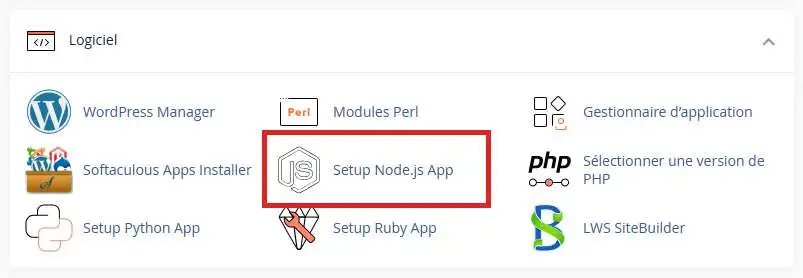
The execution of your Node.js application will be managed by Phusion Passenger, it will take care of executing your .js file with the correct version of node, and it will capture the http.Serverlisten() function call to configure the connection between your application and the Apache web server itself.
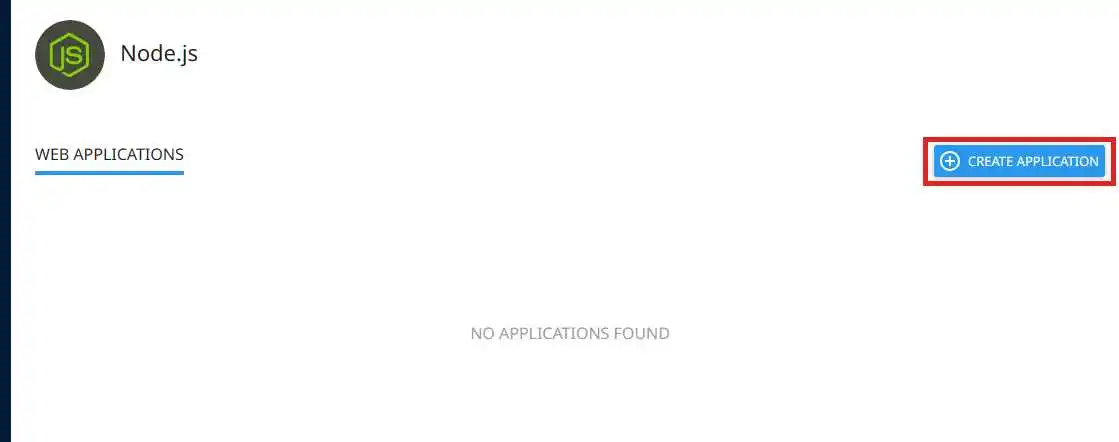
On the page that follows, click on the"Create Application" buttonto add a new application.
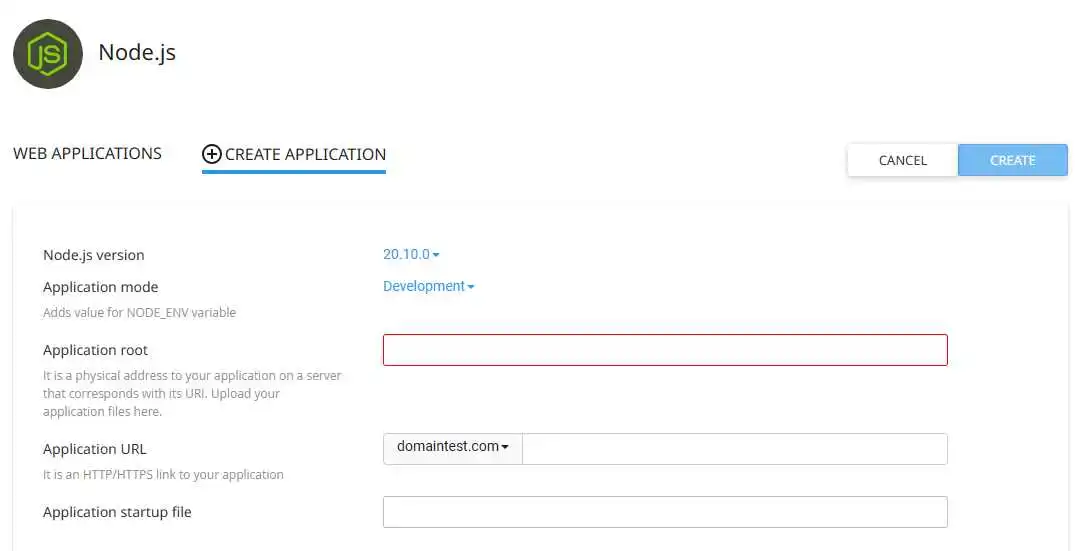
Then fill in the fields as required for your application:
Node.js version: the version of Node.js your application requires.
Application mode: allows you to define the execution mode of your application, either developer mode or production mode. This manipulates the NODE_ENV environment variable, allowing errors to be displayed in developer mode (which is useful for debugging purposes, but can also be problematic for a production application).
Application root: the location of your Node.js application, relative to your FTP root. We recommend that you do not put your Node.js application in the public_html folder.
Application URL: the root URL of your Node.js application.
Application startup file: the name of the .js file that Passenger will send to Node.js to start your application.
Then click on the"Create" button once your application has been set up.
If your application startup file does not yet exist, the tool will immediately create this file with sample content. This example will display " It works! " on all HTTP requests associated with it.
Here are the contents of this example script :
var http = require('http'); var server = http.createServer(function(req, res) { res.writeHead(200, {'Content-Type': 'text/plain'}); var message = 'It works!\n', version = 'NodeJS ' + process.versions.node + '\n', response = [message, version].join('\n'); res.end(response); }); server.listen();
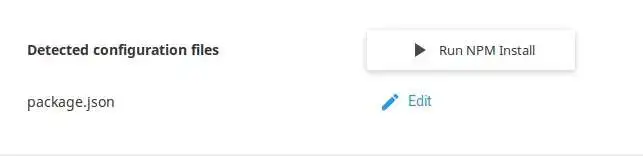
You can also edit the package.json file from the interface to add dependencies and install these dependencies using the " Run NPM Install " button:
Note that you need to restart your application if its dependencies have been modified.
You can also define environment variables in the Environment variables section if your application relies on them to obtain certain parameters.
Accessing your application from the terminal
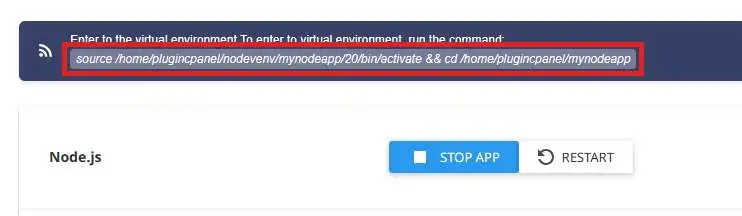
Using the command line terminal is an integral part of the Node.js ecosystem. To access your application's environment from the terminal, connect to it (from the cPanel web terminal or from an SSH client) and copy the command shown to enter your application's environment:
This action will automatically activate the correct virtual environment for your application, including the correct version of Node.js and NPM, as well as the dependencies installed in the environment (instead of being installed in the " node_modules " folder in your applications folder).
STDOUT and STDERR output from the Node.js application
Passenger-related errors
Apache-related errors
If you have manually set the PassengerLogFile value in your site's .htaccess file, the STDOUT and STDERR output and Passenger-related errors are sent to this file instead of the Apache log file.
You can also set the PassengerFriendlyErrorPages value to on in your .htaccess file to display errors relating to the start-up of your Node.js application directly on the web browser.
Common Node.js errors
Process stopped when running npm install
Possible reasons: Your process may be stopped by the server if it is running beyond the execution time and/or quantity of resources (CPU, RAM, etc.) authorised for your hosting package. You can consult the process stop history using our " Logs " tool available from your cPanel interface.
Solution: You can limit the RAM memory used by npm using the NODE_OPTIONS environment variable as follows:
This example shows, for example, a limit of 2048 MiB (2 GB).
Specified directory already used by /home/$USER/public_html/monapp when created from Setup Node.js App
Possible reasons:
A Node.js, Python or Ruby application published in the specified directory already exists.
Theroot application and the specifiedURL application point to the same folder.
Solution:
Check that no Node.js, Python or Ruby application is published on the specified folder. You can check the .htaccess file for the folder in question from the file manager or your usual FTP client to quickly identify this.
Make sure that your application files (.js, package.json ...) indicated by application root are not in the publication folder indicated by application URL. Unlike PHP applications, the files for a Node.js application do not need to and should not be located in public_html.
Peut-on deployer une application angular sur vos serveurs ??
B✓
Benjamin-LWS Official answer
14 Apr 2023
Hello,
Thank you for your feedback.
It's perfectly possible to deploy an Angular.js application on our cPanel packages.
To do so, go to your cPanel and search for "Softaculous Apps Installer".
Then in the new page that opens,search for "Angular" in the top left-hand search bar. Now you can install Angular on your cPanel.
I'd like to thank you for your attention and remain at your disposal should you have any further questions or require additional information.
We invite you to contact our support department via your customer area, so that we can help you if you encounter any difficulties (https://aide.lws.fr/a/268).
Sincerely, The LWS Team
Was this answer helpful?
N
NourMaher
1 Aug 2023
Pourquoi J'arrive pas a creer l'application???
A✓
Aurelien-LWS Official answer
2 Aug 2023
Hello,
Thank you for your message.
The reasons that prevent you from creating or running a Node.JS application can be numerous and require more information to be accurately analyzed.
I invite you to contact our technical support team from the "support" section of your customer area so that an agent can take charge of your request and solve your problem.
Sincerely, The LWS team
Was this answer helpful?
L
LAWRENCE
25 Feb 2025
Comment installer une application Expressjs sur un VPS LWS
J✓
Jordan-LWS Official answer
25 Feb 2025
Bonjour,
Je vous remercie pour votre message.
Pour ce type de demande, il est recommandé de faire appel au service dédié, qui sera en mesure de vous guider de manière plus précise. De plus, cela permettra d'avoir un échange direct avec eux, ce qui facilitera le déploiement de votre application Node.js (Express.js) sur votre VPS.
N'hésitez pas à les contacter pour plus d’assistance.
Cordialement, L'équipe LWS
Was this answer helpful?
S
Samm
29 Jun 2025
Peut-on utiliser php et node.js en même temps sur l'hébergement Cpanel ? Ou bien l'installation de node.js annule celle de PHP ?
J✓
Jordan-LWS Official answer
1 Jul 2025
Bonjour,
Merci pour votre question.
Sur un hébergement cPanel, il est tout à fait possible d’utiliser PHP et Node.js en parallèle. L’installation d’une application Node.js n’annule pas le support de PHP : les deux peuvent coexister sur le même compte, à condition que chaque technologie soit utilisée dans un contexte bien séparé (par exemple, des sous-répertoires ou des sous-domaines dédiés).
Si vous avez besoin d’aide pour vous assister, notre équipe technique se tient à votre disposition pour vous accompagner.
Cordialement, L'équipe LWS
Was this answer helpful?
M
marx
il y a 7 mois
bonjour peut on deployer une app nodejs avec la formule cpanel M2 avec une precision que c'est un site fait avec Next.js
J✓
Jordan-LWS Official answer
il y a 7 mois
Bonjour,
Oui, il est tout à fait possible de déployer une application Node.js avec la formule cPanel M2.
En effet, via cPanel, vous disposez de la fonctionnalité permettant de configurer et déployer des applications Node.js. Cela inclut donc les projets développés avec Next.js, sous réserve que l’application soit correctement configurée pour un environnement d’hébergement mutualisé.
Il sera notamment nécessaire de :
Configurer l’application via l’outil Node.js dans cPanel
Définir la version de Node.js adaptée à votre projet
Indiquer le fichier de démarrage (ex : app.js, server.js ou configuration adaptée selon votre build Next.js)
Lancer le build si nécessaire (sous certaines limites)
Si besoin, l’assistance peut apporter une vérification de votre configuration afin de s’assurer que le déploiement est conforme.
Cordialement, L'équipe LWS
Was this answer helpful?
A question about this article?
Ask the LWS team and the community. Answers are published after moderation.
Ask the LWS team and its community a question
!
To enable this form, please tick the two consent boxes below.



 Yes
Yes No
No About
About 