Procédure
What does the "Err_Connection_timed_out" error mean?
The"Err_Connection_Timed_Out" error, which can be encountered regularly, is generally due to a response time that is too long when a request is sent to the target server (the server where your website is located). When a request is sent and the target server does not respond within 30 seconds, your browser terminates the connection.
1. Checking your internet connection
The first thing to check when you get the "Err_Connection_Time_Out" error is that your internet connection is working properly and that your web browser is up to date. It is often useful to test access to your website using another web browser. If access works with Firefox or Edge, but not on your Chrome browser, this means that your Google browser is responsible for the problem you are experiencing;
2. Delete browsing data on your browsers
Browser data such as cookies, browsing history and/or cache can sometimes cause problems and no longer allow smooth browsing. It is therefore advisable to empty the cache regularly, as this will prevent the"Err_Connection_Timed_Out" error. This error occurs mainly on Chrome.
You can clear the cache by following the"How to clear my web browser cache" procedure. You can also simultaneously click the [CTRL] + F5 keys to do this.
3. Checking your network settings
A connection error can sometimes be resolved and corrected by disabling certain automatic processes in your network settings.
1. To do this, go to"Internet Options" on your control panel.
2. Under the"Connection" tab, click on the"Network Settings" button.
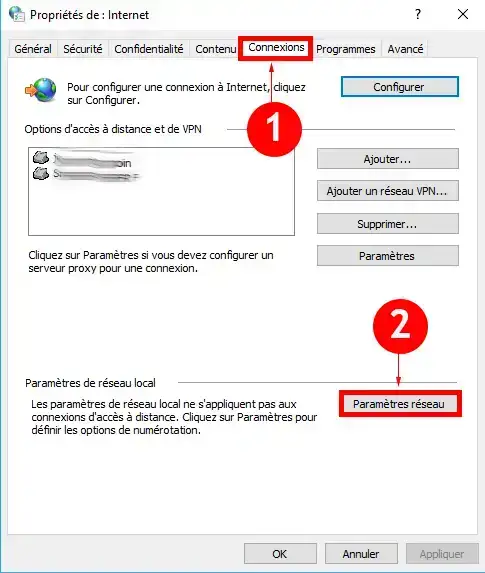
3. A new window will open. Uncheck all the options and click on the"Ok" button to save.
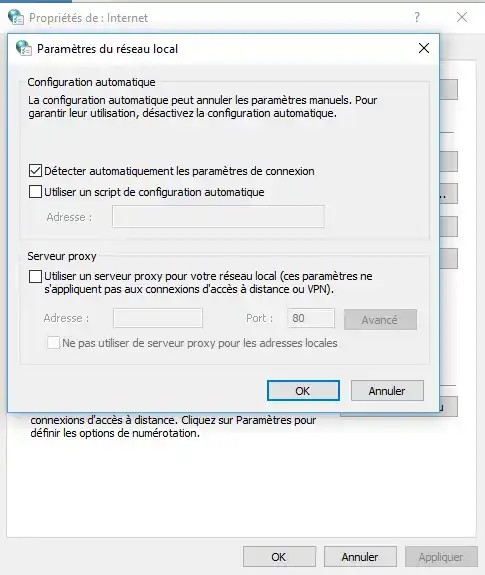
4. Check for the error"Err_Connection_Timed_out".
4. Cleaning and renewing DNS and your IP address
The error may also be due to an overloaded DNS cache. If this is the case, it may be useful to renew your IP address.
1. Open your"Command Prompt" software.
2. Enter the following command"/ipconfig/flushdns" and press"Enter".
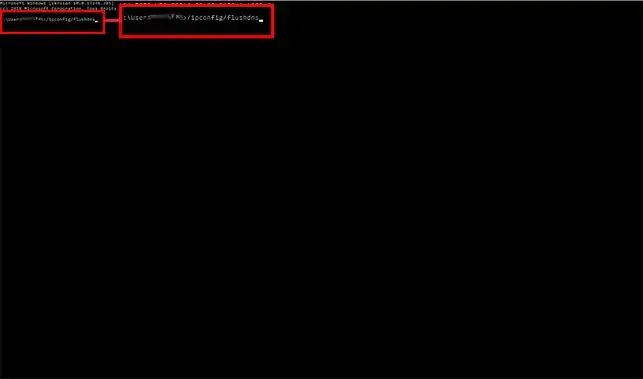
3. Then enter the command"ipconfig/registerdns" followed by the commands"ipconfig /release" ,"ipconfig /renew" and"netsh winsock reset".
4. Restart your computer and check that you no longer get the "Err_Connection_Timed_out" error when browsing.
5. Check your firewall
In some cases, your firewall may be causing your browser to freeze. You should test your browser after disabling the firewall to check that it is working properly. If the error disappears once the firewall has been switched off, it is very likely that there is a configuration problem with the firewall.
Conclusion
You now know the probable causes of an"Err_Connection_Timed_out" error on your Chrome browser. You should also be able to troubleshoot your browser so that you can once again view your website hosted by LWS.
Don't hesitate to share your questions and comments!

 Contact us
 Customer Area


 Visit LWS


 Yes
Yes No
No Article read
54233 once
Article read
54233 once Merci ! N'hésitez pas à
poser des questions sur nos documentations si vous souhaitez plus d'informations et nous aider à les
améliorer.
Merci ! N'hésitez pas à
poser des questions sur nos documentations si vous souhaitez plus d'informations et nous aider à les
améliorer.
 About
About 