Procédure
Configuring Wordpress to send email via an SMTP server (with the SMTP Mailer v1.0.3 plugin) :
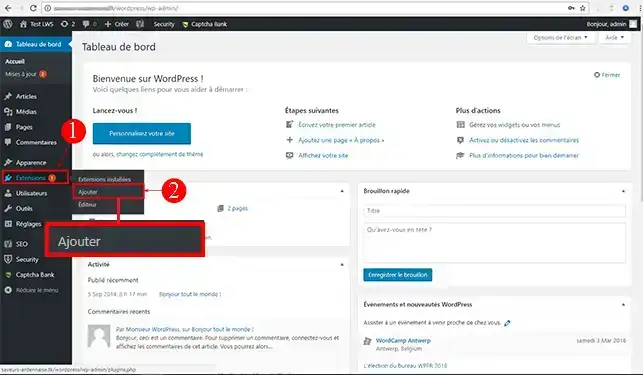
1. Install the SMTP Mailer v1.0.3 plugin from your website administration, under"Extensions" then"Add".
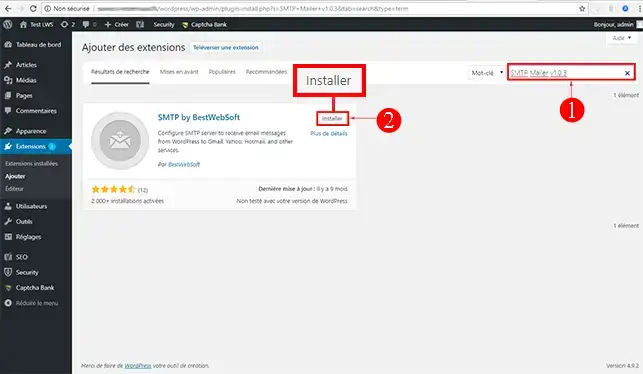
2. Search for the extension using the search engine in the top right-hand corner of your browser. Click on the"Install" button as soon as you have found the module.
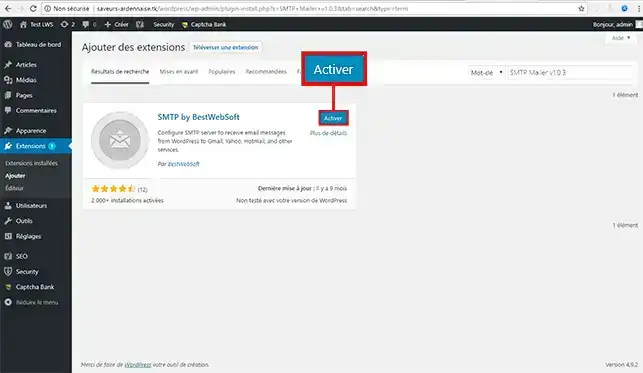
3. Click on the"Activate" button for the extension concerned.
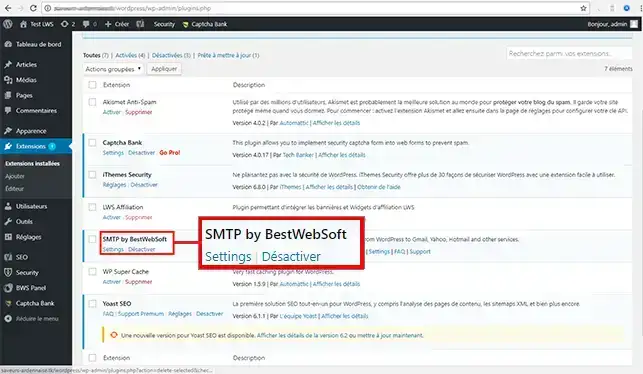
4. You will be redirected to the extensions available and installed on your Wordpress site. Look for the"SMTP Mailer v1.0.3" extension and click on the"Setting" tab to configure it.
5. Configure this service with the following information:
- SMTP Host: specify the SMTP server associated with your domain (mail.mydomain.com)
- SMTP Authentication: True
- SMTP Username: enter an address associated with your domain
- SMTP Password: enter the password for your email address
- Type of Encryption: No Encryption or TLS
- SMTP Port: 25 or 587 (if you have chosen TLS in the"Type of Encryption" field)
- From Email Address : enter the same address as in the SMTP Username field
- From Name: this is the name that will be visible to the person receiving the email
- tick the"Disable SSL Certificate Verification" field
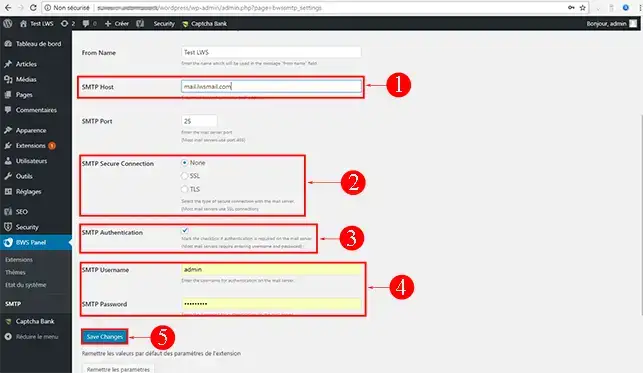
6. Click on the"Save Changes" button to validate this configuration.
Configuring the sending of email via an SMTP server on Joomla :
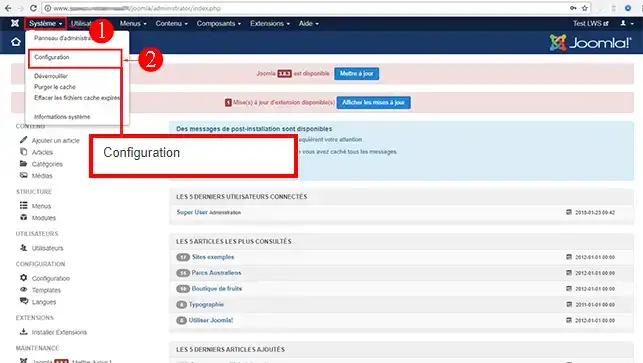
1. Log into the control panel of your CMS, then go to"system" --> "configuration".
2. In the"E-mail settings" section, select"SMTP".
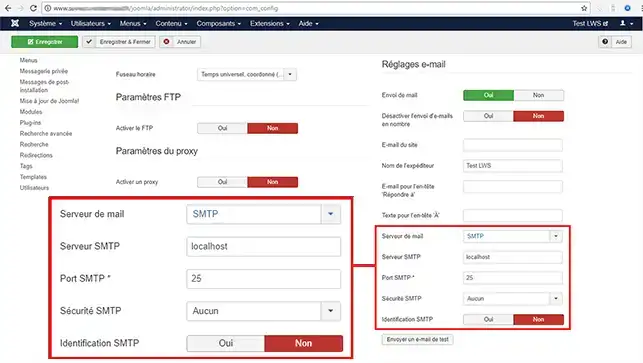
You will need to configure this service by filling in the following fields:
- Site e-mail: enter an address associated with your domain
- Sender name: this is the name that will be visible to the person receiving the e-mail
- SMTP server: indicate the SMTP server associated with your domain (mail.mydomain.com)
- SMTP port: 25
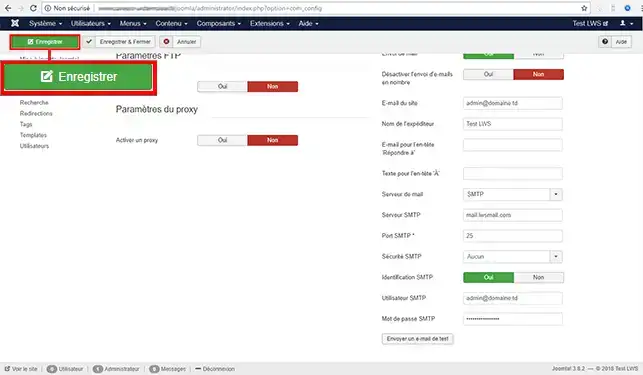
The configuration of this service should look like this:
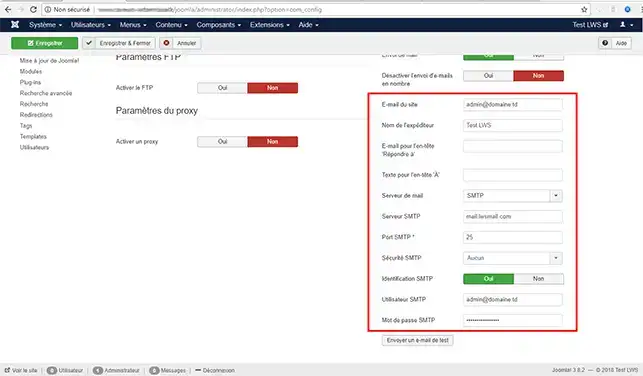
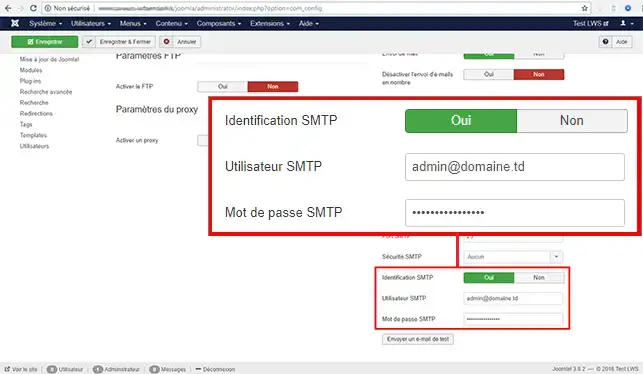
3. Click the"YES" button in the"SMTP Identification" field, then fill in the following fields:
- SMTP user : enter the same value as in "Site e-mail".
- SMTP password: enter the password for your email address
The configuration associated with the"SMTP Identification" section should look like this:
4. Click on the green"Save" button to confirm the configuration.
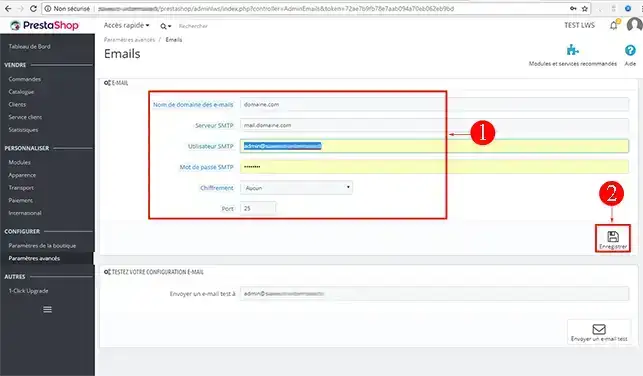
Configuring the sending of email via an SMTP server on Prestashop 1.7 :
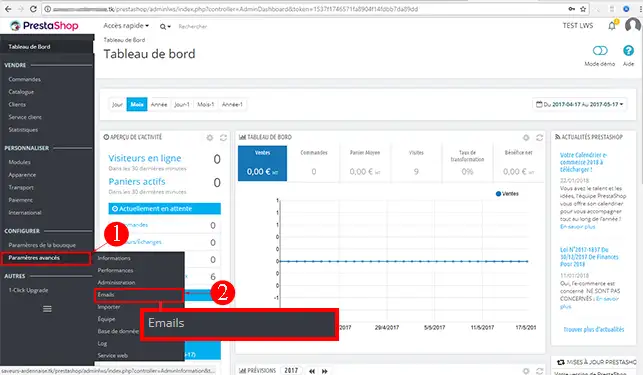
1. Log in to your shop's control panel, then go to"Advanced settings" --> "Emails".
2. In the"Email" section, check"use my own SMTP settings (for experts only)".
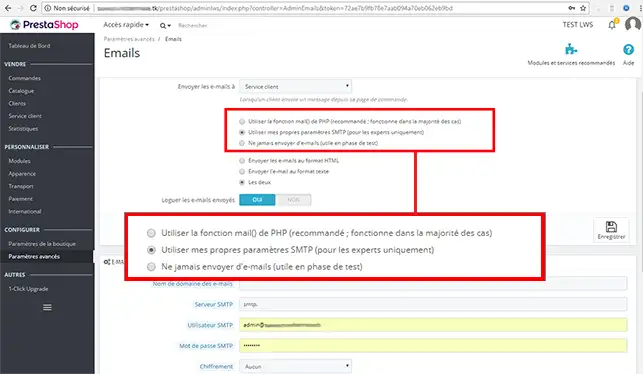
3. In the"E-MAIL" section that opens, enter the following information:
- E-mail domain name: enter your domain name
- SMTP server: enter the SMTP server associated with your domain (mail.mydomain.com)
- SMTP user: enter an email address associated with your domain
- SMTP password: enter the password associated with the address entered in the "SMTP user" field
- Encryption : None
- Port : 25
4. Click on the"Save" button to validate this configuration

 Contact us
 Customer Area


 Visit LWS


 Yes
Yes No
No Article read
49006 once
Article read
49006 once Merci ! N'hésitez pas à
poser des questions sur nos documentations si vous souhaitez plus d'informations et nous aider à les
améliorer.
Merci ! N'hésitez pas à
poser des questions sur nos documentations si vous souhaitez plus d'informations et nous aider à les
améliorer.
 About
About 