Procédure
Creation and use of .htaccess file on cPanel
The .htaccess file is a configuration file that allows you to apply specific configurations to the web server. It is supported by several types of web servers, including the Apache web server which is provided on our cPanel web hosting plans.
The .htaccess files apply configurations at the directory level and all subdirectories within which the file resides.
In this tutorial, you will learn how to create and use a .htaccess file.
Creation and use of .htaccess file on cPanel
Each folder (directory) of your cPanel hosting could have a .htaccess file. Generally, there is one at the root of your hosting, the folder: public_html
To create a .htaccess file in your cPanel hosting:
- Log in to your cPanel
- Click on the "File Manager" icon.

- If the display of system files is disabled in cPanel, you can enable it by clicking on the "Settings" icon in the file manager.
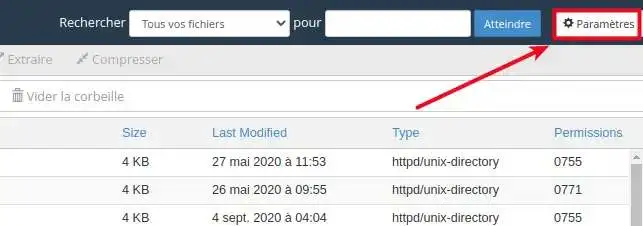
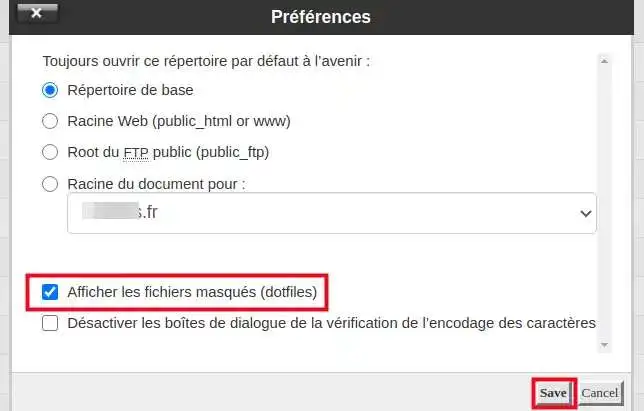
- Then check the "Show Hidden Files (dotfiles)" option and click the "Save" button.
- Next, to create the .htaccess file, from the file manager toolbar, click on "+File".

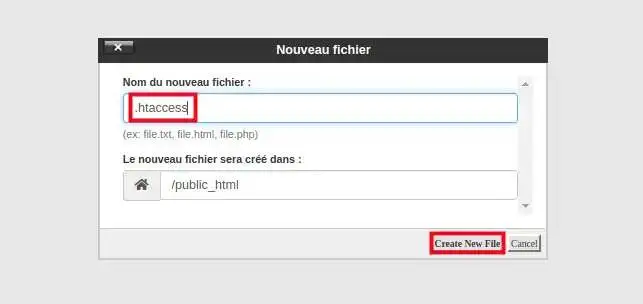
- A small window will open, type .htaccess in the "File Name" field and click the "Create New File" button.
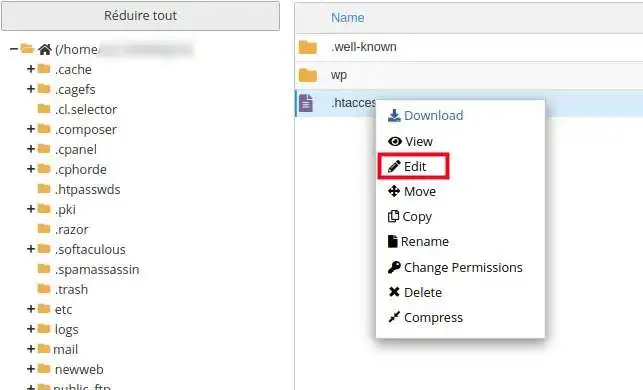
- A .htaccess file will be created in the folder, to edit it right-click using the mouse button and click on the "Edit" menu.
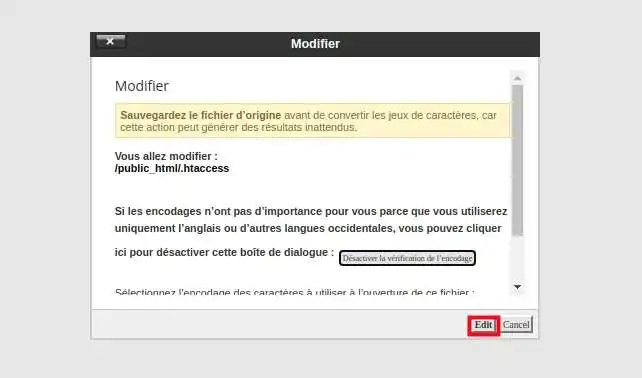
- In the next window, click on the "Edit" button.
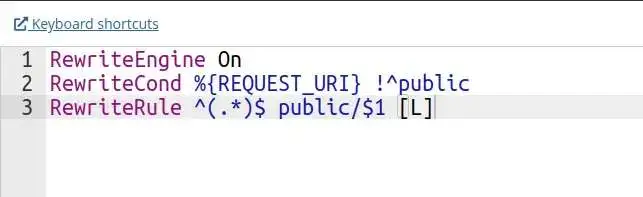
- The file will open in the code editor, add the .htaccess directives you wish to use.
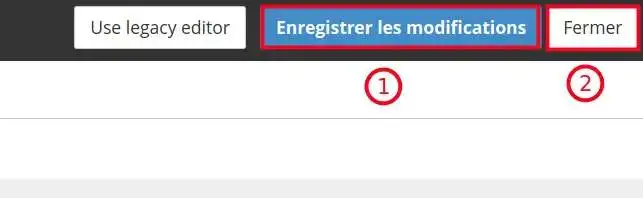
- Save the file by pressing the "Save Changes" button and close the window by clicking Close.
Here are some .htaccess directives that you might use:
Redirect a page on your site to another:
Redirect 301 /oldpage.php http://www.domain.com/newpage.php
Redirect an entire site to a new URL:
Redirect 301 / http://www.domain.com/
Redirect an entire site to a subfolder, useful for redirecting the main site of your cPanel (published in "public_html") to the folder of an additional domain:
Redirect 301 / http://www.domain.com/folder/
Redirect a subfolder to another URL:
Redirect 301 /sub-folder http://www.domain.com/
This directive will redirect any file with the .html extension to use the same filename but use the .php extension instead.
RedirectMatch 301 (.*)\.html$ http://www.domain.com$1.php
- You can also do 301 redirects with URL rewriting.
Redirect the old domain to the new one
RewriteEngine on
RewriteBase /
RewriteRule (.*) http://www.newdomain.com/$1 [R=301,L]
Redirect to www.
RewriteEngine on
RewriteBase /
rewritecond %{http_host} ^domain.com [nc]
rewriterule ^(.*)$ http://www.domain.com/$1 [r=301,nc]
Redirect to the www version in a subfolder
RewriteEngine on
RewriteBase /
RewriteCond %{HTTP_HOST} domain.com [NC]
RewriteRule ^(.*)$ http://www.domain.com/folder/index.html [R=301,NC]
Redirect the old site to the new one while preserving links:
Options +FollowSymLinks
RewriteEngine On
RewriteRule ^(.*) http://www.newdomain.com%{REQUEST_URI} [R=302,NC]
Redirect the old domain contained in a folder to the new one with or without directory while preserving links:
Options +FollowSymLinks
RewriteEngine On
RewriteCond %{REQUEST_URI} ^/folder/(.*)$
RewriteRule ^(.*) http://www.newdomain.com/%1 [R=302,NC]
Redirect URLs with parameters (files placed in the root folder)
Original URL example:
http://www.example.com/index.php?id=1
Desired URL:
http://www.example.com/new-location/
The .htaccess syntax:
RewriteEngine on
RewriteCond %{QUERY_STRING} id=1
RewriteRule ^index\.php$ /new-location/? [L,R=301]
Redirect URLs with parameters (files placed in a subfolder)
Original URL:
http://www.example.com/sub-dir/index.php?id=1
Desired URL:
http://www.example.com/path-to-new-location/
The .htaccess syntax:
RewriteEngine on
RewriteCond %{QUERY_STRING} id=1
RewriteRule ^sub-dir/index\.php$ /path-to-new-location/? [L,R=301]
Redirect the root of your website to the "public" folder, useful for Symfony and Laravel Frameworks:
RewriteEngine on
RewriteCond %{REQUEST_URI} !^public
RewriteRule ^(.*)$ public/$1 [L]
Conclusion
You have learned how to create and use your .htaccess file in your cPanel hosting; The .htaccess file can be used to perform SEO-related tasks such as redirects. Redirects can be used to avoid 404 error messages and to allow search engine spiders to know which pages they should index.
Feel free to share your comments and questions!
Go Further
You can discover more .htaccess directives on the following pages:



 Yes
Yes No
No About
About 