
Online help
The web host accessible to all
Procédure
Service concerned: Windows ASP.NET Hosting
Panel concerned: Plesk
Level: intermediate
This help explains how to redirect visitors from the HTTP version of your site to its secure HTTPS version by adding a rule in the web.config file.
This method is intended for sites hosted on a Windows server with IIS. It can be used in particular when your application requires a custom redirection rule.
To enable HTTPS redirection directly from Plesk, see the help: How do I set up an SSL certificate on a Plesk hosting account?
This help applies only to Windows hosting using Plesk.
Are you using another environment?
Check that your SSL/TLS certificate is installed and that your site displays correctly when you enter its address directly with https://.
The certificate must cover the address used by your visitors, including the domain with or without www.
Also download a copy of your web.config file before modifying it. This will allow you to restore it quickly if the site no longer displays after the change.
The rule presented in this help creates a permanent 301 redirect. It may be cached by the browser.
Only enable this redirect after verifying that your site works correctly over HTTPS.
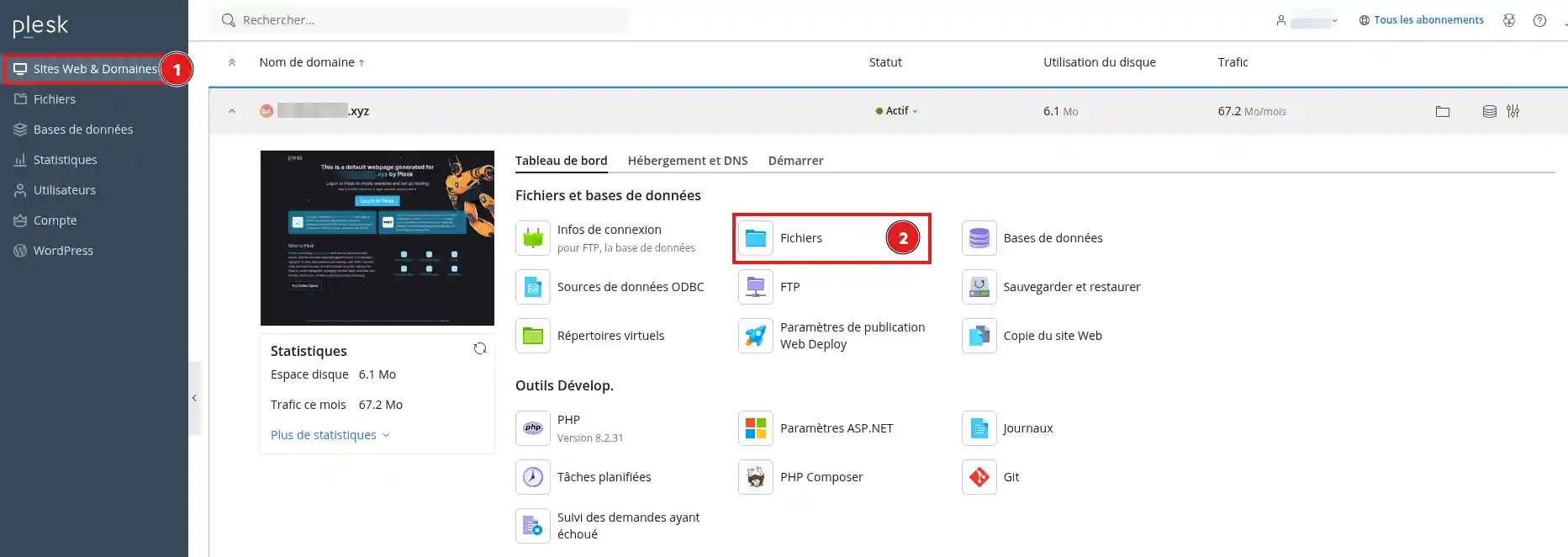
httpdocs folder.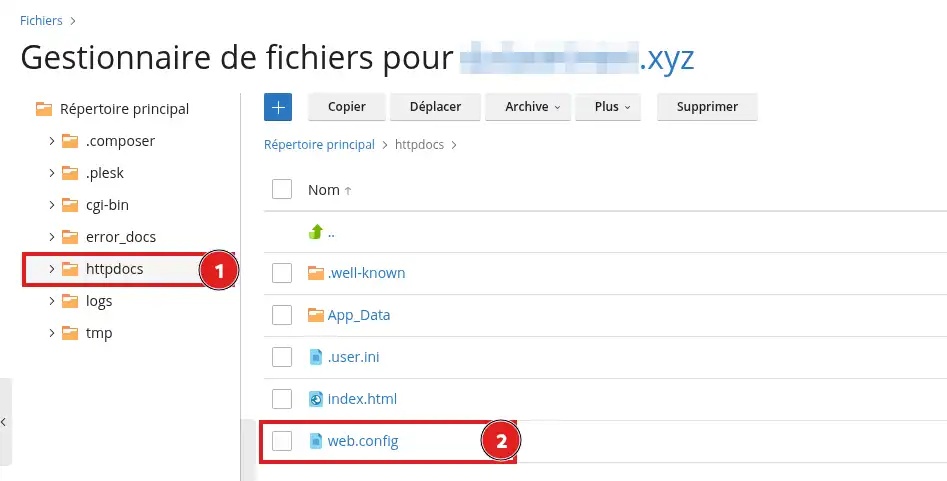
web.config file.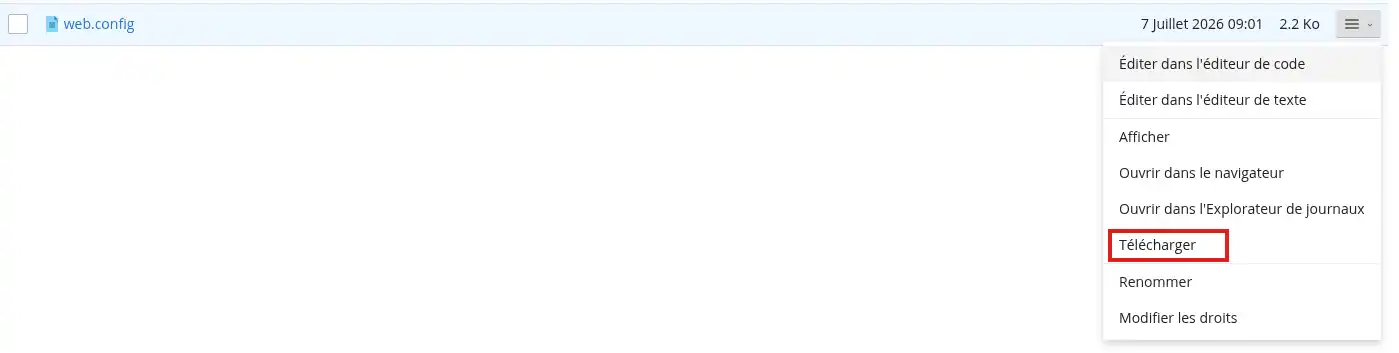
If no web.config file exists in the site's root folder, you can create one.
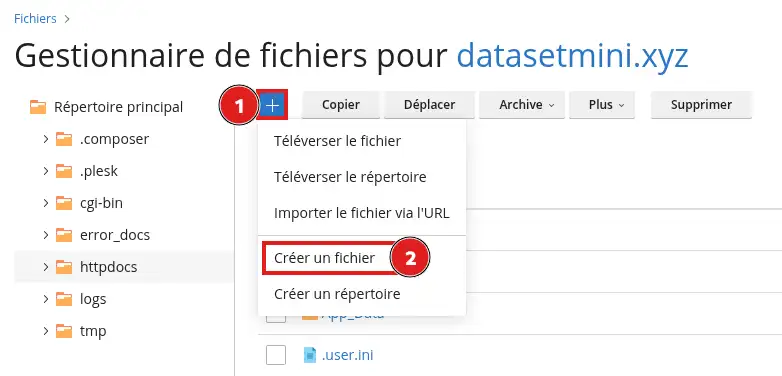
The web.config file uses XML format. A missing tag, a tag closed incorrectly, or a tag placed in the wrong location can cause a 500 error and prevent the site from displaying.
The change to make depends on the current content of your web.config file.
Add the following content:
Then save the file.
Do not create a second
Only add the following rule inside the existing tag:
The rule name must be different from the other rules already present in the file.
Check that no other rule in the web.config file or in your application is already redirecting the site to HTTPS. Several active redirects simultaneously can cause a loop.
Open a private browsing window, then enter your site address starting with http://.
For example:
http://yourdomain.comThe browser should automatically display:
https://yourdomain.comAlso test an internal page:
http://yourdomain.com/contactIt should be redirected to the same page over HTTPS:
https://yourdomain.com/contactAlso test the version with www if your site uses it.
The redirection works if addresses starting with http:// automatically switch to the same page in https://, without a security warning.
If your site no longer displays after saving:
web.config file with the copy downloaded before making the change.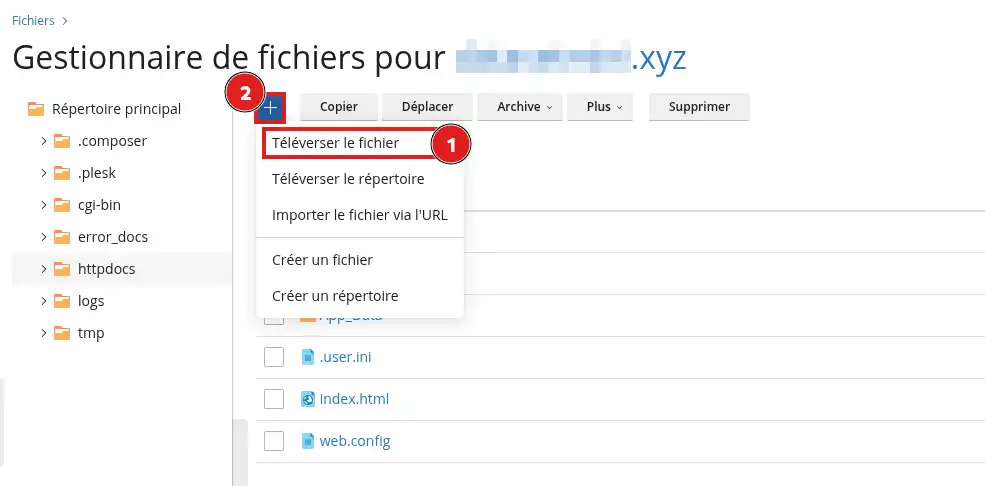
If you only added the rule in an existing
and ending with:
Then save the file and test your site again.
My site shows a 500 error
The web.config file probably contains a syntax error or a duplicate section.
Restore the saved copy, then check:
The browser shows a redirection loop
Another HTTPS redirection is probably already active.
Check:
web.config file;Keep only one redirection method whenever possible.
Then test the site in a private browsing window so that an old redirect cached by the browser does not distort the result.
The site remains accessible over HTTP
Check that the web.config file is in the root folder of the correct site. This is generally the httpdocs folder, but a secondary domain may use another folder.
Also make sure the rule is placed in the
A security warning appears after the redirection
The redirection works, but the SSL/TLS certificate is not valid for the requested address.
Check that the certificate:
www if it is used;The padlock does not appear even though the site is in HTTPS
Some site resources, such as images, scripts, or style sheets, are probably still loaded with an address starting with http://.
The redirection does not automatically change the links stored in your site. You must correct these addresses in your CMS, your database, or your application files.
Ask the LWS team and the community. Answers are published after moderation.
 About LWS :
LWS is a 100% French web hosting company that focuses on quality and innovation and offers a responsive and competent technical service at affordable prices.
About LWS :
LWS is a 100% French web hosting company that focuses on quality and innovation and offers a responsive and competent technical service at affordable prices.



 Yes
Yes No
No