
Online help
The web host accessible to all
Procédure
On a shared LWS hosting plan, phpMyAdmin may fail to import a database when the file is large. The free BigDump script then imports this file in successive steps, without going through phpMyAdmin.
This import difficulty is not the maximum size of a MySQL table. On LWS Panel shared hosting plans, a table can reach 300 MB or 500 MB depending on the plan: details are given in the quotas for Linux shared web hosting plans.
Your hosting also offers its own method: see importing a large database on LWS Panel or importing a large database on cPanel hosting.
If your file is too large for phpMyAdmin, this tutorial explains how to import it into your hosting with BigDump.
To import the database, we need to download a script that will take care of carrying out this operation.
Go to the following page: https://www.ozerov.de/bigdump/
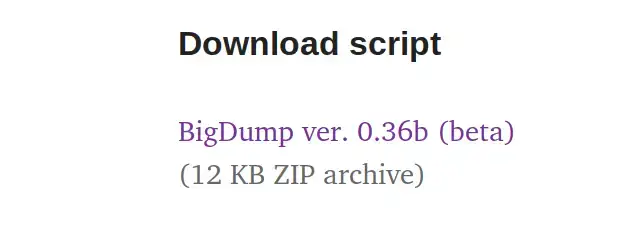
On the far right side of the screen, click the BigDump script link to download the script archive to your computer.
Then unzip the archive on your PC and open the bigdump.php file using your preferred text editor.

Add your phpMyAdmin login details from line 41 to line 44; if you have forgotten these credentials, you can go to this page to retrieve them
Save the php file, then open FileZilla and connect to your FTP
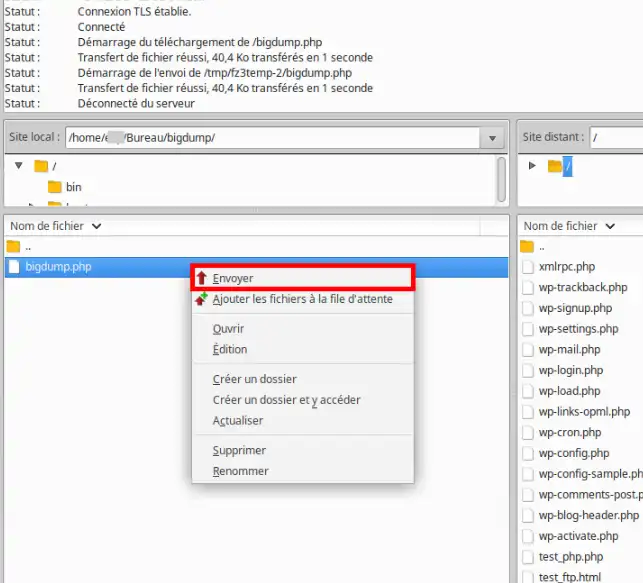
Select the bigdump.php file and right-click, then Send to upload the file to your FTP
The script is now uploaded to the root of your FTP next to the database to import
Navigate to your domain and add bigdump.php to the end of your URL; for example, if your domain is mon-domaine-lws.fr , the URL will be as follows: http://mon-domaine-lws.fr/bigdump.php
The following window will appear:
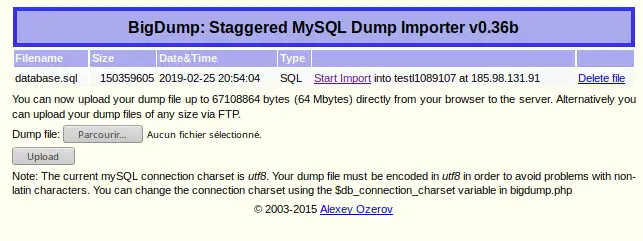
The script automatically detects the database located in the same directory and displays the information in a column
In our case the database is database.sql; it is about 150 MB in size
Click the Start import link to begin the import
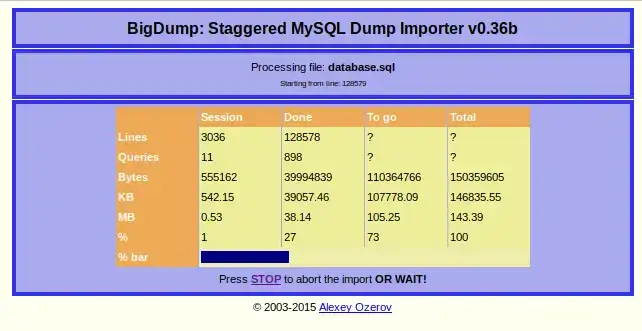
The script will import the database, and you can view the progress of the operation such as the number of queries processed, the size in MB....
If the import completes successfully, you will see the following window:
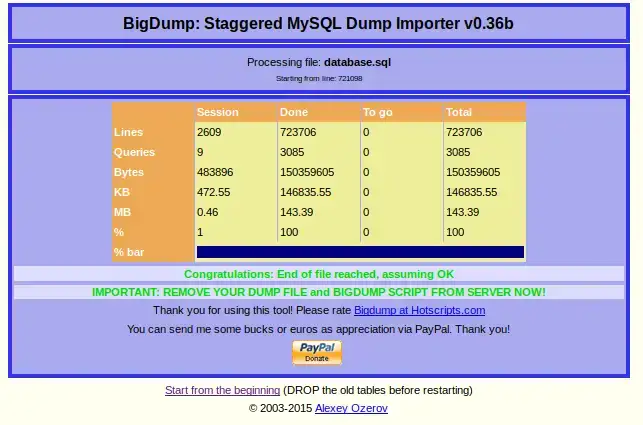
The green message indicates that the import was completed successfully and that you must delete the script and the database from your FTP
You are now able to import a large database into your LWS shared hosting. This allows you to put your database online with complete freedom.
Feel free to share your feedback and questions!
Ask the LWS team and the community. Answers are published after moderation.
 About LWS :
LWS is a 100% French web hosting company that focuses on quality and innovation and offers a responsive and competent technical service at affordable prices.


 Yes
 No