
Online help
The web host accessible to all
Procédure
Service concerned : website hosted with LWS
Panel concerned : no specific panel
Level : beginner
When Google considers that a site may pose a risk to visitors, your browser may display a warning such as “The website you are about to open is deceptive” or “Dangerous site”.
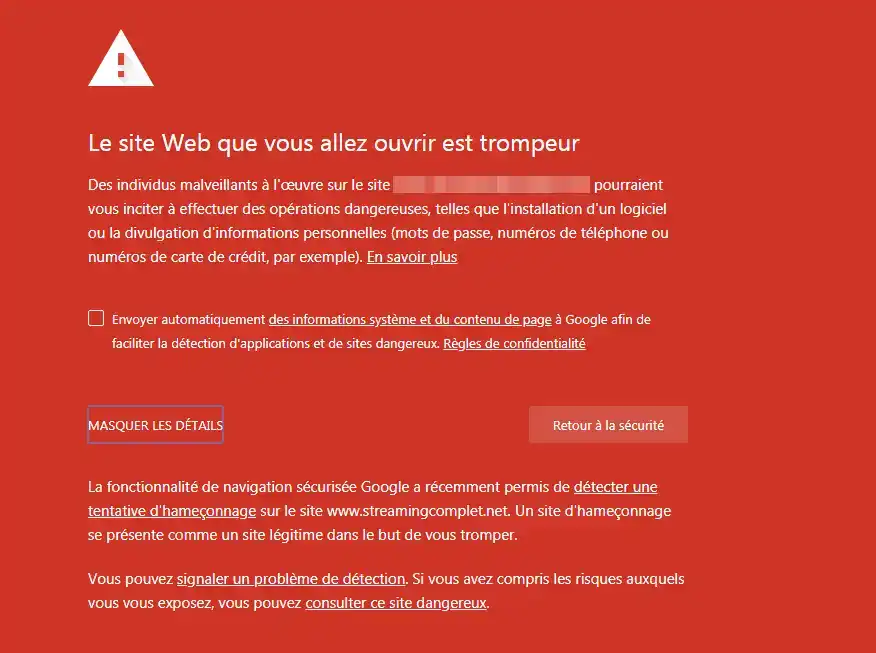
This warning may appear if the site has been hacked, contains malware, displays deceptive pages, or offers links or downloads considered dangerous. The first step is therefore to identify the problem precisely before modifying your site.
This warning does not necessarily mean that a virus is present in your site’s files. Google may also detect hacked content, a phishing attempt, a deceptive page, or a link to dangerous content.
If you need to delete, replace, or restore files, make sure you have a backup of your site and its database.
To then ask Google to recheck your site, it must also be added and verified in Google Search Console.
Do not delete a file just because it seems unusual or because it was recently modified. Deleting a file necessary for the site to function may make it inaccessible.
If you are not sure where a file comes from, use the antivirus tools of your hosting plan instead or restore a backup that you know is clean.
The most useful source for understanding the warning is Google Search Console.
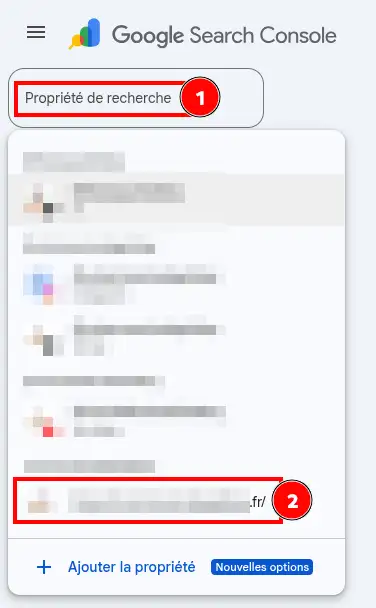
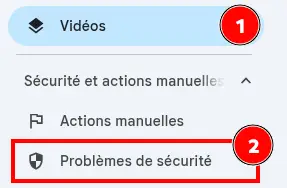
Google may notably report:
The URLs displayed by Google are examples of affected pages. They do not necessarily correspond to the complete list of files to remove from your hosting account.
If your site is not yet configured in Google Search Console, you can also check its status in the Google Transparency Report – Safe Browsing.
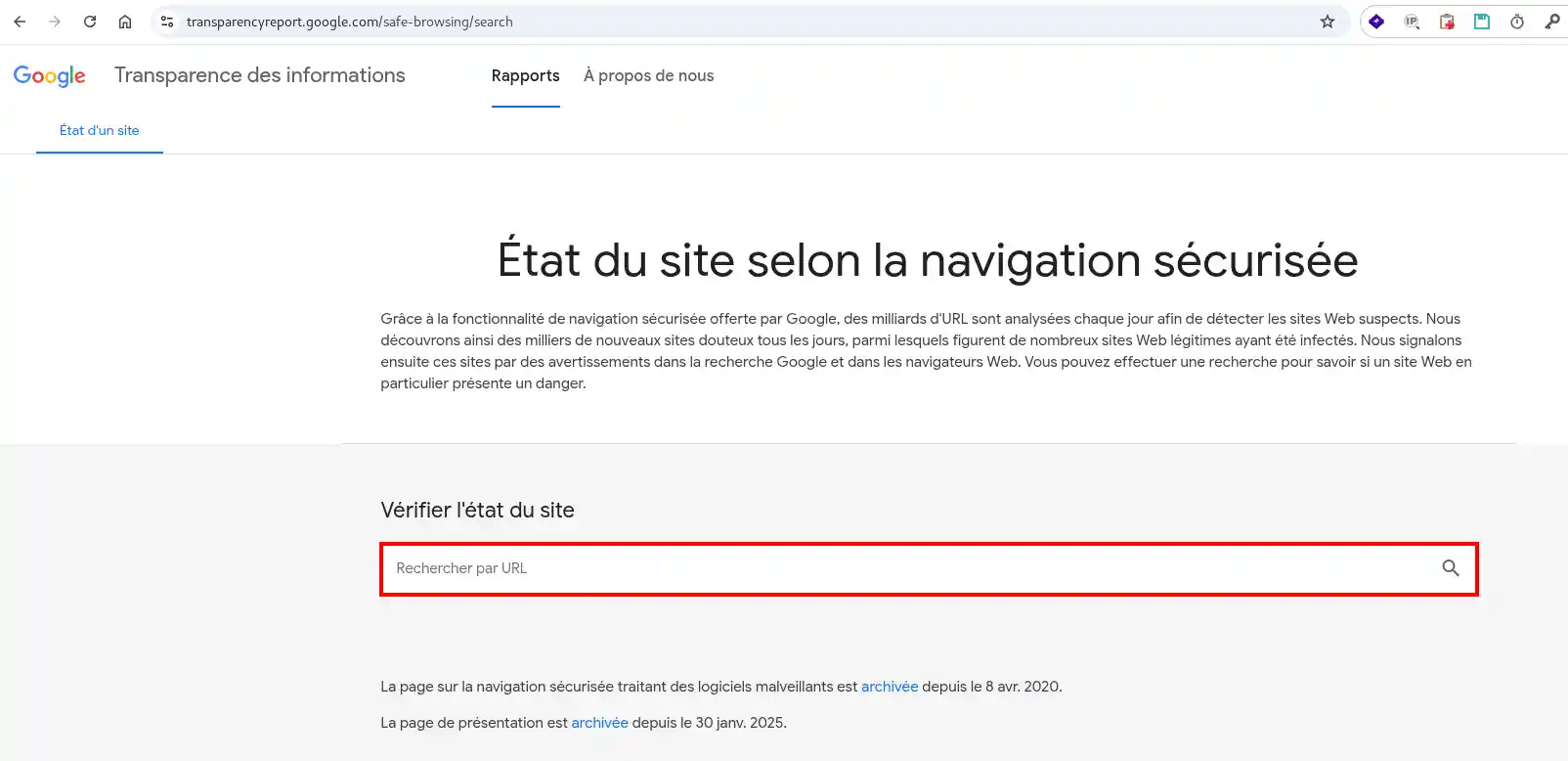
Google nevertheless recommends using Search Console to obtain more information when you are the site owner.
The method to use depends on the problem detected and the environment in which your site is hosted.
Use first and foremost the Virus / Malware Scan tool available in the Security section of the LWS Panel.
See the documentation:
How to use the antivirus and anti-malware in your LWS Panel?
This feature is available on compatible LWS Panel hosting plans.
Use the LWS antivirus available directly in cPanel to scan the files on your hosting account.
See the documentation:
Cleaning viruses on your cPanel plan with the LWS antivirus
The antivirus notably allows for a manual scan of the site files.
An infected file may be the result of a compromised plugin, theme, CMS, or administrator account.
After cleaning:
It is also important to fix the cause of the infection. Cleaning only the files without removing the vulnerability that allowed the hack may lead to a new infection. Google recommends securing the site before putting it back into normal service.
The issue is not necessarily related to a virus.
Check the pages indicated in Search Console and look in particular for:
Remove the content concerned and investigate how it may have been added.
If the site has been heavily modified or if you cannot identify all compromised files, restoring a backup from before the infection may be simpler.
Choose a backup created before the issue appeared.
A restoration alone is not enough if the vulnerability that allowed the hack is still present.
After restoring, update the site and its components and change the accesses that may have been compromised before requesting a new review from Google.
If your site uses a database, for example with WordPress or PrestaShop, it may be necessary to restore the files and database to a consistent date.
For LWS Panel, see:
How to download or restore a backup of your web files?
For cPanel, see:
How to restore your data on your cPanel hosting?
Once the site is cleaned and the cause of the problem has been fixed, you can ask Google to check your site again.
You can, for example, specify that you removed the compromised files or pages, restored a clean backup, updated the CMS or a vulnerable plugin, and secured access.
Do not request a review until the issue has been fully resolved.
Depending on the type of issue, Google’s processing may take from a few days to a few weeks. It is therefore normal for the warning not to disappear immediately after cleaning the site.
After the request has been processed, return to Google Search Console > Security issues.
When Google no longer detects a problem, the report should no longer show a security alert.
You can also:
When Google no longer reports a problem and the browser warning has disappeared, the site can be visited normally again.
However, there may be a slight delay between updates to Google Search Console, Google Safe Browsing, and Chrome.
Google Search Console no longer reports a problem, but my browser still shows the warning
The different Google services are not always updated at exactly the same time.
Check the status of your domain in the Google Transparency Report – Safe Browsing. If Google no longer considers the site dangerous there, wait for the browser warning to update before making changes to your site again. Google indicates that there may be a delay between the different systems.
No problem appears in Google Search Console
Make sure you are viewing the property corresponding to the domain concerned.
You can also check the URL in the Google Transparency Report – Safe Browsing. In some cases, a warning may be generated even though no manual review request is available in Search Console. Google will then automatically reassess the site after a new crawl.
Google refuses my review request
This usually means that Google still detects a problem.
Review the URLs and the type of issue indicated in Security issues, then check in particular:
Submit a new request only once these checks are complete.
The warning comes back after a few days
The site has probably been compromised again or a dangerous element was not completely removed.
Perform a new security scan and check first and foremost the site updates, installed plugins, administrator accounts, and the various accesses to the hosting account.
Ask the LWS team and the community. Answers are published after moderation.
 About LWS :
LWS is a 100% French web hosting company that focuses on quality and innovation and offers a responsive and competent technical service at affordable prices.
About LWS :
LWS is a 100% French web hosting company that focuses on quality and innovation and offers a responsive and competent technical service at affordable prices.



 Yes
Yes No
No