
Online help
The web host accessible to all
Procédure
Welcome to this help section dedicated to managing your Cloud Drive user quota. Here, we'll explain how to increase or reduce the size of the storage space allocated to each user, including yourself from your LWS customer space.
To follow this documentation, you need :
Step 1: First, you need to log in to your LWS account and access the online storage management for the Nextcloud package you wish to manage.
Step 2: You'll find an overall summary in the right-hand column of the management page in the "Resource usage" box.
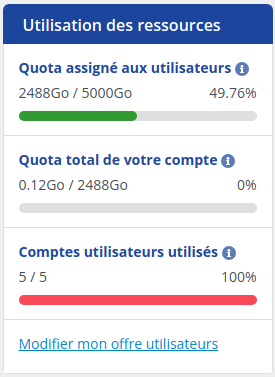
You'll see how much of the quota is distributed between users and be able to assess whether any adjustments to the quota distribution are necessary.
If you want to add storage space to a user and you are using 100% of the space, you will need to reduce the disk space allocated to other users in order to free up the space you want to reallocate.
Step 3 : To view the breakdown by user, look for the "Summary & management of your users" box. Here you'll find a complete overview of the disk space allocated per user and the percentage used. This step will allow you to assess your current usage and find out if any adjustments are necessary, such as increasing a user's quota, or if it is possible to reduce a user's quota and reallocate it to another user.
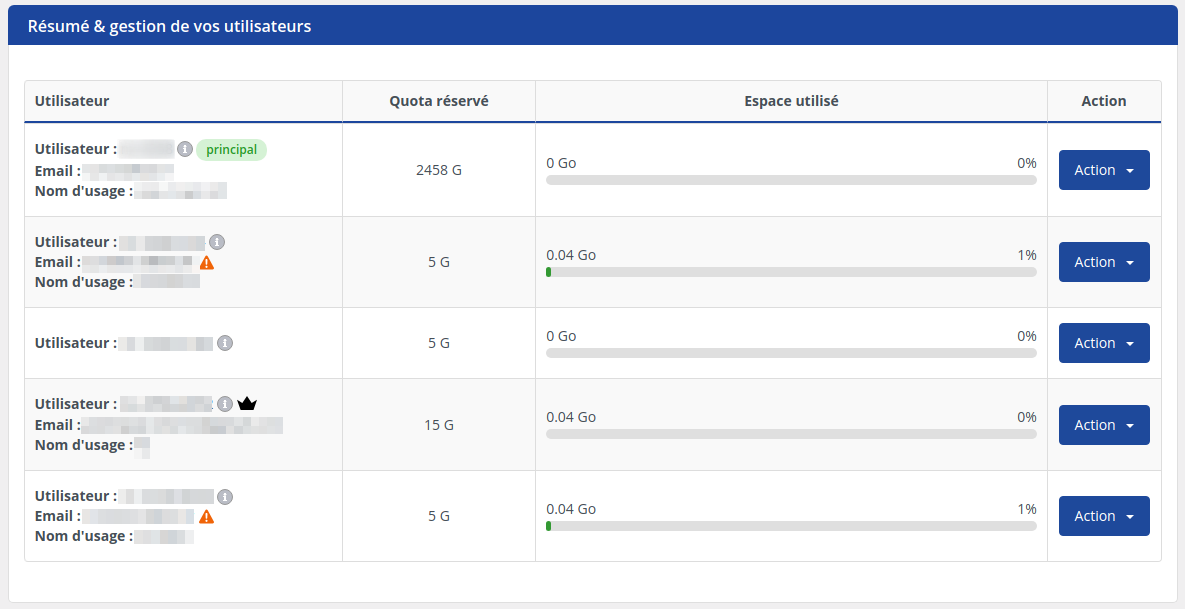
To change a user's storage quota, follow these simple steps:
Step 1: First, you need to log into your LWS account and access Online Storage Management for the Nextcloud you want to manage.
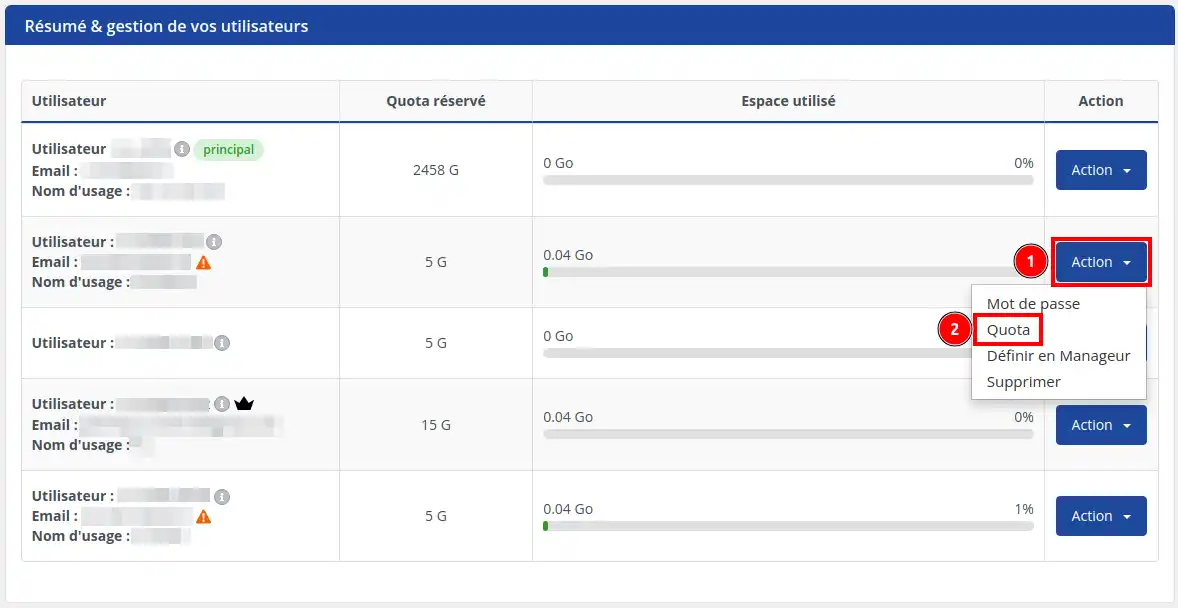
Step 2: Look for the "Summary & managing your users" box. Then click on "Action" (1) and select "Quota" (2).
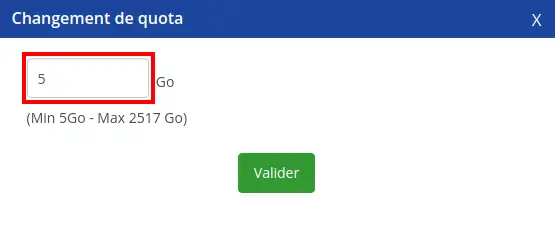
Step 3: Indicate the size of the quota, which must be between 5 GB and the maximum available size indicated. Then press the "Validate" button.
By following these simple instructions, you can easily manage your Cloud Drive user quotas and adapt your storage space to your needs. If you have any further questions or need assistance, please don't hesitate to contact our support team, who will be happy to help. If you don't yet have an online storage package or would like to upgrade to a cloud storage package with advanced features, please consult this documentation to place your order, and find information about the Nextcloud and Nextcloud Pro packages here.
Ask the LWS team and the community. Answers are published after moderation.
 About LWS :
LWS is a 100% French web hosting company that focuses on quality and innovation and offers a responsive and competent technical service at affordable prices.
About LWS :
LWS is a 100% French web hosting company that focuses on quality and innovation and offers a responsive and competent technical service at affordable prices.



 Yes
Yes No
No