


How do I change the writing styles in SiteBuilder Pro?

Procédure

Introduction

SiteBuilder Pro allows you to modify font styles. The choice of font should be carefully considered because it contributes to the overall understanding of your website. Every visual is important because it conveys a message that you want to get across, so it's important to choose your font carefully. Here is a brief explanation of the most popular fonts:

  • Serif: Used mainly for logos, text and titles.
  • Sans Serif: These are Helvetica, Verdana and Arial. These fonts are widely used on websites.
  • Slab Serif. This font is often used for logos and titles.

How do I change the default writing styles in SiteBuilder Pro?

You can change the default font styles in SiteBuilder Pro. This allows you to change the size and font of your page headings, sub-headings and paragraphs.

To change the default writing styles in SiteBuilder Pro, log in to your website administration.


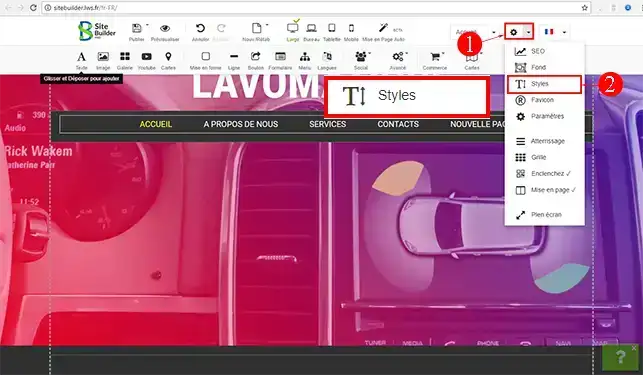
1. Click on the"Settings" tab on the SiteBuilder Pro toolbar and then on"Styles".

How do I change the writing styles in SiteBuilder Pro?


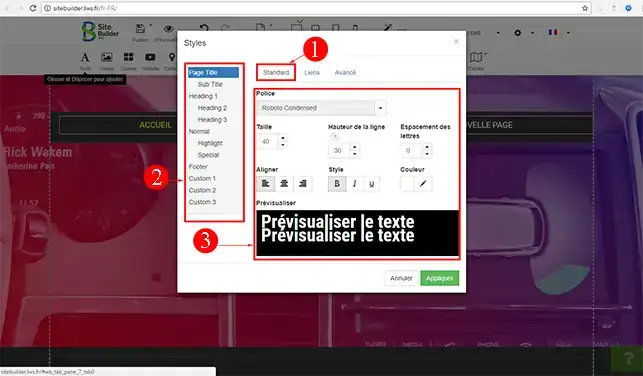
2. Under the"Standard" tab, you can change the font, size and alignment of each title, subtitle and paragraph on your site.

How do I change the writing styles in SiteBuilder Pro?


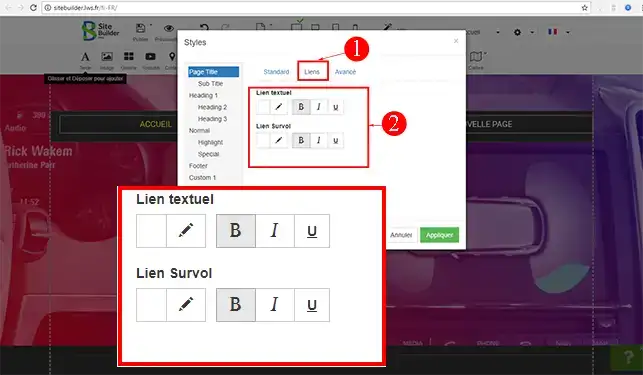
3. The"Links" tab allows you to define the colour of the hyperlinks inserted on your website. It is possible to define a change of colour when the link is hovered over.

How do I change the writing styles in SiteBuilder Pro?


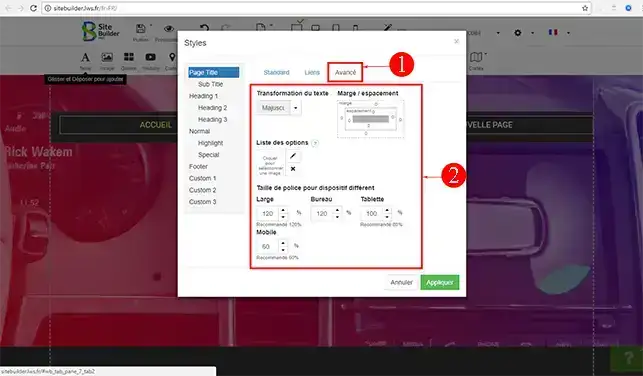
4. The"Advanced" tab allows you to define different margins depending on the devices used for browsing your website.The style can beoptimised for each type of screen.

How do I change the writing styles in SiteBuilder Pro?

Conclusion

You are now able to choose and modify the writing style on your site created with SiteBuilder Pro. Choose the font you want to insert with care, as it will give an idea of the content of your website and contribute to its design.

Don't hesitate to share your comments and questions!

help.lws.net/a/923
Was this article helpful?

Yes

No

Read 21 939 times

Thank you! Feel free to ask questions about our documentation if you would like more information, and help us improve it.

Similar articles

Questions about the article 1

Ask a question
sev
il y a 11 mois
Bonsoir, comment repérer la couleur choisie ? la référence svp ? merci
Jordan-LWS Official answer
il y a 11 mois

Bonjour,

Je vous remercie pour votre message.
Pour repérer la couleur choisie ainsi que sa référence, il est généralement possible de la retrouver directement dans l’interface où elle a été sélectionnée. La valeur hexadécimale (par exemple #1A2B3C) ou le nom de la couleur y est souvent indiqué.

Toutefois, afin d’obtenir une assistance plus complète et précise, je vous recommande de contacter le service technique via votre espace client. Cela sera plus simple, car vous pourrez envoyer des pièces jointes et bénéficier d’un échange plus détaillé si nécessaire.

Je vous remercie de votre attention et reste à votre disposition pour toute autre question ou complément d'information.

Cordialement, L'équipe LWS

Was this answer helpful?

A question about this article?

Ask the LWS team and the community. Answers are published after moderation.

Ask the LWS team and its community a question

GDPR: Controller: LWS-Ligne Web Services. Purpose: moderation and public publication of your question, possible notification of an answer. Legal basis: consent (Art. 6(1)(a) GDPR). Email retention: 90 days after notification, 12 months maximum without an answer. To exercise your rights, see the GDPR section of our Terms and Conditions.