Procédure
Relevant service : LWS client account
Relevant panel : LWS Client Area / LWS Panel
Level : beginner
This help explains how to log in to your LWS client area, recover your access if you have lost it, and understand the security checks that may appear during login.
The LWS client area lets you manage your services, invoices, contact details, support requests, and certain account-related settings. It should not be confused with technical panels such as cPanel, Plesk, ISPConfig, WHM, or with your Webmail.
This help concerns logging in to the LWS client area.
Are you trying to access another service?
Before you begin
To log in to your LWS client area, you can use:
- your LWS client identifier, in the format LWS-XXXXXX;
- or the contact email address entered in your client account details.
The password to enter is the one for your LWS account.
If the contact email address of your LWS account is linked to a Google account, usually a Gmail address, you can also log in using the Google sign-in button offered on the login page. In this case, you use your Google account authentication instead of entering the LWS password.
A Gmail address used as a contact address can therefore allow two login methods:
- a standard login with the email address and LWS password;
- a login via the Google account associated with this address.
Log in to your LWS client area
Go to the LWS client area login page:
https://panel.lws.fr

Two login methods may be offered.
Log in with a Google account
If the contact email address of your LWS account is linked to a Google account, for example a Gmail address, you can use the Sign in with Google button.
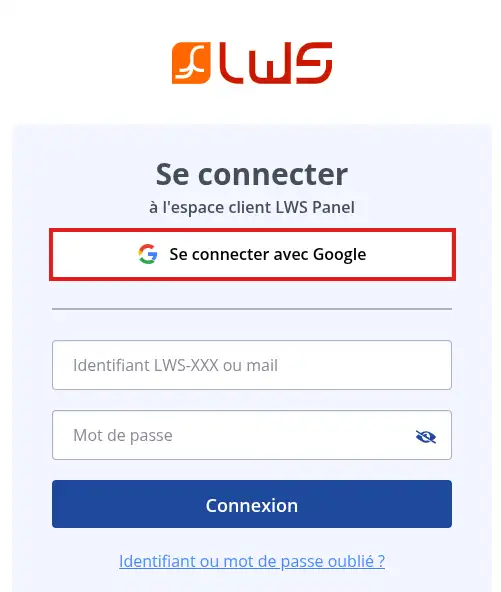
In this case:
- click Sign in with Google;
- select the Google account corresponding to the contact email address of your LWS account;
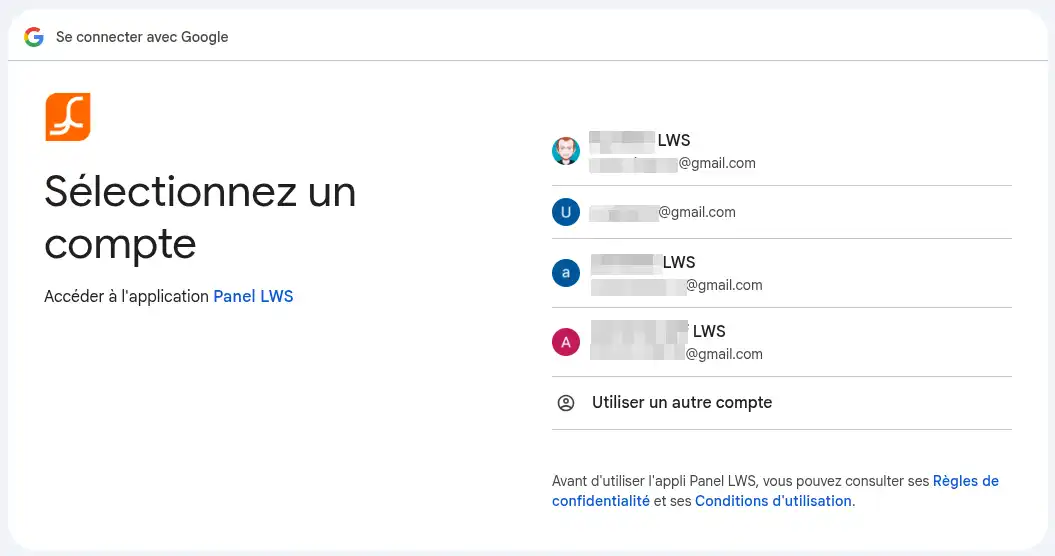
- confirm the login from Google if confirmation is requested.
You are then redirected to your LWS client area.
Google login works only if the Google account used matches the contact email address registered in your LWS client account.
Log in with your LWS identifier or email address
You can also use the standard login form.
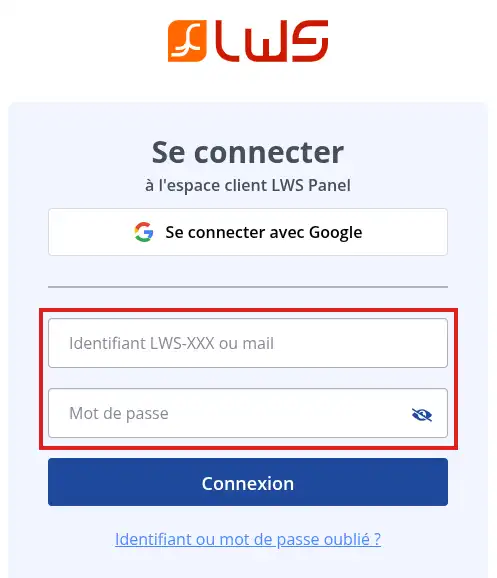
In this case:
- enter your LWS client identifier, for example LWS-123456, or the contact email address of your client account;
- enter your LWS account password;
- click Login.
If you enter a Gmail address in the standard form, the password requested is still the password for your LWS account.
It is not necessarily the password for your Google account.
If no additional verification is required, you are redirected to your client area dashboard.
Login is successful when your LWS dashboard appears and you can access your services, invoices, or support requests.
Possible security checks during login
When logging in to your LWS client area, some security checks may be applied automatically. They are used to protect your account against unusual or unauthorized logins.
Depending on your configuration, you may encounter:
- an automatic reCAPTCHA verification;
- a verification code if you log in from an unknown IP address;
- a two-factor authentication code if 2FA is enabled.
reCAPTCHA verification
LWS uses reCAPTCHA verification to limit automated logins and protect access to client accounts.
This verification now runs in the background with reCAPTCHA v3. Therefore, you normally will not have any I am not a robot box to tick.
If the login is refused or seems blocked at this stage, try again after a few moments. You can also try from a private browsing window or temporarily disable browser extensions that block scripts, such as some ad blockers or privacy tools.
The verification code in case of an unknown IP address
If two-factor authentication 2FA is not enabled on your account, LWS may ask you for a verification code when you log in from an unknown IP address.
This can happen if you change your internet connection, device, Wi-Fi network, country, or if your internet provider regularly changes your IP address.
For the first request, the code is sent to the contact email address entered in your LWS client details.
To validate the login:
- log in with your LWS identifier or contact email address;
- enter your LWS account password;
- if a verification code is requested, check the contact email address for your account;
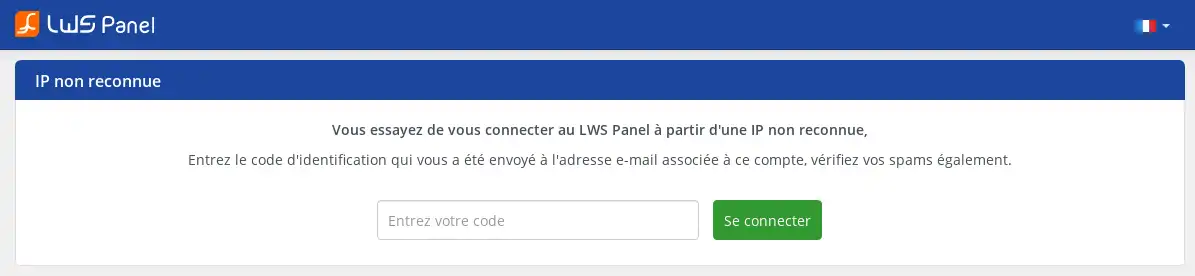
- copy the code you received;
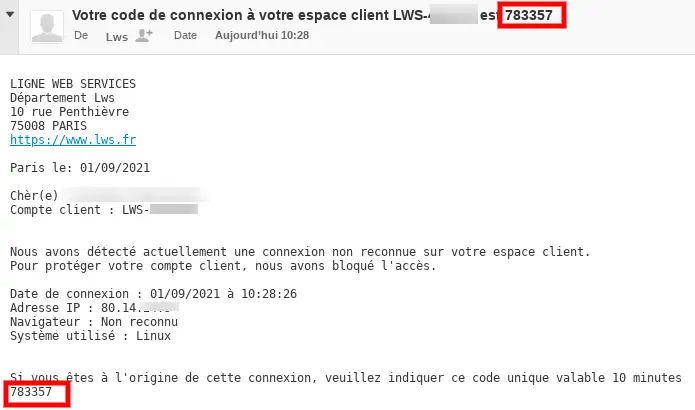
- enter it in the verification form;
- confirm the login.
The verification code is sent to the contact email address of your LWS account.
If this address is no longer accessible, you will need to request its change before you can fully recover access to your account.
If you did not receive the code by email, click Resend the code. A new window will offer to send the code:
- by email;
- or by SMS, if a mobile phone number is entered in your client details.
Code sending by SMS works only with a mobile phone number.
A landline number cannot receive this code.
Once the IP address is validated, the code will no longer be requested for that same IP. If you later log in from another connection or if your IP address changes, a new verification may be requested.
If you often have difficulties with codes sent by email or SMS, enabling two-factor authentication 2FA may be a good alternative.
When 2FA is enabled, the login relies on the code generated by your authentication app instead of the verification code sent for an unknown IP.
Two-factor authentication 2FA
Two-factor authentication, also called 2FA, adds extra protection to your account. In addition to your identifier and password, you must enter a code generated by an authentication app.
This code is usually made up of 6 digits and changes regularly. It must be entered quickly, without spaces.
To log in with two-factor authentication:
- log in with your LWS identifier or contact email address;
- enter your LWS account password;
- if 2FA is enabled, open your authentication app;
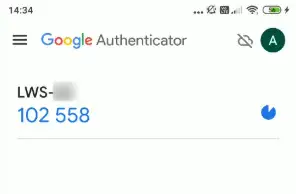
- copy the code displayed for your LWS account and enter this code in the form;
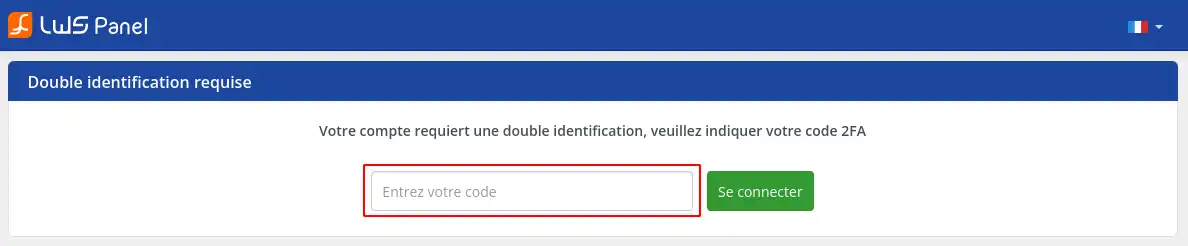
- click Sign in.
If the code is correct, you will access your client area.
Recover your identifier or password
If you have forgotten your password, if your password no longer works, or if you can no longer find your LWS identifier, use the recovery procedure.
11. From the login page https://panel.lws.fr, click Forgot password?
22. Then enter the contact email address associated with your LWS account, tick I am not a robot, then click Validate.
33. LWS sends you an email containing the recovery instructions. Open this email and click the link provided.
The recovery link sent by email is valid for 15 minutes.
If the time limit is exceeded, start the procedure again from the Forgot password? page.
44. On the reset page, enter your new password, confirm it, tick I am not a robot, then validate.
The password must comply with the rules required by the form. During recovery, the usual rules are as follows:
- at least 1 lowercase letter;
- at least 1 uppercase letter;
- at least 1 number;
- at least 1 special character from this list:
- ! $ @ % _;
- between 10 and 15 characters.
55. Once the password has been changed, return to https://panel.lws.fr and log in with your LWS identifier and your new password.
After the reset, you should be able to access your client area with the new password. If an IP code or 2FA code is requested, simply follow the displayed security step.
Change the password from the client area
If you are already logged in to your client area and want to change your password:
- click your LWS identifier at the top right of the screen;
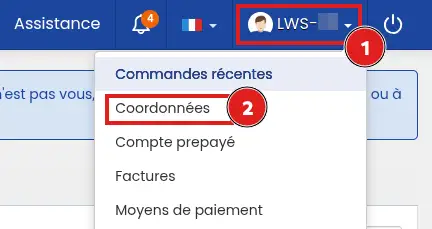
- click Edit details;
- click Change my password;
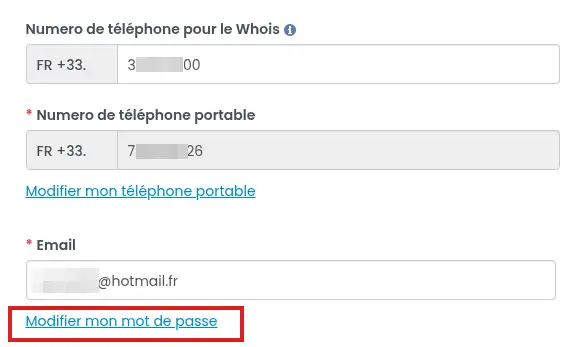
- enter your current password;
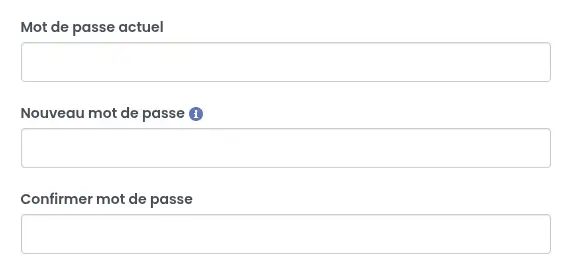
- enter the new password twice;
- click Submit.
Choose a unique password that you do not use on another site. Avoid your last name, first name, company name, the name of your relatives, or a variation too close to your LWS identifier.
I no longer have access to the contact email address
The contact email address for the client account is used to receive important messages related to your LWS account, recovery links, verification codes, and security confirmations.
This address does not necessarily correspond to an email box created on your hosting. The procedure below concerns only the contact email address of the LWS client account. It does not change an email address on your domain, a mailbox, or the address displayed on your website.
The contact email address must be an address that is immediately accessible and independent of your LWS services, for example a Gmail, Outlook, Yahoo, Orange, Free, or equivalent address.
Do not use an address linked to a domain name present on your LWS account. If that domain has a problem, you may no longer receive important messages related to your account.
To request the replacement of the contact email address without access to the old address, prepare:
- your LWS account number;
- a new valid and accessible email address;
- the phone associated with the LWS account, if you choose validation by SMS;
- a readable ID document, if you cannot validate by SMS.
Go to the recovery page:
https://panel.lws.fr/frperte.php
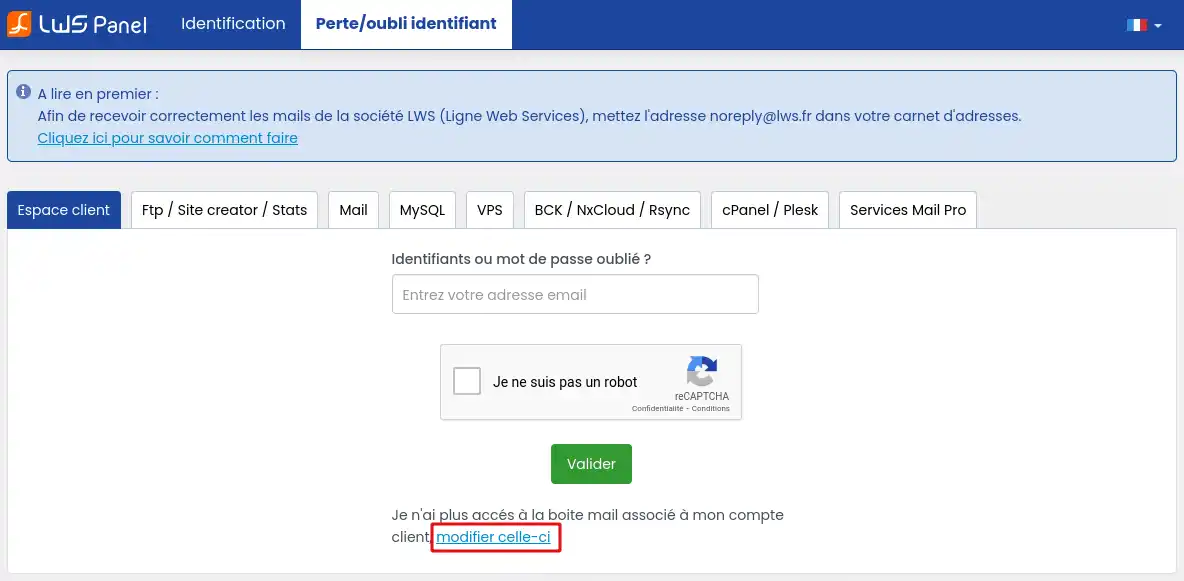
Click I no longer have access to the mailbox associated with my client account, change it.
Enter your LWS account number and the new email address to use.
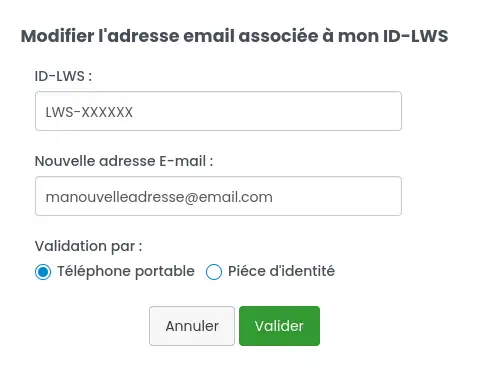
Two methods may then be offered:
- validation by SMS: a code is sent to the mobile phone number associated with the client account;
- identity verification: an email is sent to the new email address to carry out an identity verification using an ID document.
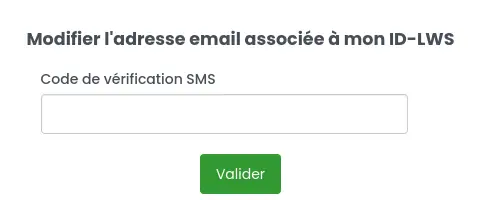
If you choose validation by SMS, enter the code received then validate. The change may take effect a few minutes after validation.
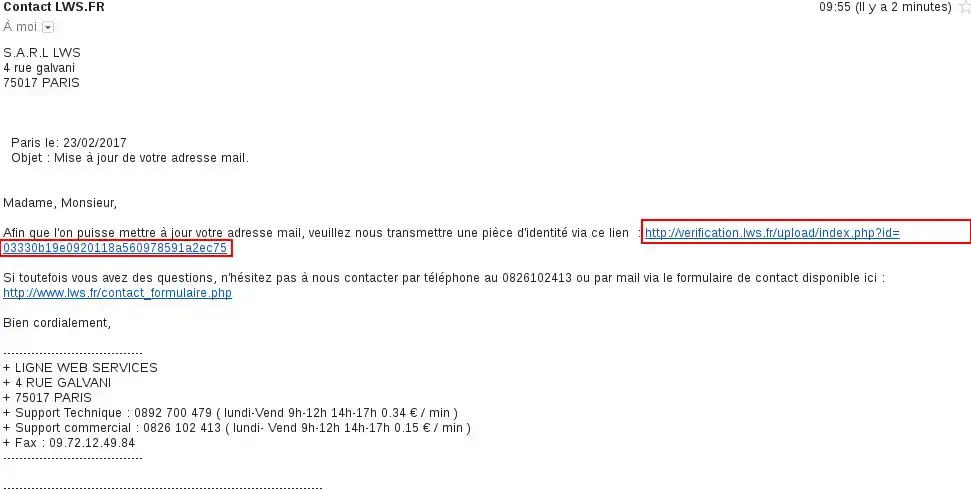
If you choose identity verification, open the email received at the new address and click the link provided.
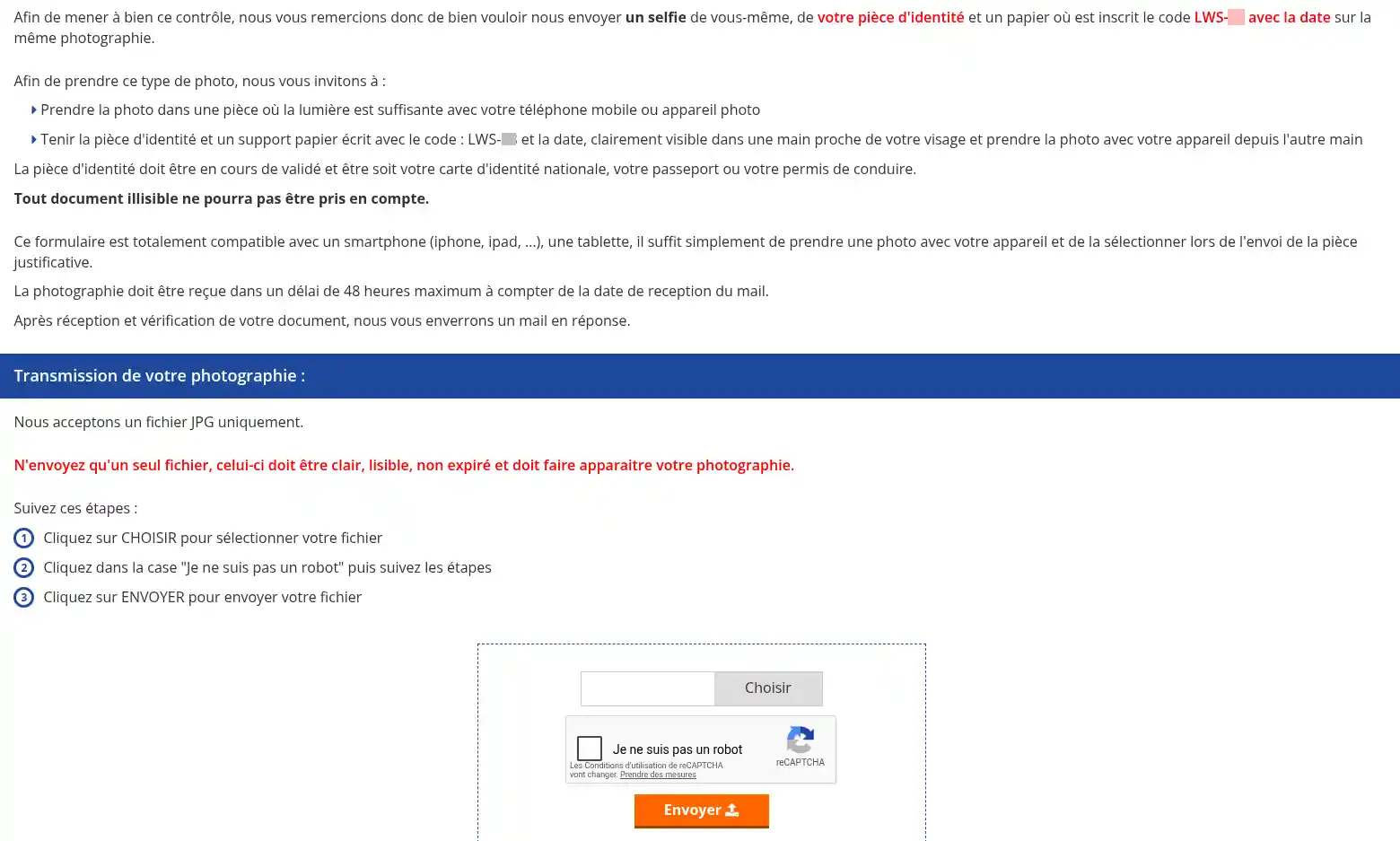
Follow the identity verification procedure.
Once the procedure has been successfully completed and the contact email address changed, start the password recovery process again from the Forgot password? page.
Enable two-factor authentication 2FA
Two-factor authentication is recommended to strengthen the security of your account. It reduces the risk of unauthorized access, even if your password is known by someone else.
To enable it:
- log in to your LWS client area;
- click your LWS identifier at the top right;
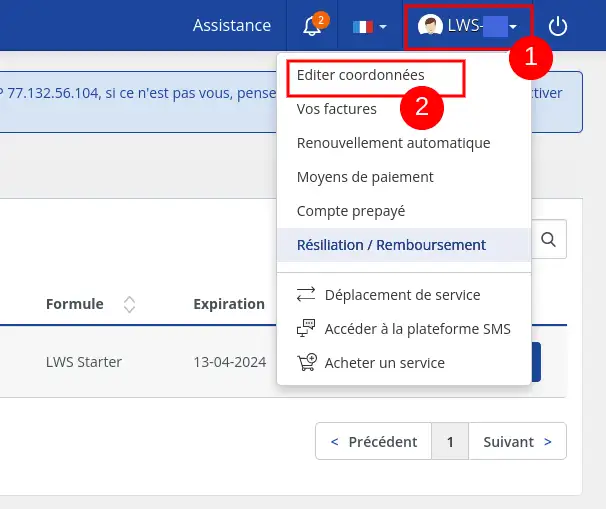
- click Edit details;
- in the account settings, find the Two-factor authentication 2FA line;

- select Yes;
- click Save.
LWS then sends you an email containing the setup instructions, with a secret key and/or a QR code.
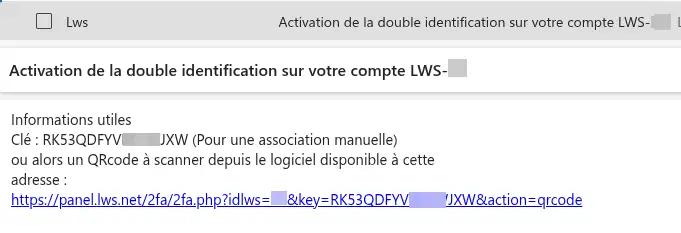
Then configure this key in a compatible application, for example Google Authenticator, Authy, or another authentication app. Depending on the app used, you can:
- scan the QR code received by email;
- enter the secret key manually;
- name the entry with your LWS identifier so you can find it easily.
Step-by-step 2FA setup on your Android phone with Google Authenticator
Step 1: Install Google Authenticator
From your phone, you need to go to the Play Store app on your phone
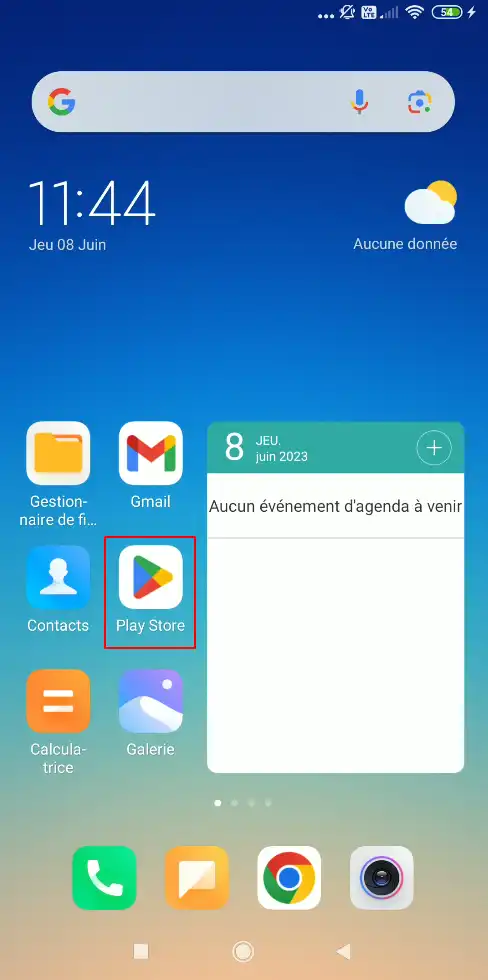
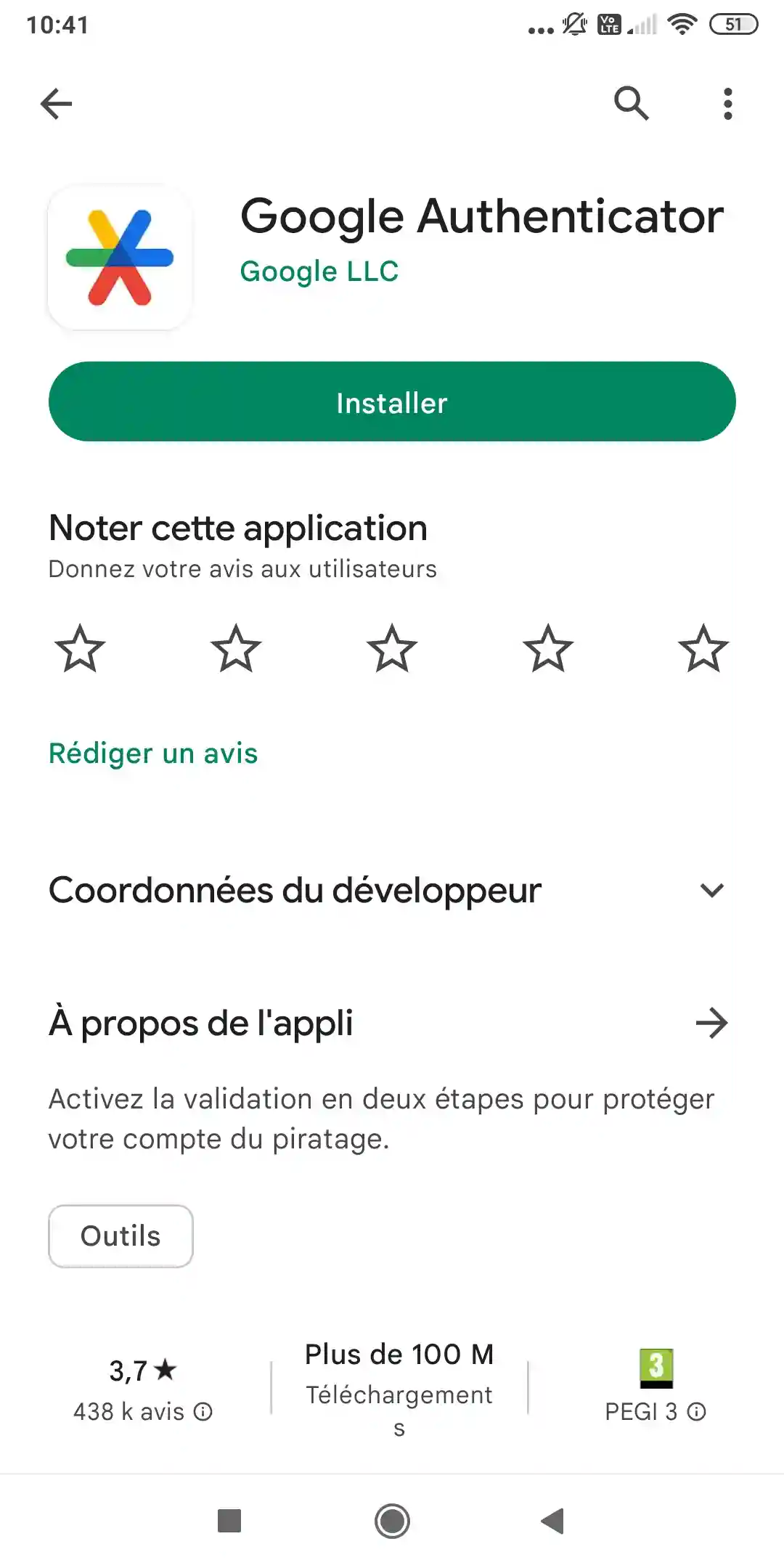
Search by entering "Google Authenticator" then click on "Install"
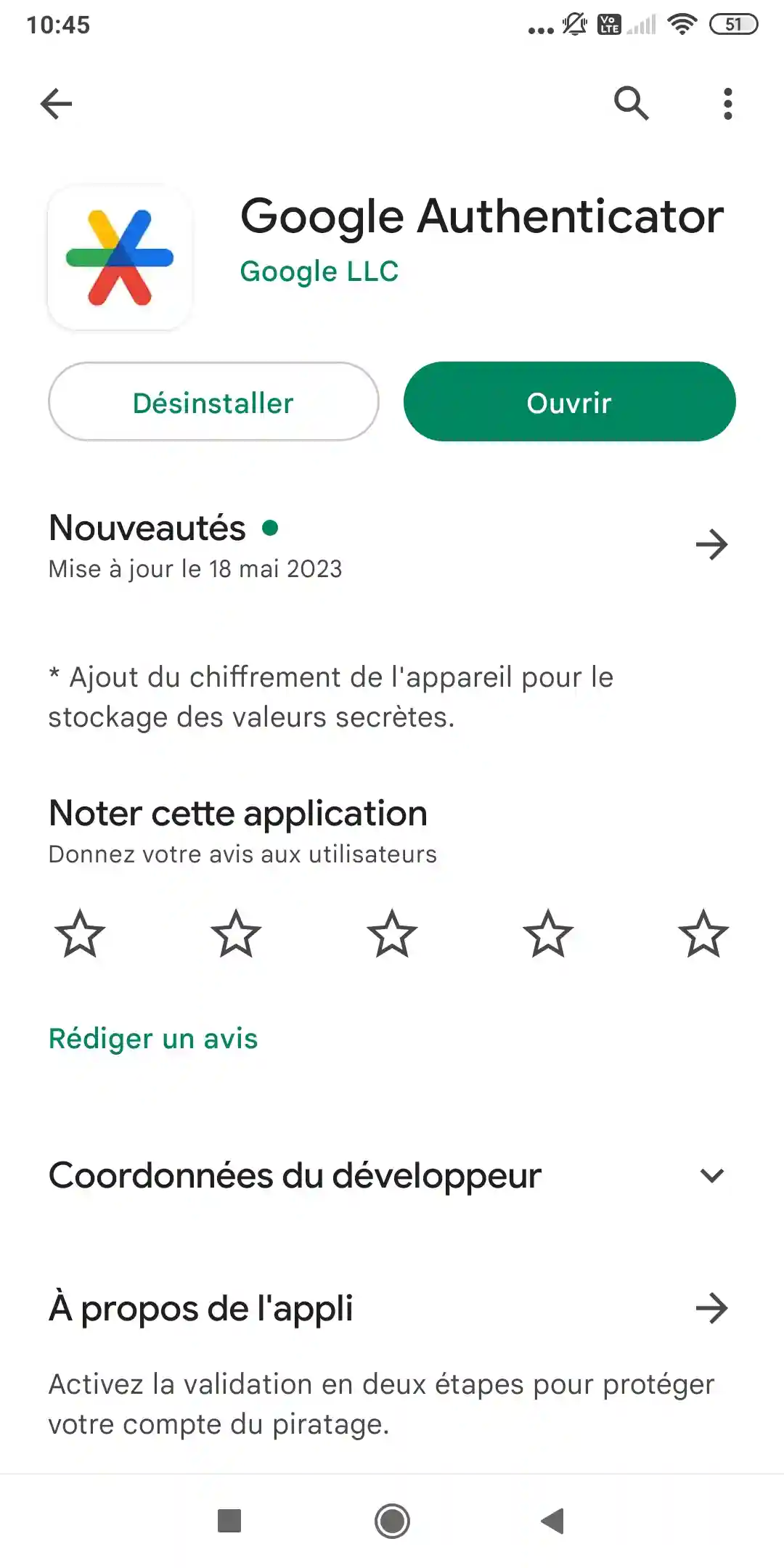
Then click on "Open"
Step 2: Configure the key
At this step, you must add a code to the application; to do this, click on "Add a code"
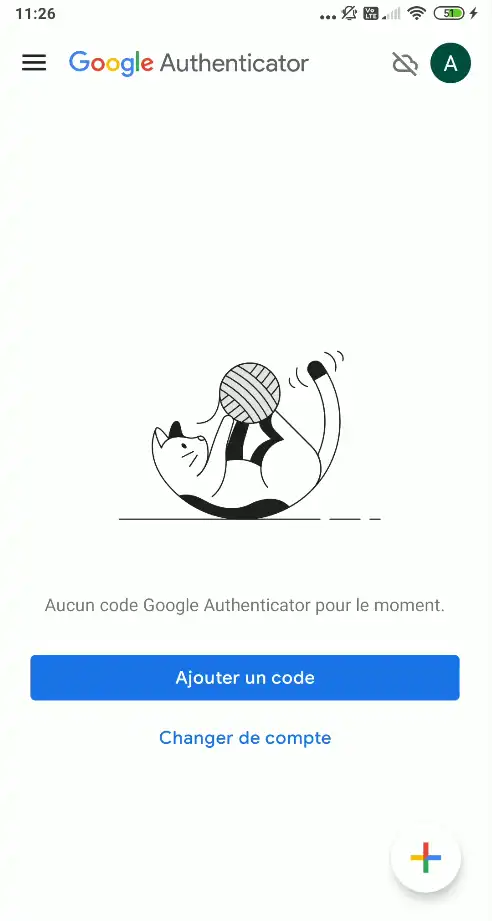
You have two options for adding your code: either scan the QR Code that was sent to you by email, or add the code manually. The QR Code scan method helps avoid any entry errors.
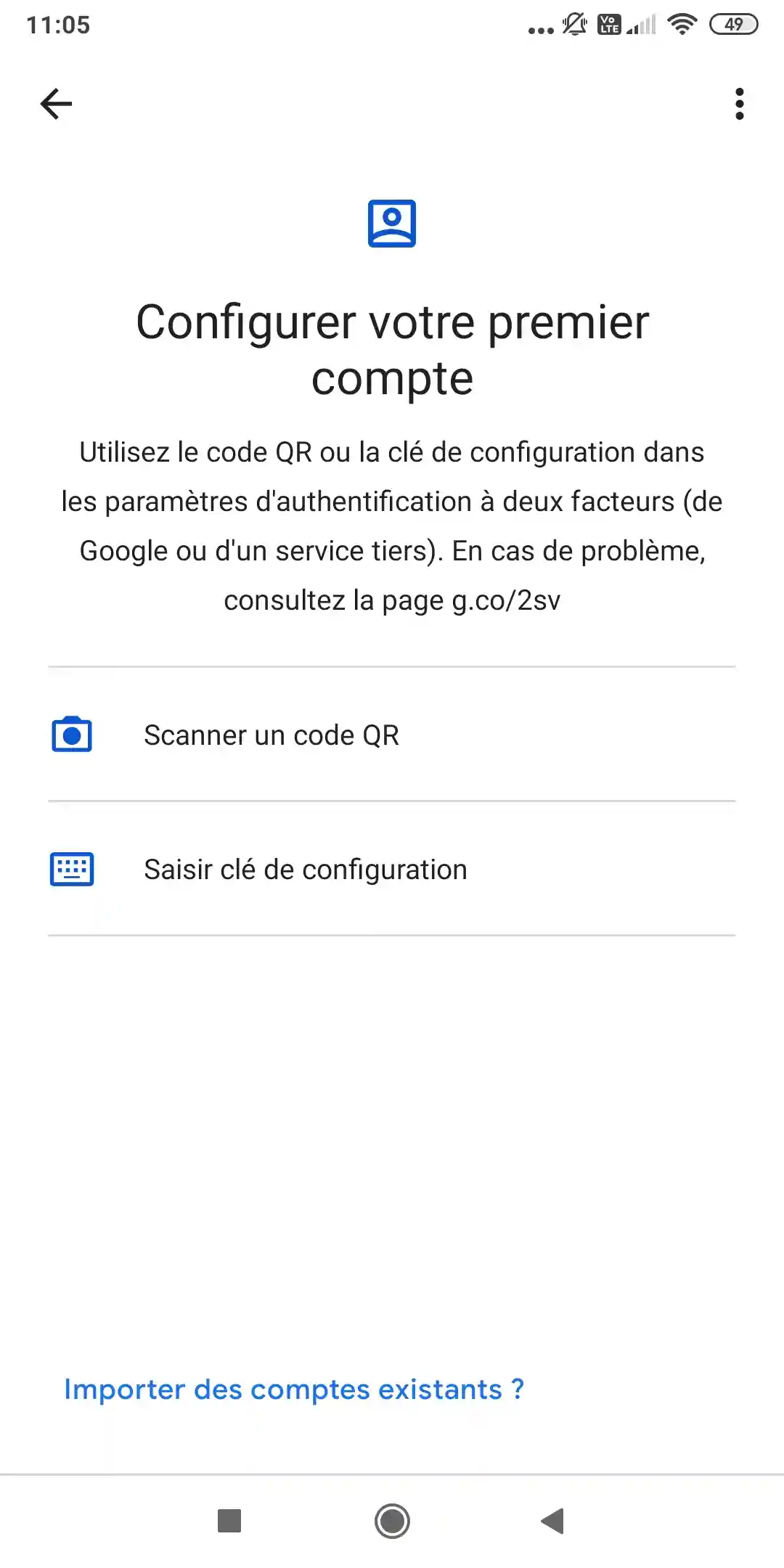
If you choose to use the QR Code, click on "Scan a QR code"
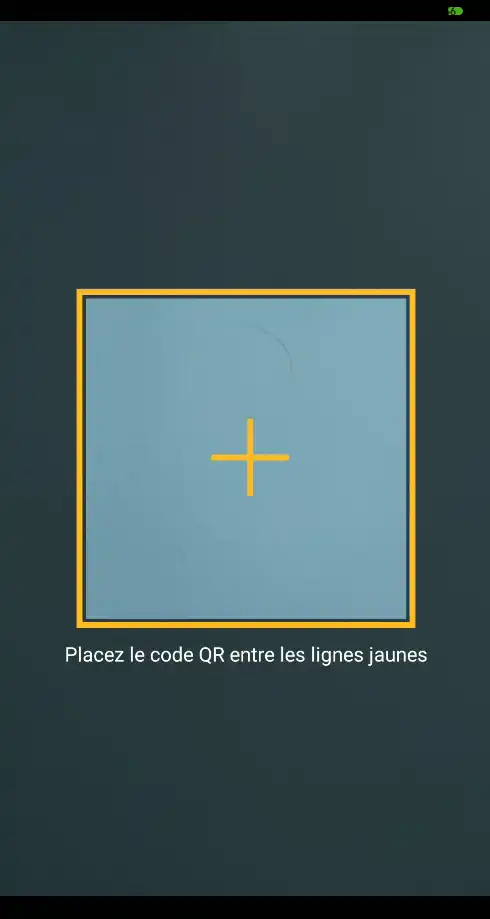
To scan the QR Code, simply click on the link in the email to display it on your computer screen and, with your phone, you must make the image appear in the yellow frame.
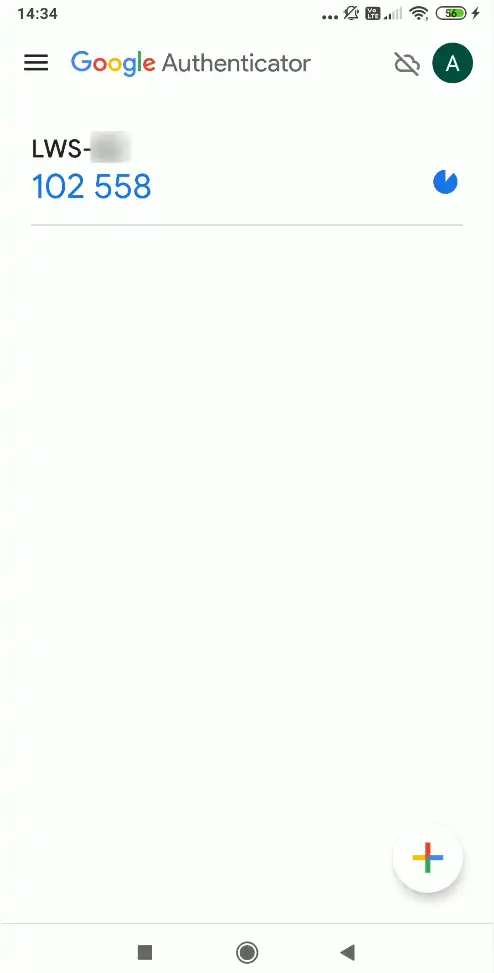
Immediately, the application will scan the QR Code and install the code to show you the validation code as in the screenshot below:
If you choose the manual method, click on "Enter setup key" and the following screen will appear.
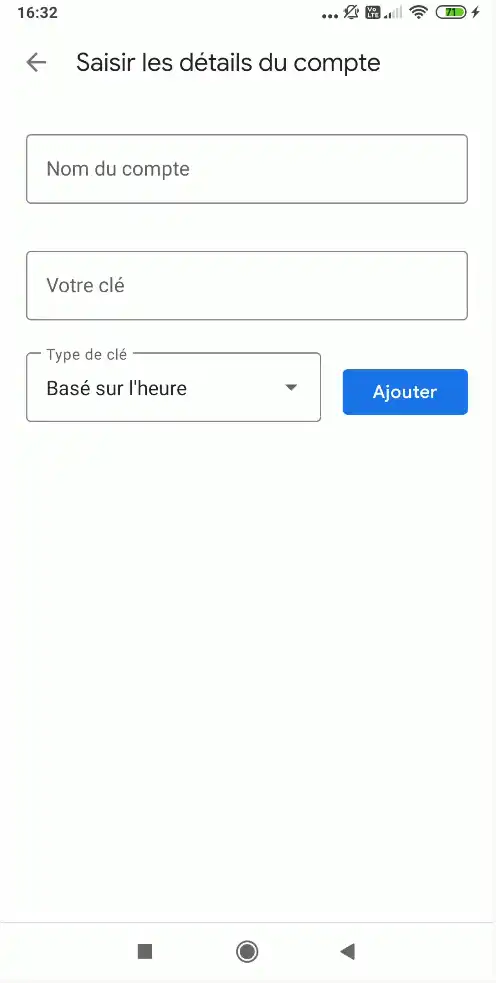
You will then need to enter your LWS identifier (of the form LWS-XXXXXX) in the "Account name" field, the key received by email in the "Your key" field, and leave the key type as "Time based" then click on "Add". You should get the same result as if you had scanned the QR Code directly.
After activation, two-factor authentication is temporary until a successful 2FA login has been completed.
You must complete a first valid login within 10 minutes after activation. If this time limit is exceeded, 2FA is automatically disabled and you will need to enable it again.
To complete activation, go back to https://panel.lws.fr, log in with your identifier and password, then enter the code generated by your app.
During this first login, if you enter an incorrect code, two-factor authentication may be automatically disabled to avoid immediate account blockage. Once the first 2FA login has been successful, disabling it must be done from your client area or with the help of support if you no longer have access to the code.
Disable two-factor authentication 2FA
You can disable two-factor authentication if you change apps, replace your phone, or no longer want to use this protection.
Disabling two-factor authentication reduces the security of your account.
Only disable it if necessary, and make sure to use a strong, unique password.
If you can still log in with 2FA:
- log in to your LWS client area;
- click your LWS identifier at the top right;
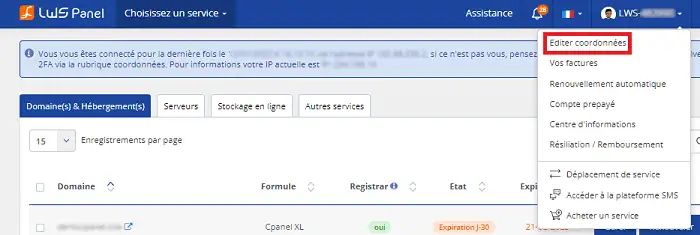
- click Edit details;
- in the settings, switch Two-factor authentication 2FA to No;
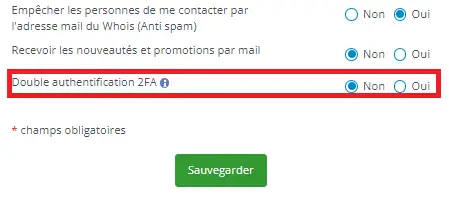
- click Save.
This action does not immediately disable 2FA. LWS sends a confirmation email to the account’s contact email address.
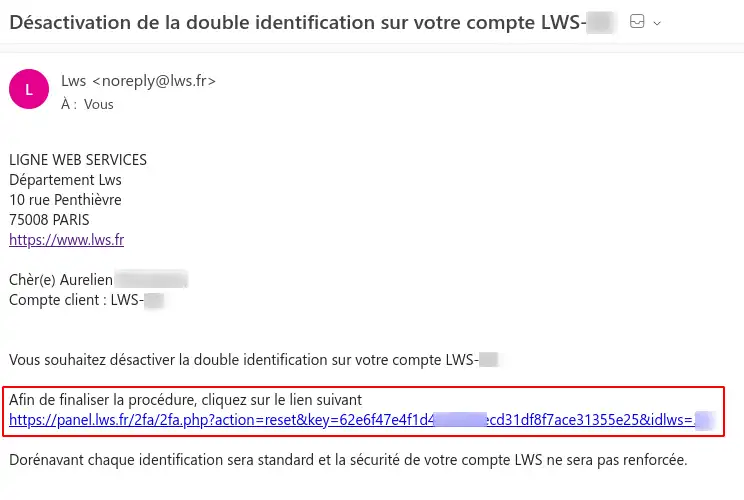
Open this email, click the confirmation link, then click Confirm my request.

A message then confirms the deactivation of two-factor authentication.
If you no longer have access to your authentication app, you will not be able to disable 2FA yourself from the client area. Contact LWS support by phone or contact form. An identity verification will be requested to check that you are indeed the account holder.
My password has been disabled or I think my account is compromised
LWS may temporarily disable an account password when suspected fraudulent access or compromise is detected. This measure is intended to prevent an unauthorized person from using the account while it is being secured.
If you think an unauthorized person may have accessed your account, secure your devices and your contact email address first before resetting your LWS password.
In this case, follow these steps:
- run an antivirus scan with reliable, up-to-date software on all devices used to access your client area;
- check that the contact email address associated with your LWS account is not compromised;
- if in doubt, change the password for that email address;
- then reset your LWS account password from Forgot password?;
- log in to your client area with the new password;
- open the Information Center from the menu of your LWS identifier;
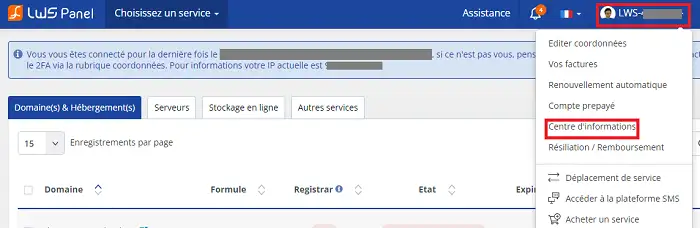
- check that no notification mentions an action you did not carry out;
.webp "Click to display the original image")
- check your contact details: postal address, phone number, and email address;
- make sure no order or service modification was made without your consent.
If you notice an unknown action, a suspicious modification, or if you have any doubt, open a request with LWS support so that an agent can carry out additional checks.
Can an additional access be given to another person?
The LWS Panel is not multi-user. It is therefore not possible to create a separate second account to give limited access to another person.
If you share your LWS credentials, the person can access all services linked to the account, as well as billing and client account information.
If you want to involve a webmaster, developer, or another person, several solutions are possible depending on your needs:
- if you want to share only the technical management of the hosting, a plan with a multi-user panel may be more suitable, such as cPanel, Plesk or ISPConfig depending on your needs;
- if you want to fully delegate the technical management of a service, you can request a change of technical contact. If you transfer technical management to another LWS identifier, you no longer manage this service from your account. The technical billing related to the service is also transferred. However, you remain the owner of the associated domain if LWS is the registrar.
Only share your credentials if you fully understand the access they grant.
Log out of your client area
When you have finished your actions, it is advisable to log out, especially if you are using a shared computer or one that does not belong to you.
To log out, simply click the button next to your LWS identifier at the top right of the page.
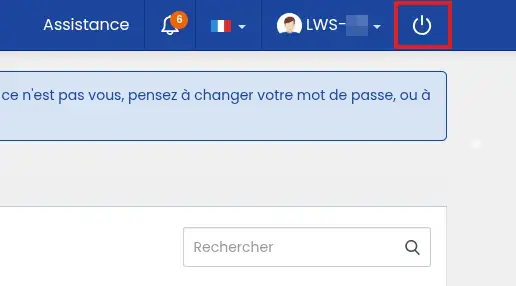
You are then redirected to the login page.
Check that everything is working
After a login, access recovery, or security change, take a few moments to check the following:
- your LWS client area dashboard displays correctly;
- your LWS identifier appears at the top right;
- your contact email address is correct and accessible;
- your phone number is up to date;
- you can access your services and invoices;
- if 2FA is enabled, the code generated by your app works;
- no unknown notification or order appears in your account.
Your account is properly accessible when you can log in, receive LWS security emails, and access your services without any error message.
Common issues
I no longer know my LWS identifier
Use the Forgot password? procedure from the login page. Enter the contact email address of the LWS account to receive the recovery information.
Also check your old LWS emails: the client identifier is often included in messages related to account creation, orders, or invoices.
My password is refused
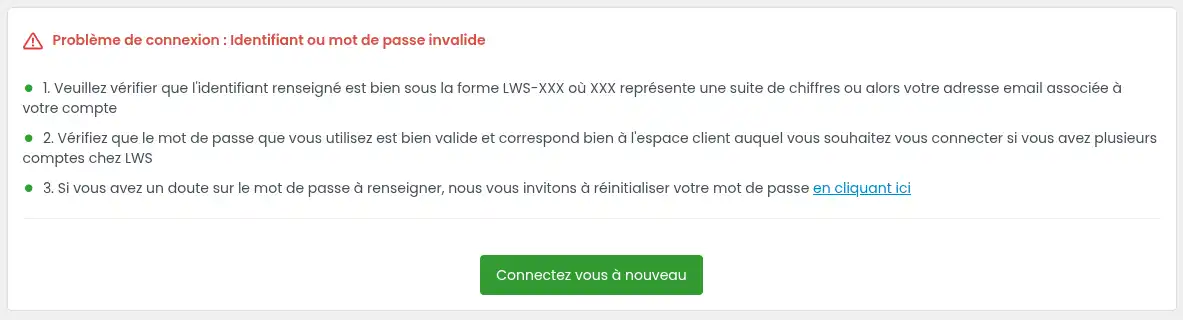
First check that you are using the LWS identifier in the format LWS-XXXXXX or the contact email address associated with your client account.
If you are using the standard login, the requested password is the LWS account password, even if you enter a Gmail address as the identifier.
If your contact address is linked to a Google account, you can also try logging in with the Google button offered on the login page.
If you have several LWS accounts, make sure the password used matches the correct client account.
If your browser fills in the password automatically, it may be using an old saved password. In that case, delete the saved password for panel.lws.fr or update it in your browser’s password manager.
If in doubt, use Forgot password? to set a new password.
The email address is shown as unknown during recovery
Make sure you enter the contact email address actually associated with the LWS client account.
If you no longer know which address is associated with the account or if the current address is no longer accessible, use the procedure to change the contact email address without access to the old address.
I am not receiving the verification code
The first code is sent to the contact email address entered in your LWS client details.
Start by checking:
- the inbox for that address;
- the spam or junk folder;
- the automatic sorting tabs, such as “Promotions” or “Notifications” depending on your mail service.
If you receive nothing, click Resend the code. You can then request a new sending by email or by SMS, if a mobile phone number is entered in your client account.
If you no longer have access to the contact email address and no valid mobile phone number is entered, you will need to request a change of the contact email address of your LWS account.
The IP verification code does not work
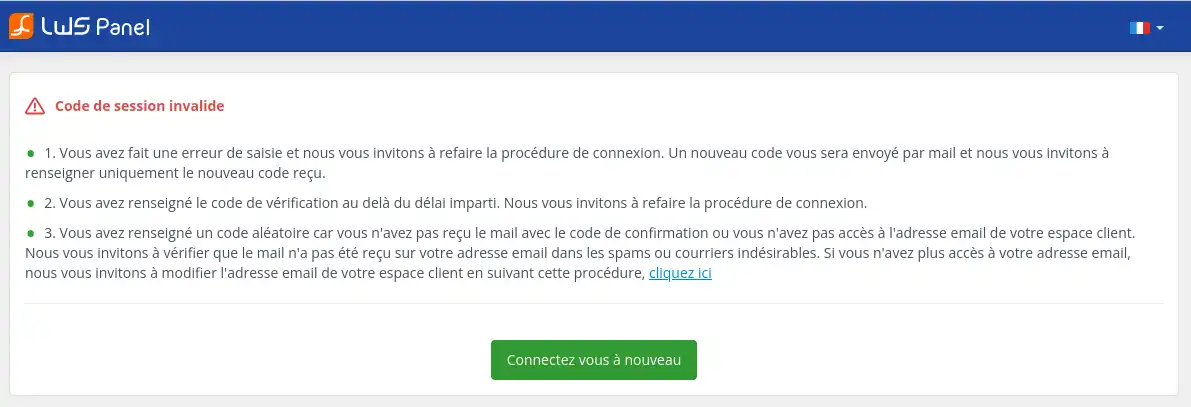
Use only the latest code received. If you have requested several codes, older ones may no longer be valid.
Also check that you enter the code without spaces or extra characters.
If the code received by email does not work or if you do not receive it, click Resend the code to request a new sending by email or by SMS.
If this problem happens often because your IP address changes regularly, you can enable two-factor authentication 2FA. Once 2FA is enabled, the login code will be generated by your authentication app.
The 2FA code is refused
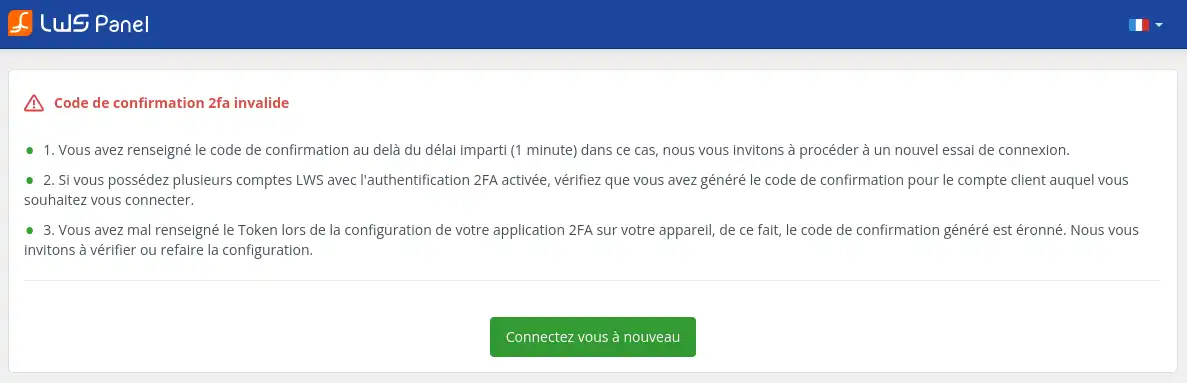
Enter the code without spaces, even if the app displays it in groups of digits for easier reading.
Make sure you are using the code corresponding to the correct LWS account, especially if you manage several identifiers.
If the code changes while you are entering it, wait for the next code and try again.
If the problem persists, check that your phone time is set automatically. Authentication apps may generate incorrect codes if the device time is off.
I no longer have access to my 2FA app
If you are still logged in to your client area on one device, disable 2FA from Edit details, then confirm the deactivation by email.
If you are no longer logged in and can no longer generate a code, contact LWS support by phone or via the website contact form. Identity verification may be requested before any deactivation.
The CAPTCHA blocks the login
The reCAPTCHA verification works automatically in the background. Normally, you do not have any box to tick.
If the login seems blocked, try again after a few moments. If the problem continues, test from a private browsing window or temporarily disable extensions that may block browser security scripts.
My session expires or I am logged out while browsing
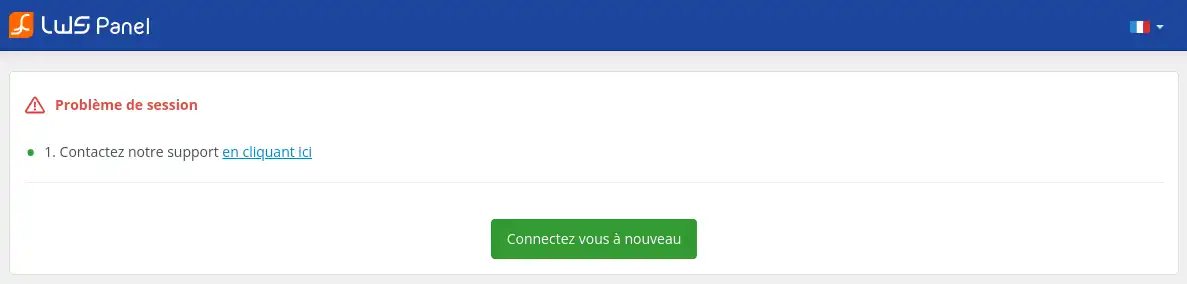
This issue can occur if your browser blocks cookies, if you cleared browsing data during the session, or if your IP address changes while in use.
Check that cookies are allowed for panel.lws.fr, then log in again.
Avoid changing networks while using the client area, for example switching from Wi-Fi to 4G or vice versa.
My IP is temporarily blocked
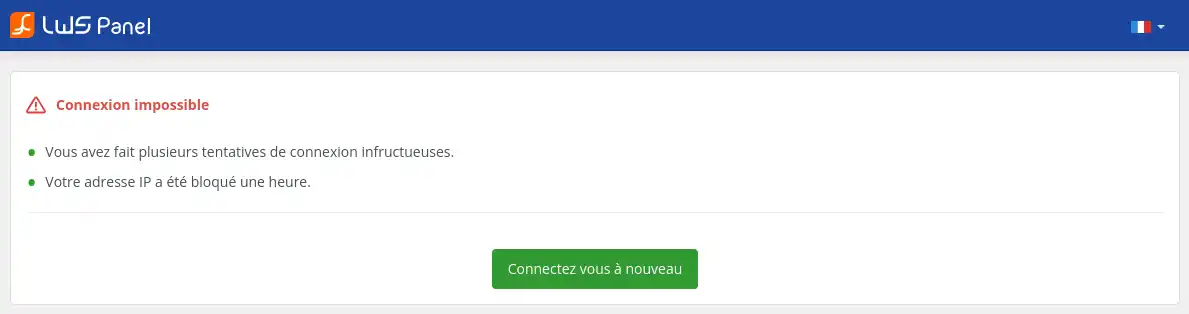
This block usually happens after several failed login or code attempts.
Wait 1 hour before trying again. Before retrying, check your identifier, password, and the code received to avoid another block.
I want to give access to my account to a webmaster
The LWS Panel does not allow the creation of a second limited access. Avoid sharing your credentials if the person only needs technical access.
Depending on your needs, it may be better to use a multi-user panel such as cPanel, Plesk or ISPConfig, or to change the technical contact for the service concerned.



 Yes
Yes No
No About
About 