Procédure
What is SSH connection on cPanel used for?
Your cPanel web hosting gives you the possibility to connect to your account through SSH software such as PuTTY. However, you will first need to generate an SSH key, which is different from the procedure used for VPS private servers.
SSH access allows you to manage your web hosting space via the command line. It can not only help you speed up certain tasks such as downloading a remote file and unzipping it on your web space, but it can also give you access to certain things that you are not able to perform through your cPanel dashboard.
How do I connect to cPanel via SSH using PuTTY?
The ability to connect via SSH is available on all our cPanel reseller hosting offers and our cPanel hosting offers.
How to add your IP address on the SSH server:
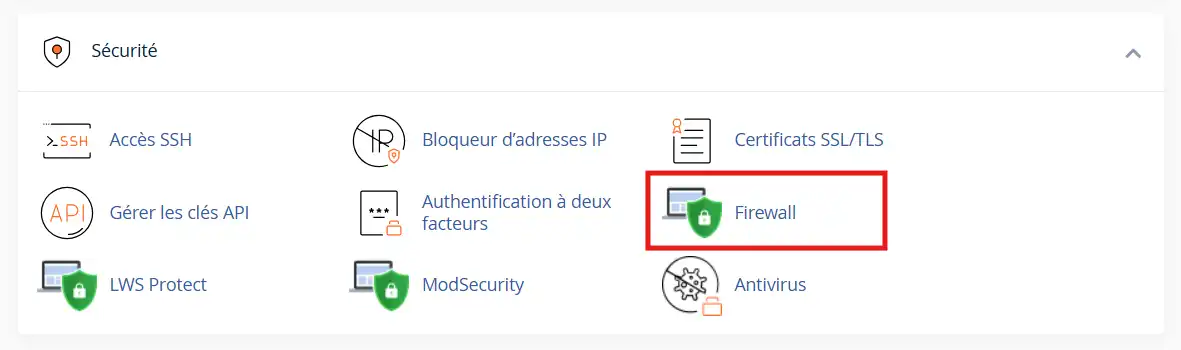
11. Log in to your cPanel control panel. In the Security section, click on the Firewall icon.
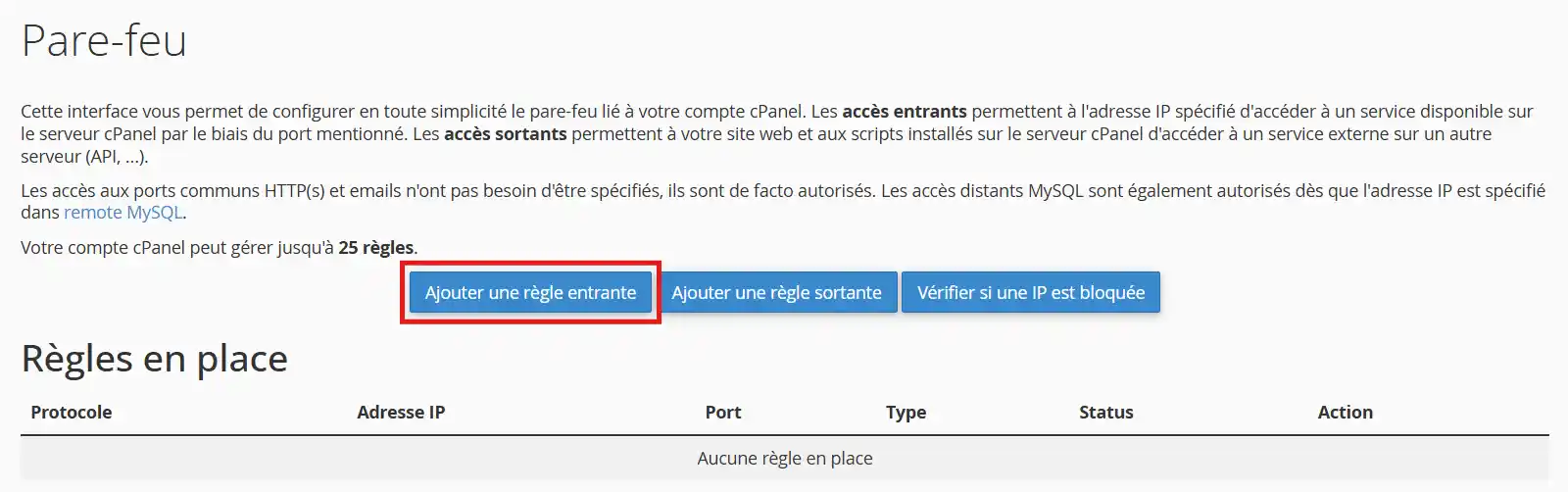
22. Click on Add an incoming rule.
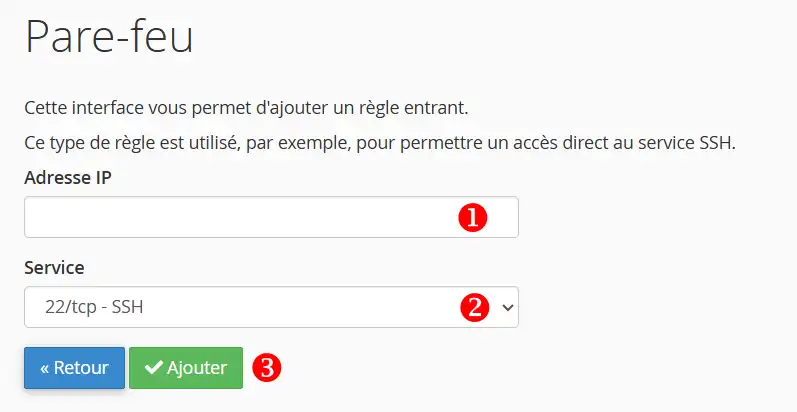
33. Add your IP address in the corresponding field (1) and select SSH as the service type (2). Then click the Add button (3).
The change will be applied within a few minutes.
How to generate your SSH key for cPanel?
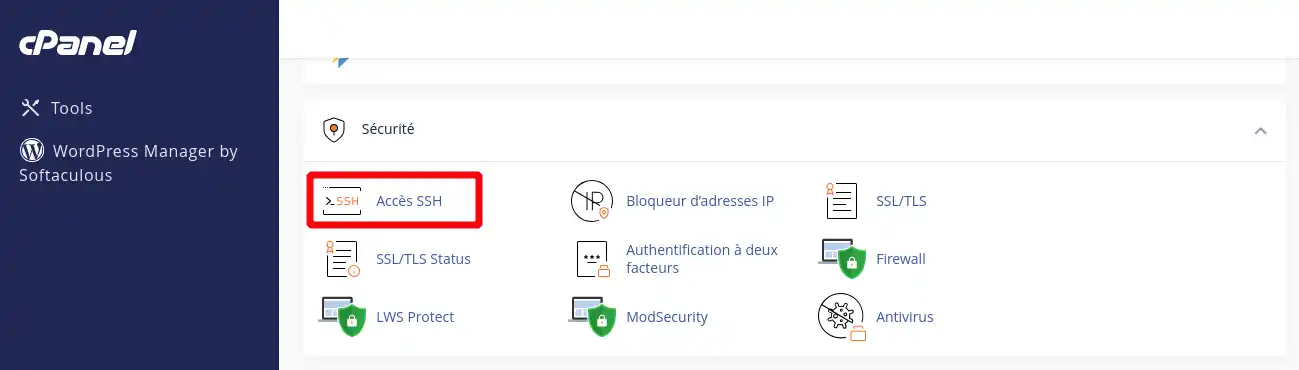
11. Log in to your cPanel account, scroll down the page and click on the “SSH Access” icon
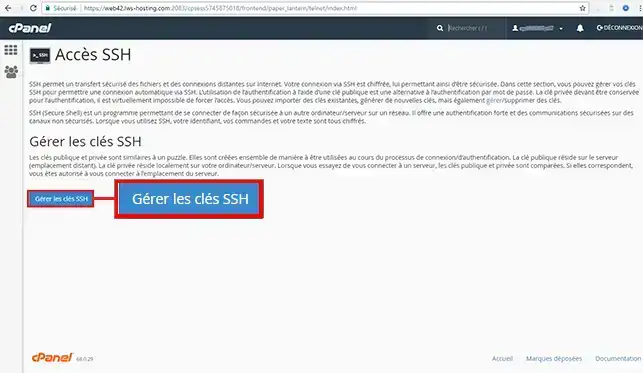
22. Click on "Manage SSH Keys".
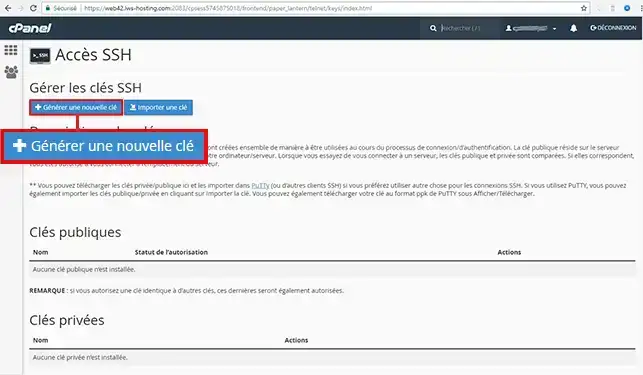
33. Then click on "Generate a New Key".
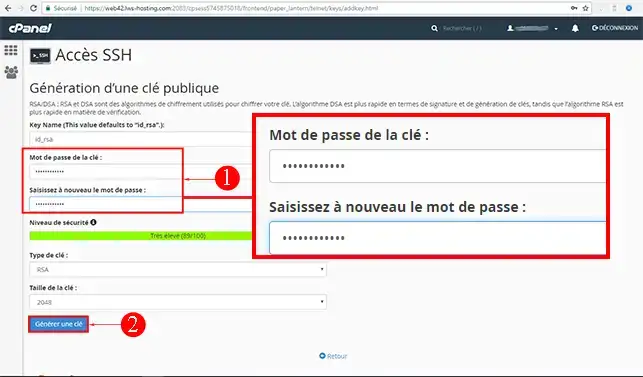
44. Enter the password of your choice, then click on "Generate a Key"
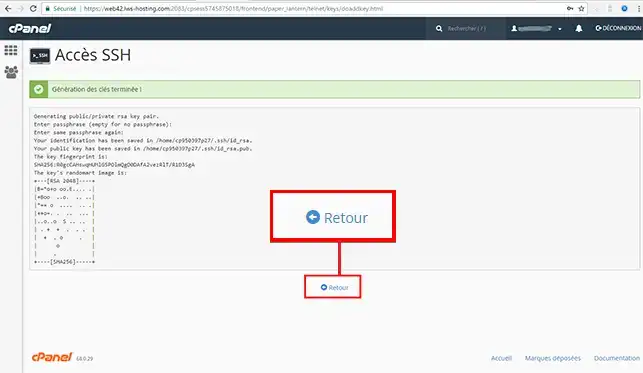
You should then see a message telling you that key generation is complete. Click on the "Return" tab:
You must then grant authorization for key-based login by clicking on "Manage":
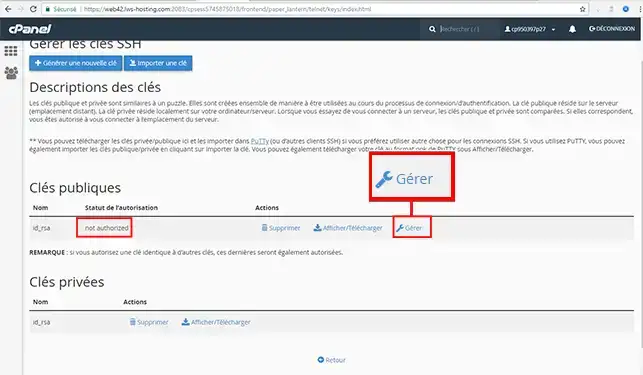
Then click on "Authorize"
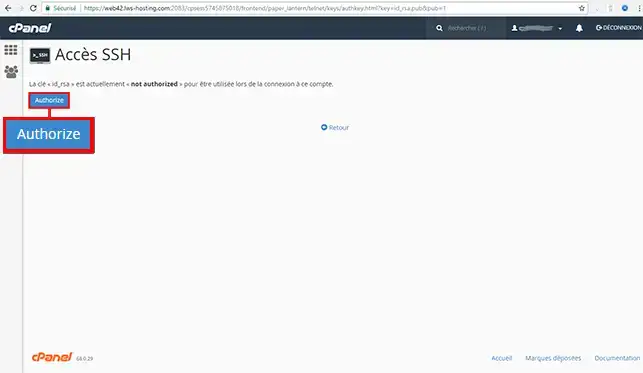
Click on the "Return" tab:
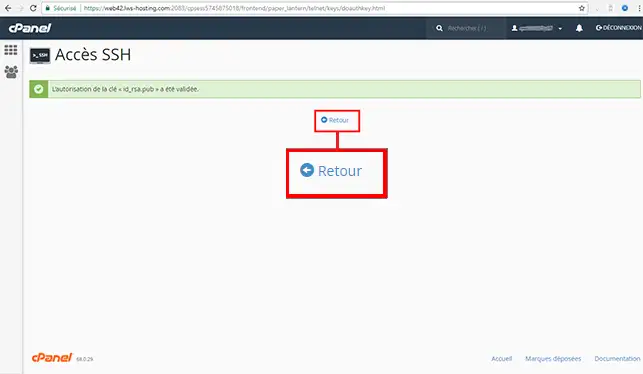
55. Click on "View/Download"
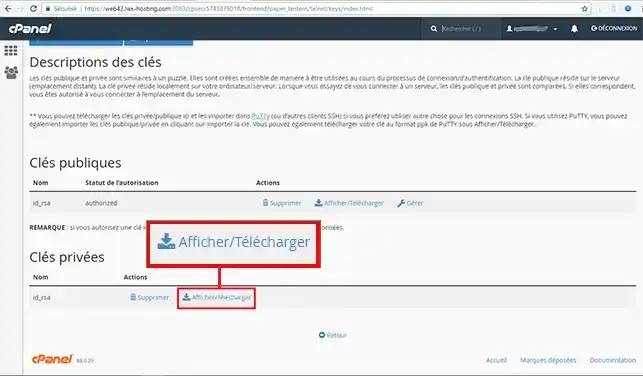
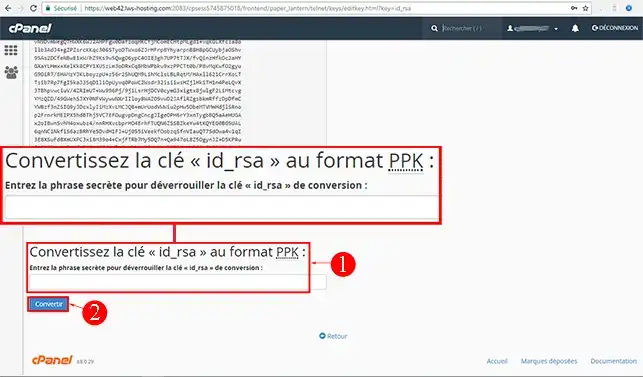
66. Convert the key to ppk format so that it can be used in PuTTY. To perform the generation, you will need to enter the password you defined in step 4.
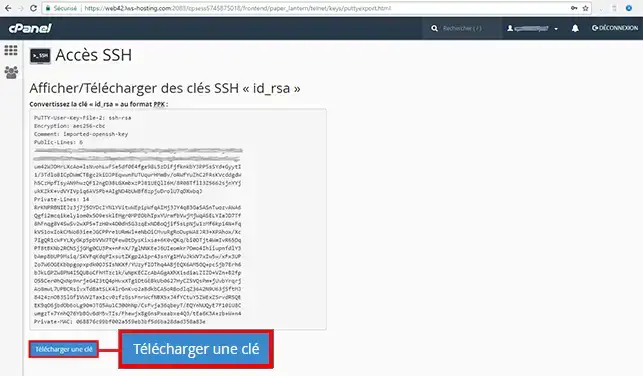
As soon as the key is generated, click on the "Download Key" button:
How do I connect to cPanel via SSH on Windows?
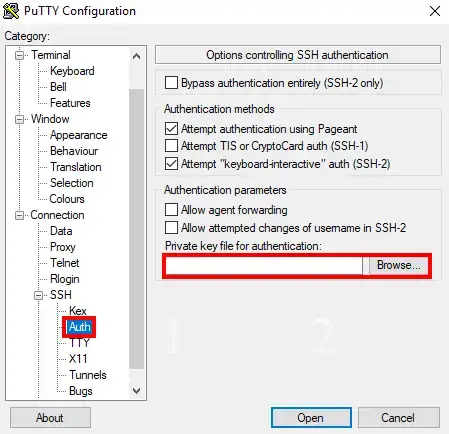
11. Start your PuTTY software, then go to the "SSH" section, then "AUTH" and search for the id_rsa.ppk file that you downloaded in the previous step. Finally click on "Open".
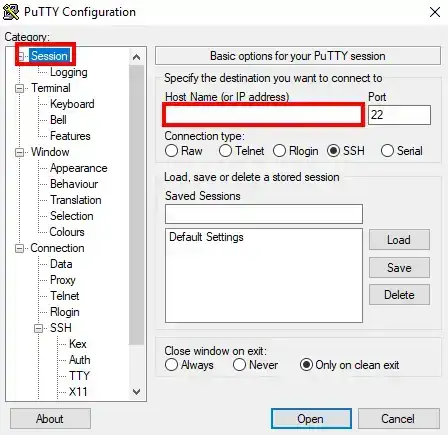
22. Then go to the session section and in the "Host" field enter the IP address associated with your server then click on "Open"
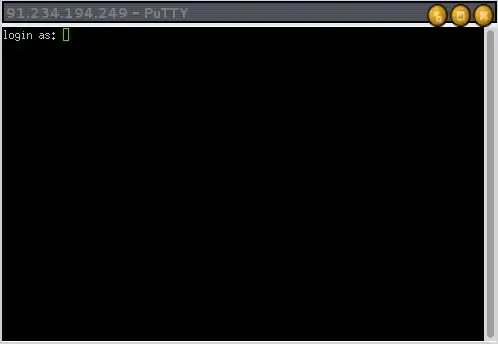
33. The following window will open so that you can log in:
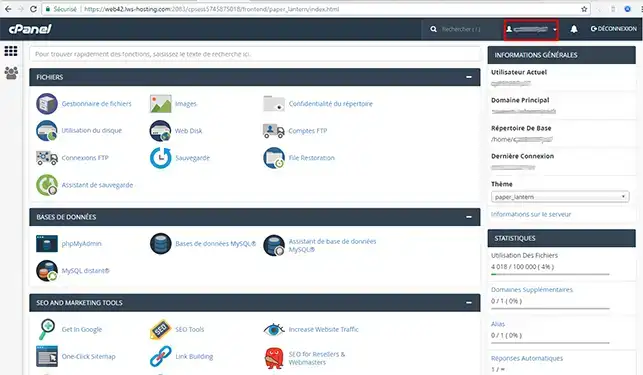
Your cPanel username is located in your cPanel client area:
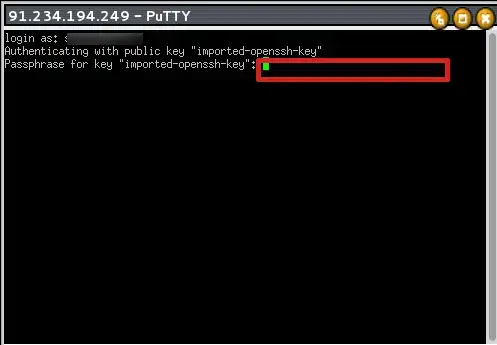
After entering your username, press the "Enter" key on your keyboard. Enter the password associated with your SSH key to connect. (Warning: when you enter the password, it will not be displayed, for security reasons).
How do I connect to cPanel via SSH on Linux?
- Install Remmina by following the instructions for your Linux distribution
- Launch Remmina from the terminal by typing: remmina

- Click on the + icon to add a new connection profile
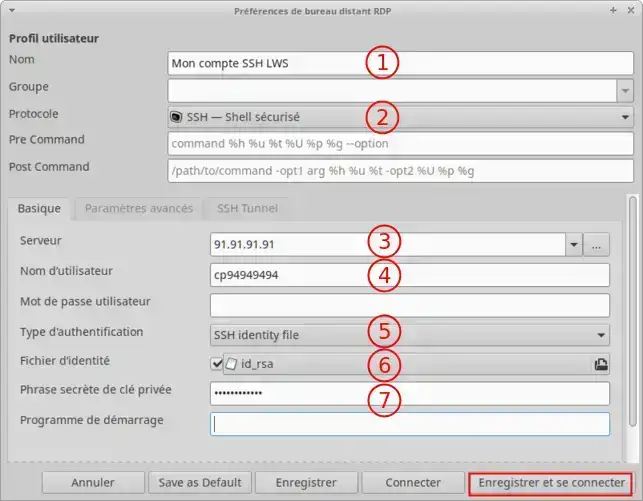
- Name: Add a name for your connection profile, for example: My LWS SSH account
- Protocol: choose the SSH - Secure Shell protocol
- Server: Enter the IP address of your cPanel server
- Username: Enter your cPanel username
- Authentication type: Choose SSH identity file
- Identity file: select the id_rsa file from your computer, which corresponds to the private key and which you downloaded from your cPanel (it is not necessary to convert it to PPK format)
- Private key passphrase: Enter the password you defined for the private key
Then click on the Save and Connect button:
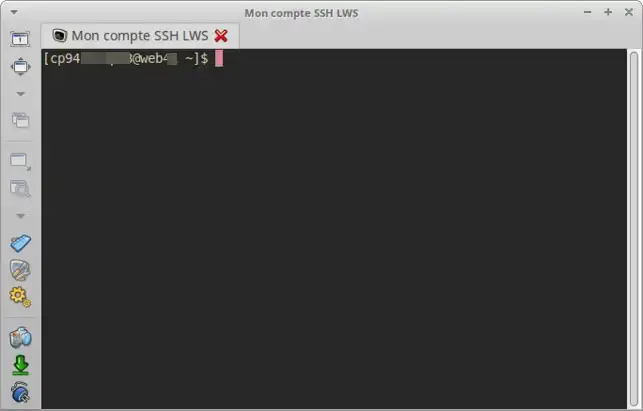
Connect via SFTP using Remmina on Linux:
You can also use Remmina to connect via SFTP and perform operations on the files hosted in your cPanel (Publish/Delete/Download)
For this, simply change the Protocol to SFTP - Secure File Transfer without changing the other settings you configured for the SSH connection
Conclusion
You are now able to generate an SSH connection key and use the PuTTY & Remmina software to connect to your cPanel web hosting via SSH with LWS.
You can disable the SSH key or delete it from your client account at any time.
Feel free to contact our technical support team via a incident ticket for any questions.



 Yes
Yes No
No About
About 