How do I create cPanel hosting sub-accounts?

Procédure

Why create a hosting sub-account on cPanel?

The user manager available on cPanel allows you to manage your sub-accounts (create, modify and delete). The sub-accounts use the same connection information (login and password) for the messaging, FTP and Web Disk services. The system synchronises the password for each of the sub-account's authorised services.

The user manager allows you to

  • Activate the e-mail service for the sub-account and define a disk space quota for it
  • Activate the FTP service, define a disk space quota and the base directory for the sub-account
  • Activate Web Disk to define read and write rights for the sub-account.

What is the purpose of a hosting sub-account on cPanel?

A sub-account allows you to give FTP access to a person and grant them an email address on your cPanel web hosting. When you create the sub-account, you can define FTP access rights (read, delete and modify files). The advantage of this is that you can provide access to a user without having to provide them with your cPanel login details.

How do I create hosting sub-accounts on cPanel?

1. Log in to your cPanel interface

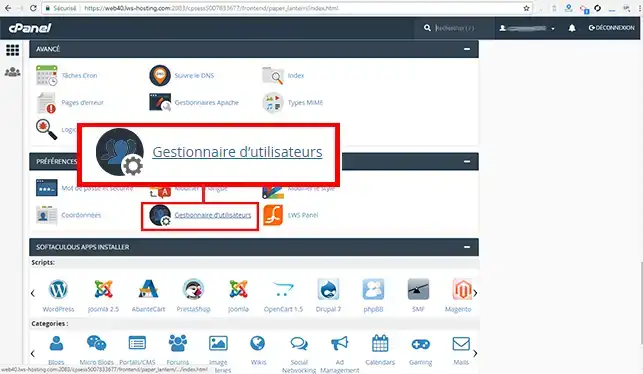
2. Go to the"Preferences" section and click on the"User Manager" tab.
How do I create cPanel hosting sub-accounts?

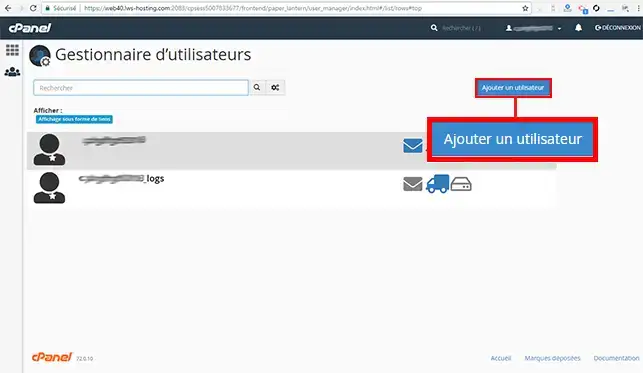
3. Click on the"Add a user" button.

How do I create cPanel hosting sub-accounts?

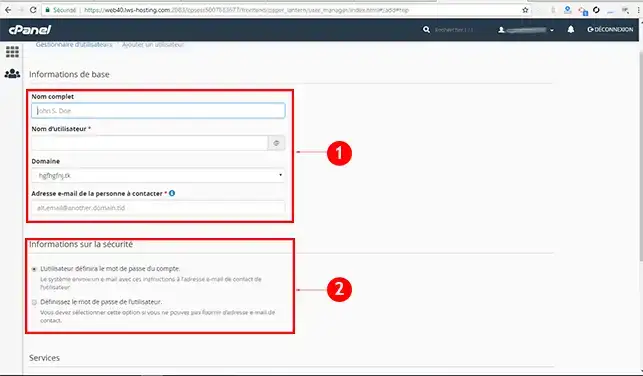
4. Enter the "Basic information" and define the security information:
How do I create cPanel hosting sub-accounts?

The basic information requested is as follows:

  • Full name: This is the first and last name of the user.
  • User name: Enter a user name that will allow the sub-account to connect to the FTP space. The user name will also define the sub-account user's email address.
  • Domain: Choose the domain associated with the sub-account.
  • E-mail address of the person to contact: This will be used to send connection information to the user and also to recover the user's password if it is lost.

The security information will allow you to

  • Send an email to the user so that they can set their own password for the user sub-account.
  • Set the user's password yourself (this second option should be used if you do not know the user's e-mail address).

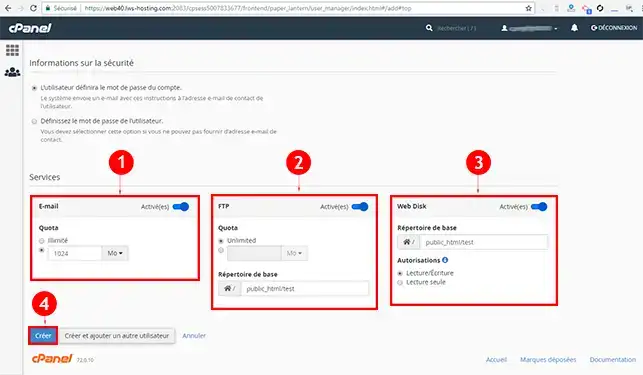
5. The last step allows you to define access rights for the user you wish to create.
How do I create cPanel hosting sub-accounts?

  • E-mail: You can enable or disable the email service for the sub-account and define the disk space quota for the email. The email consists of the user name followed by the domain name.
  • FTP: You can define FTP access, the disk space quota authorised for the user and the directory to which the sub-account will have access.
  • Web Disk: The Web Disk service lets you define directory access rights. You can define"Read/Write" or"Read Only". In the case of "Read only", the sub-account will not be able to delete and/or modify a file in the directory concerned.

Conclusion

You are now able to create a sub-account on your cPanel hosting with LWS. When creating the sub-account, you can activate or deactivate several services such as email, FTP access or define access rights to files and folders. You can delete and/or modify the services authorised for a sub-account at any time.

Don't hesitate to share your comments and questions!

help.lws.net/a/1233
Was this article helpful?

Yes

No

Read 30 466 times

Thank you! Feel free to ask questions about our documentation if you would like more information, and help us improve it.

Similar articles

A question about this article?

Ask the LWS team and the community. Answers are published after moderation.

Ask the LWS team and its community a question

GDPR: Controller: LWS-Ligne Web Services. Purpose: moderation and public publication of your question, possible notification of an answer. Legal basis: consent (Art. 6(1)(a) GDPR). Email retention: 90 days after notification, 12 months maximum without an answer. To exercise your rights, see the GDPR section of our Terms and Conditions.