
Online help
The web host accessible to all
Procédure
Welcome to this help section dedicated to managing the users of your Cloud Drive. Here, we'll explain how to designate a user, including yourself, as manager from your LWS customer area.
To follow this documentation, you must have:
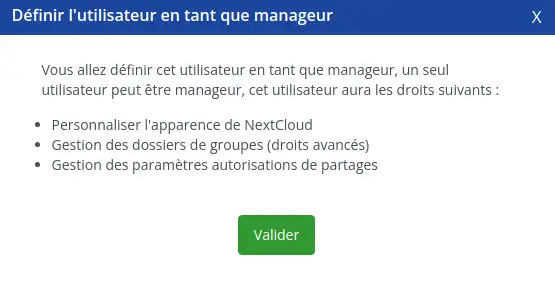
The manager user has the following additional rights compared to a standard user:
Customisation of Appearance: The manager user has the ability to customise the appearance of Nextcloud by adding the logo and modifying the background, thus aligning the interface with the company's visual identity. This customisation reinforces brand consistency and provides a more immersive user experience.
Security and Access Policies: The user manager has the ability to define specific security and access policies for different users or groups. This includes defining permission levels, sharing rules and restrictions on access to sensitive files. These measures strengthen data security while maintaining the flexibility needed for collaboration.
Customise Sharing Settings: By defining sharing settings, the manager user can control the options available for sharing files, including the ability to share outside the organisation, download limits and the validity period of sharing links.
To give a user manager status, follow these simple steps:
Step 1: First, you need to log in to your LWS account and access Online Storage Management for the Nextcloud you want to manage.
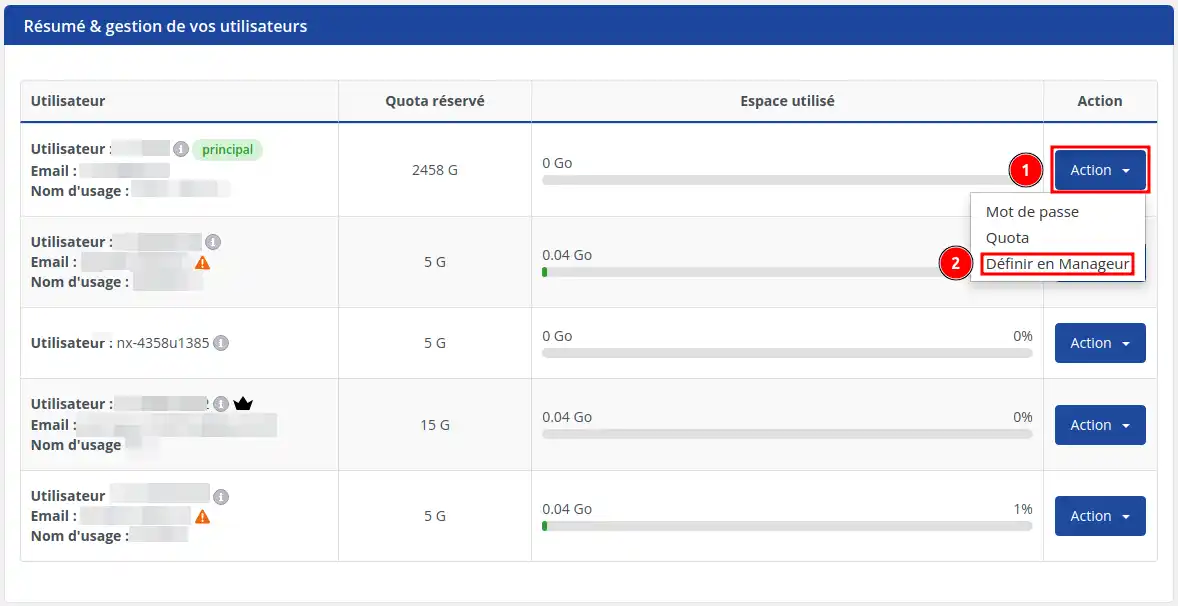
Step 2: Look for the "Summary & managing your users" box. Then click on "Action" (1) and select "Set as Manager" (2).
Step 3: A screen appears asking you to confirm your choice. This screen reminds you of the manager's rights. Then press "Confirm".
Only one user can be a manager at a time. We recommend that the main user (i.e. in principle yourself) be the manager, as the main user is the one who has access to the LWS panel and can perform actions such as changing user passwords and quotas.
By following these instructions, you'll be able to easily set up a Cloud Drive user as a manager.If you have any further questions or need assistance, please don't hesitate to contact our support team , who are on hand to help.If you don't yet have an online storage package or would like to upgrade to a cloud storage package with advanced features, consult this documentation to place your order, and find information about the Nextcloud and Nextcloud Pro packages here.
[
Manage share permissions settings [/tips]
Ask the LWS team and the community. Answers are published after moderation.
 About LWS :
LWS is a 100% French web hosting company that focuses on quality and innovation and offers a responsive and competent technical service at affordable prices.
About LWS :
LWS is a 100% French web hosting company that focuses on quality and innovation and offers a responsive and competent technical service at affordable prices.



 Yes
Yes No
No