How do I insert an image gallery in SiteBuilder Pro?

Procédure

Why insert an image gallery on your website?

SiteBuilder Pro lets youinsert an image gallery on your website. The use of image galleries is not new; many sites have been using them for some time. In certain activities, using an image gallery can be useful for displaying your work.

The list of uses for an image gallery is a long one, as it can be used in almost every field of activity, such as architecture, photography and development. However, a well-designed image gallery can generate more interest among visitors and more sales.

How do I insert an image gallery into SiteBuilder Pro?

To insert an image gallery on SiteBuilder Pro, you first need to connect to your website administration.


1. Click on the"Gallery" tab on the toolbar of your SiteBuilder Pro software.

How do I insert an image gallery in SiteBuilder Pro?


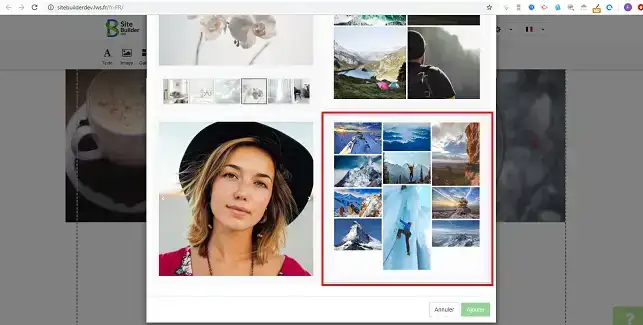
2. A new window will open, allowing you to select the desired element for your images. Click on the element you wish to set up as an image gallery.
How do I insert an image gallery in SiteBuilder Pro?

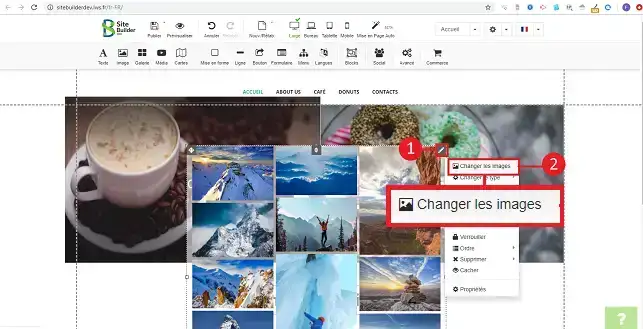
3. To change the images, click on the stylus at the top right of the item and then on"Change images".
How do I insert an image gallery in SiteBuilder Pro?

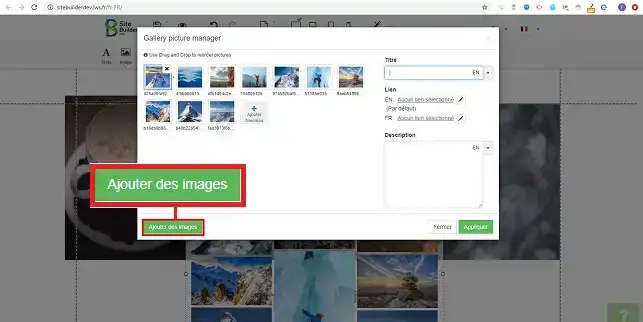
4. Click on the "Add images" button.

How do I insert an image gallery in SiteBuilder Pro?

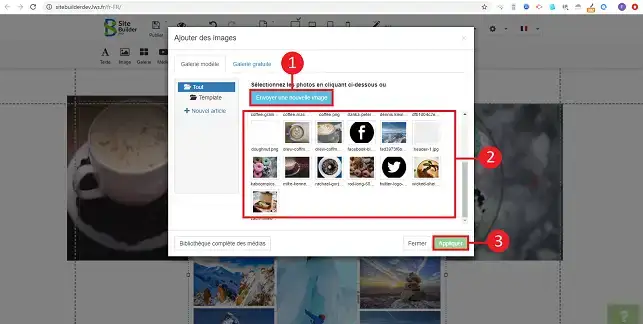
5. Click on the"Send new images" button and select the images on your computer. Then choose the images to insert on the previously loaded element and click on"Apply" to save your request.
How do I insert an image gallery in SiteBuilder Pro?


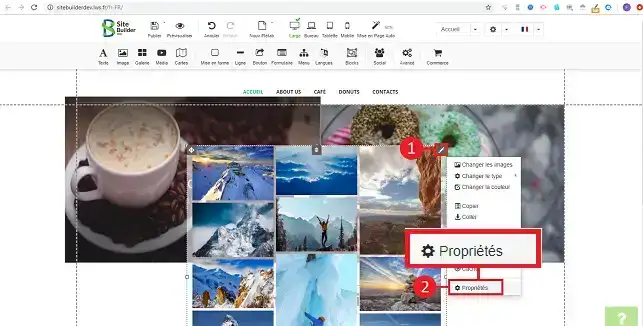
6. Click on the stylus to the right of your image gallery and then on"Settings" to configure your image gallery.
How do I insert an image gallery in SiteBuilder Pro?


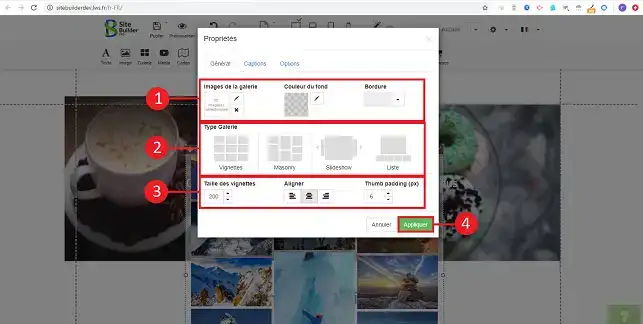
7. Configuring the item is quick and easy. First of all, you can choose the type of gallery. You can choose between thumbnails (miniatures of your images), Slideshow and List. Click on the desired layout for your image gallery. You can also set a background colour for your image gallery or define the size and style of the border. Once the configuration is complete, don't forget to click on the"Apply" button to save your changes.
How do I insert an image gallery in SiteBuilder Pro?

Conclusion

You are now ready to insert an image gallery on your SiteBuilder Pro site. When creating images, it is advisable to reduce their weight to make them easier to navigate on your website. SiteBuilder Pro also lets youadd videos to your website.

Don't hesitate to share your comments and questions!

help.lws.net/a/895
Was this article helpful?

Yes

No

Read 27 692 times

Thank you! Feel free to ask questions about our documentation if you would like more information, and help us improve it.

Similar articles

Questions about the article 2

Ask a question
LWS-229608 LWS team
28 Sept 2022
Bonjour, Comment est-il possible de protéger des images que je mets sur mon site? J'ai deja désactivé le clic droit pour éviter l'option de téléchargement mais il y a toujours moyen de glisser l'image directement sur son bureau pour la copier...
fabrice-LWS Official answer
1 Oct 2022
Bonjour, je vous invite à prendre connaissance de ce lien pour cela: https://www.photodeck.com/fr/blog/proteger-vol-de-photos-site/ .
Was this answer helpful?
Augustine
27 May 2023
Bonjour, j'aimerais savoir comment recadrer une à une les images d'une galerie dans mon site créé avec SiteBuilderPro?
Benjamin-LWS Official answer
30 May 2023

Bonjour,

Merci de votre retour.

Il n'est pas de recadrer des images insérer dans une galerie, il faudra importer les images déjà redimensionner.

Je vous remercie de votre attention et reste à votre disposition pour toute autre question ou complément d'information.

Nous vous invitons à contacter notre service support à travers votre espace client, afin de vous apporter une aide si vous rencontrez des difficultés quelconque. (Contacter le support LWS)

Cordialement, L'équipe LWS 

Was this answer helpful?

A question about this article?

Ask the LWS team and the community. Answers are published after moderation.

Ask the LWS team and its community a question

GDPR: Controller: LWS-Ligne Web Services. Purpose: moderation and public publication of your question, possible notification of an answer. Legal basis: consent (Art. 6(1)(a) GDPR). Email retention: 90 days after notification, 12 months maximum without an answer. To exercise your rights, see the GDPR section of our Terms and Conditions.