
Online help
The web host accessible to all
Procédure
This documentation describes the procedure for the older version of SiteBuilder. If you are using the latest version of SiteBuilder, you will need to refer to this documentation.
To insert a table in SiteBuilder Pro, log in to your website administration.
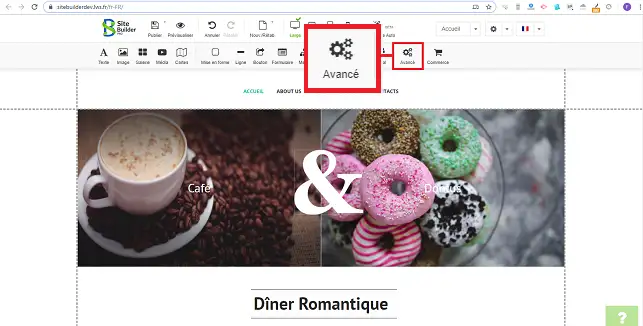
1. Click on the"Advanced" tab to open the window showing all the available advanced options.
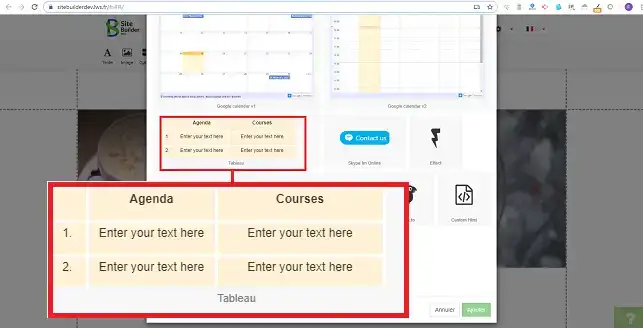
2. Select the table by clicking on it.
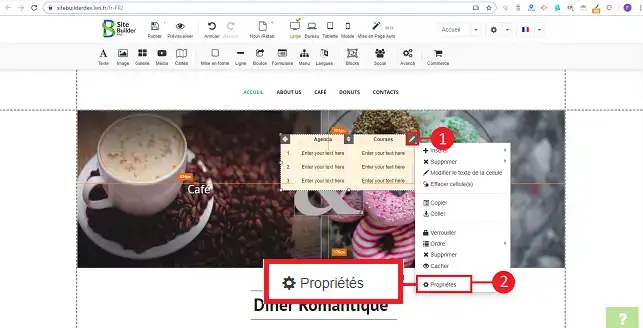
3. You can change the parameters of your table. To do this, click on the stylus on the right-hand side of your panel and then on"Properties".
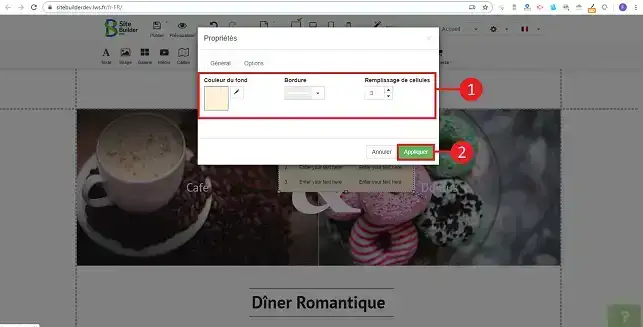
4. The"General" section in"Properties" allows you to change the background colour, border and cell fill. Click on the"Apply" button as soon as you have made your changes.
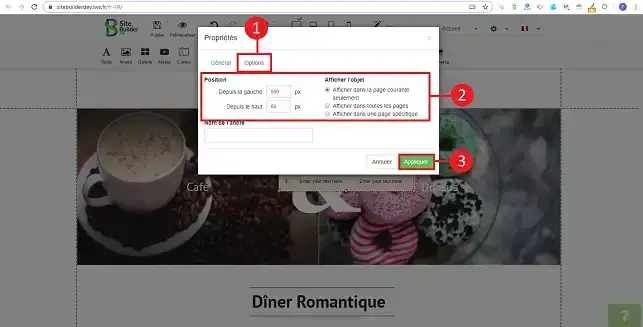
5. The"Options" tab lets you change the position of your table on your website. You can also set the page on which you want to display your table. Click on the "Apply" button once you have made your choice.
You are now able to create a table on your website created with SiteBuilder Pro from LWS. The table can be used to lay out certain elements of your website as well as to create a pricing table or other, depending on your needs.
Don't hesitate to share your comments and questions!
Ask the LWS team and the community. Answers are published after moderation.
 About LWS :
LWS is a 100% French web hosting company that focuses on quality and innovation and offers a responsive and competent technical service at affordable prices.
About LWS :
LWS is a 100% French web hosting company that focuses on quality and innovation and offers a responsive and competent technical service at affordable prices.



 Yes
Yes No
No