Procédure
Affected service : WordPress
Affected panel : WordPress administration
Level : beginner
Maintenance mode temporarily displays a dedicated page to your visitors while you make changes to your WordPress site. This allows you to keep working on your site without showing incomplete or in-progress pages.
In this guide, we use the free Maintenance extension, developed by WebFactory.
Maintenance mode does not secure your WordPress site. It is used to temporarily replace the public display of the site with a page indicating to visitors that maintenance is in progress.
Install the Maintenance extension
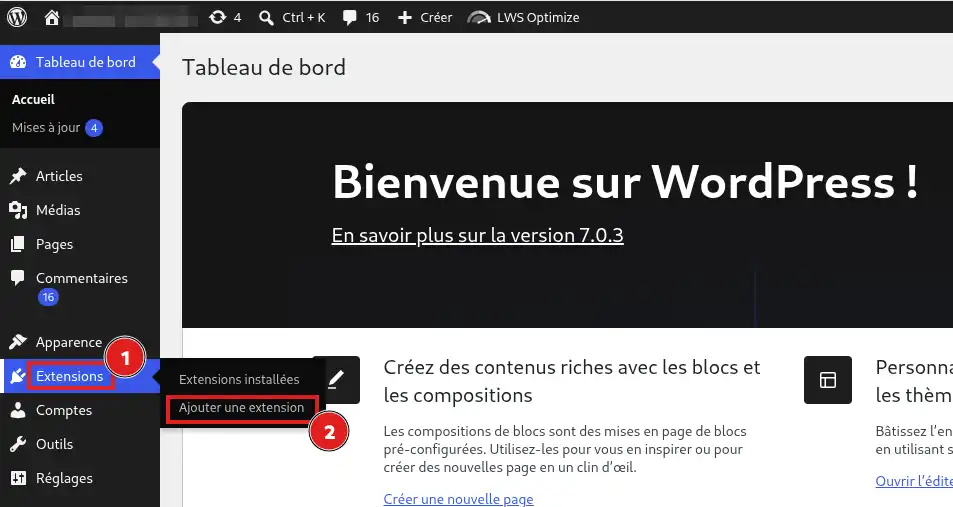
From the WordPress administration, go to Plugins > [PERSON_NAME] extension.
In the search field, enter Maintenance.
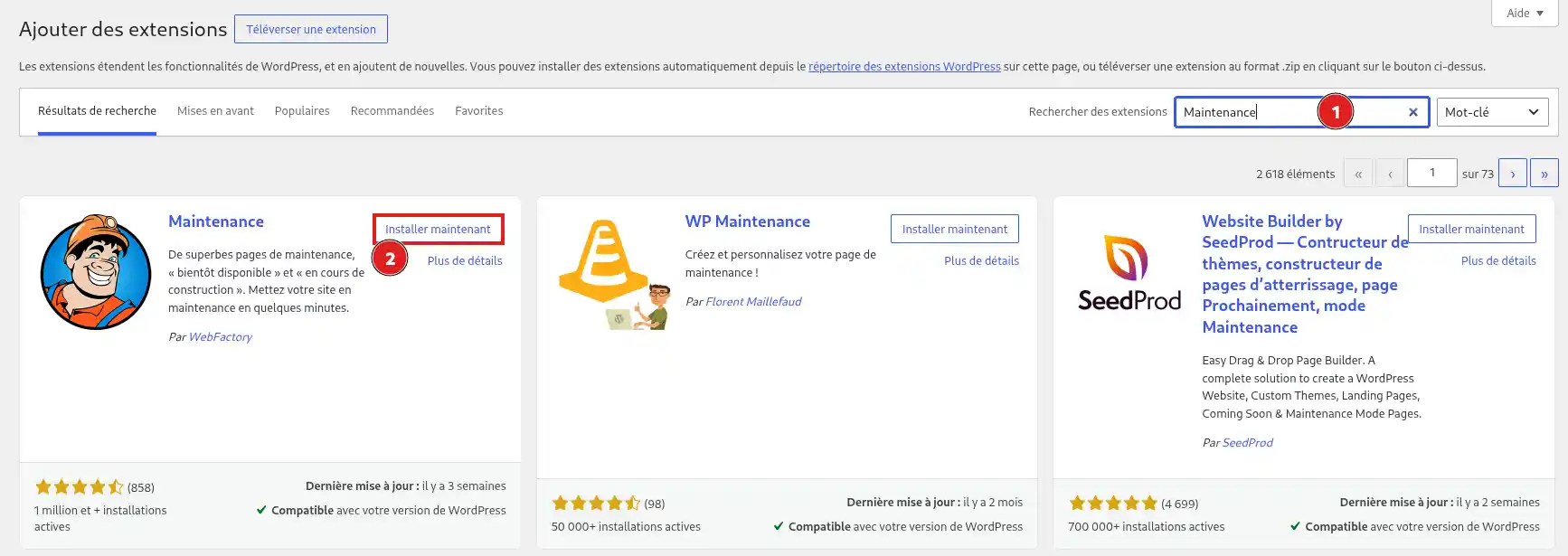
Several extensions may have a similar name. Find the Maintenance extension by WebFactory, [PERSON_NAME] Install Now.
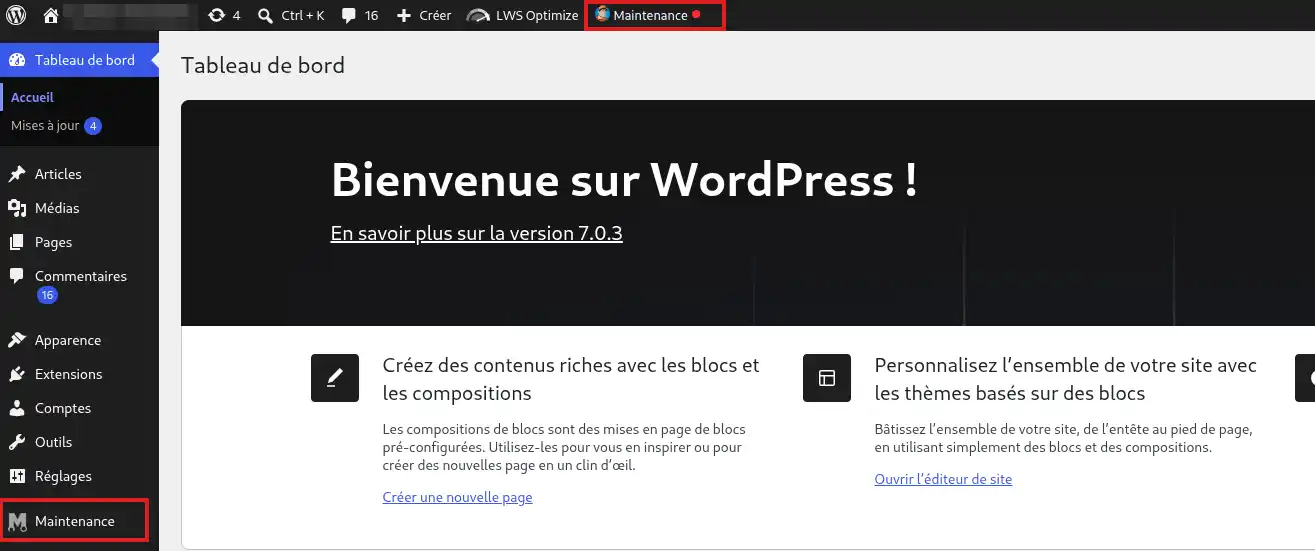
Once the installation is complete, click Activate.
The extension then adds a Maintenance menu in the WordPress administration.
Customize the content of the maintenance page
The extension provides an editor that lets you modify the page shown to visitors.
From the Maintenance menu, open the extension settings, [PERSON_NAME] Design > Layout.
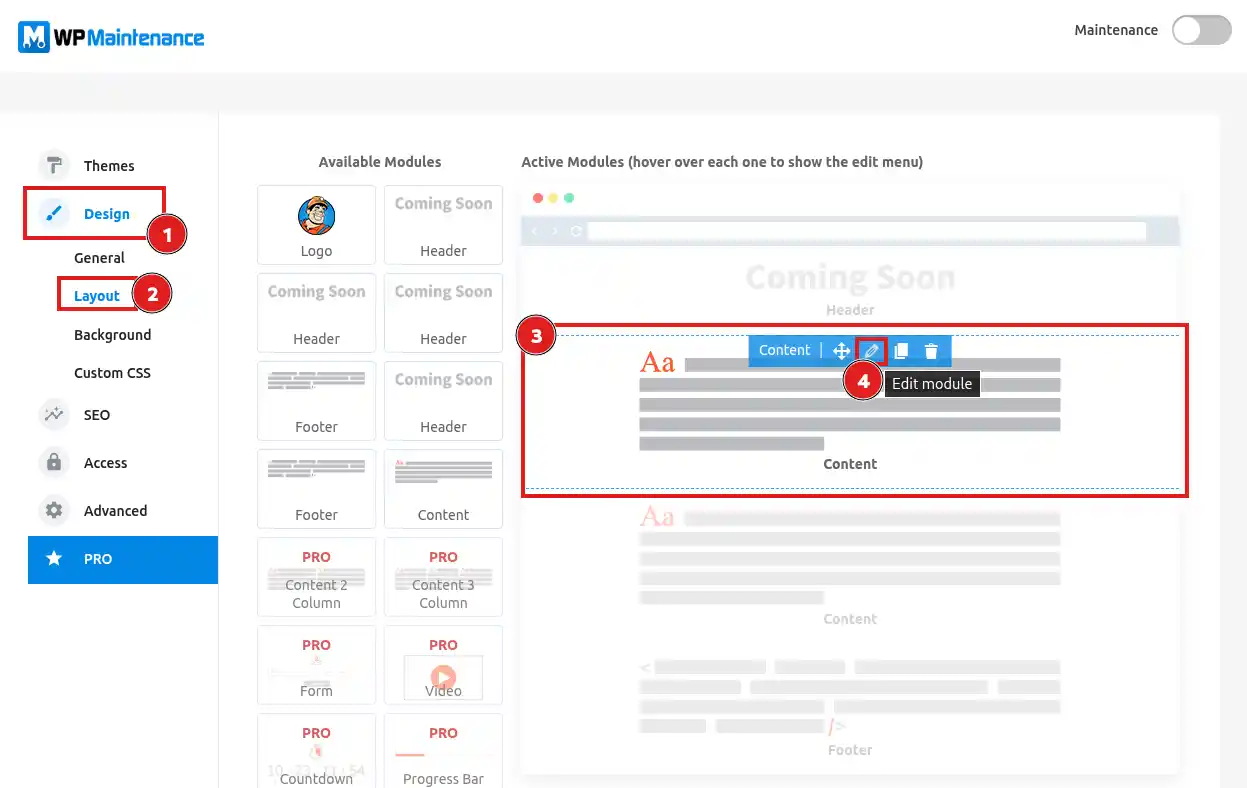
The central part of the screen shows the different elements that make up your maintenance page, for example the main content or the footer.
To modify a text:
- hover over the block you want to edit;
- click the pencil icon to edit the module;
- change the text in the Text field ;
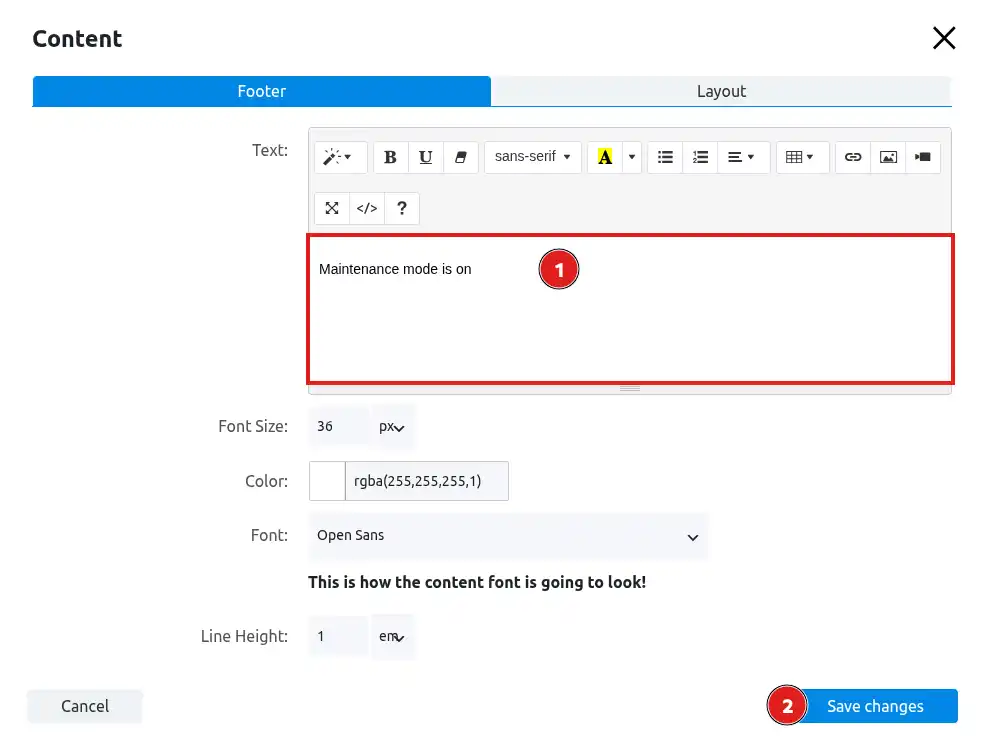
- click Save changes to save your changes.
For example, you can replace the text with:
Site temporarily unavailable
We are currently making some changes to our site. It will be accessible again shortly. Thank you for your patience.
You can repeat the process for the different blocks on the page.
The extension also lets you change the page appearance from the Themes, Design and Background sections. These customizations are optional: the default page can be used as is if you simply want to inform [PERSON_NAME] that maintenance is in progress.
Enable HTTP code 503
When your site is temporarily put into maintenance mode, you can tell search engines that this downtime is temporary thanks to the HTTP 503 Service Unavailable code.
In the extension settings, click SEO.
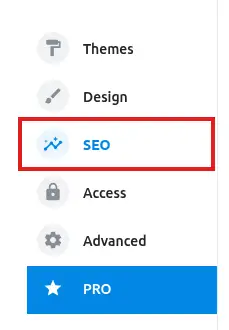
Then enable the option:
Enable 503 (Service Unavailable) status code to discourage Search Engine crawlers
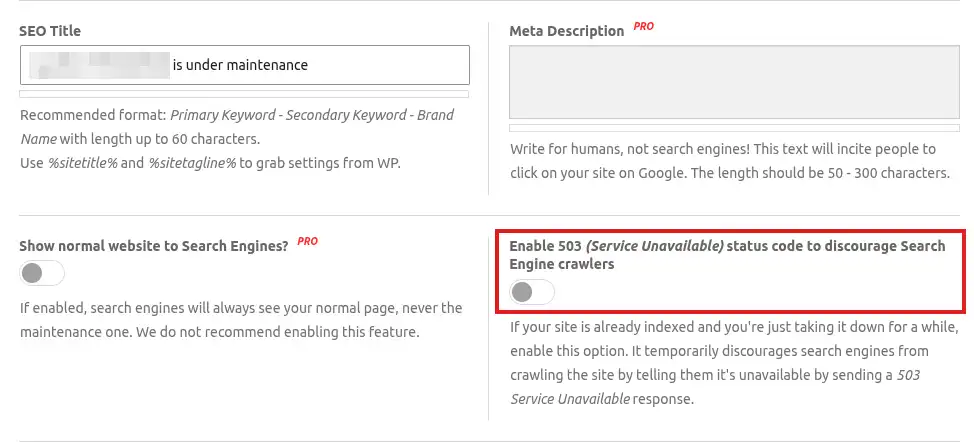
The HTTP 503 code tells search engines that your site is temporarily unavailable. It is particularly suitable when the site is already indexed and you are temporarily putting it into maintenance mode.
Enable maintenance mode
When your page is ready, you can put the site into maintenance mode directly from the top bar of the WordPress administration.
Hover over or click Maintenance, then set Maintenance mode to ON.
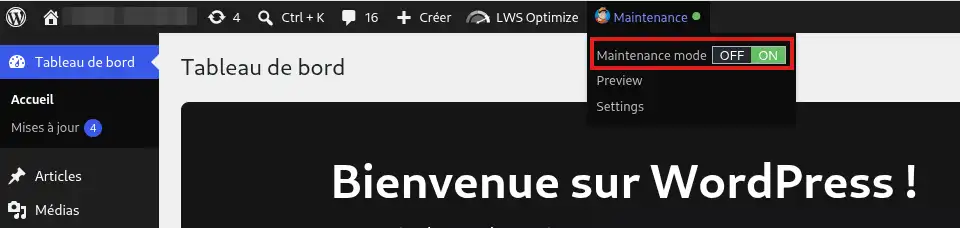
Maintenance mode can also be enabled from the extension interface using the Maintenance button located at the top of the page.
At [ADDRESS], visitors who are not [PERSON_NAME] to WordPress see [ADDRESS] maintenance page instead of your site.
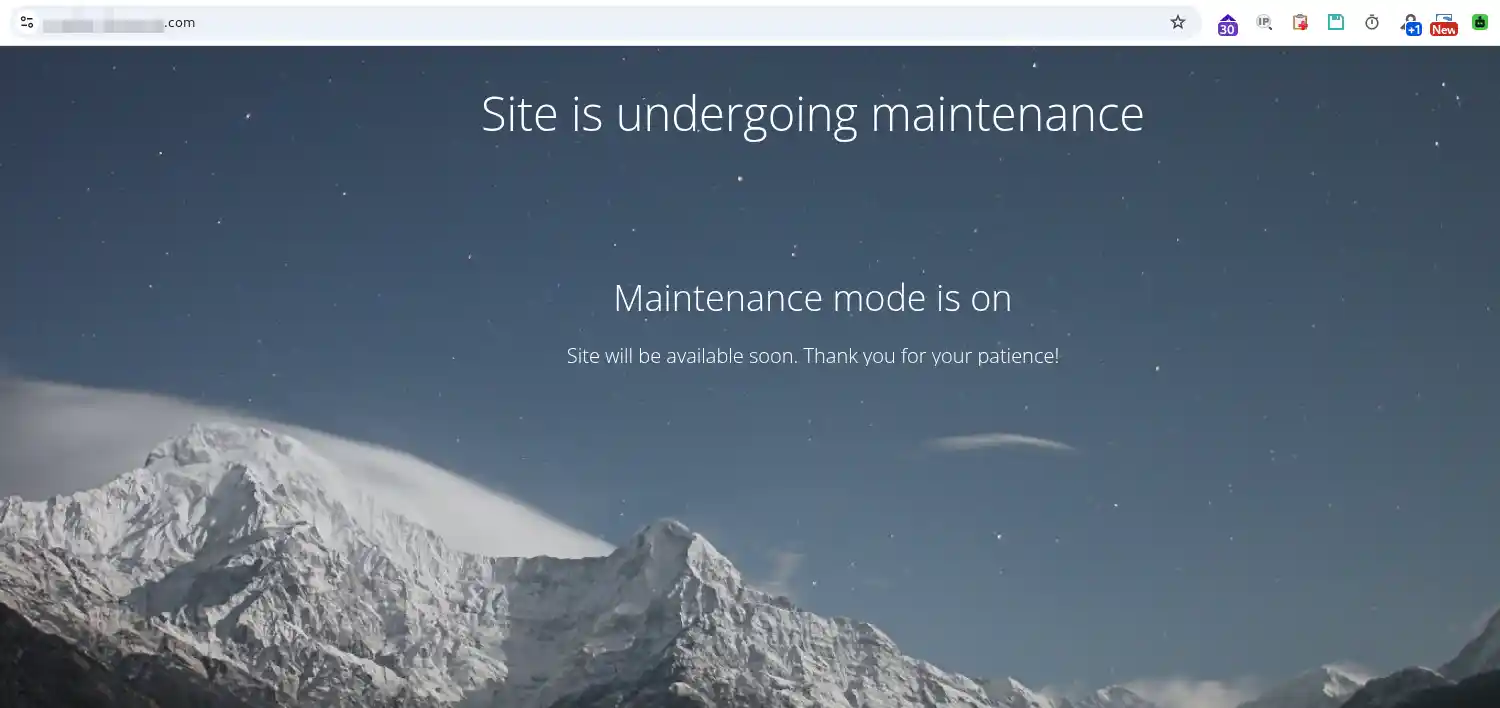
You can continue working normally in the WordPress administration.
Check that maintenance mode works
When you are logged in to WordPress, your site may continue to display normally. This behavior lets you work on your pages while keeping maintenance active for visitors.
To check what [PERSON_NAME] actually see, you can:
- open your site in a private browsing window;
- or log out of WordPress, then open your site normally.
In both cases, [ADDRESS] maintenance page should appear instead of your usual site.
If the maintenance page appears when you view the site without being logged in to WordPress, maintenance mode is working correctly.
Put the site back online
Once your changes are complete, return to the WordPress administration.
In the top bar, open the Maintenance menu, then set Maintenance mode to OFF.
You can also disable maintenance from the Maintenance button available in the extension interface.
Then check your site in a private browsing window or after logging out of WordPress.
Your usual site should appear again.
Common issues
I enabled maintenance mode, but my site displays normally
If you are logged in to WordPress, this is usually normal. The extension lets you keep viewing your site while visitors see [ADDRESS] maintenance page.
Open the site in a private browsing window or log out of WordPress to check its actual display.
The maintenance page does not appear
Check that Maintenance mode is indeed set to ON.
If your site uses a caching system, also clear the WordPress cache before testing again while logged out.
I disabled maintenance mode, but [ADDRESS] page is still visible
Check that Maintenance mode is indeed set to OFF.
Then clear your browser cache and, if your site uses a caching extension, the WordPress cache. Open the site again in a private browsing window or after logging out.

 Contact us
 Customer Area


 Visit LWS


 Yes
Yes No
No Article read
24991 once
Article read
24991 once Merci ! N'hésitez pas à
poser des questions sur nos documentations si vous souhaitez plus d'informations et nous aider à les
améliorer.
Merci ! N'hésitez pas à
poser des questions sur nos documentations si vous souhaitez plus d'informations et nous aider à les
améliorer.
 About
About 