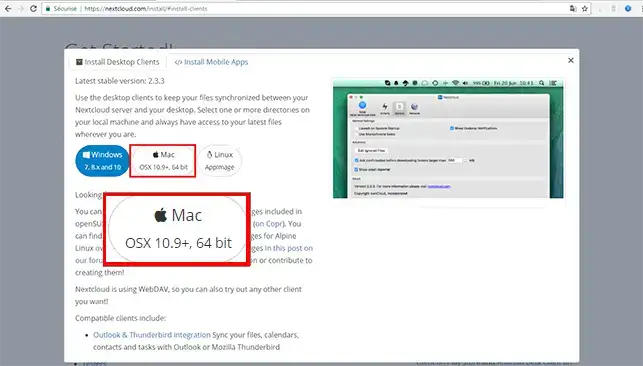
11. To download the NextCloud application for Mac, go to the NextCloud application page and click on the"Mac" button.
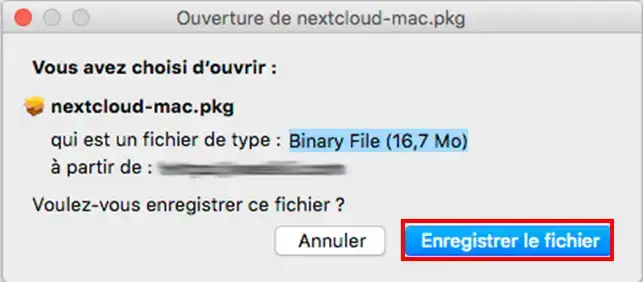
2. Click on the"Save file" button to start downloading.
How do you install your NextCloud application on your Mac?
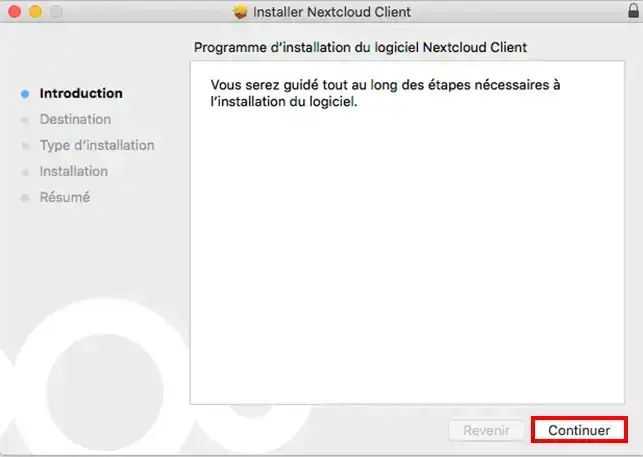
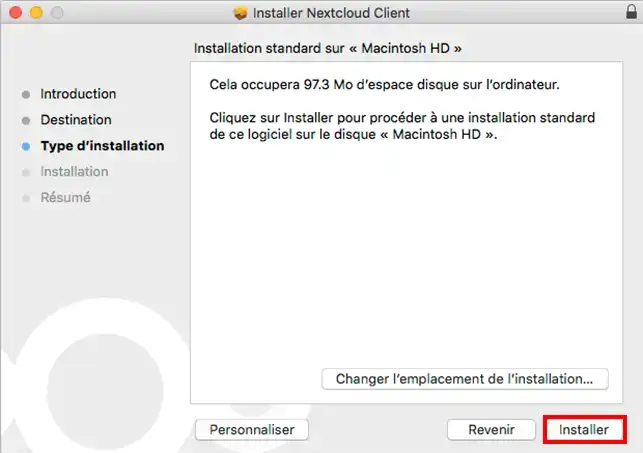
11. Click on the file you have just downloaded. As soon as the installation program opens, click on the "Next" button.
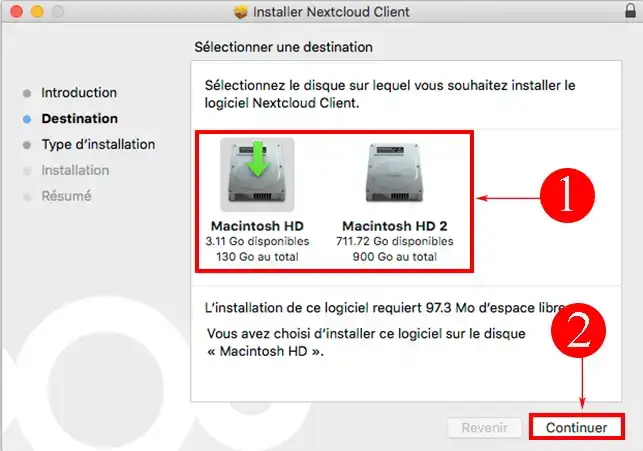
2. Choose where you want to install your NextCloud application, then click"Next".
3. If you wish, choose the type of installation. You can also choose the default installation by clicking"Next".
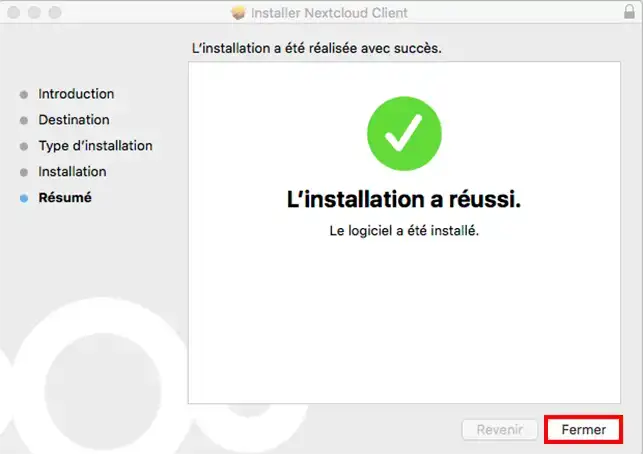
4. Once the installation is complete, click on the "Close" button.
How to connect to your NextCloud storage space
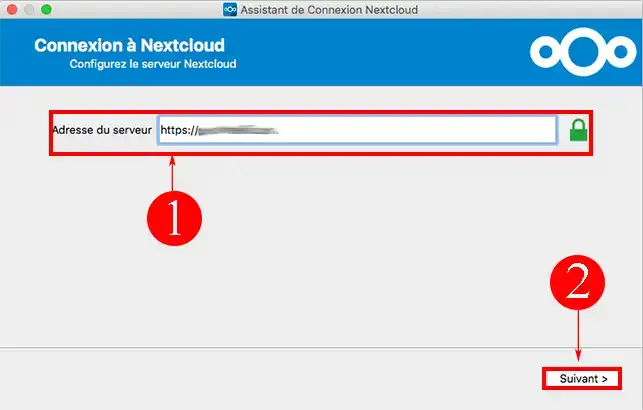
11. Enter theaddress of the storage server. You received an email when you subscribed with all the information you needed to connect.
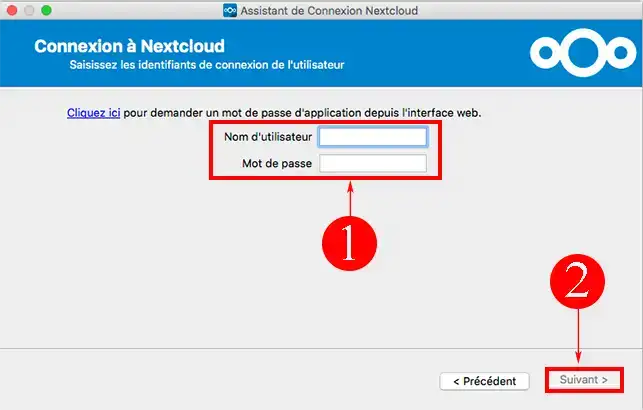
2. Enter your user name and password and click"Next".
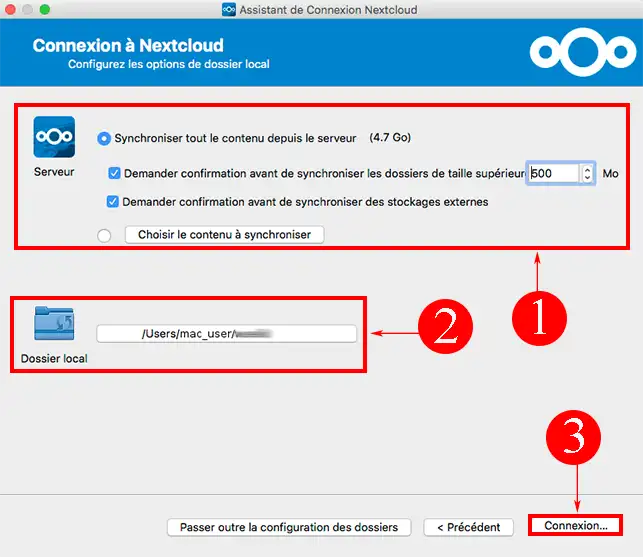
3. Specify the folders and sub-folders to be synchronised with your remote storage space and click on the"Connect" button.
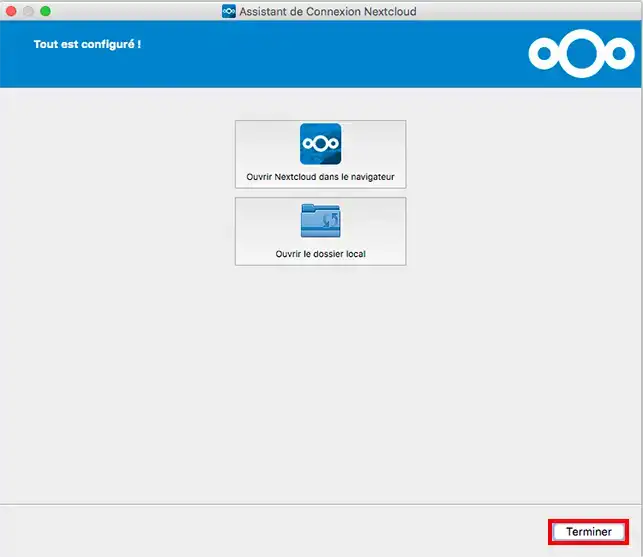
4. If everything is configured correctly, you should see a window offering you to connect to your storage space via your web browser or to your local folder that you have just synchronised with your NextCloud server. Click on the"Finish" button to exit the installation.
How do I synchronise a folder with my NextCloud storage space?
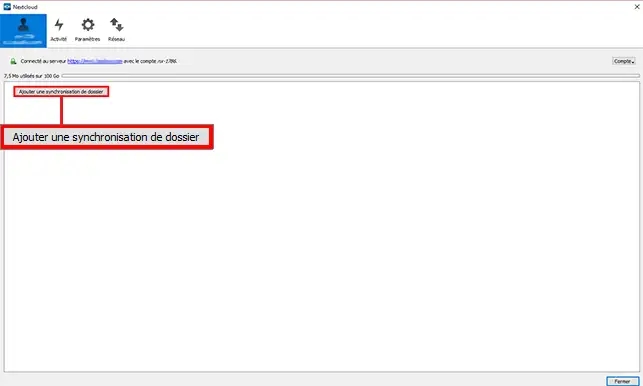
11. To synchronise a local folder with your remote storage space, open your application by double-clicking on the relevant icon. Then click on the"Add folder synchronisation" button.
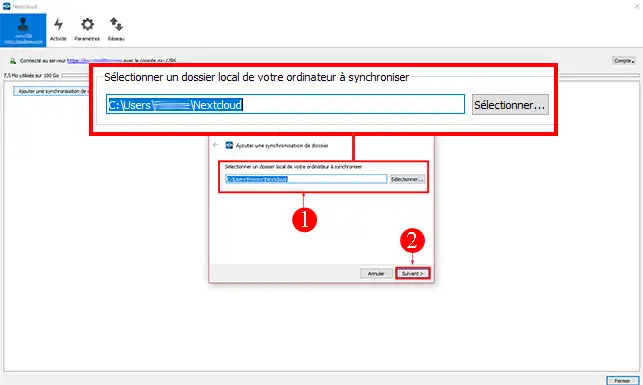
2. Select the local folder you want to synchronise with your remote storage space and click"Next".
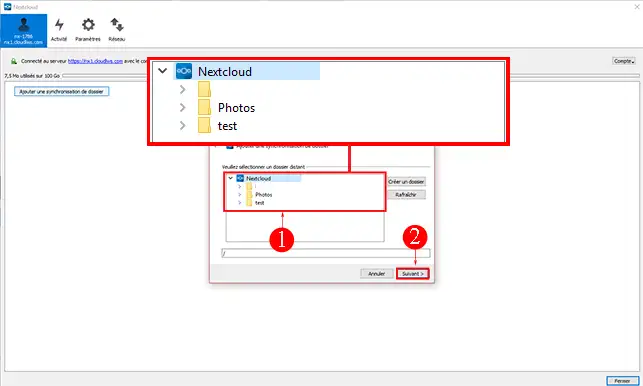
3. Choose the folders and subfolders to synchronise, then click "Next".
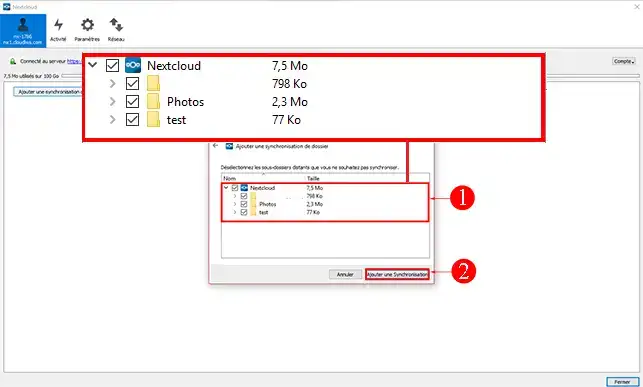
4. Click on the"Add to synchronisation" button. Synchronisation will start immediately, but it may take some time and the speed of synchronisation will depend mainly on the stability of your Internet connection. If you lose your Internet connection, synchronisation will be interrupted.
You can also use the NextCloud application on other devices such as:
Now you know how to use Nextcloud on Mac, if you have any further questions or need assistance, please do not hesitate tocontact our support team who will be happy to help.If you do not yet have an online storage package or would like to upgrade to a cloud storage package with advanced features, please consult this documentation to place your order, and find information about Nextcloud and Nextcloud Pro packages here.
Hello, it seems that all my "tagged" files (colored tags on macos that allow me to classify and easily find my files and folders) are not backed up. Thank you very much for your help!
F✓
fabrice-LWS Official answer
25 Aug 2022
Hello, It's possible that os x has its own tag management that Nextcloud doesn't support. This is why they are not saved.
Was this answer helpful?
A question about this article?
Ask the LWS team and the community. Answers are published after moderation.
Ask the LWS team and its community a question
!
To enable this form, please tick the two consent boxes below.



 Yes
Yes No
No About
About 