
Online help
The web host accessible to all
Procédure
Thanks to the "Email Routing" tool available in the cPanel interface, it is possible to define whether the hosting account should accept emails for a domain configured on it or not.
There are several possible cases, as follows:
This tool helps fix email sending and receiving problems when the domain is configured on your cPanel plan and emails are hosted elsewhere. Indeed, if routing is set to "remote", all emails will be rejected by the cPanel hosting for the domain concerned.
When adding a domain on cPanel, whether it is the main domain or domains added via the "Addon Domain" or "Alias" function, the routing configuration is set by default to "local". You can check the configuration by clicking on the "Email Routing" tab found in the 'Email" section of your cPanel interface.

Then choose the domain concerned by your request.
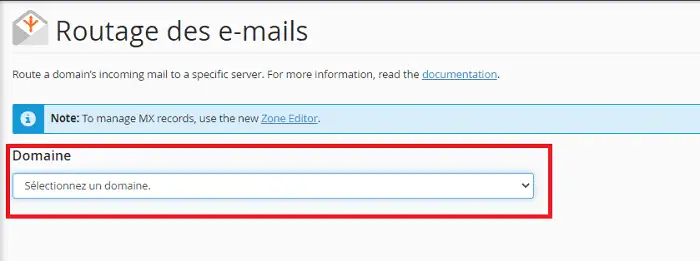
The configuration should look like the screenshot below:
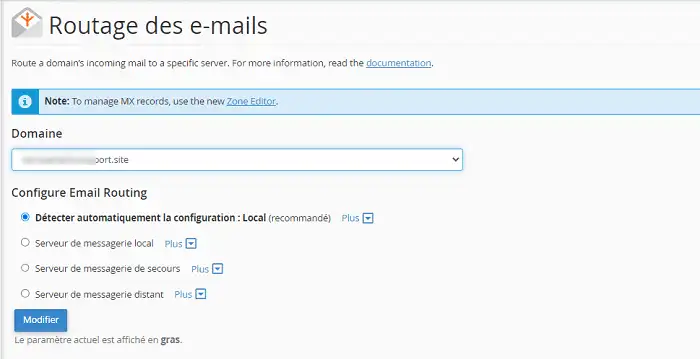
In this case, the domain uses the MX server attached to the cPanel plan:
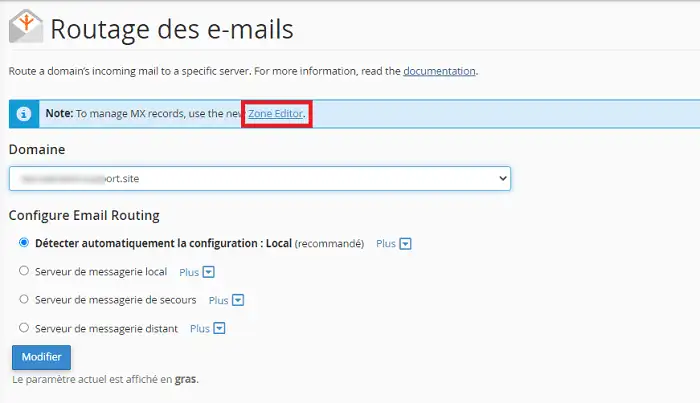
You can modify the MX fields attached to your domain for those of another provider or to configure a Mail Pro service on your cPanel plan. To do this, click on "Zone Editor" found in the blue box at the top of the page.
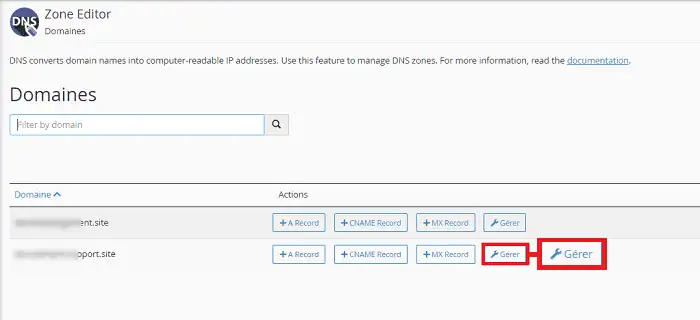
Then click on "Manage" found behind the domain name concerned by the modification.
Click on the "Edit" button found behind the MX field concerned.
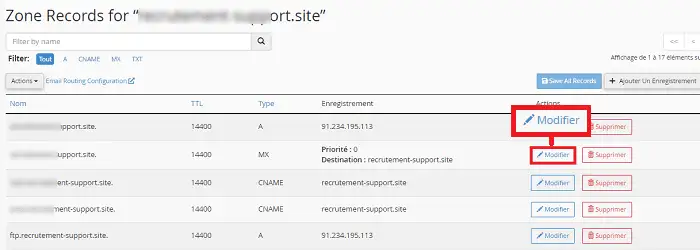
Once the modification has been made, click on the "Save" button to save your request. Please note that once the Zone has been modified, you will need to wait a few hours for the DNS zone to propagate and for the MX Zone to be fully functional.
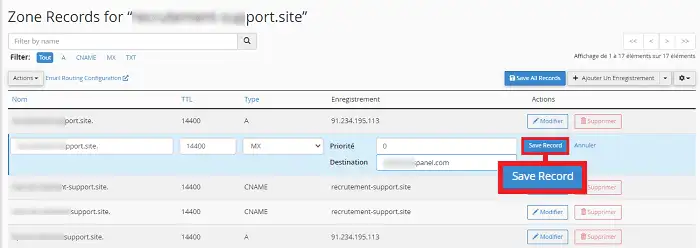
When configuring a remote MX server, it is necessary to pay attention to several things:
You are now able to use the Email Routing tool on your cPanel plan. The tool allows you to configure emails locally or remotely on your hosting account.
Ask the LWS team and the community. Answers are published after moderation.
 About LWS :
LWS is a 100% French web hosting company that focuses on quality and innovation and offers a responsive and competent technical service at affordable prices.
About LWS :
LWS is a 100% French web hosting company that focuses on quality and innovation and offers a responsive and competent technical service at affordable prices.



 Yes
Yes No
No