
Online help
The web host accessible to all
Procédure
This interface allows you to create, manage, and store GnuPG keys. GnuPG keys use the public key approach for encryption. Programs using a GnuPG key encrypt outgoing messages using a public key. Only the intended recipient, who has a private key, will be able to decrypt the message.
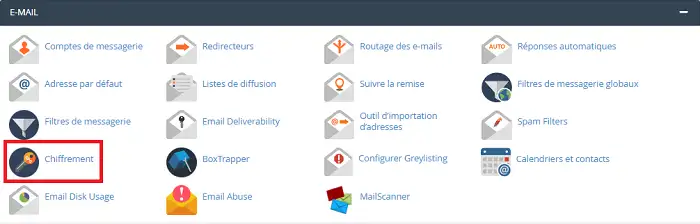
To add a GnuPG key, click on "Encryption" located in the "Email" section of your cPanel interface.
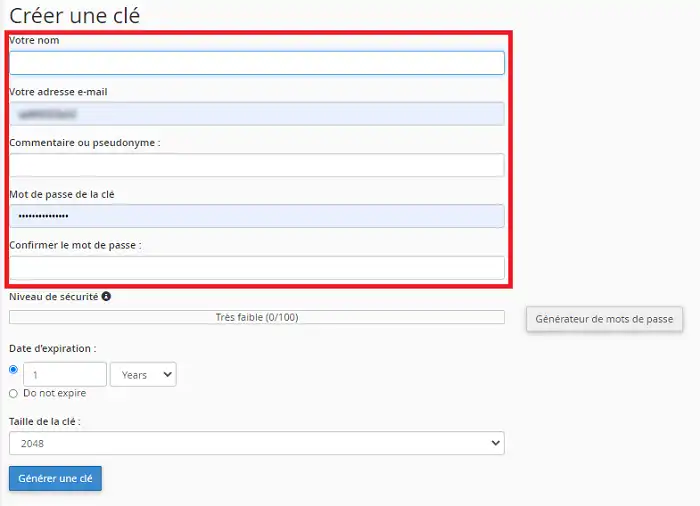
Enter your information in the form provided for this purpose.
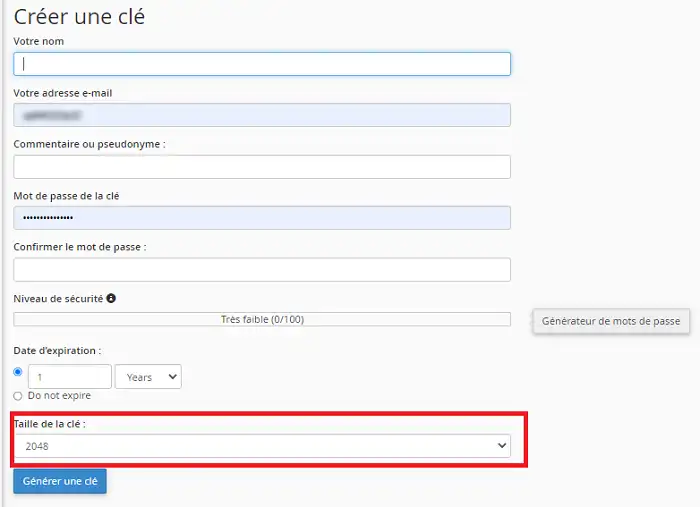
Select the key size, in bits, from the "Key Size" menu. The default size is 2048.
Finally, click on "Generate Key".
Note that it is imperative to use a secure password. As a result, it is preferable that it contains uppercase and lowercase letters, numbers, and symbols.
It is recommended to choose an appropriate expiration date for your key. By default, the date is set to one year.
Once the key has been generated, you will be able to add it to other software or interfaces that require it, for example, an email client such as Outlook.
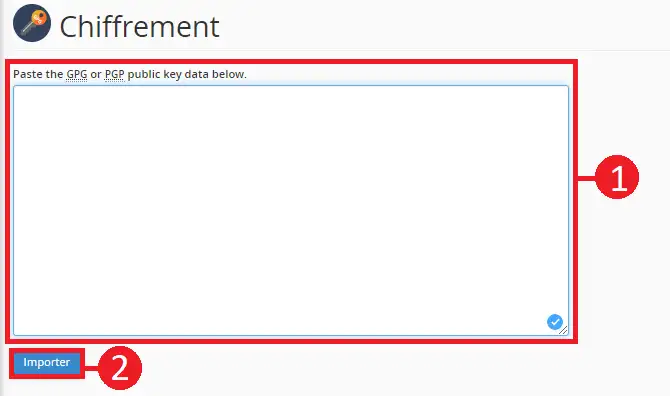
You have the option to import a GnuPG key by clicking the "import public GPG Key" button at the bottom of the page.

Paste your key into the field provided for this purpose and click the "Import" button.
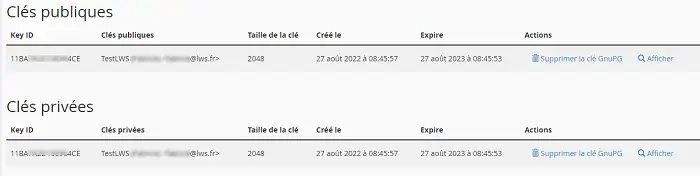
After adding a GnuPG key to your cPanel interface, you can delete it or display the public or private key.
To delete a GnuPG key, locate the key concerned by your request. All keys are located at the bottom of the page.
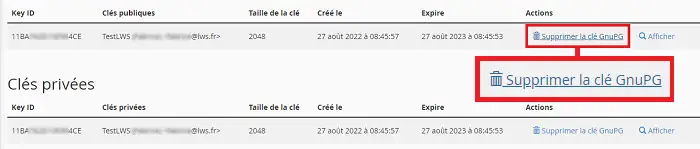
Click on the "Delete GnuPG Key" tab located behind the one concerned.
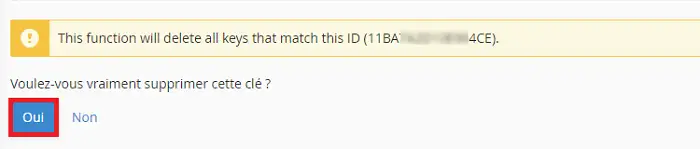
Answer the question "Do you really want to delete this key?" by clicking "Yes".
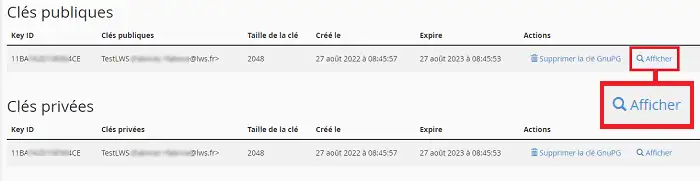
To display a GnuPG key, click on "Display" located behind the key concerned by your request.
You are now able to create, manage, and store a GnuPG key on your cPanel hosting plan. This key allows outgoing emails to be encrypted provided that recipients have the private key needed to read them.
Ask the LWS team and the community. Answers are published after moderation.
 About LWS :
LWS is a 100% French web hosting company that focuses on quality and innovation and offers a responsive and competent technical service at affordable prices.
About LWS :
LWS is a 100% French web hosting company that focuses on quality and innovation and offers a responsive and competent technical service at affordable prices.



 Yes
Yes No
No