
Online help
The web host accessible to all
Procédure
Thanks to the email address import tool, it is possible to create email addresses and email forwarding addresses using a .CSV file. This tool is very useful if you need to create a large number of email addresses or mail redirections on your cPanel hosting.
In order to import emails in bulk, you need to create a .CSV file. To do this, you can use software such as Notepad++. The CSV file should look like this:
Email,Password,Quota
alex@domaine.com,1234,10
lea@domaine.com,1234,5
simon@domaine.com,1234,1
It is preferable not to use Excel to create your file. Indeed, it may add unnecessary headers that could cause problems when importing your emails.
The format of your file is as follows:
It is preferable to use a .CSV file rather than a .XLS file. Indeed, .XLS files are more complex to create and contain metadata that may cause problems when importing your file
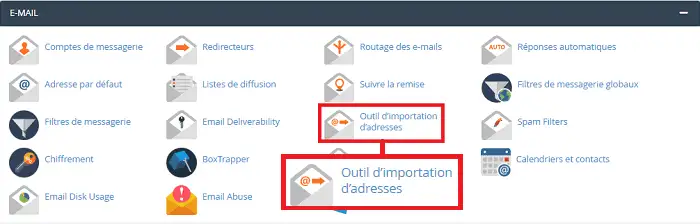
You can import email addresses by going to your cPanel interface and clicking on the "Import Addresses Tool" tab found in the "Email" section.
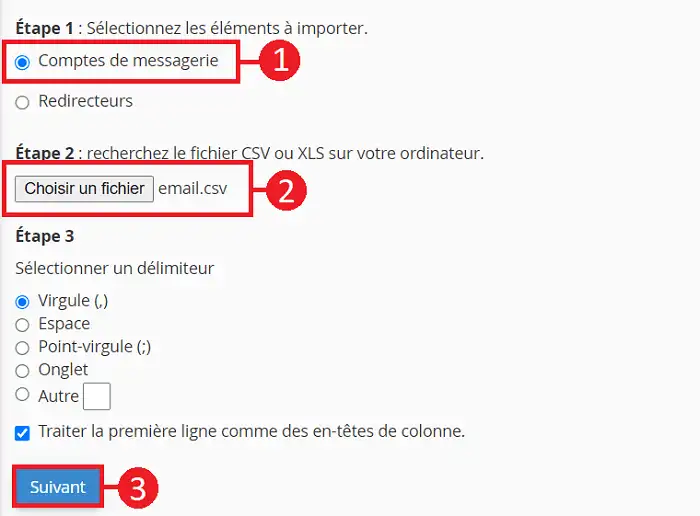
Choose "Email Accounts (1)", choose the relevant file (2) and click the "Next" button.
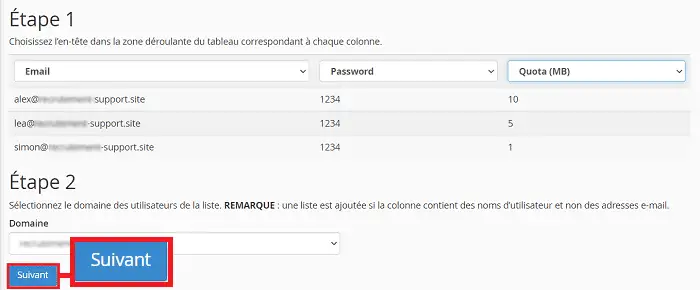
You will then see a visual confirmation of the email addresses found in your .CSV file. First check that all columns are correctly detected, then click the "Next" button.
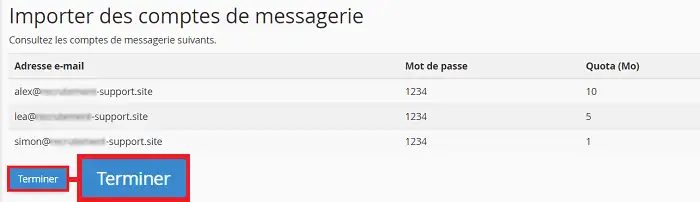
A final confirmation will be requested. Click "Finish" to create the emails.
It should also be noted that accented characters or commas should not be used in the password when creating the .CSV file. This could cause problems when importing the file.When importing emails, an error message may appear in the following cases:
The import file must have two columns as follows:
Source,Target
alex@domaine.com,alex@domaine.fr
lea@domaine.com,lea@domaine.fr
simon@domaine.com,simon@domaine.frIn order to import email forwarding addresses, you need to tick the "Forwarder" box available in the email import tool. Choose the file concerned by the import and click "Next".
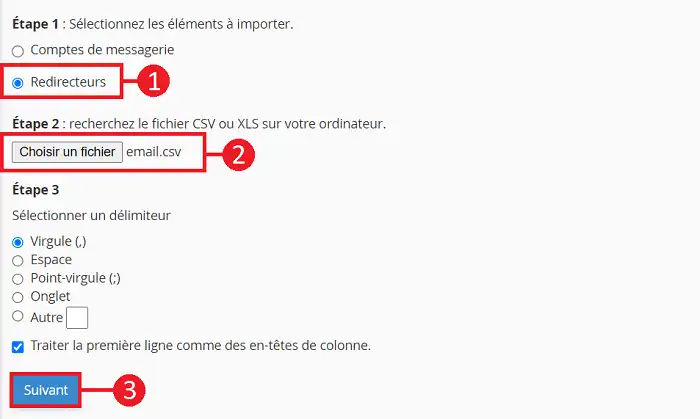
You will then see a visual confirmation of the email forwarding addresses found in your .CSV file. First check that all columns are correctly detected, then click the "Next" button.
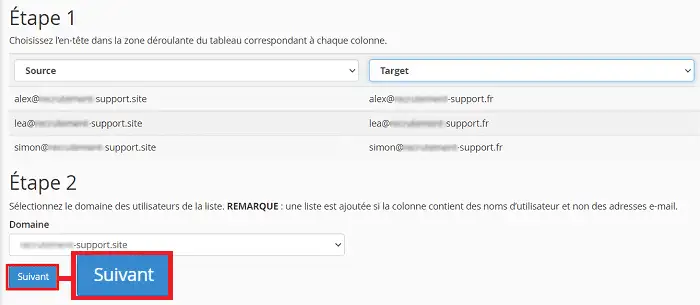
A final confirmation will be requested. Click "Finish" to create the email forwarding addresses.
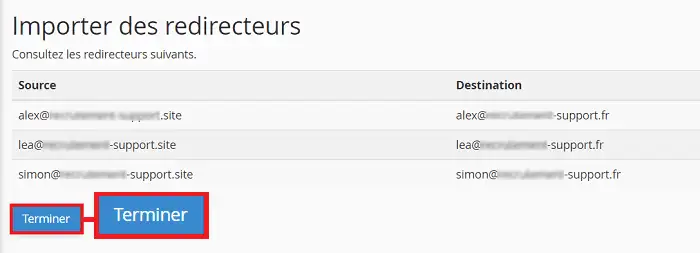
You are now able to create emails or add email forwarding addresses using a .CSV file on your cPanel hosting. This tool is very useful if you have many email addresses and email forwarding addresses to create.
Ask the LWS team and the community. Answers are published after moderation.
 About LWS :
LWS is a 100% French web hosting company that focuses on quality and innovation and offers a responsive and competent technical service at affordable prices.
About LWS :
LWS is a 100% French web hosting company that focuses on quality and innovation and offers a responsive and competent technical service at affordable prices.



 Yes
Yes No
No