Contact us
 Customer Area


 Visit LWS
Rate this article :
This article was useful to you ?
 Yes
Yes
 No
No
 Article read
158 once
Article read
158 once Merci ! N'hésitez pas à
poser des questions sur nos documentations si vous souhaitez plus d'informations et nous aider à les
améliorer.
Merci ! N'hésitez pas à
poser des questions sur nos documentations si vous souhaitez plus d'informations et nous aider à les
améliorer.Vous avez noté 0 étoile(s)



Sommaire
Procédure
Relevant service : LWS domain name
Relevant panel : LWS Panel
Level : beginner
Authenticating your domain allows you to use [ADDRESS], formerly [PERSON_NAME], [PERSON_NAME] newsletters, transactional emails, or marketing campaigns with an address linked to your domain name, for example [EMAIL].
The configuration consists of retrieving the DNS records provided by [ADDRESS], then adding them to your domain’s DNS zone from your LWS customer area. Since the values are specific to each [ADDRESS] account, it is important to copy the ones shown in your Brevo interface without modifying them.
This help concerns domains whose DNS zone is managed from LWS Panel.
If your domain uses external DNS servers, the records must be added with the provider currently managing the DNS zone.
You must be able to access:
Before adding an SPF or DMARC record, check whether one already exists.
A domain must have only one SPF record and one DMARC record. If one already exists, it must be modified rather than creating a second one.
Log in to your [ADDRESS] account, then open your account menu.
Go to Settings > Senders, domains and IPs > Domains.
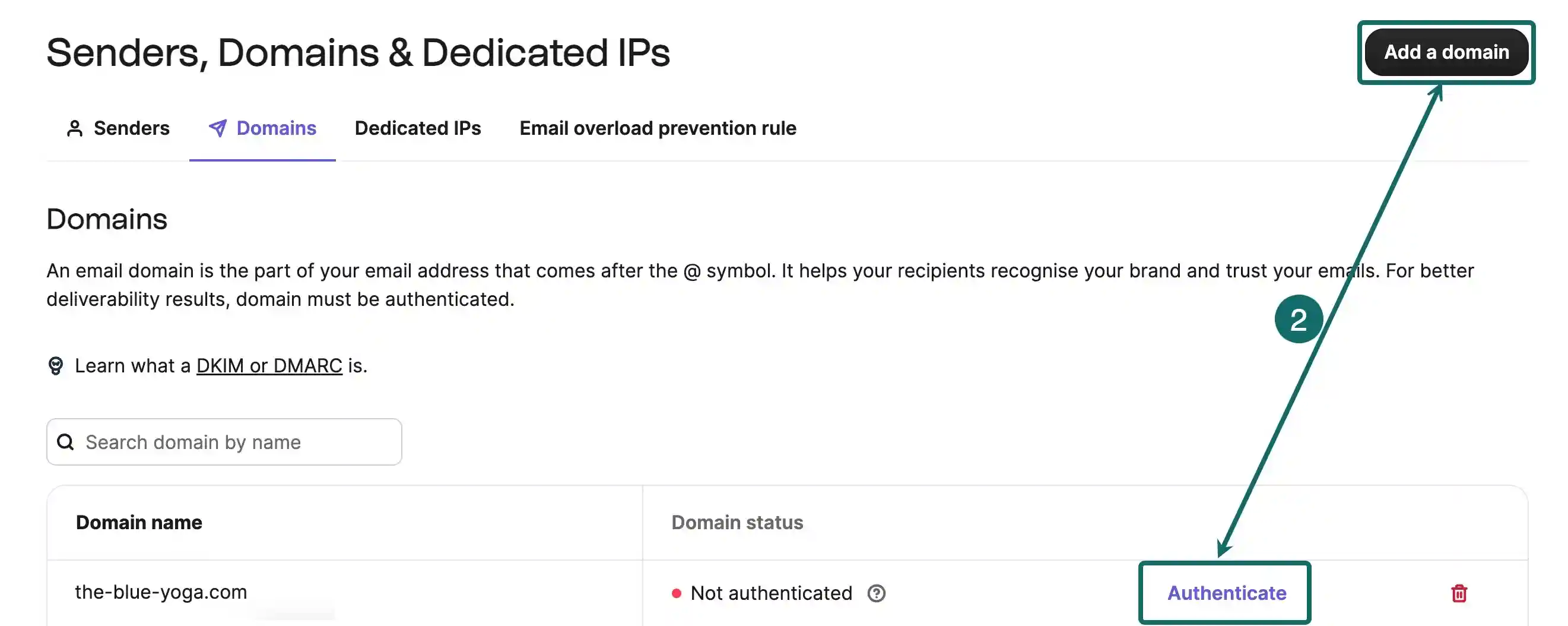
Click Add a domain. [PERSON_NAME], click Authenticate next to the relevant domain instead.
Enter [PERSON_NAME], without the full email address. For example, if you want [PERSON_NAME] [EMAIL], add only:
mondomaine.fr
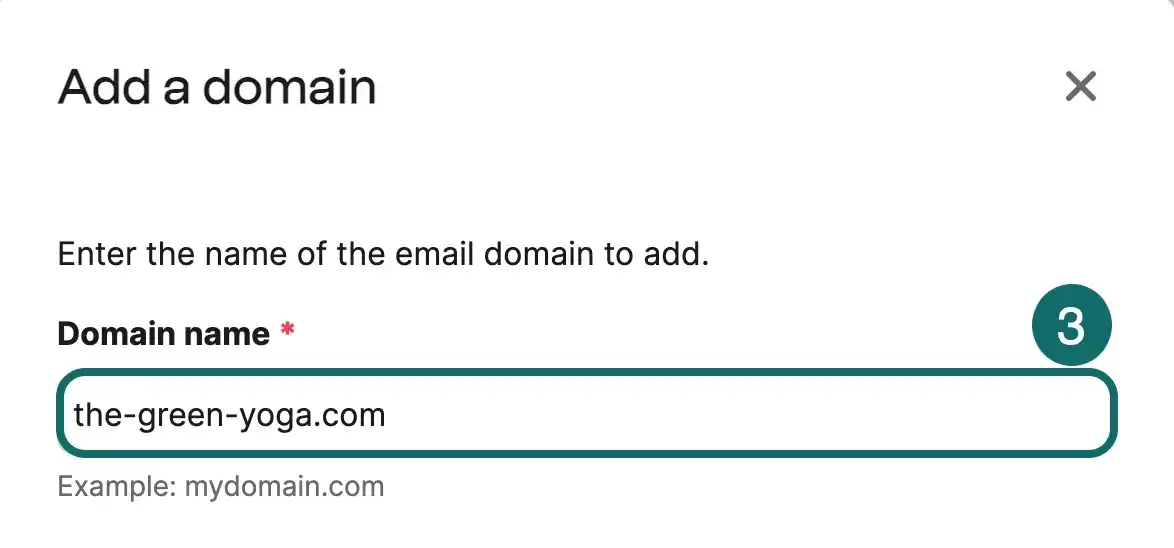
Then click Add a domain.
Brevo then displays the DNS records required to authenticate the domain. Depending on your account, you may see in particular:
| Record | Purpose |
|---|---|
| Brevo code | Verifies that you have access to the domain |
| DKIM | Signs your emails to prove they are [PERSON_NAME] by an authorized service |
| DMARC | Tells receiving servers how to handle emails sent with your domain |
| SPF | Authorizes certain servers to send emails for your domain, only if [PERSON_NAME] requests it |
| Tracking domain | Allows you to use a custom subdomain for link tracking, if this option is offered |
Choose the Authenticate the domain yourself option so you can copy the DNS records to add at LWS.
Log in to your LWS customer area.
In the Domains and hosting tab, click Manage next to the relevant domain.
Then click DNS zone in the "Domain management" section.
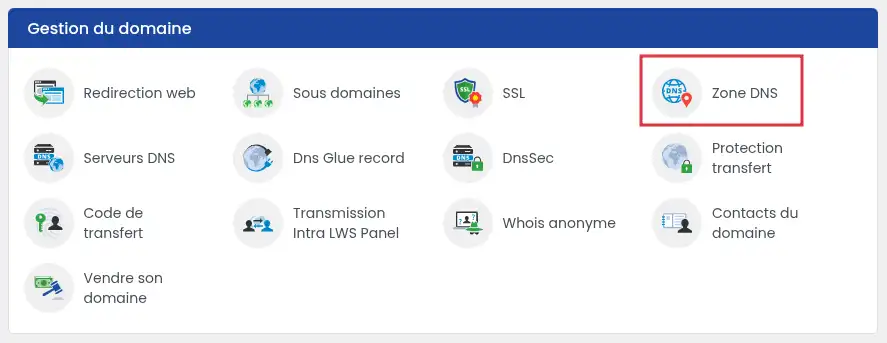
You will arrive on the page where you can add or modify the domain’s DNS records.
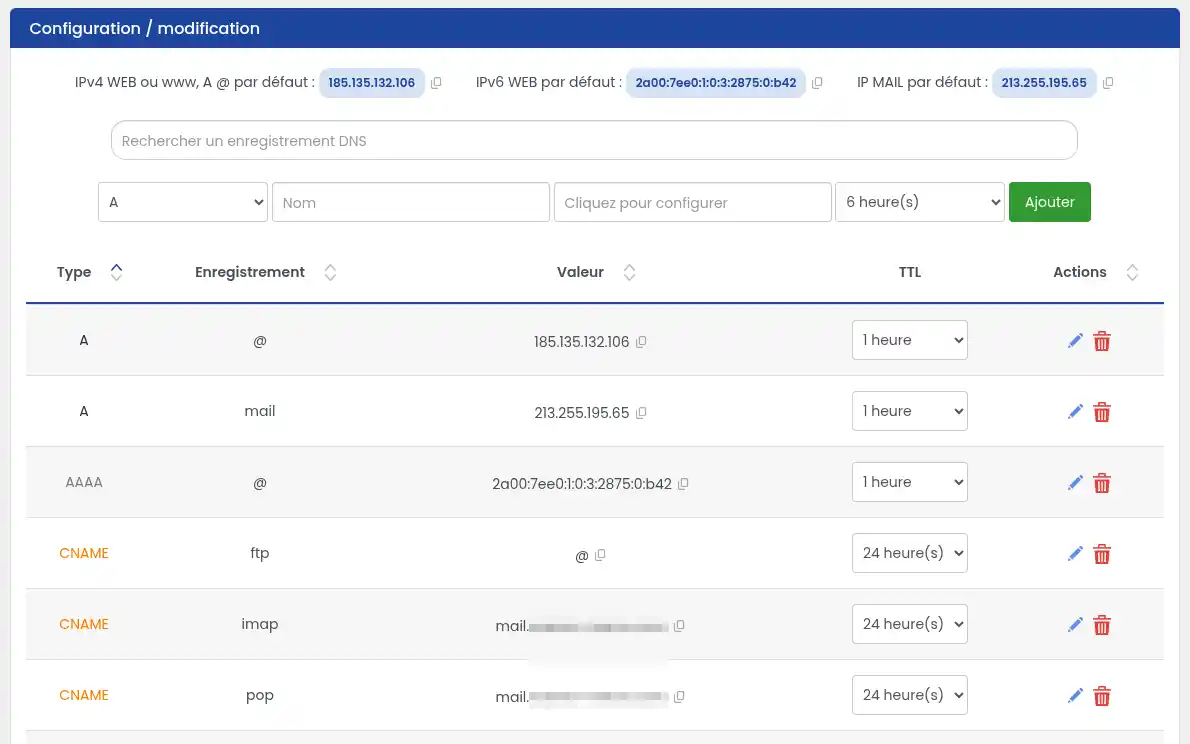
In LWS Panel, the field corresponding [PERSON_NAME], the host or subdomain, should generally contain only the part before your domain name.
For example, if [PERSON_NAME] provides sib1._domainkey.mondomaine.fr, you can enter sib1._domainkey in the host field.
In the [ADDRESS] DNS zone, add a new TXT record.
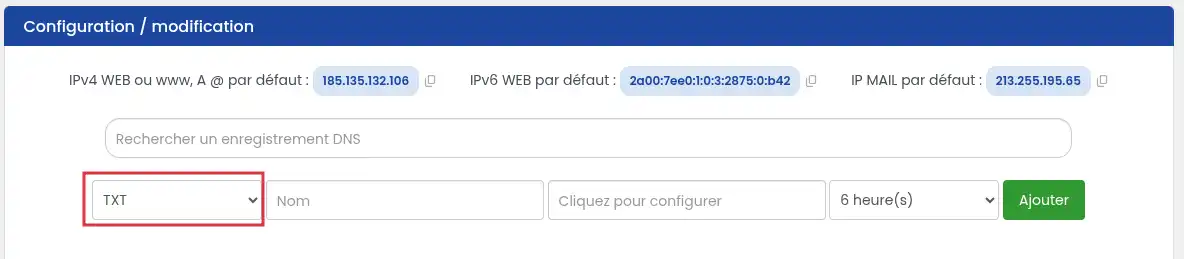
Fill in the fields with the information provided by [PERSON_NAME] :
| LWS field | Value to enter |
|---|---|
| Type | TXT |
| Host / Name / Subdomain | Brevo code name or host |
| Value | TXT value provided by Brevo |
| TTL | Leave the default value |
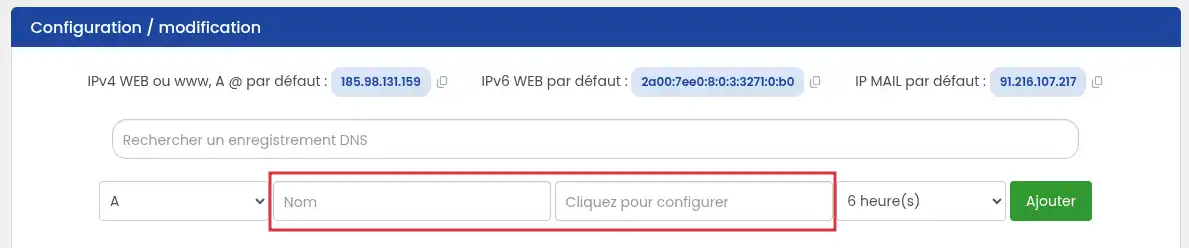
Save the record.
This record allows Brevo to verify that you can modify the domain’s DNS zone.
In [PERSON_NAME], look at the DKIM record type requested.
Brevo can provide:
Add only the record or records matching what Brevo displays in your account.
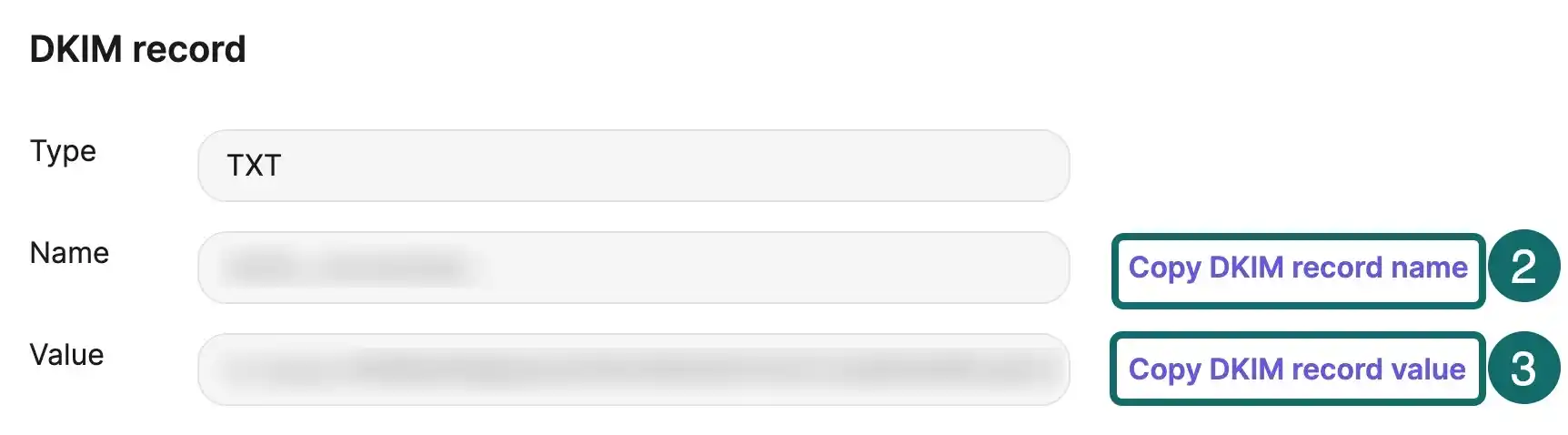
In LWS Panel, add a CNAME record for each DKIM line provided by Brevo.
| LWS field | Value to enter |
|---|---|
| Type | CNAME |
| Host / Name / Subdomain | DKIM name provided by Brevo |
| Target / Value | DKIM value provided by Brevo |
| TTL | Leave the default value |
If Brevo displays two DKIM records, [PERSON_NAME]. Do not choose only the first one.
Add a TXT record.
| LWS field | Value to enter |
|---|---|
| Type | TXT |
| Host / Name / Subdomain | DKIM name provided by Brevo |
| Value | DKIM TXT value provided by Brevo |
| TTL | Leave the default value |
Save the change.
First look in your DNS zone to see whether there is already a TXT record whose host is:
_dmarc
Add a new TXT record.
| LWS field | Value to enter |
|---|---|
| Type | TXT |
| Host / Name / Subdomain | _dmarc or the value provided by Brevo |
| Value | DMARC value provided by Brevo |
| TTL | Leave the default value |
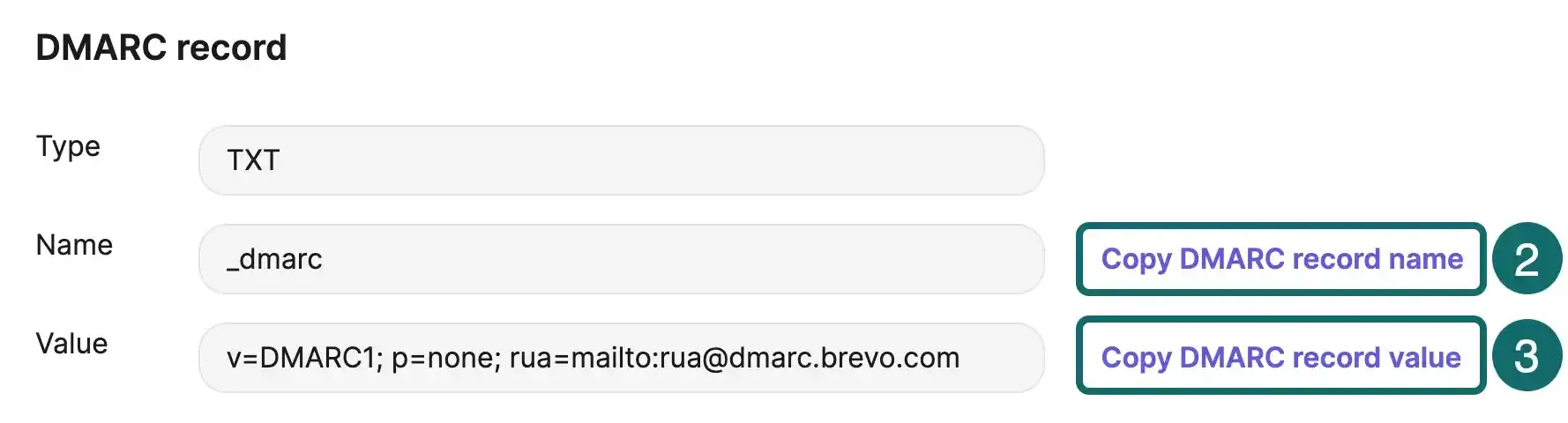
Save the record.
Do not create a second DMARC record.
Modify the existing record following the instructions shown by [PERSON_NAME]. In some cases, [ADDRESS] may ask you to add its [PERSON_NAME], for example in the form:
[PERSON_NAME]=mailto:[EMAIL]
If your DMARC already contains a strict policy, for example p=quarantine or p=reject, do not replace its value without checking the impact. An incorrect change may prevent some legitimate emails from being accepted by recipients.
If [PERSON_NAME] an SPF, first check whether your domain already has a TXT record starting with:
v=spf1
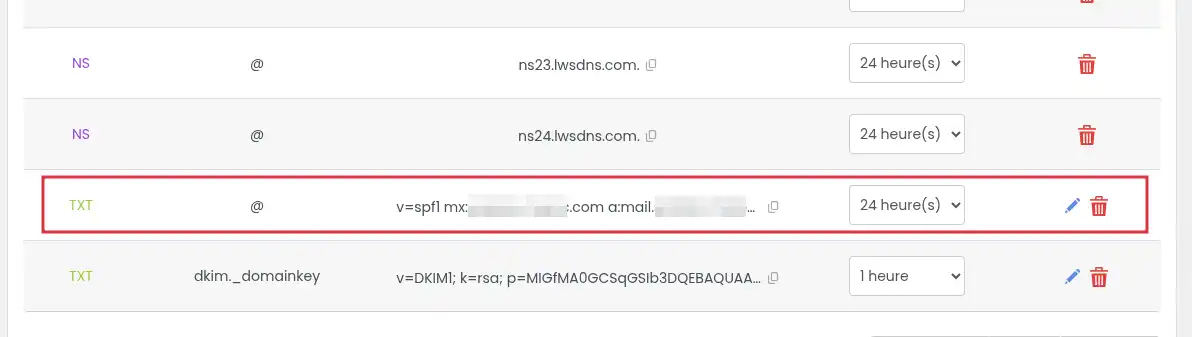
Add a TXT record with the value provided by Brevo.
Possible example:
v=[PERSON_NAME] include:spf.brevo.com mx ~all
Do not create a second SPF. You must merge the Brevo value with the existing record.
For example, if your current SPF is:
v=[PERSON_NAME] include:_spf.google.com ~all
and Brevo asks you to add:
include:spf.brevo.com mx
you can obtain a single SPF like this:
v=[PERSON_NAME] include:_spf.google.com include:spf.brevo.com mx ~all
A domain with multiple SPF records can cause deliverability errors. Always keep a single SPF record for the domain.
Brevo may sometimes offer a tracking domain. It is used to customize the tracking links used in your campaigns.
If Brevo provides you with a record for the tracking domain, add it to the LWS DNS zone as a standard record, most often of type CNAME.
Copy exactly:
Then save the record in LWS Panel.
The tracking domain is not always required to authenticate [ADDRESS] sending. Add it only if it is offered in your [PERSON_NAME] account feature.
After [PERSON_NAME] the DNS records in LWS Panel, return to Brevo.
In Settings > Senders, domains and IPs > Domains, click Authenticate next to the relevant domain.
Choose Authenticate the domain yourself, then click Authenticate [PERSON_NAME]>
Brevo then checks whether the DNS records are correctly detected. When the domain appears [PERSON_NAME], you can use your email addresses linked to this domain for your campaigns, newsletters, or transactional emails.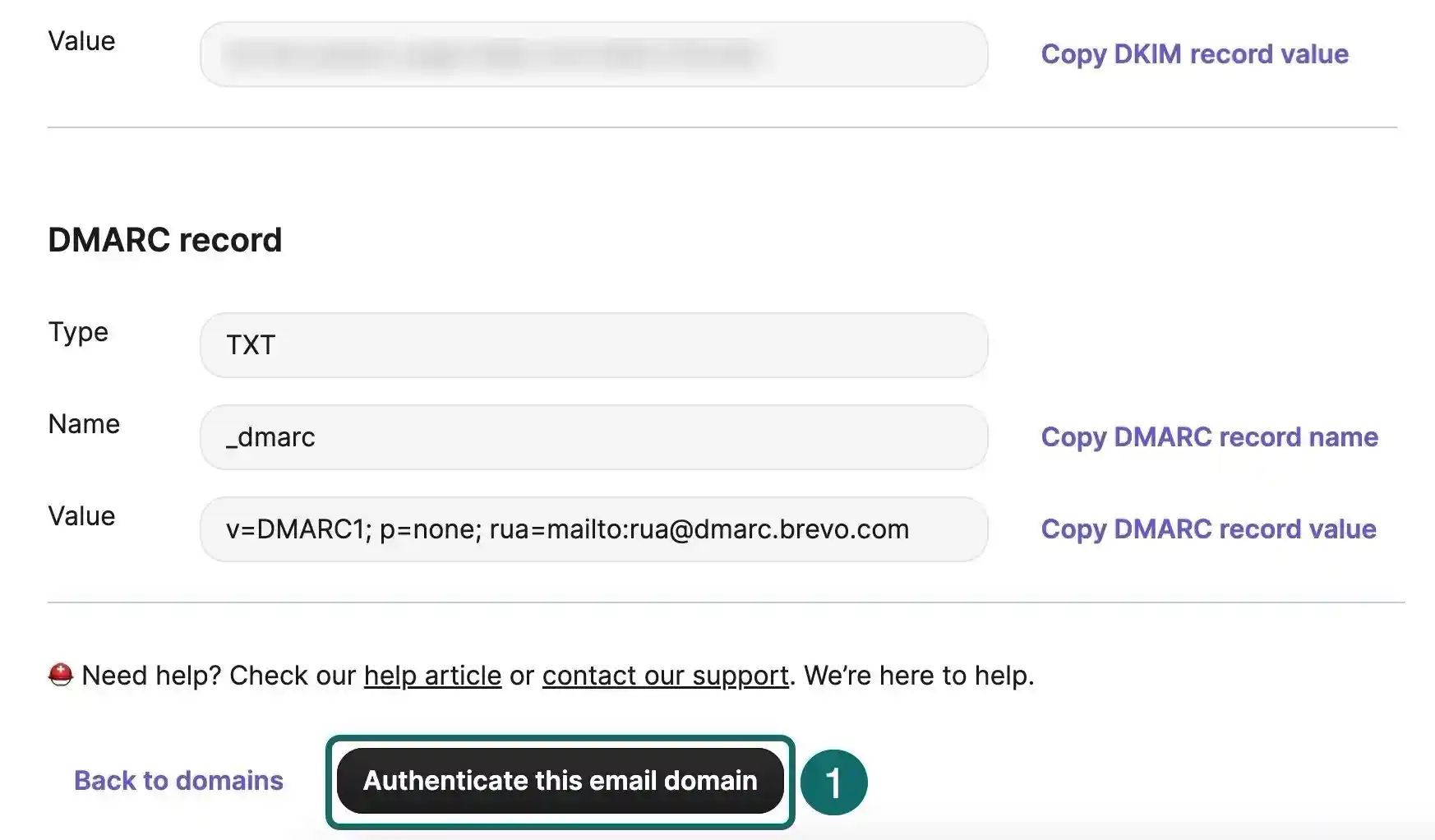
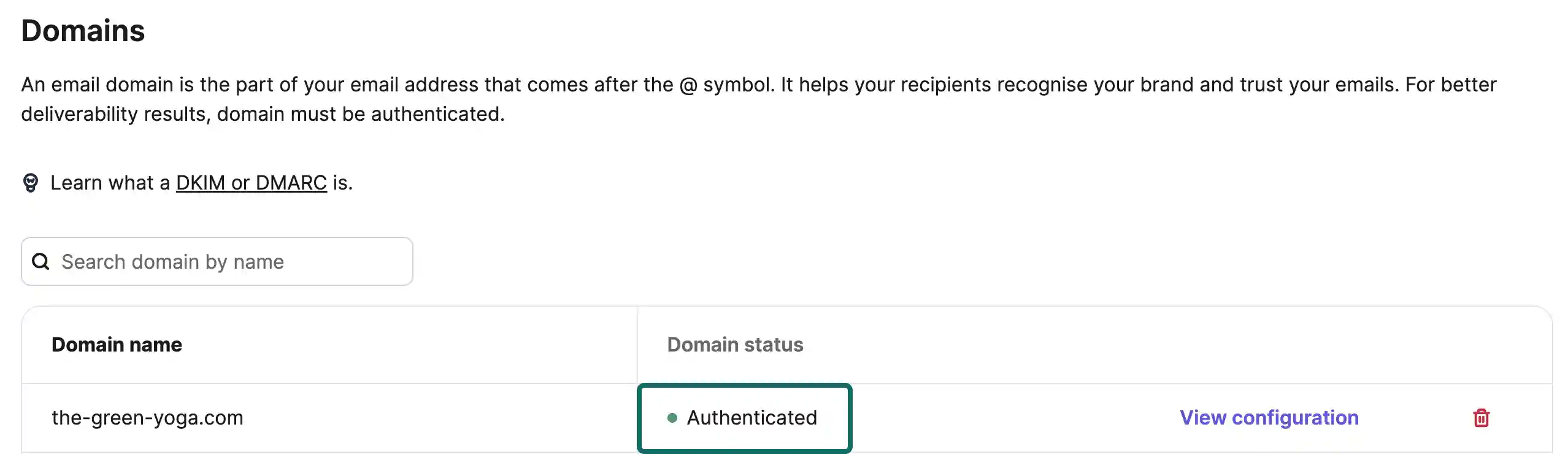
DNS record detection [PERSON_NAME]. [PERSON_NAME] immediately after configuration, wait and run the verification again later. The delay can be up to 48 hours depending on DNS propagation.
[PERSON_NAME] DNS records
First check that the records have indeed been added [ADDRESS] domain’s active DNS zone.
If your domain does not use LWS DNS servers, changes made in LWS Panel will not be taken into account. You must then add the records with the provider that actually manages your DNS.
Also check that the values were copied without any added spaces, without missing characters, and in the correct record type: TXT or CNAME.
I already have an SPF record
Do not delete it automatically. [PERSON_NAME] by Brevo in the existing SPF record, before the final mechanism such as ~all, -all or ?all.
The domain must keep only one SPF record.
I already have a DMARC record
Do not create a second DMARC. Modify the existing record only if Brevo asks you to.
If you do not know what to keep, prefer checking before modifying, because DMARC can influence how non-compliant emails are accepted or rejected [ADDRESS] recipients.
The DKIM record does not pass
Check that you chose the correct record type. [PERSON_NAME] DKIM of type CNAME, you must create two CNAME records. [PERSON_NAME] a DKIM of type TXT, you must create a TXT record.
Also check the host field. [PERSON_NAME] provides a full name such as sib1._domainkey.mondomaine.fr, LWS Panel may expect only sib1._domainkey.
My emails are still landing in spam
Domain authentication improves [ADDRESS], but it does not guarantee inbox delivery on its own.
Also check:
Rate this article :
This article was useful to you ?
Yes
No
1mn reading
How do I use a personalised domain name for Blogger?
1mn reading
Google Apps Help - How do I configure MX records for a domain name?
2mn reading
How do I link my domain name to my wix site?
1mn reading
How can I point my Domain to an external IP?
 About LWS :
LWS is a 100% French web hosting company that focuses on quality and innovation and offers a responsive and competent technical service at affordable prices.
About LWS :
LWS is a 100% French web hosting company that focuses on quality and innovation and offers a responsive and competent technical service at affordable prices.