Contact us
 Customer Area


 Visit LWS
Rate this article :
This article was useful to you ?
 Yes
Yes
 No
No
 Article read
9321 once
Article read
9321 once Merci ! N'hésitez pas à
poser des questions sur nos documentations si vous souhaitez plus d'informations et nous aider à les
améliorer.
Merci ! N'hésitez pas à
poser des questions sur nos documentations si vous souhaitez plus d'informations et nous aider à les
améliorer.Vous avez noté 0 étoile(s)



Procédure
When you maintain an active WordPress site, it's not unusual to find that over time it becomes slower and slower, heavier and heavier, and that the slightest action ends up taking several minutes where it used to take just a few seconds. This is a sign that your database needs a major facelift to restore its former performance. There are several ways you can give your site a second lease of life and keep it in shape:
You can apply one or all of the above actions to speed up the operation of your site.
The problem could also come from your extensions: a large number of extensions, especially if they are heavy or poorly optimised, can greatly slow down a WordPress site, especially the administrative part of your site (wp-admin).
It is possible to clean up your site by hand, but we advise you to use specialised extensions if you're not sure what you're doing, especially when it comes to cleaning up a database, as the slightest mistake could cause you to lose your data.
Breathe new life into the performance of your WordPress site with automated and effective database optimisation. By removing superfluous content (revisions, drafts, expired transients, offline comments, etc.) and optimising the tables, you can make your site more responsive and optimise the user experience. For a complete and intuitive solution, choose the Best WordPress cache plugin. A powerful solution for restoring the fluidity of your WordPress in just a few clicks.
The LWS Optimize extension, developed by LWS and specialising in WordPress site optimisation, offers weekly database maintenance, offering to clean up various elements of the database that are taking up space and slowing down your site unnecessarily.
To configure and activate this option, go to the extension settings, enter advanced mode and then the 'Database' tab.
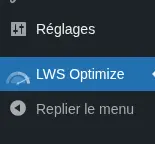
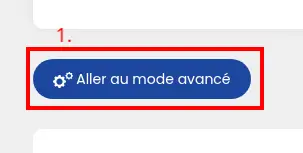

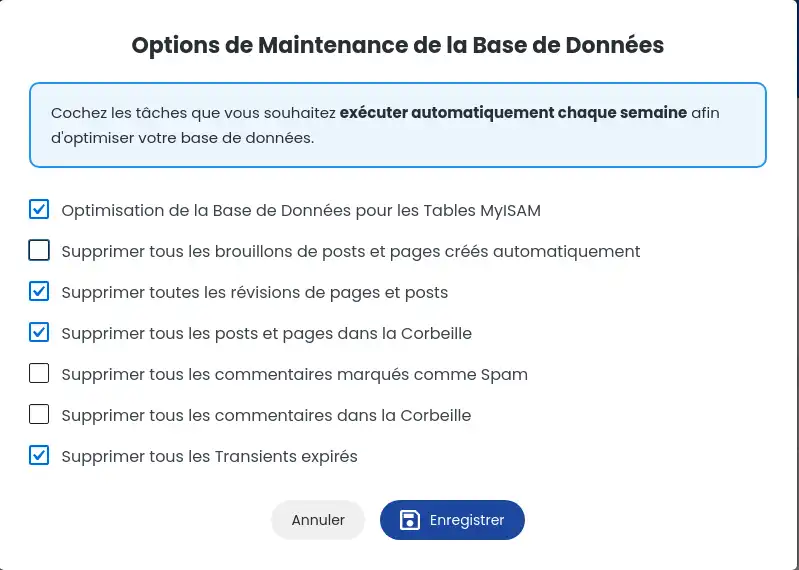
Then click on 'Manage' under the 'Scheduled Database Maintenance' option; this will open a window allowing you to tick the actions you want to be carried out every week.

Once you have made your choice, click on "Save" to save the changes.
Next, enable the option to activate the WordPress Cron, which will be repeated every week.

This option will clean up a large part of your site, but if you want to take optimisation a step further, you can install and activate the LWS Cleaner extension, also developed by LWS. (Doc: https: //help.lws-hosting.com/en/how-to-clean-wordpress-site-with-lws-cleaner#)
You now know how to :
By applying these methods, your WordPress site should regain its youthful speed and offer a better user experience. Don't forget that maintaining your site is an ongoing process 🔄. Take the time to follow these steps regularly to keep your site healthy 💪.
Thank you for reading this article 📖! If you have any questions or would like to share your database optimisation experience, please feel free to leave a comment. Your feedback is valuable to us and to the WordPress user community!
Rate this article :
This article was useful to you ?
Yes
No
18mn reading
How can I minimize the files on my WordPress site with LWS Optimize?
13mn reading
How can I combine the files on my WordPress site with LWS Optimize?
15mn reading
How do I preload CSS files on my WordPress site with LWS Optimize?
9mn reading
How do I disable WordPress emojis with LWS Optimize?
 About LWS :
LWS is a 100% French web hosting company that focuses on quality and innovation and offers a responsive and competent technical service at affordable prices.
About LWS :
LWS is a 100% French web hosting company that focuses on quality and innovation and offers a responsive and competent technical service at affordable prices.