How do I change the MySQL password?

Procédure

The password for a MySQL database is changed in the LWS Panel, section "Database & PHP", page "MySql & PhpMyadmin": "⋮" menu at the end of the database line, then "Change password". The new password applies to the MySQL user for that line: remember to update it in your site’s configuration file.

How do I change the password for my MySQL databases?

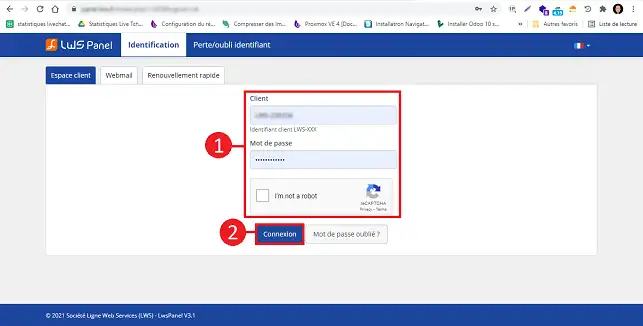
  1. Log in to your customer area

    Log in to your LWS customer area.

    How do I change the MySQL password?

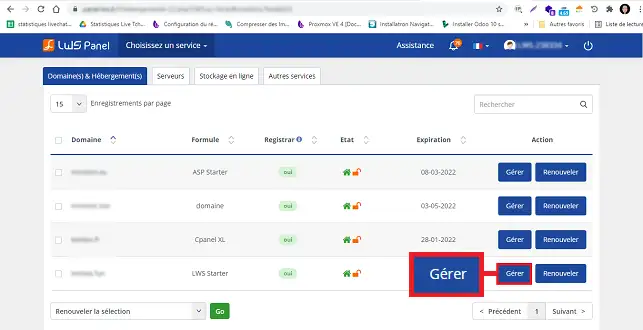
  2. Click on « Manage »

    In "Domain(s) & Hosting(s)", click the "Manage" button located behind the plan for which you want to change the MySQL password.

    How do I change the MySQL password?

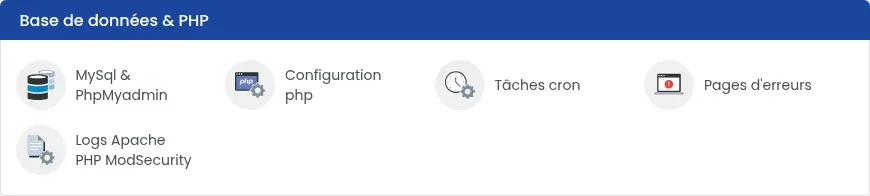
  3. Open « MySql & PhpMyadmin »

    Click "MySql & PhpMyadmin" in the "Database & PHP" section.

    How do I change the MySQL password?

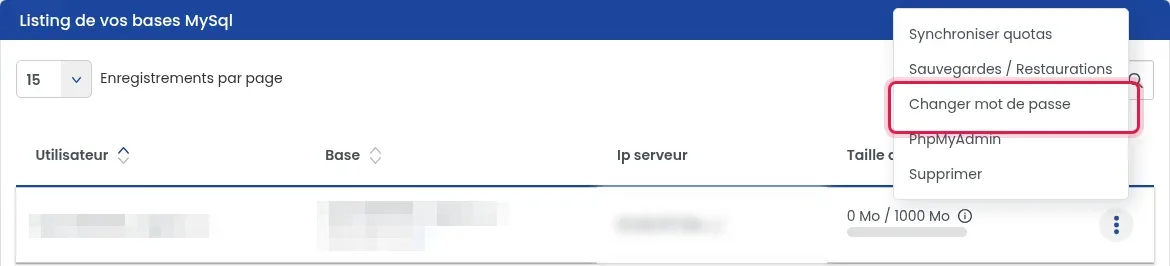
  4. Open the database menu

    In the "Listing of your MySql databases" table, click the "⋮" button at the end of the line for the database concerned, then click "Change password".

    How do I change the MySQL password?

  5. Enter the new password and confirm

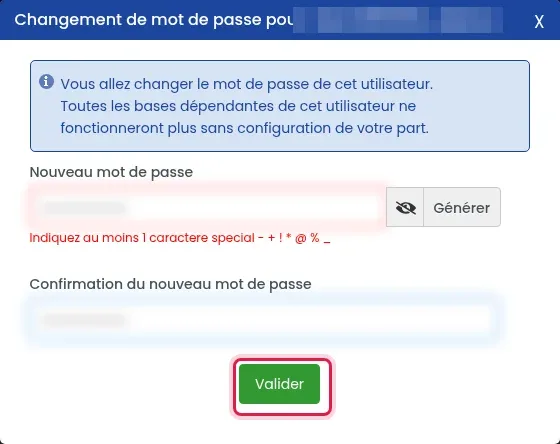
    The "Password change for" window opens. Click "Generate" to get a secure password (it appears in the field: copy it immediately), or enter your own in "New password" and again in "Confirm new password". It must contain at least one special character among - + ! * @ % _. Finally, click "Validate".

    How do I change the MySQL password?

  6. Update your site’s configuration file

    When you change your password, you must update the configuration file of your site with the new password (for example wp-config.php for WordPress). In general, the configuration file is located in the root of your site for Drupal, Joomla, WordPress, etc.

Common issues

The message « The password does not meet the requirements » is displayed

The entered password is rejected. Click "Generate": the password suggested by the panel is accepted.

My site displays a database connection error

The site’s configuration file still contains the old password. Replace it with the new one. For WordPress, follow Database connection error on Wordpress.

Video procedure

Related articles

help.lws.net/a/104
Was this article helpful?

Yes

No

Read 36 463 times

Thank you! Feel free to ask questions about our documentation if you would like more information, and help us improve it.

Similar articles

Questions about the article 1

Ask a question
Pseudo
8 Feb 2023
Hello I have a problem into my panel, in my file section the file manager and phpMyAdmin does not appear, what should I do? How to get that . please urgent
Benjamin-LWS Official answer
9 Feb 2023

Bonjour, 

Merci pour votre retour.

Ces fonctionnalités dépendent de la formule que vous possédez avec votre domaine.

Dans le cas où vous possédez la formule gratuite livrée à l'achat d'un domaine, ces fonctionnalités ne sont pas disponibles. Il faudra nécessairement passer sur une formule linux avec le LWS Panel. Voici un lien vers nos premiers prix de formules d'hébergement : LWS Hébergement Web

Si vous possédez une de ces formules, et que vous ne constatez pas les outils que vous avez besoin, nous vous invitons à revenir vers nous directement via le système de support disponible depuis votre espace client LWS, nous vous apporterons l'aide adéquate à votre souci. (https://aide.lws.fr/a/268)

Cordialement, L'équipe LWS

Was this answer helpful?

A question about this article?

Ask the LWS team and the community. Answers are published after moderation.

Ask the LWS team and its community a question

GDPR: Controller: LWS-Ligne Web Services. Purpose: moderation and public publication of your question, possible notification of an answer. Legal basis: consent (Art. 6(1)(a) GDPR). Email retention: 90 days after notification, 12 months maximum without an answer. To exercise your rights, see the GDPR section of our Terms and Conditions.