Procédure
Presentation of the LWS antivirus solution
The LWS antivirus solution is an all-in-one antivirus solution developed by us and included free of charge on all cPanel web hosting packages. The LWS antivirus solution provides :
- Regular antivirus scanning of your emails and web files.
- Resident protection that monitors and scans files whenever they are modified.
- Integrated antivirus scanning when sending files from the cPanel file manager.
- Integrated antivirus scanning when files are uploaded to your websites using ModSecurity (uploads from the Joomla, WordPress, Prestashop and other admin spaces).
- Integrated antivirus scanning of your incoming and outgoing emails.
How do I manually scan my website with LWS Antivirus?
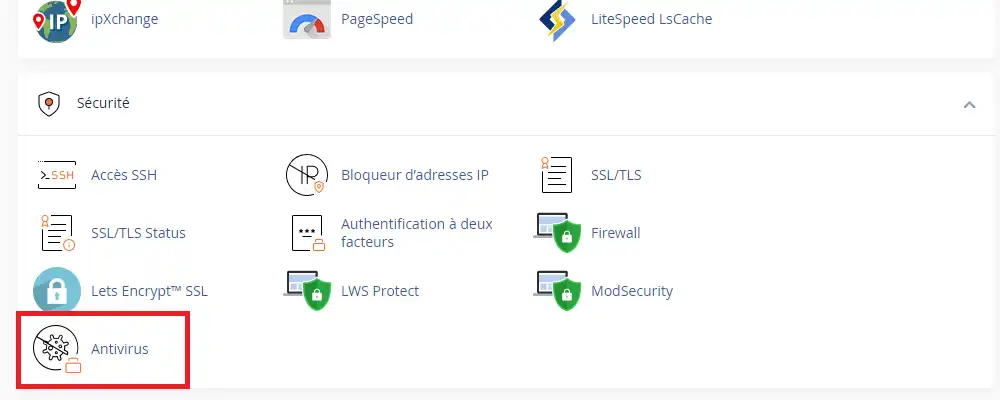
To scan a website with LWS antivirus, click on the "Antivirus" icon on your cPanel control panel:
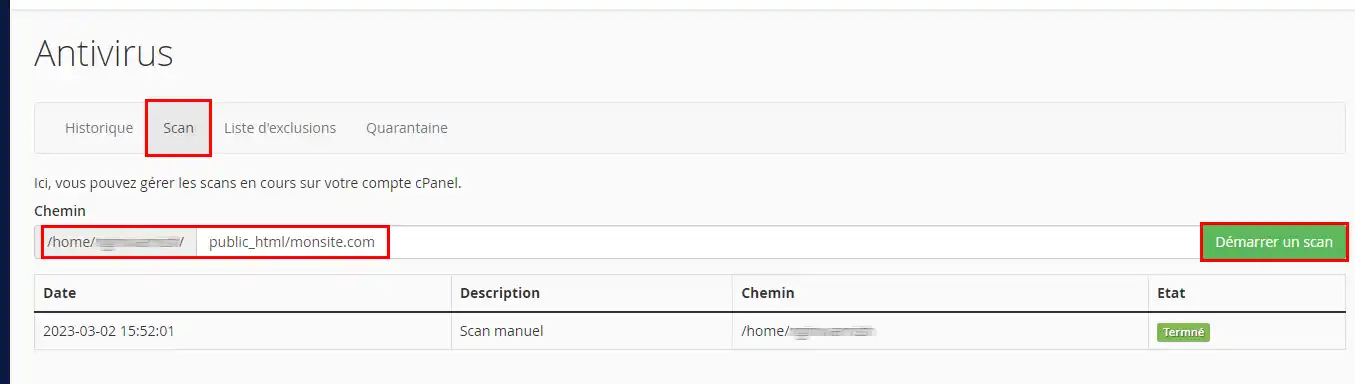
Click on the "Scan" tab, enter the FTP path of your website and start the scan:
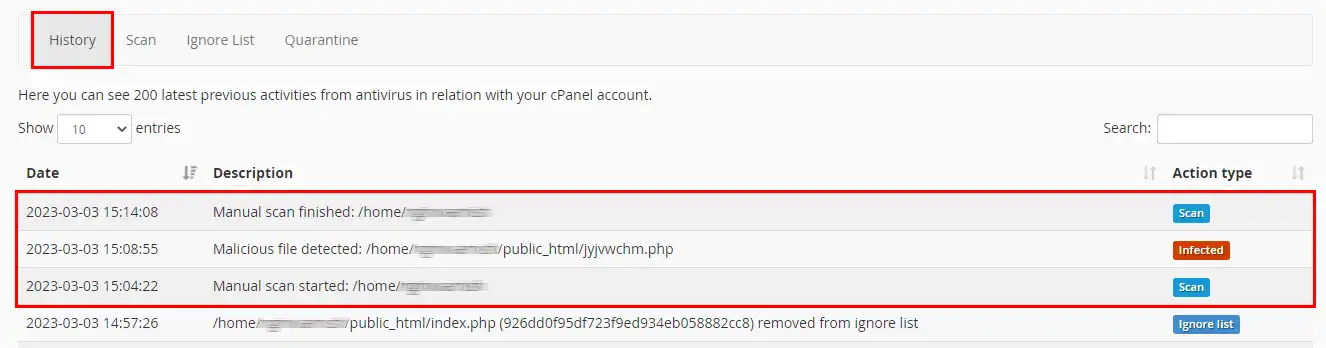
The antivirus scan will then run in the background. Any infected files detected will immediately be moved to quarantine and the result of the scan will be visible in the history:
How do I restore a file from quarantine?
It is possible that after a file has been quarantined, your website will no longer be functional. This happens in particular when viruses embed themselves in existing files instead of creating their own. They alter a perfectly functional file to add malicious content, such as downloading other viruses, running another malicious script on your web hosting and many other possibilities.
The solution in this type of situation is to restore the infected file and then manually modify it to remove the malicious parts. To restore a quarantined file, go to the appropriate tab and click on the "Restore" button corresponding to the file:
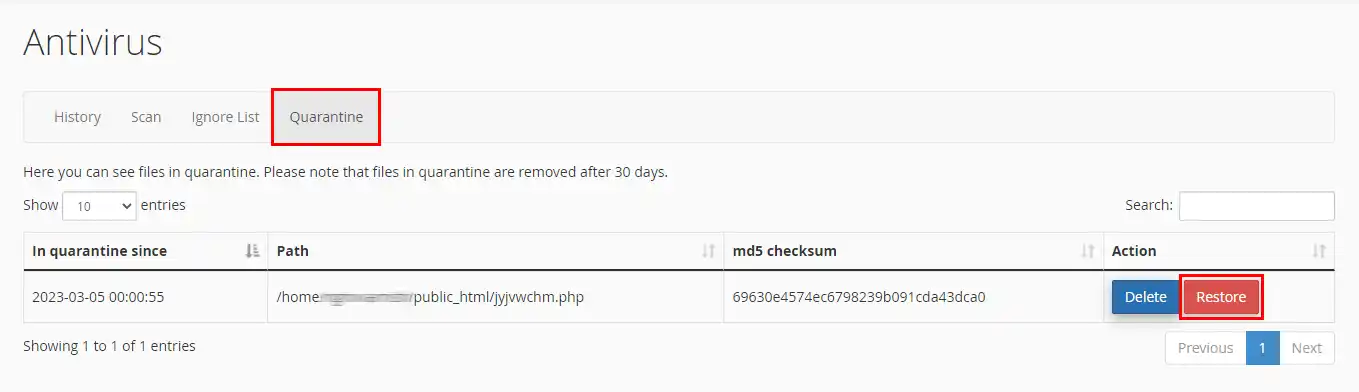
The file will then be restored within a few minutes.
Note that the quarantine zone is cleaned regularly, and quarantined files are deleted after 30 days in quarantine.
Exclude a file from antivirus scanning
You may need to exclude a file from the antivirus scan for various reasons, in particular when a file is marked as infected, but after manual analysis by a technician, the report turns out to be a false positive. Scan exclusion is therefore a quick and easy way to exclude your file from antivirus scanning (manual scan, automatic scan and resident protection).
Under no circumstances should the exclusion list be used to allow a malicious file to be hosted on your web hosting (with or without malicious intent). System administrators regularly check the list, and a deletion will be made if the excluded file is found by us to be malicious. If your website is truly infected, the exclusion list is not an applicable solution.
To exclude a file from antivirus scanning, go to the exclusion list tab, enter the absolute path of the file and add it to the list:
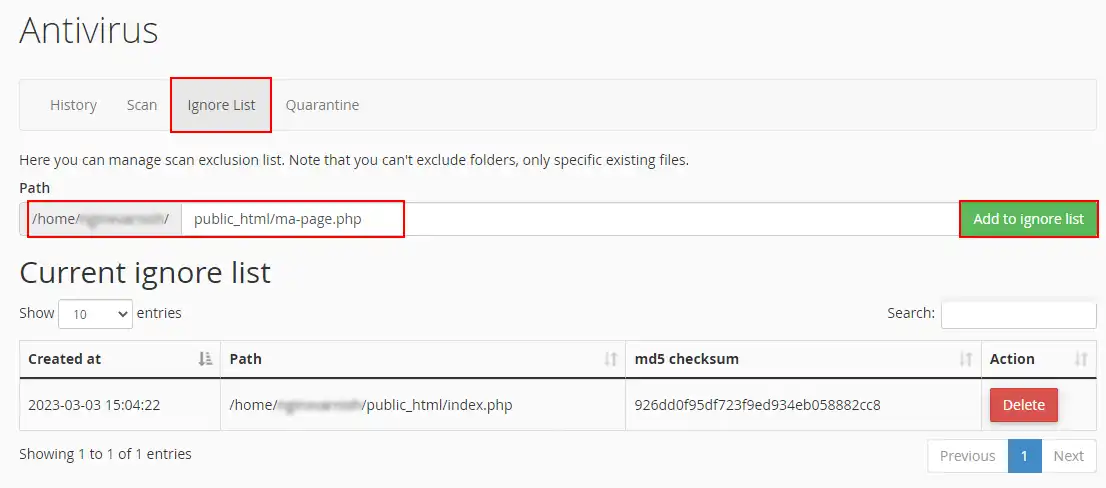
Adding or removing a file from the exclusion list may take a few minutes to take effect. Scans already in progress do not take account of changes: the exclusion list is only loaded at the start of a scan.
Once added to the list, its MD5 checksum is calculated by the server. The checksum is used to verify the integrity of the file. If the file added to the exclusion list has been altered, its checksum changes and the LWS antivirus detects this. If a file on the exclusion list has been altered, this exclusion is systematically removed during antivirus maintenance operations.
Conclusion
You now know how to :
- Use LWS antivirus to scan your emails and web files on a regular basis.
- Manually scan your website using the antivirus tool built into your cPanel control panel.
- Restore a file from quarantine if necessary for your site to function properly.
- Exclude a file from the antivirus scan in the event of a false positive or for other specific reasons.
Thanks to this article, the security of your website hosted by LWS should be reinforced, allowing you to sleep soundly at night. If you have any questions or would like to share your experience with the LWS antivirus solution, please feel free to leave a comment below. Thanks for reading and see you soon for new digital adventures!



 Yes
Yes No
No About
About 