
Online help
The web host accessible to all
Procédure
WP-CLI is a tool available from a Terminal and lets you manage your WordPress site easily, without having to log in to your site. It is available free of charge on all shared hosting plans offered by LWS and is very easy to use: even a beginner can use it. Install plugins, update your site, manage multisite... All these actions are available in just a few commands.
LWS Optimize, the plugin [PERSON_NAME] by LWS that lets you cache your pages, optimize your images, or even lazy-load elements on your WordPress site, offers [PERSON_NAME] version 3.3 various commands using WP-CLI in order to quickly and easily control the various features of the plugin.
Good news! If LWS Optimize is already installed on your site in version 3.3 or later, then you already have access to the CLI commands. [PERSON_NAME] do not yet have the LWS Optimize plugin, follow our documentation to find out [PERSON_NAME] to install and configure it.
If the plugin installed on your site is not up to date, [PERSON_NAME] "Extensions" from your WordPress dashboard, simply click "update now" to proceed with the update.
At present, the CLI is able to perform various actions on 10 different elements:
All LWSOptimize commands will start the same way: "wp lwsoptimize" followed by the element to modify and then the action to perform. For example, "wp lwsoptimize filecache deactivate" has the effect of deactivating the file cache on the target site. Some commands, notably those returning data, accept the --format=json (or --json) argument, which returns the result of the command in JSON format, useful for integrating WP-CLI into your code.
To manage the cache state, you can use the command:
wp lwsoptimize filecache activate|deactivateWhere activate enables the cache and deactivate disables it. If the cache is already in the chosen state, you will be notified that no additional action has been taken.

You also have the option of displaying a summary of the cache state, its status, using the command:
wp lwsoptimize filecache status [--json]Depending on whether you add --json or not, the output will be displayed differently. In all cases, you will find the same information: the cache state as well as its contents at the time the command is executed.

[PERSON_NAME], and quite logically, a command lets you immediately delete the entire file cache:
wp lwsoptimize filecache clear
Similarly to file cache, you can manage the preloading state using the command:
wp lwsoptimize preload activate|deactivate [number]The activate parameter enables it while deactivate disables it. When you enable preloading, you can specify a number (between 1 and 30) of pages that must be preloaded each time the cron runs. If no value is entered or if it is not valid, 3 pages will be preloaded by default.

[PERSON_NAME] when enabling preloading or when you want to change it, you can use the following command to modify this value:
wp lwsoptimize preload change_amount {number}
[PERSON_NAME], use the command:
wp lwsoptimize preload status [--json][PERSON_NAME], depending on whether you add --json or not, the result [ADDRESS] differently. [PERSON_NAME], you [PERSON_NAME] cron occurrence.

[PERSON_NAME] want to retrieve only the next cron occurrence, you can also use the following command:
wp lwsoptimize preload next [--json]
To check the status of the [PERSON_NAME] service, use the command:
wp lwsoptimize memcached status [--json]
In addition to the Memcached operating status, if the Memcached module is disabled ([PERSON_NAME]), this will be indicated and if Redis is already active, you will be informed of it, due to the incompatibility between the two.
The only other option available for Memcached is managing the module state, using this command:
wp lwsoptimize memcached activate|deactivate
The activate parameter enables it while deactivate disables it.
To check the status of automatic purge, use the command:
wp lwsoptimize autopurge status [--json]
You also have the option to enable or disable automatic purge, making your site completely static, with the command:
wp lwsoptimize autopurge activate|deactivate
The activate parameter enables it while deactivate disables it.
[ADDRESS] possible action on the file cache from WP-CLI is clearing the cache, with the command:
wp lwsoptimize servercache clear
This category lets you manage the LwsOptimize plugin directly, for example its status, with the command:
wp lwsoptimize configuration activate|deactivate {seconds}The activate parameter enables the plugin, [PERSON_NAME] deactivate disables it. The {seconds} parameter is used when deactivating, to choose how long the plugin [PERSON_NAME] disabled: 300s, 1800s, 3600s, 86400s. By default, if no argument is passed, the plugin is disabled for 300 seconds.

It is also possible to change the plugin configuration between the 3 predefined configurations: basic, advanced and complete, which correspond to those available in the plugin options, using the command:
wp lwsoptimize configuration basic|advanced|complete
PageSpeed, Google’s service for testing the speed and performance of your website, is available directly from LWSOptimize as well as in WP-CLI with the command:
wp lwsoptimize pagespeed
You will then obtain the main results (score and loading speed) returned by PageSpeed for the PC and Mobile versions of your site. By adding --json, you will receive a machine-readable version of this information:

With a single command, obtain a summary of the current status of Optimize and the main elements, such as cache, preloading, [PERSON_NAME], ...
wp lwsoptimize status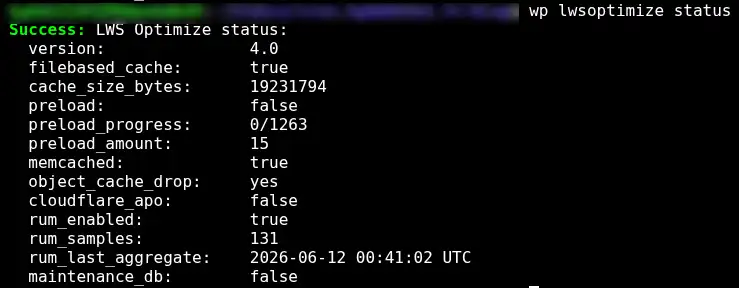
This lets you see all the important points of the plugin at a glance, especially with regard to the cache.
RUM, for Real User Monitoring, lets you track the actual performance of your users on the different pages of your site. There are various commands available, allowing you to list current stats, update stats, or purge them.
The command:
wp lwsoptimize rum list[PERSON_NAME], if you want a JSON-friendly output:
wp lwsoptimize rum export [--json]returns a list of all retrieved stats, as well as their performance statistics.
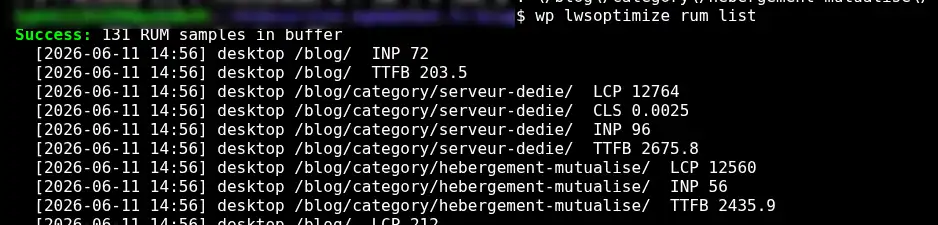
TTFB, CLS, LCP and INP are 4 performance metrics, used notably by Google’s PageSpeed. The values are in milliseconds (except CLS), the lower they are, the better the page performance.
[PERSON_NAME] want to see just a simple summary of the same metrics, you can use the following command:
wp lwsoptimize rum statsThis displays the stats for each URL, showing the values obtained by 50% of visitors, 75% and finally 95%.

[PERSON_NAME], the commands
wp lwsoptimize aggregateand
wp lwsoptimize purge [--days=30]allow you respectively to update and delete the stats. [--days] lets you delete data older than the number of days specified (30 days by default).
The "Cloudflare" commands let you manage Automatic Platform Optimization, a system offered by Cloudflare that provides stable, improved performance for your WordPress site. To use them, you must first enable CloudFlare integration on your site.
You can track APO status by running the command
wp lwsoptimize cloudflare statusThis lets you immediately know whether the action is active, and if so, on which API key.

To configure your WordPress site with CF APO, simply use the following command, filling in zone-id and apo-token with the values obtained during CloudFlare integration.
wp lwsoptimize cloudflare set-config --zone-id=abc --api-token=testtoken
If everything went well, and the values entered are valid, run the following command to finish configuring APO:
wp lwsoptimize cloudflare install-ruleIf an error message appears, make sure that the Zone and API key are [PERSON_NAME], and that your hosting does indeed use Cloudflare.
[PERSON_NAME], if you want to manually purge the APO cache, the following command will clear all caches:
wp lwsoptimize cloudflare purge-allYou now know how to:
🚀 Thanks to this powerful tool, you can now optimize your WordPress site efficiently and quickly, in just a few commands! 🛠️
Thank you very much for reading! 🙏 Feel free to share your experiences or ask your questions by leaving a comment below. [PERSON_NAME] valuable for helping us improve our services. 💬
Ask the LWS team and the community. Answers are published after moderation.
 About LWS :
LWS is a 100% French web hosting company that focuses on quality and innovation and offers a responsive and competent technical service at affordable prices.
About LWS :
LWS is a 100% French web hosting company that focuses on quality and innovation and offers a responsive and competent technical service at affordable prices.



 Yes
Yes No
No