Procédure
Introduction
Importing a database on a shared LWS Panel hosting account is an important operation for transferring your website. This operation can be carried out quickly and easily using PHP My Admin, a web application that allows you to interact with MySQL databases.
In this documentation, we explain how to import a database on a shared LWS hosting account via phpMyAdmin. We present the steps required to prepare your database, connect to phpMyAdmin, and import your database.
Preparing the database to be imported
Before you start importing your database to your shared LWS hosting via phpMyAdmin, you need to prepare your database.
Whether your site or application was created locally or hosted with another provider, you will first need to export your database. To do this, we invite you to use the database management tool you used to create and manage it. The export of your database must be in SQL format.
If the size of your database export
reaches 100MB, it
will be too large to work with the method we will see below. I will therefore invite you to follow this documentation to export your database:
How do I import a large database on LWS Panel?Creating the database on LWS Panel
To import your database on your LWS Panel shared hosting, you must first create a new blank database to receive the exported data. If you do not wish to use the database provided with your service, you can follow the steps below to create a new one:
1. Log in to your LWS customer area
To access your customer area, simply follow this link and enter your login details: https://panel.lws.fr
2. Access your service management via the "Manage" button
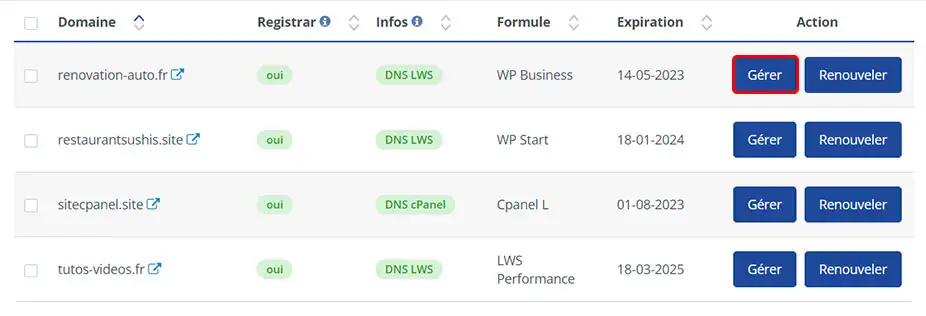
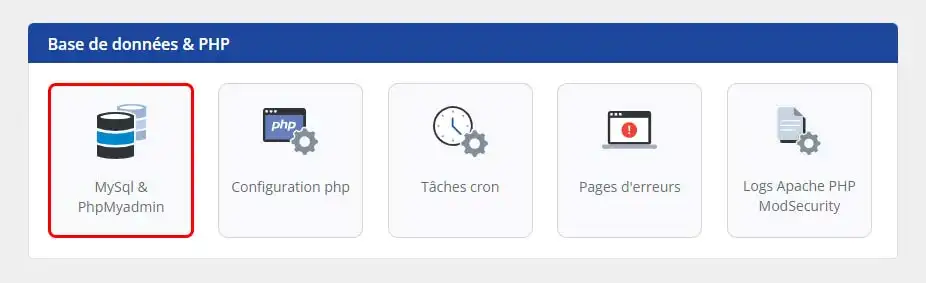
3. In the "Database & PHP" section, click the "MySql & PhpMyadmin" button
4. Choose the user for the new database, then click the "Click here to create a MySql database" button
In the "Create a MySql database" block, check either "Main user" (the database uses the main user of your hosting) or "Create a new user" (a MySQL user dedicated to this database, with its own password). There are no fields to fill in: the database name, username, and password are generated by LWS.

Once your database has been created, you will receive all the related information by email. Make sure to keep all this information safe, especially the database name, username, and password. You will need them later when importing the data.
Importing your data into the LWS Panel database
At this stage, you have a database ready to receive the data import. You can use either the database provided with your service or the one you created in the previous step. To import your data, follow the steps below:
1. In the "Database & PHP" section of your LWS panel, click on "MySql & PhpMyadmin"
2. Log in to phpMyAdmin
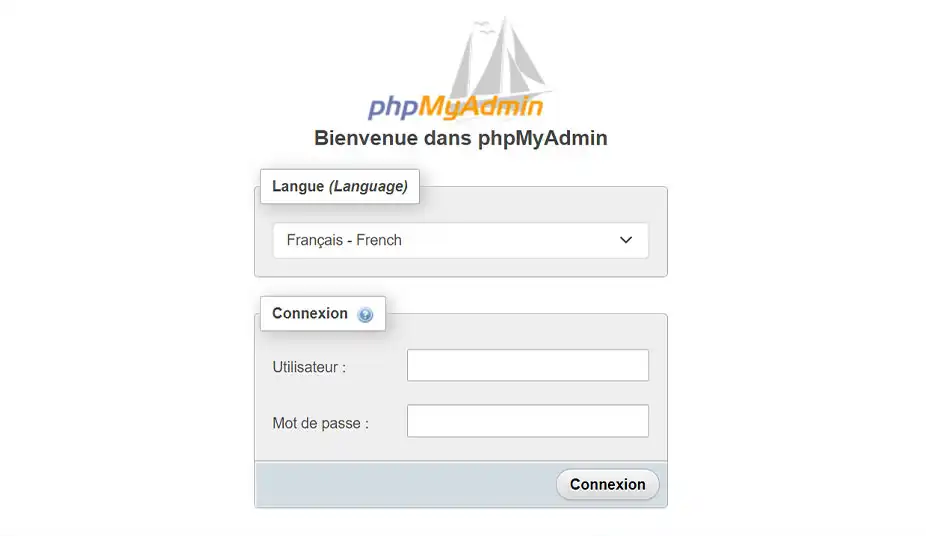
In the "List of your MySql databases" table, click the "⋮" button at the end of the database line, then click "PhpMyAdmin". phpMyAdmin opens in a new tab. The connection is not automatic: enter the database user (the "User" column in the table) and its password, received by email upon delivery or when the database was created (depending on what you did just before), then click "Login".
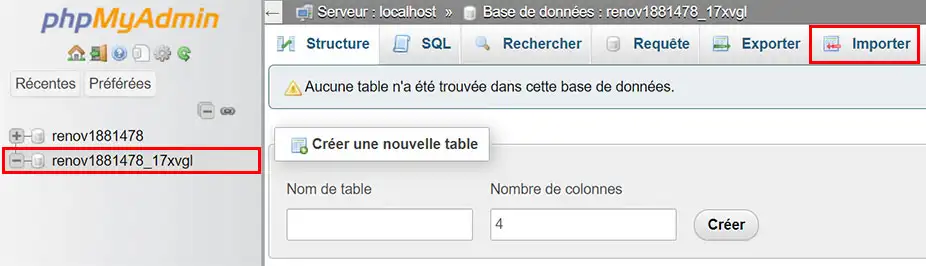
3. Click the name of the database you created in the previous section, then click Import in the links at the top of the page.
4. Click the Choose file button and find your export file. Open it. Then click the Import button.
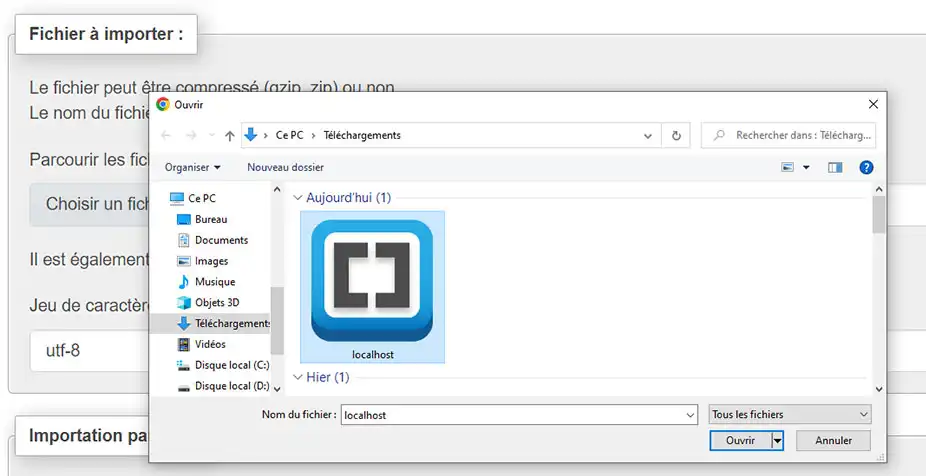
5. Wait a few seconds for the import to finish.
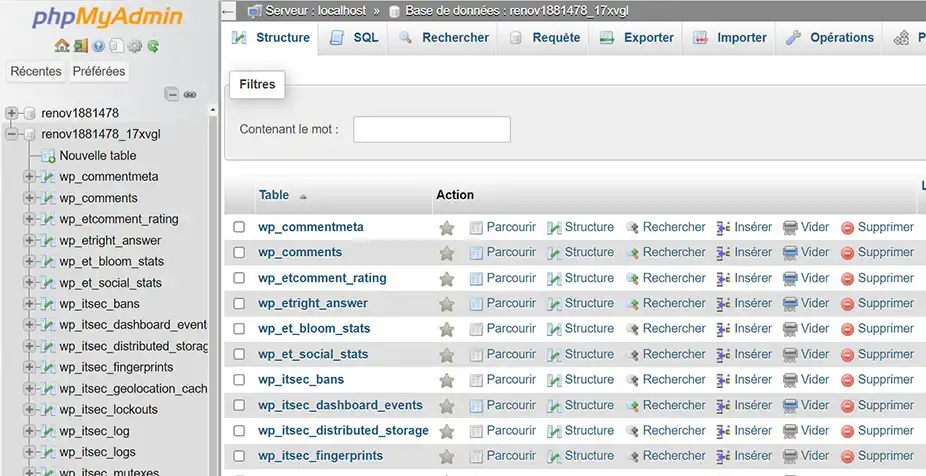
Your database is now correctly imported on your LWS Panel hosting. Don't forget to modify your file containing the connection information (for example wp-config.php for WordPress), by entering the values shown on the database line in "MySql & PhpMyadmin":
- Host : the IP address shown in the "Server IP" column (and not "localhost")
- Base : the name shown in the "Base" column
- Username : the name shown in the "User" column
- Password : the password for this user, received by email when the database was created. It is not displayed in the LWS Panel: if you have lost it, change it using the "⋮" button on the line, then "Change password".
Does LWS offer to carry out this intervention for you?
Yes, LWS offers to carry out this intervention for you, but only through a paid managed service. In fact, LWS can provide management and maintenance services for your infrastructure, for an additional fee. If you are interested in this service, we can provide you with more information on the different available options and the associated costs.
You can open a managed service request with LWS starting at 9.99 euros from the LWS Panel control panel in the Support section. I invite you to follow this documentation to help you open your managed service request.



 Yes
 No
 About
