Procédure
Introduction to LWS Protect
The LWS Protect tool, available in the "Security" section of your cPanel control panel, allows you to secure your website in just a few easy clicks by customizing the security rules in place upstream of the web server for your hosting plan.
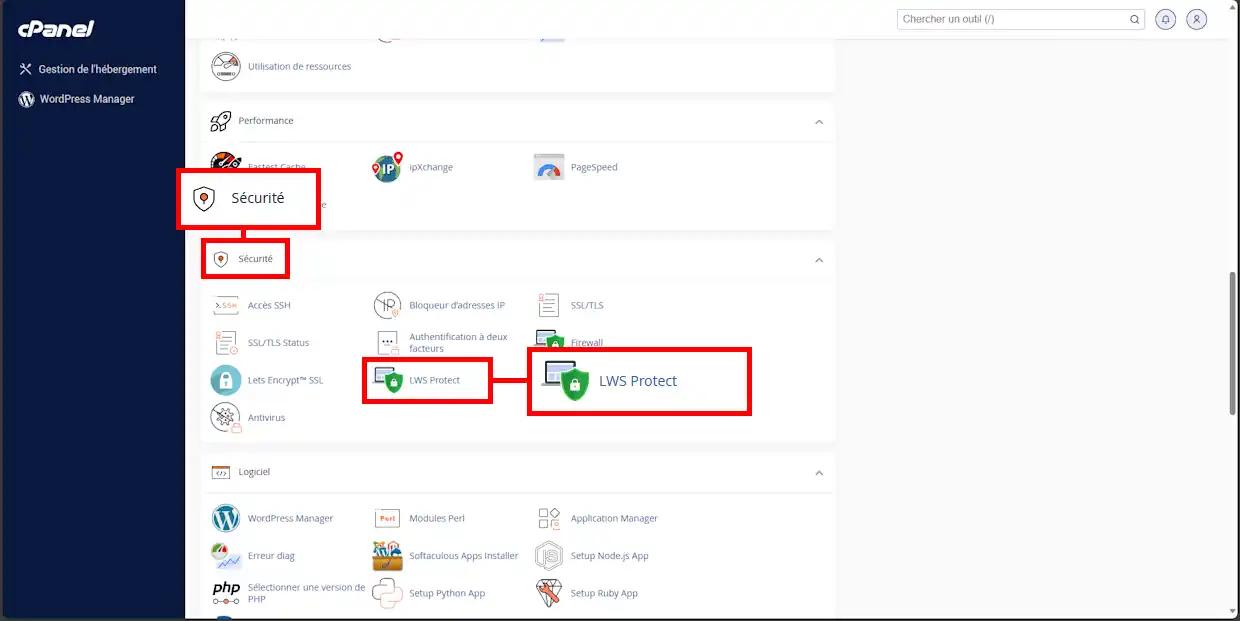
These security rules take effect as soon as traffic arrives upstream of the web server, well beyond Apache or PHP, which enables significant resource savings and increased efficiency. HTTP(s) requests are analyzed by the application firewall integrated into Fastest Cache before being forwarded to the web server, and therefore well before ModSecurity or even your security plugins.
Beyond simple security rules as offered by ModSecurity, LWS Protect uses external reputation analysis tools as well as security rules developed in-house in response to attacks identified by our system administrators.
Summary of LWS Protect rules
Why choose LWS Protect instead of installing a security plugin?
Unlike the security plugins provided with CMSs, LWS Protect acts upstream of the web server, even before PHP can run. In contrast, CMS security plugins require PHP to be running and at least part of the CMS to have started, which makes each request resource-intensive and therefore negatively affects the performance of other site visitors. Certainly, for a small site, this problem may be subtle and transparent, but on a larger scale, you risk saturating your web hosting plan, especially if you have many simultaneous visitors and they all access dynamic elements (= require PHP execution).
LWS Protect solves this problem by filtering requests upstream of the web server, therefore before PHP execution and before the CMS starts, even before the web server does anything at all. Thus, assuming for example that you have 1000 simultaneous visitors on your WordPress site and 50% of them are malicious, you avoid 500 CMS executions and 500 PHP executions. You save both RAM and the number of MySQL queries, and you prevent these malicious visits from affecting the performance of your real visitors.
LWS Protect rule sets
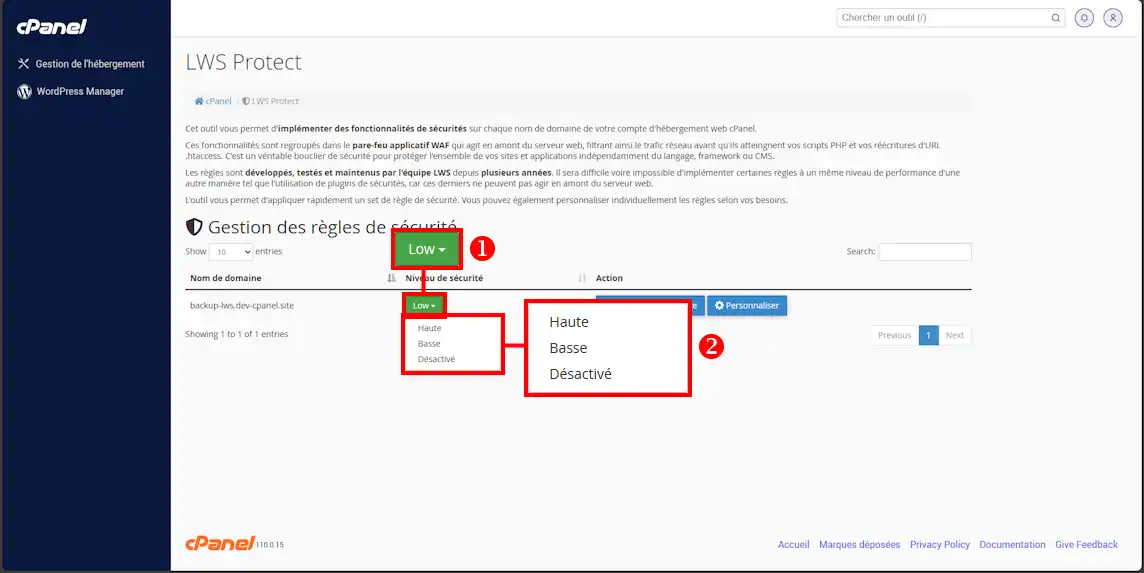
From the " LWS Protect " icon on your cPanel control panel, you can instantly activate a rule set to apply a generic security profile. LWS currently offers three security profiles:
- High: intended for websites regularly targeted by attacks
- Low: intended for normal use (active by default)
- Disabled: disables all LWS Protect rules
To change the active rule set on a website, click on the security level associated with the relevant domain name (1) and choose a new security level (2):
Customize LWS Protect security rules
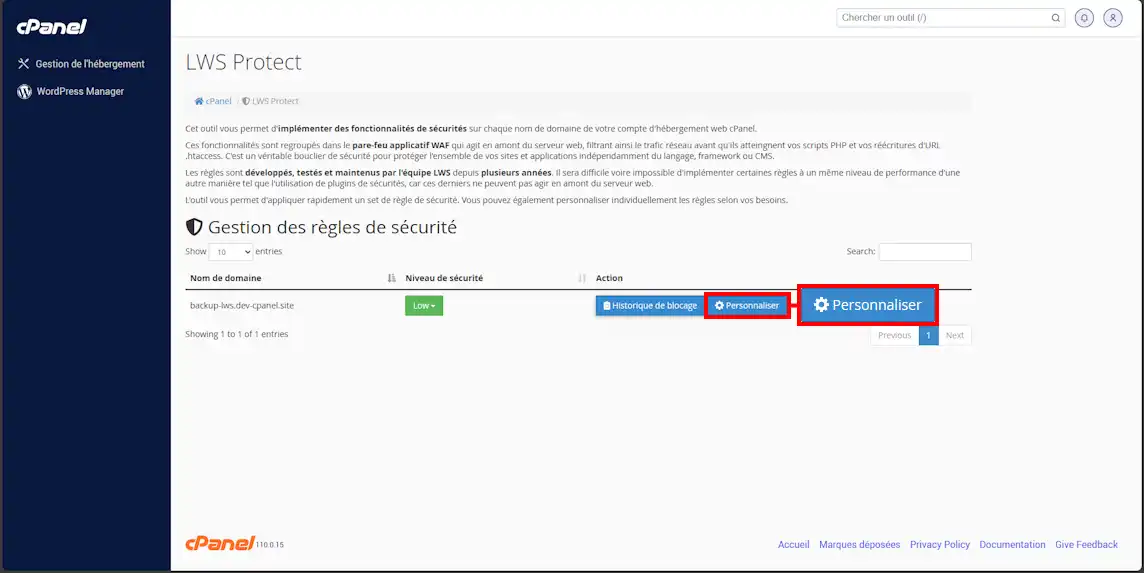
You can also customize LWS Protect security rules individually by clicking on " Customize ":
The security rules offered by LWS Protect are grouped into different categories according to their scope of action:
- Generic rules apply to all websites
- WordPress rules were designed to secure access to a WordPress site
- The rules grouped under the "Bots" tab affect access to bots and crawling tools
- IP reputation rules are based on IP address reputation systems
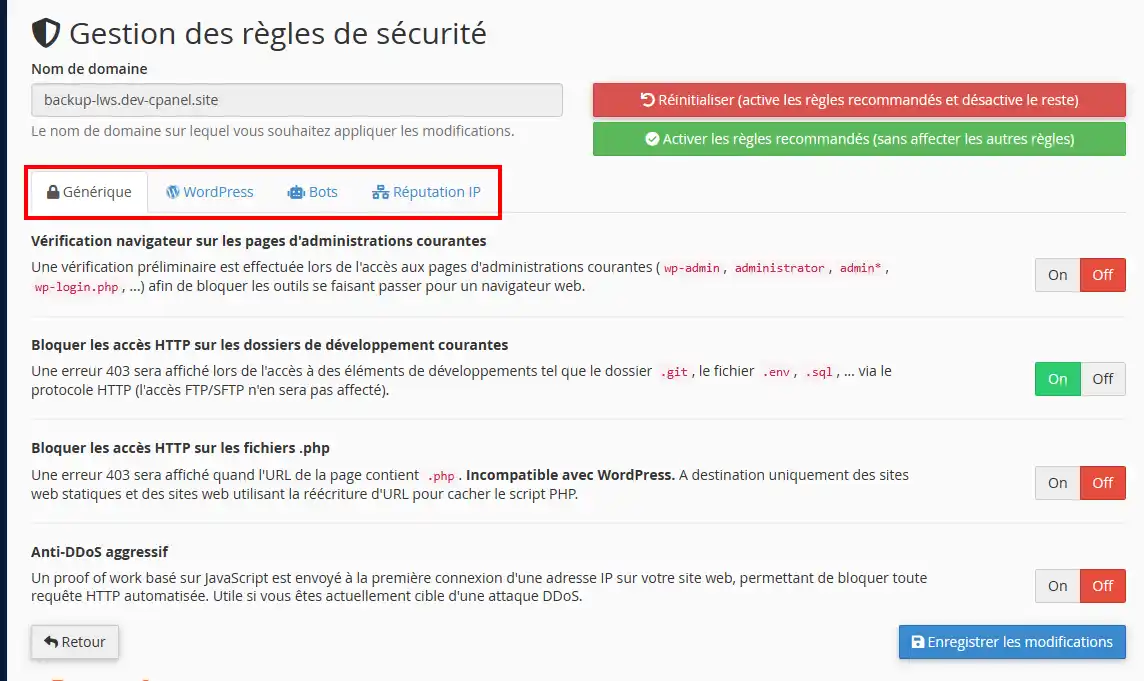
Each security rule has at least two states: active and inactive. By enabling certain rules, you can fine-tune its parameters:
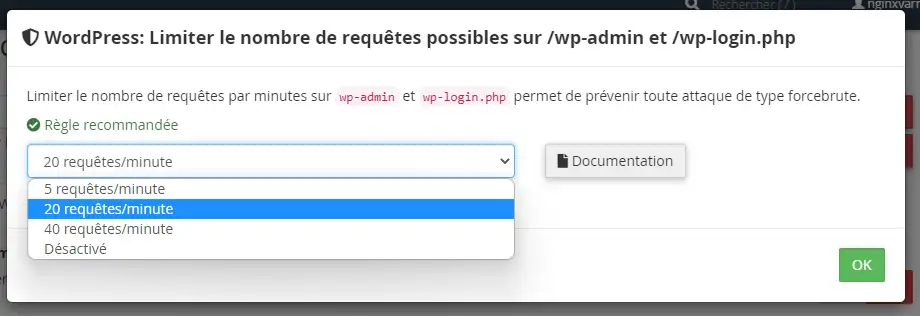
The rules are active instantly and are compatible with all our other performance optimization tools: Fastest Cache, LiteSpeed and Ipxchange.
Browser check on common administration pages
Recommended rule.
This rule sets up a preliminary check when accessing common administration pages (wp-admin, administrator, admin*, wp-login.php, ...) in order to block tools pretending to be a web browser. The check is performed by sending a captcha page, thus ensuring that requests supposedly made by browsers are actually humans behind a web browser and not a bot.
Block HTTP access to common development folders
Recommended rule.
This rule prevents HTTP access to common development folders, such as .sql files, .git folders, .env files. This helps prevent information leaks in case you forgot to delete a .sql backup file, for example, on your website during your development phase.
Block HTTP access to .php files
Enable with caution. Incompatible with WordPress.
This rule blocks direct access to .php files by preventing access to all URLs containing the term ".php", which prevents any possible bypass of the URL rewrites you defined in your .htaccess file.
Aggressive Anti-DDoS
Enable with caution.
The aggressive anti-DDoS performs a preliminary check on all HTTP requests made to your website by a web browser. The mechanism, identical to the browser verification mechanism for administrator folders, thus prevents automated bots from reaching your website.
WordPress: blocking xmlrpc.php
Enable with caution. May cause problems with some WordPress plugins.
Systematically blocks access to the xmlrpc.php file with a 403 error. A file that was used to make API requests to WordPress, it is now largely replaced by wp-admin/admin-ajax.php. However, it is kept for backward compatibility with tools that still rely on xmlrpc.php.
WordPress: Limit the number of requests possible on /wp-admin and /wp-login.php
Recommended and active by default at 20 requests/10 minutes
This rule limits the number of requests an IP address can make to wp-admin and wp-login.php. The request counter is shared across all websites in our infrastructure, with only the blocking threshold being specific to each website. This makes it possible to block two types of attacks with a single rule: bruteforce attacks targeting a single website, as well as bruteforce attacks targeting a large number of websites.
Since the counter is shared, you will need to adjust this blocking threshold according to the number of sites you host and access simultaneously. If you have several sites and open the dashboard simultaneously on a single PC, it is highly likely that you will need to adjust the blocking threshold to avoid being blocked.
A 403 error is displayed when the block is active, and unblocking occurs as soon as the number of requests made by the IP address over the last 600 seconds falls below the blocking threshold again.
WordPress: blocking sensitive files
Recommended and active by default
This rule prevents access to sensitive WordPress files and paths. It prevents, among other things, the execution of .php files in the WordPress upload folder and in the wp-includes folder, thereby reducing the risk of damage following an intrusion or virus infection on your site.
Block/limit SEO bots
Block or limit the number of requests per minute that SEO bots such as Ahrefs, Semrush and Majestic can make. Bots are identified by their User-Agent and/or their IP addresses.
Block fake bots
Recommended.
Allows fake bots to be blocked with a 403 error page. We use the User-Agent header and IP address to identify fake bots. For example, if a bot specifies "Googlebot" as its User-Agent but the request does not come from one of Google's network IP addresses, the request will be blocked.
Block malicious bots
Blocks malicious bots listed on public bot blacklists. Bots are identified as malicious or not through their IP address and/or User-Agent. A 403 error will then be displayed.
Block empty User-Agents
Recommended.
Blocks the request when the HTTP "User-Agent" header is empty. This often occurs with the default configurations of vulnerability scanning tools used by hackers. A 403 error will then be displayed.
Block malicious IPs
Recommended and active by default on "Check the browser with a captcha"
This rule blocks access to the website by IP addresses reported as malicious. We use several public databases to identify malicious IP addresses. An IP address reputation is kept for up to 24 hours in our records. A captcha verification will be performed if the IP address has a bad reputation, or a block with a 403 error, depending on your blocking choice.
Block the Tor network
This rule allows access to your website from the Tor network to be blocked. Tor network detection is performed by identifying the IP address in the public Tor Exit Nodes database. A 403 error will then be displayed if the IP address is listed.
View block histories
To view blocks performed by LWS Protect, go to LWS Protect and click the " Block history " button associated with the relevant domain name:
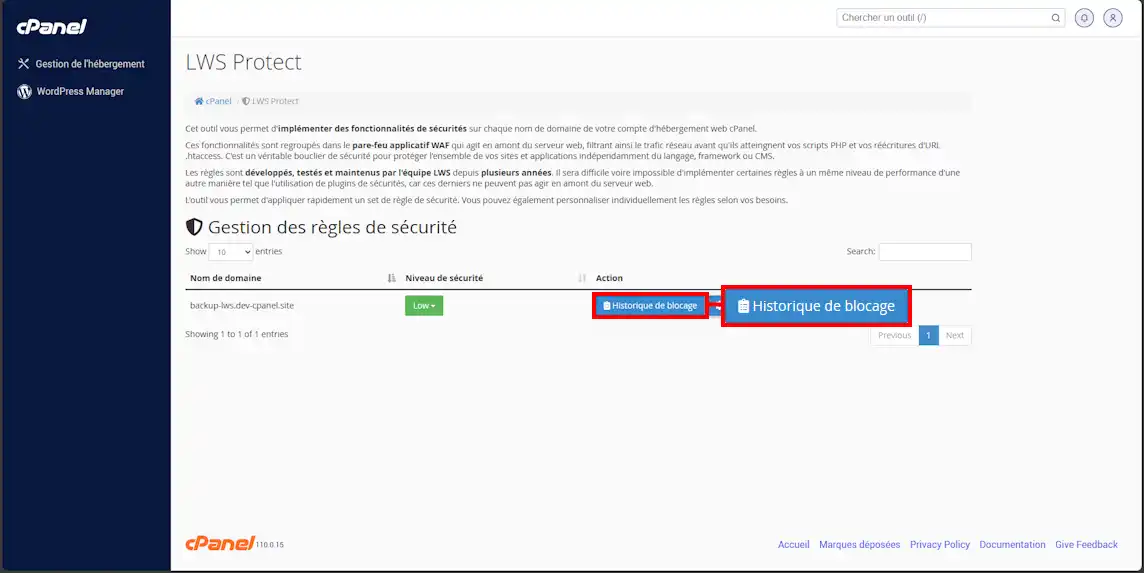
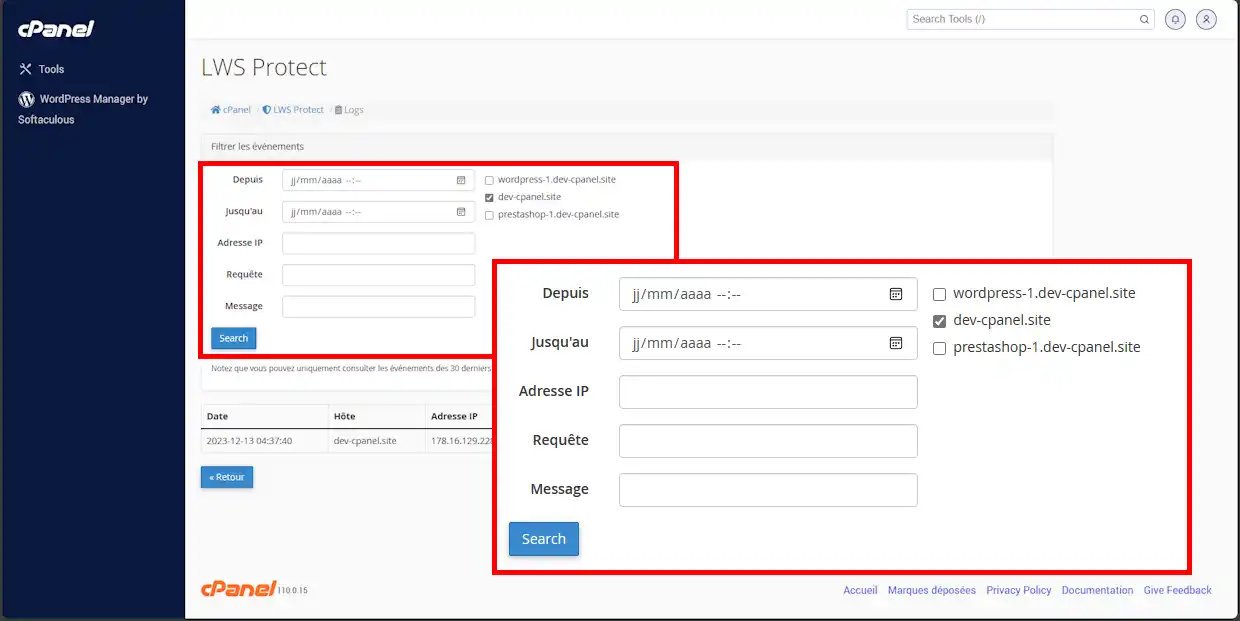
You can then filter the events according to your needs:
- Host name / domain
- Date/time range
- Blocked IP address
- HTTP request
- Message
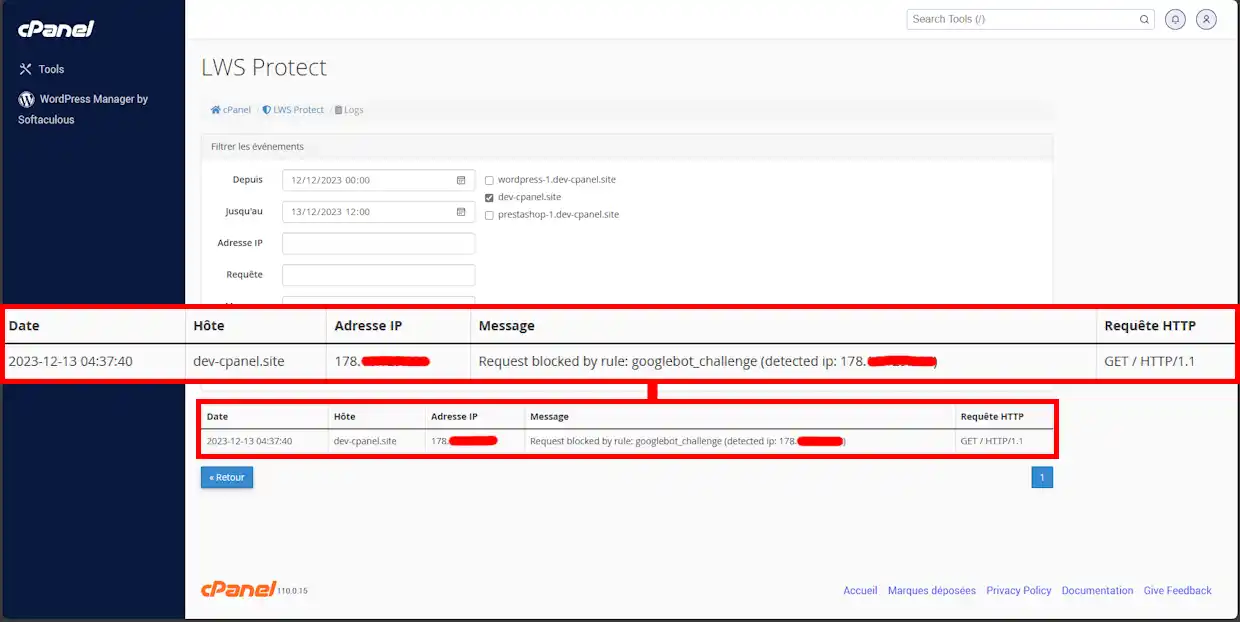
Once you have clicked on "Search", the logs are updated taking into account the filters in place:



 Yes
Yes No
No About
About 