
Online help
The web host accessible to all
Procédure
ModSecurity is an application firewall module for the Apache web server that analyses and filters HTTP and HTTPS requests. Combined with security rules, ModSecurity can detect and block forms of attack targeting websites. This makes it possible to block attacks before they reach your website's scripts. ModSecurity prevents code injection, SQL injection, malicious file uploads and much more.
Thanks to the ModSecurity interface designed by LWS, you can activate and/or deactivate ModSecurity rules in order to calibrate this firewall to your website's needs, given that an effective rule to block PHP code injection is, for example, counter-productive on a PHP tutorial blog where the site administrator will have to add PHP code regularly to his blog posts, and visitors will comment with bits of PHP code too.
ModSecurity can be activated and deactivated at will from the cPanel interface of your web hosting package, independently for each domain.
1. Log in to your cPanel interface.
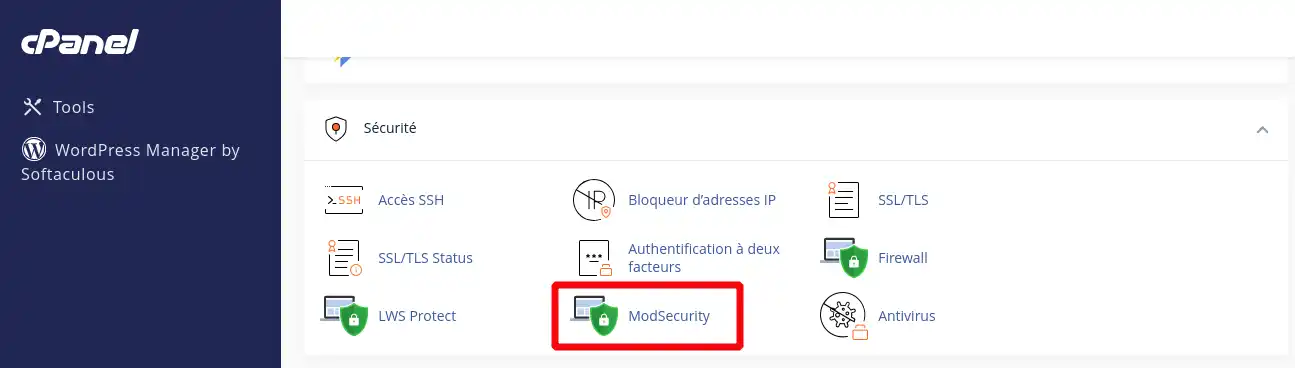
2. Go to the "Security" section and click on the "ModSecurity" button:
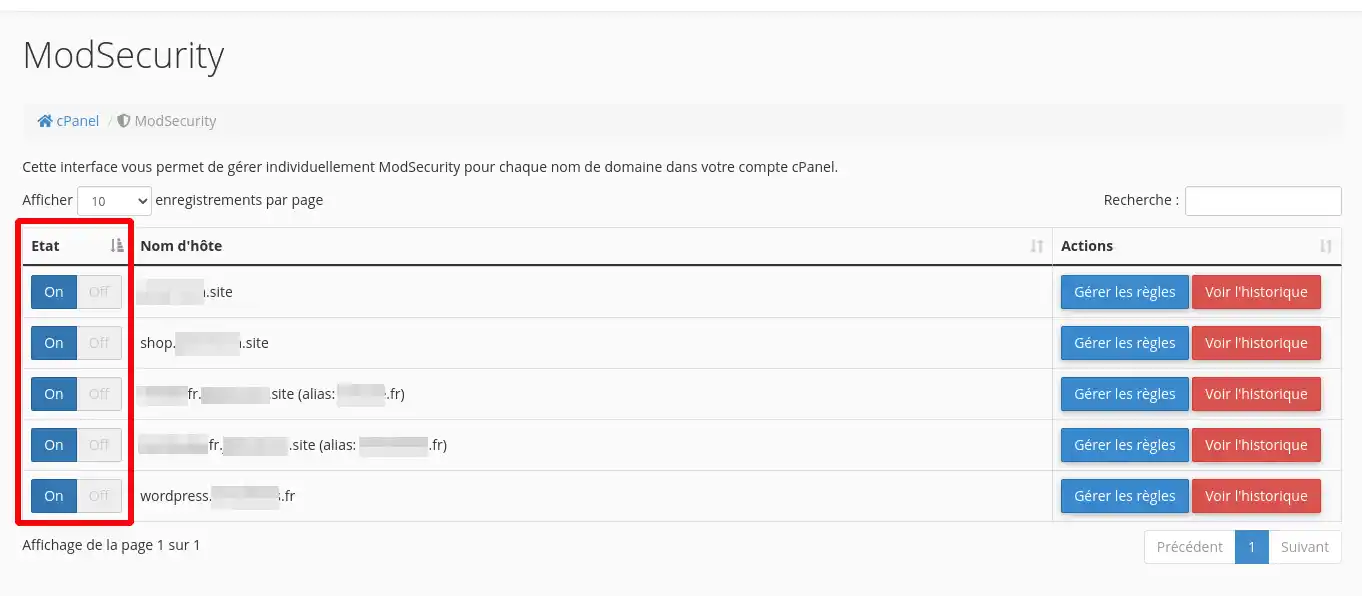
3. Select the domain from the list for which you want to disable ModSecurity and click the "On" or "Off" button to enable or disable ModSecurity for that domain.
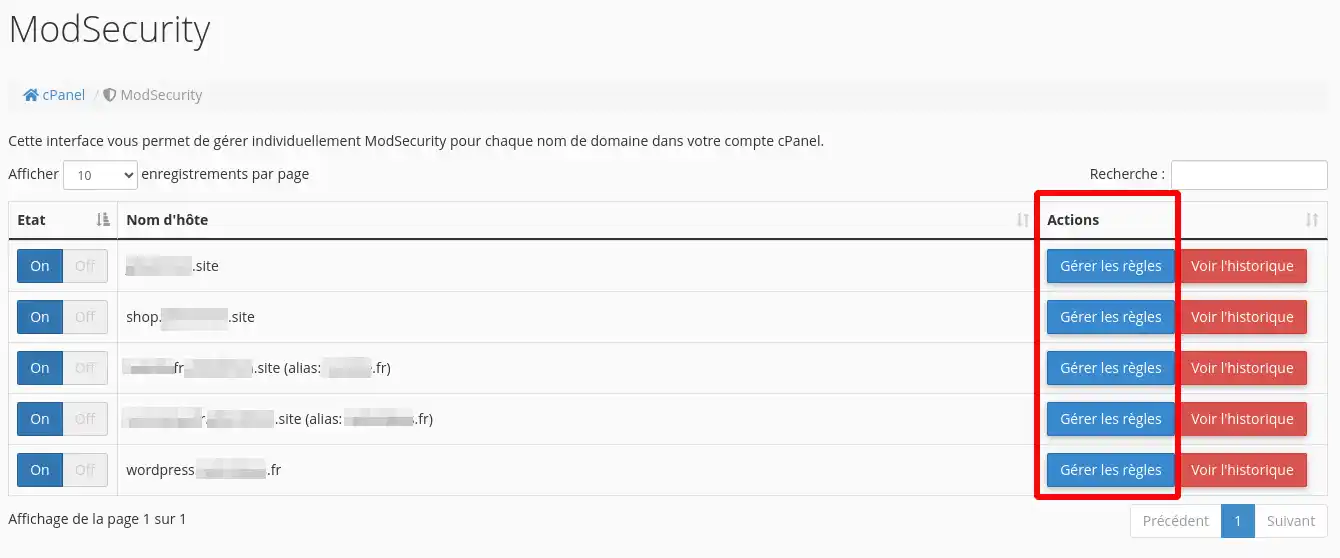
If you wish to activate or deactivate a single ModSecurity rule, click on the "Manage rules" button corresponding to the domain name you wish to modify:
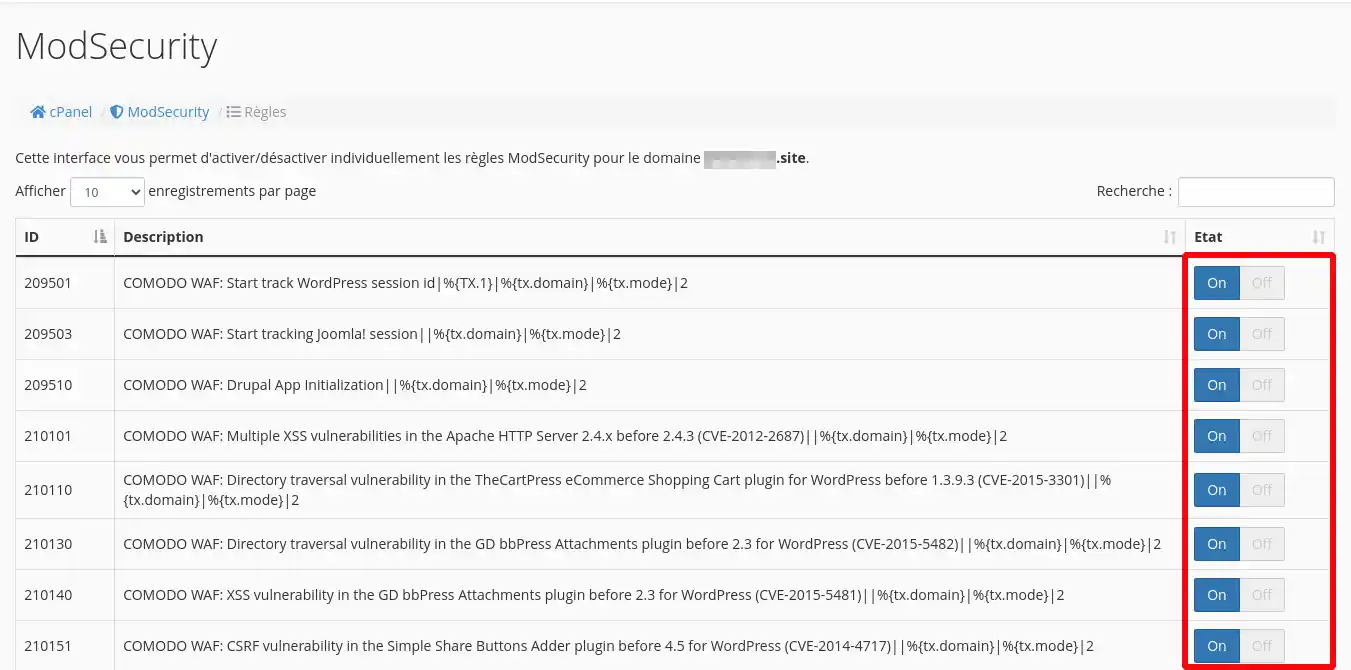
You can then click "On" or "Off" on each rule to activate or deactivate it for your domain name:
You can see which rules have been blocked by ModSecurity by clicking on the "View history" button for your domain name:
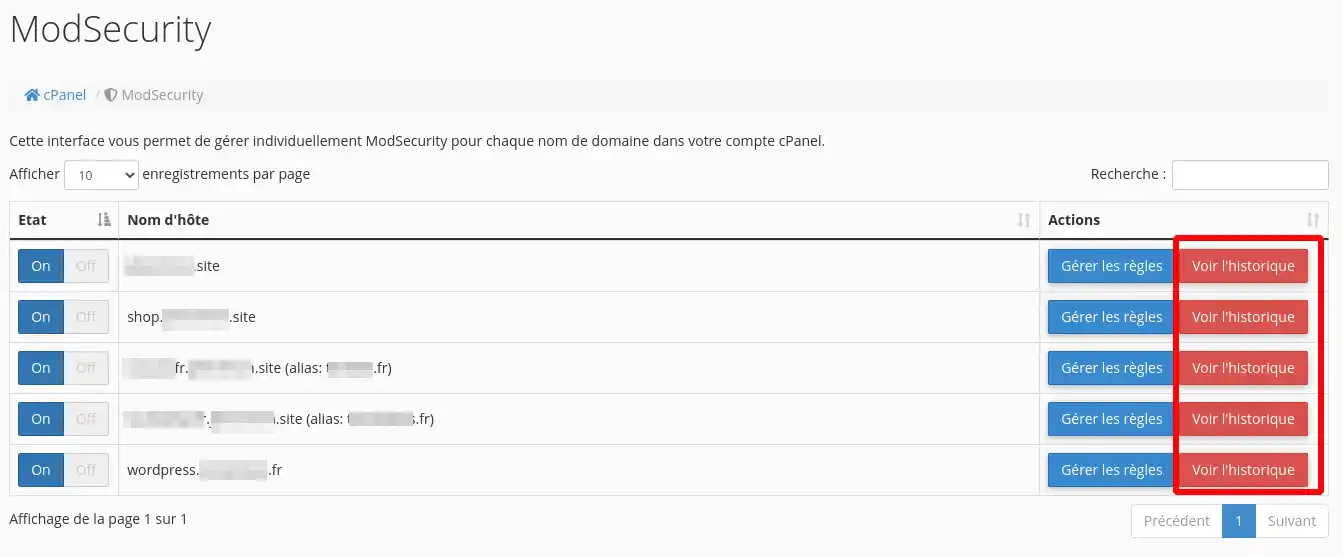
The rules triggered by modsecurity on your site or application are then listed.
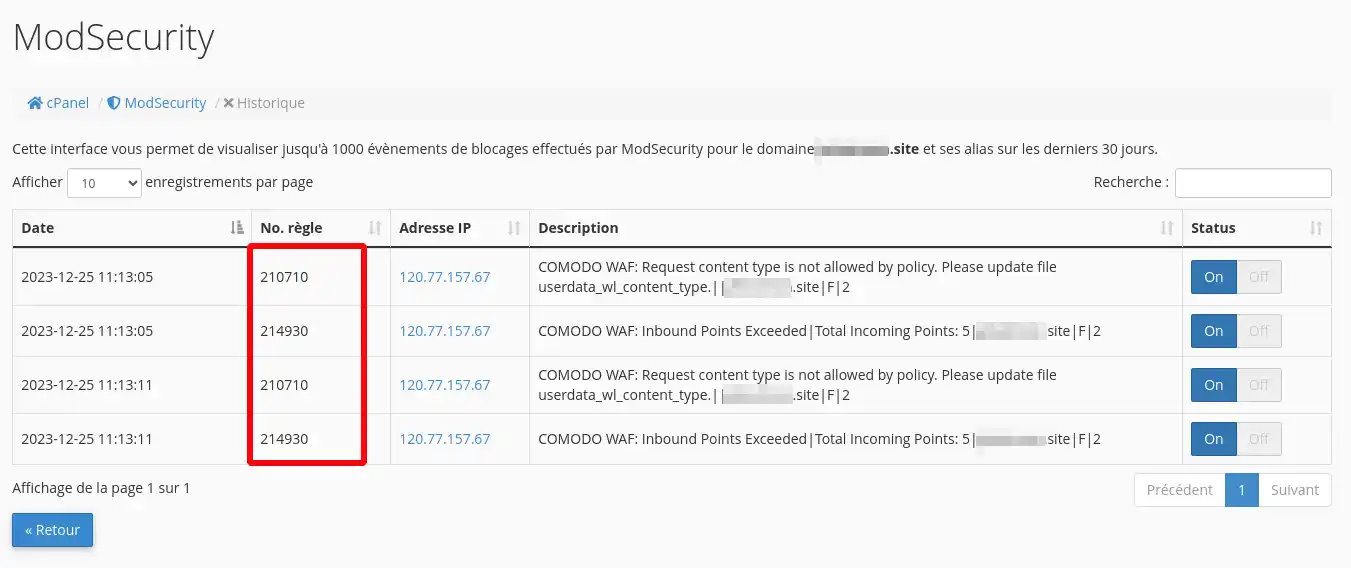
Retrieve the rule number corresponding to your block and deactivate it.
Note that a block may not appear on the block history until 5 to 10 minutes after the event.
You now know how to :
We hope this information helps you secure your website effectively. If you have any questions or would like to share your experiences with ModSecurity, please feel free to leave a comment. Thank you for reading and happy security!
Ask the LWS team and the community. Answers are published after moderation.
 About LWS :
LWS is a 100% French web hosting company that focuses on quality and innovation and offers a responsive and competent technical service at affordable prices.
About LWS :
LWS is a 100% French web hosting company that focuses on quality and innovation and offers a responsive and competent technical service at affordable prices.



 Yes
Yes No
No