
Online help
The web host accessible to all
Procédure
Critical CSS makes it possible to display the visible content of your pages more quickly. When a visitor opens a page, their browser must first download different files (images, scripts, CSS style sheets, etc.). [PERSON_NAME] are [PERSON_NAME], display may be delayed. With Critical CSS, the styles required for the page to appear immediately are loaded first. The rest of the styles are then loaded in the background.
Enabling Critical CSS can improve your site's display speed, especially on mobile or with a slow Internet connection.
The most common benefits are:
Faster display of the page's main content.
Better user experience.
Potential improvement in performance indicators such as LCP (Largest Contentful Paint).
Depending on the site's configuration, the gain observed can reach several hundred milliseconds.
WordPress does not currently offer optimization of CSS for pages and posts. [PERSON_NAME], there are dozens of different WordPress plugins available to meet this need, including the LWS Optimize plugin, created by LWS.
By default, this option is disabled in the latter because it increases the cache generation time, [PERSON_NAME] even more if the page loads a large number of CSS files, and can cause display issues in rare cases.
To enable it, go to the LWS Optimize dashboard and then, from there, choose the Maximum settings and save; [PERSON_NAME] plugin actions, including Critical CSS.
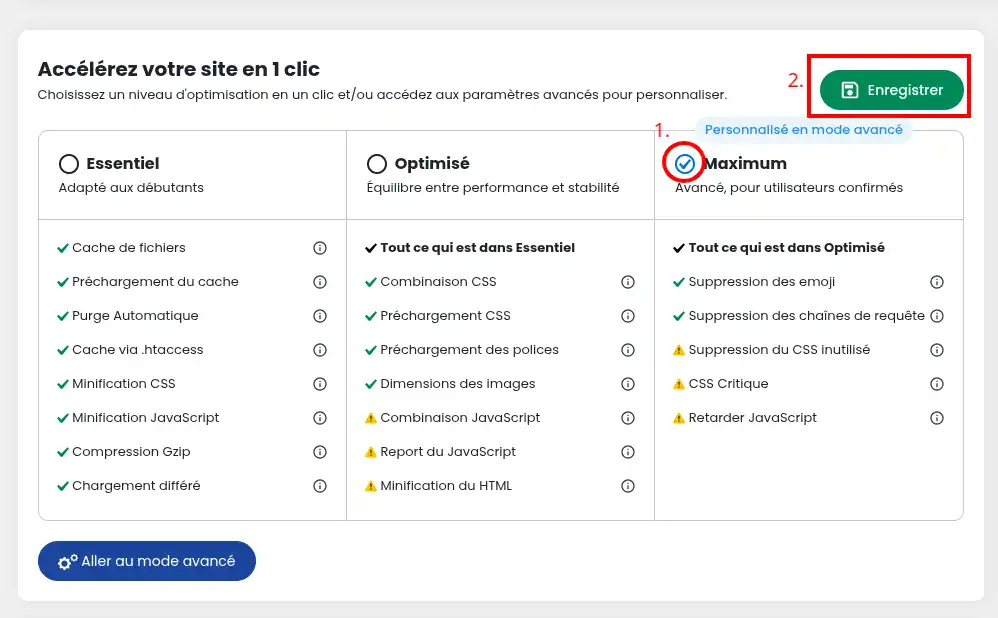
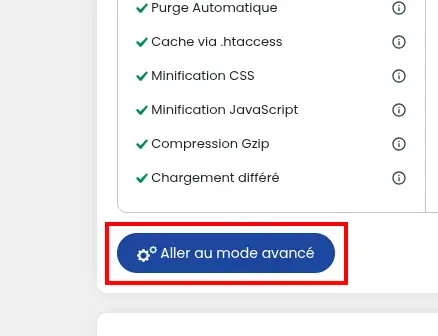
[PERSON_NAME] want to enable only Critical CSS, you can also go to the advanced settings, in the Front-End section, where you will find the Critical CSS line.
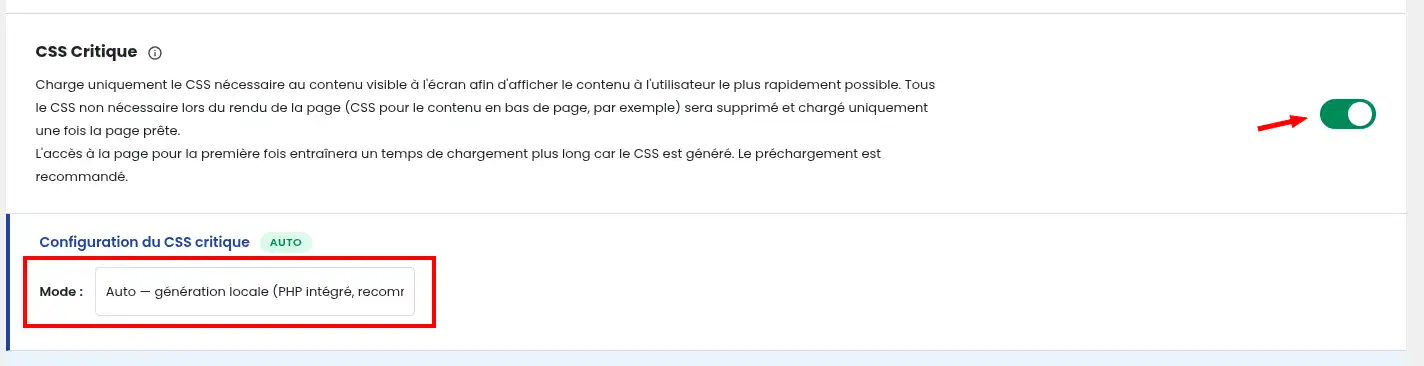
By checking the option, you will be asked to choose between 3 operating modes: Auto - local, Auto and Manual. Once the choice has been made, save your changes, [PERSON_NAME] the Critical CSS and will clear the current cache.
Each mode has a different operation:
This is the plugin's default mode; the CSS of the pages is analyzed then processed by your site's PHP, directly generating the Critical CSS. It has the advantage of working entirely locally and being reasonably fast but in return, it consumes more server resources than the other mode. It is still recommended for most sites.
If your hosting performance [PERSON_NAME], [PERSON_NAME] cause slowdowns for your visitors during CSS generation. [PERSON_NAME], performance may deteriorate during generation.
This mode uses LWS's critical CSS generation service. Slightly slower than local generation, especially if the generation API is overloaded, its main advantage is that all generation takes place off the server, offering much better performance than local generation. In case of high demand, generation may however be unavailable, so it is not as reliable as local generation.
In case of temporary unavailability of the service, the plugin automatically switches to local generation. Also, as generation is done differently from local mode, it may provide better results depending on the site.
Manual
This mode is intended for advanced users.
It allows you to manually enter your own critical CSS [ADDRESS] provided for this purpose. The added CSS will be used across the entire site.
In automatic mode, critical CSS is generated at the same time as the rest of the cache and options ([PERSON_NAME]) ; [PERSON_NAME], the next visits will use the generated cache.
After activation, some components that load their styles dynamically (carousels, modal windows, popups, etc.) may not display correctly.
[PERSON_NAME] resulting action:
[PERSON_NAME] mode Auto — LWS service.
If the problem persists, use the Manual mode to add the missing styles.
Automatic generation only takes into account style sheets hosted on your domain.
Styles loaded from external services (CDN, Google Fonts, etc.) are not included in the automatically generated critical CSS.
Critical CSS is an excellent way to speed up the display of your pages and improve your visitors' experience 🚀. By prioritizing essential styles, you reduce the loading time of visible content and potentially optimize your performance indicators, [PERSON_NAME] LCP 📈.
You now know how to: understand the value of Critical CSS, enable it in WordPress with LWS Optimize, choose between Auto — local generation, Auto — LWS service and Manual modes, determine when it becomes active and anticipate the points to watch related to dynamic components and external styles 😉.
By applying these best practices, you will be able to enjoy a site that is faster, more fluid and more pleasant for your users to browse ✨.
Thank you for reading 🙏 Feel free to leave a comment on the service and share your feedback! 🙂
Ask the LWS team and the community. Answers are published after moderation.
 About LWS :
LWS is a 100% French web hosting company that focuses on quality and innovation and offers a responsive and competent technical service at affordable prices.
About LWS :
LWS is a 100% French web hosting company that focuses on quality and innovation and offers a responsive and competent technical service at affordable prices.



 Yes
Yes No
No