
Online help
The web host accessible to all
Procédure
The "Firewall" icon on cPanel lets you manage the firewall linked to your cPanel web hosting package at LWS: authorize specific remote access, allow a remote host to access specific services or unblock IP addresses blocked by the firewall.
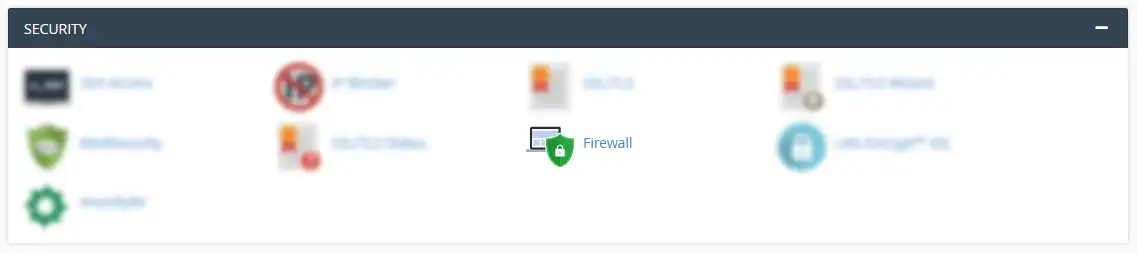
You can authorise your website or application, hosted on your cPanel account, to access another website, service, API, etc. hosted on another server.
For example, you can authorise your website to access the CDiscount API; or authorise your application to access an email server, MongoDB, PostgreSQL, Redis ... hosted on a VPS.
Tip: The following ports are systematically authorised and do not require the addition of a rule:
Suppose you want to enable a connection between your website and your PostgreSQL server exposed at address 1.2.3.4 on TCP port 5432. To do this, click on the Add an outgoing rule button:

Then enter the IP address, protocol and port in the form that follows:
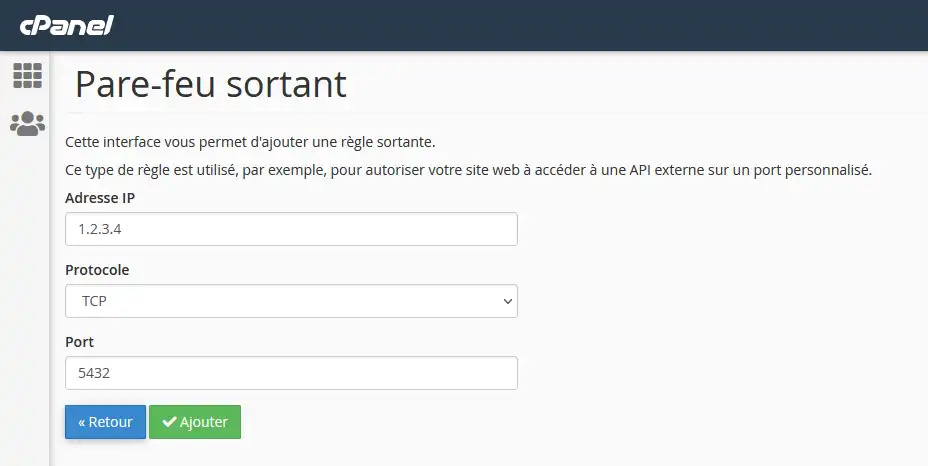
Confirm by clicking on "Add". The action will take effect in a few minutes.
You can also authorise access to a cPanel account service by authorising an IP address. The services compatible with this feature are :
Tip: The IP addresses listed in the MySQL remote icon on cPanel are already authorised to access the MySQL service, there is no need to list them again.
Suppose you want to authorise your CDN server to access your non-SSL version of the site. To do this, click on the Add an incoming rule button and enter the IP address, protocol and port to be exposed:
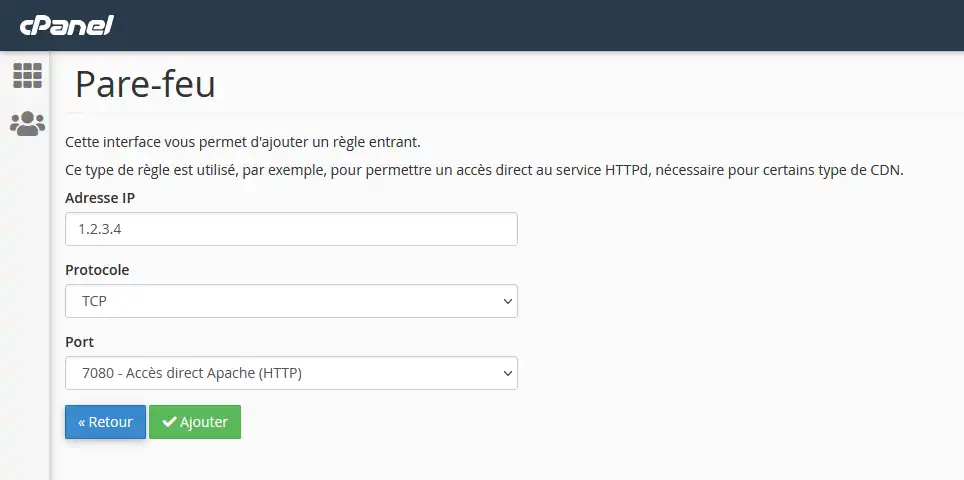
Click Add to complete the action, which will take effect in a few minutes.
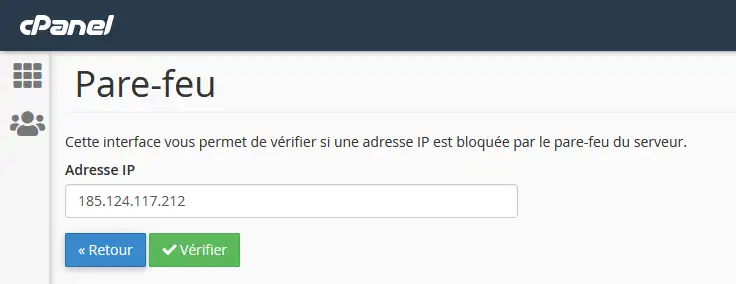
You can check an IP address if it has been blocked by the cPanel server for various reasons: misuse of the wrong password, DDoS attacks, brute force attacks, incorrect configuration, etc. To do this, click on the "Check if an IP is blocked" button.
Enter the IP address and click Check.
A waiting page will be displayed while the software checks the data. This page will refresh one or more times:
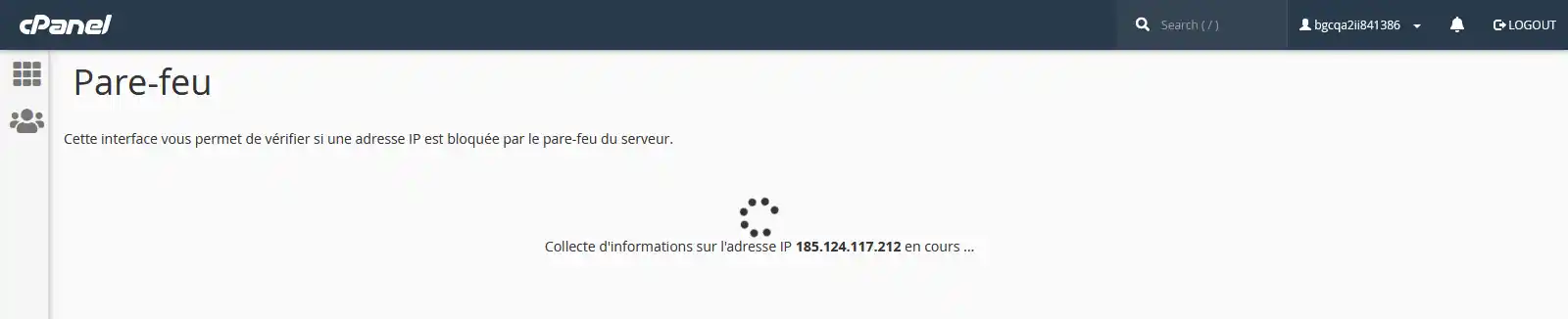
Once the data has been retrieved, you will see the status of the IP address (blocked or not blocked) and the reason for the block:
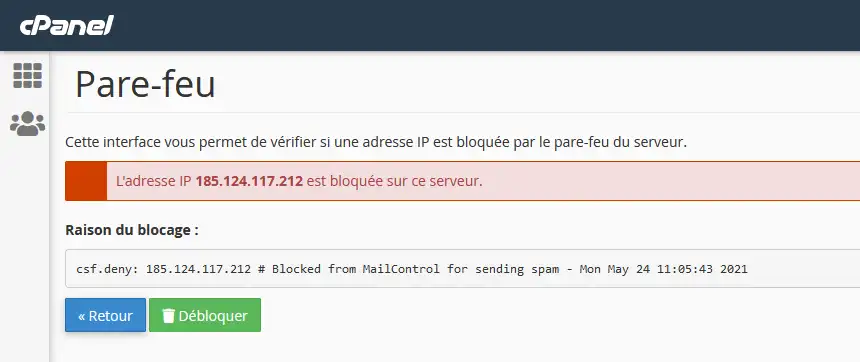
In this example, the IP address has been blocked because it was sent spam. Click on "Unblock" to make an unblocking request.
Unblocks are processed automatically in a few minutes and each cPanel account can perform up to 3 unblocks per week.
Ask the LWS team and the community. Answers are published after moderation.
 About LWS :
LWS is a 100% French web hosting company that focuses on quality and innovation and offers a responsive and competent technical service at affordable prices.
About LWS :
LWS is a 100% French web hosting company that focuses on quality and innovation and offers a responsive and competent technical service at affordable prices.



 Yes
Yes No
No