
Online help
The web host accessible to all
Procédure
Relevant service : LWS Web Hosting with WordPress
Relevant panel : WordPress
Level : beginner
Extra is a WordPress theme developed by Elegant Themes. It is mainly intended for blogs, magazines, and content-heavy websites, and integrates Elegant Themes' creation tools based on Divi Builder.
You can install Extra on a WordPress site hosted with LWS from the ZIP file provided by Elegant Themes.
LWS does not provide an Elegant Themes license with its hosting offers. To download Extra, receive updates, and benefit from the publisher's support, you must have your own Elegant Themes account granting access to the product.
You need the installation file for the Extra theme.
Log in to your Elegant Themes member area, then download the Extra theme to your computer. Keep the file in ZIP format so you can import it directly into WordPress.
If your site already uses another theme, activating Extra will immediately change its appearance. WordPress content is not deleted, but some areas, menus, widgets, or layouts may display differently with the new theme.
If your site is already live, check how it displays after activating Extra.
Log in to your WordPress site administration dashboard.
In the left-hand menu, click Appearance, then Themes.
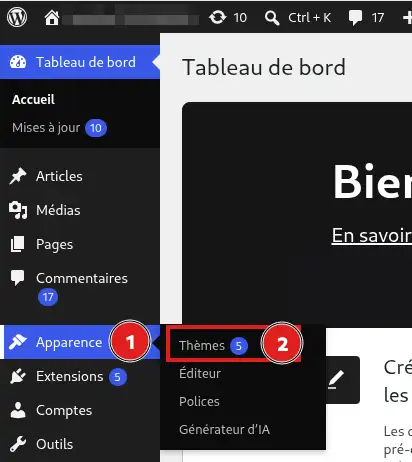
Click Add New Theme
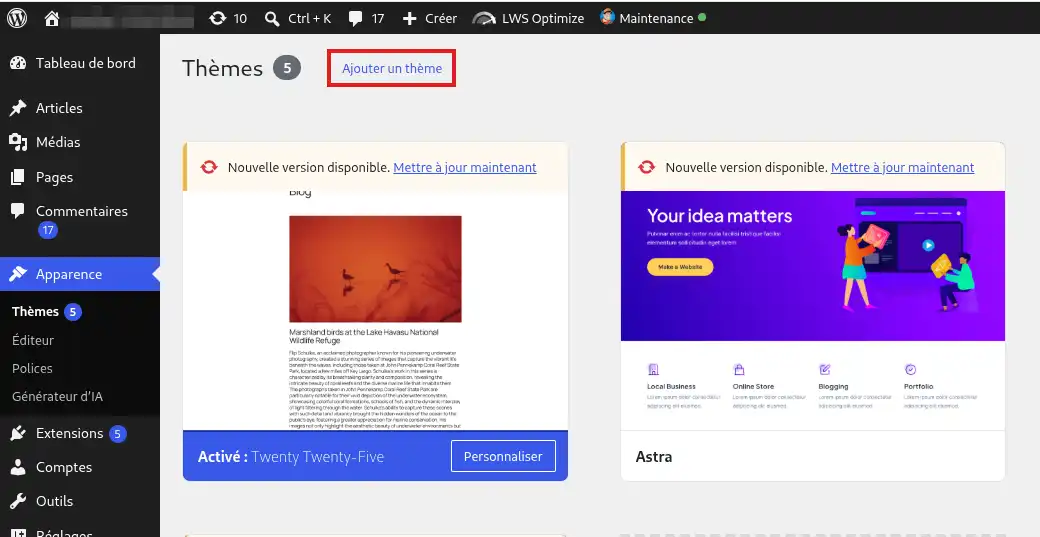
then on Upload Theme.
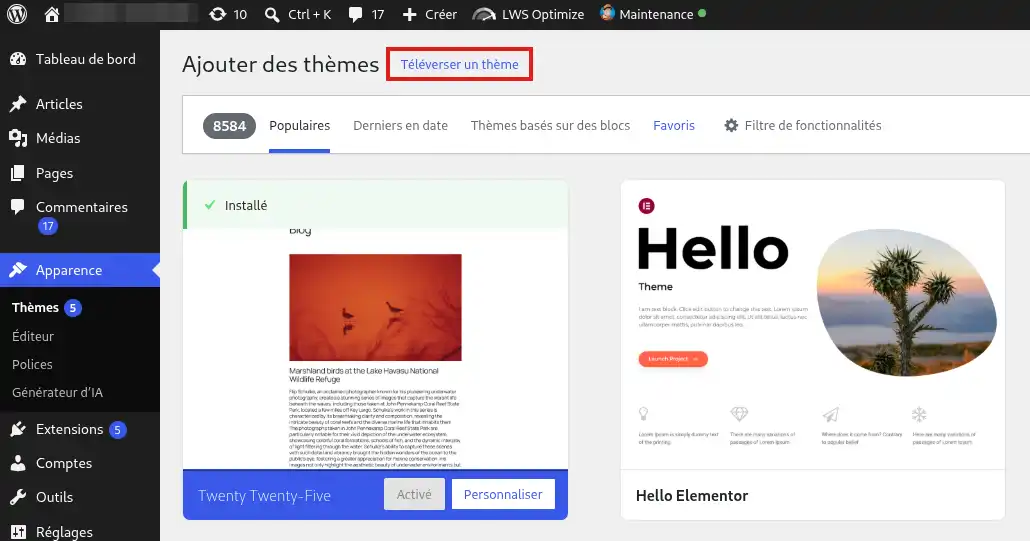
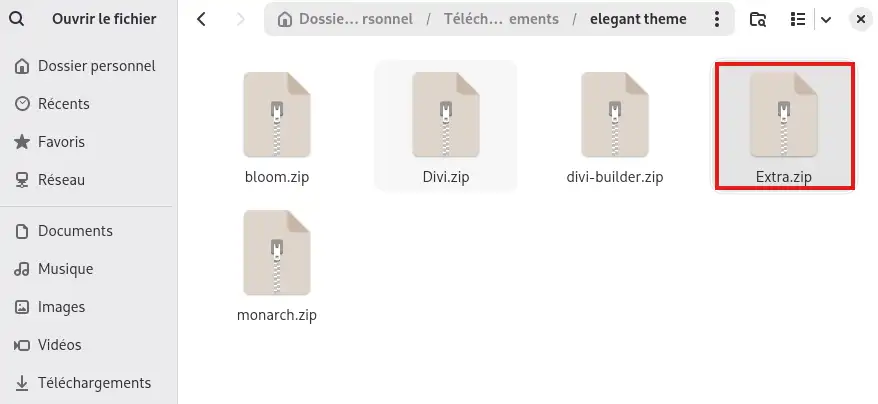
Click Choose File
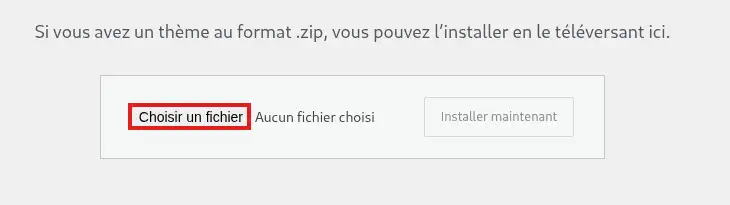
select the ZIP file for Extra downloaded from your Elegant Themes account.
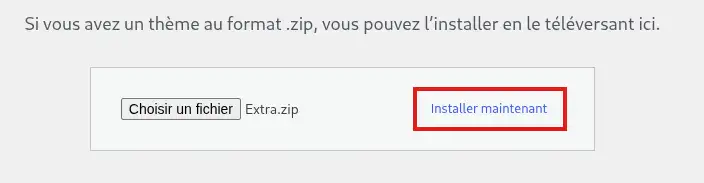
Then click Install Now.
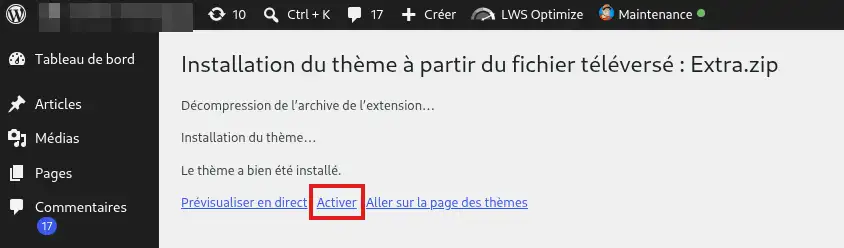
WordPress transfers the theme files to your hosting and automatically installs it.
Once the installation is complete, click Activate to use Extra as your site theme.
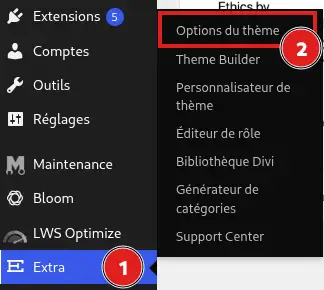
The Extra theme is now installed and activated on your WordPress site. An Extra menu is available in the dashboard to access the theme settings.
To receive new versions of Extra directly from WordPress, you must authenticate your Elegant Themes account.
In your WordPress dashboard, go to Extra > Theme Options,
then open the Updates tab.
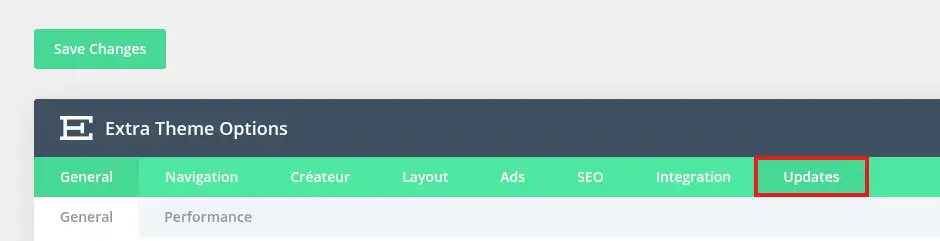
Enter:
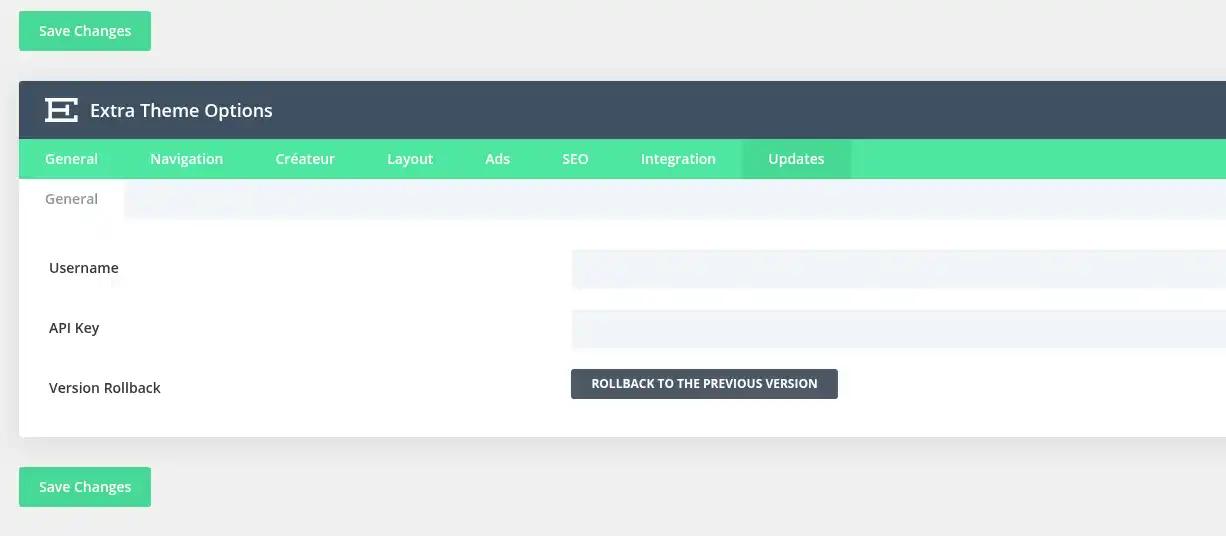
You can find your username and create or manage your API keys from your Elegant Themes member area.
Then click Save Changes to save the information.
Once your account is authenticated, new versions of Extra can be offered directly by the WordPress update system.
The Elegant Themes API key is different from your account password. It is used to authenticate your site with Elegant Themes in order to receive updates for their products.
From the WordPress dashboard, go to Extra > Theme Options.
If the theme options display correctly, Extra is properly installed and activated.
You can also open your site in a new tab to check its appearance after the theme change.
To check updates, go to Dashboard > Updates. When your Elegant Themes account is properly authenticated and grants access to updates, new versions of Extra can be installed from WordPress.
I do not see Extra in the theme list
Go to Appearance > Themes and check that Extra appears in the list.
If it is present but another theme is currently in use, click Activate under Extra.
If Extra does not appear, repeat the installation from the ZIP file downloaded from your Elegant Themes account.
WordPress rejects the file I am trying to install
Check that you are importing the ZIP file containing the Extra theme.
The upload must be done from Appearance > Themes > Add New Theme > Upload Theme and not from the section used to install plugins.
If your browser automatically extracted the downloaded file, download the ZIP file again from your Elegant Themes member area or rezip the theme folder before continuing.
The appearance of my site changed after activating Extra
This is normal: Extra replaces the previously active theme and uses its own display options.
Your posts, pages, and other WordPress content remain present, but some menus, widgets, or layout elements may need to be reconfigured to match the Extra theme.
You can start by checking the settings available in Extra > Theme Options as well as the theme customization options.
I am not receiving automatic Extra updates
Extra updates are distributed by Elegant Themes. To receive them in WordPress, your Elegant Themes account must grant access to updates and be authenticated in Extra > Theme Options > Updates with your username and an active API key.
If you do not yet have a license or subscription that provides access to Extra, you must subscribe directly with Elegant Themes.
If you already have valid access, check that your username and API key are correctly saved in the theme options.
For any issue related to your license, your Elegant Themes account, or the distribution of updates, contact Elegant Themes support.
Extra does not work properly or I am experiencing a bug
If Extra is correctly installed and activated but a theme feature does not work as expected, consult the Extra documentation or contact Elegant Themes support.
Since Extra is developed and maintained by Elegant Themes, their support can help you with using the theme, its features, its settings, and any product bugs.
LWS support can help you when an issue concerns your hosting, WordPress, PHP, or server resources. For the internal operation of Extra, its features, its license, or its updates, support is provided by Elegant Themes.
Ask the LWS team and the community. Answers are published after moderation.
 About LWS :
LWS is a 100% French web hosting company that focuses on quality and innovation and offers a responsive and competent technical service at affordable prices.
About LWS :
LWS is a 100% French web hosting company that focuses on quality and innovation and offers a responsive and competent technical service at affordable prices.



 Yes
Yes No
No