Transfer a SQL Server database between Plesk and a SQL Server server with SSMS

Procédure


Service concerned : Windows ASP shared hosting
Panel concerned : Plesk
Level : intermediate

This help explains how to transfer a Microsoft SQL Server database in both directions: from your Plesk hosting to another SQL Server, or from a SQL Server to Plesk.

SQL Server Management Studio, also called SSMS, is used to create or restore the backup file used for the transfer. This procedure is based on the SSMS 22 interface and remains valid for its 22.x updates. Microsoft recommends using the latest available update.

Before you begin

To follow this procedure, you must have:

  • a Microsoft SQL Server database on your Plesk hosting;
  • SSMS 22 installed on a Windows computer;
  • a local or remote SQL Server instance on which you are allowed to back up or restore a database;
  • sufficient space in your Plesk plan to accommodate the imported database.

SSMS is an administration tool. Installing it does not automatically create a SQL Server. You must also have a SQL Server instance to connect to.

LWS Windows hostings currently use Microsoft SQL Server 2019.

A backup created with SQL Server 2022, SQL Server 2025, or another newer version cannot be restored directly on LWS's SQL Server 2019 server. The version of SSMS used does not change this limitation.

Before replacing an existing database, create a recent backup of its contents. In Plesk, the Recreate the database option deletes the current database before restoring the backup.
Transfer a database from Plesk to a SQL Server

Download the database from Plesk

  1. Log in to your Plesk panel.
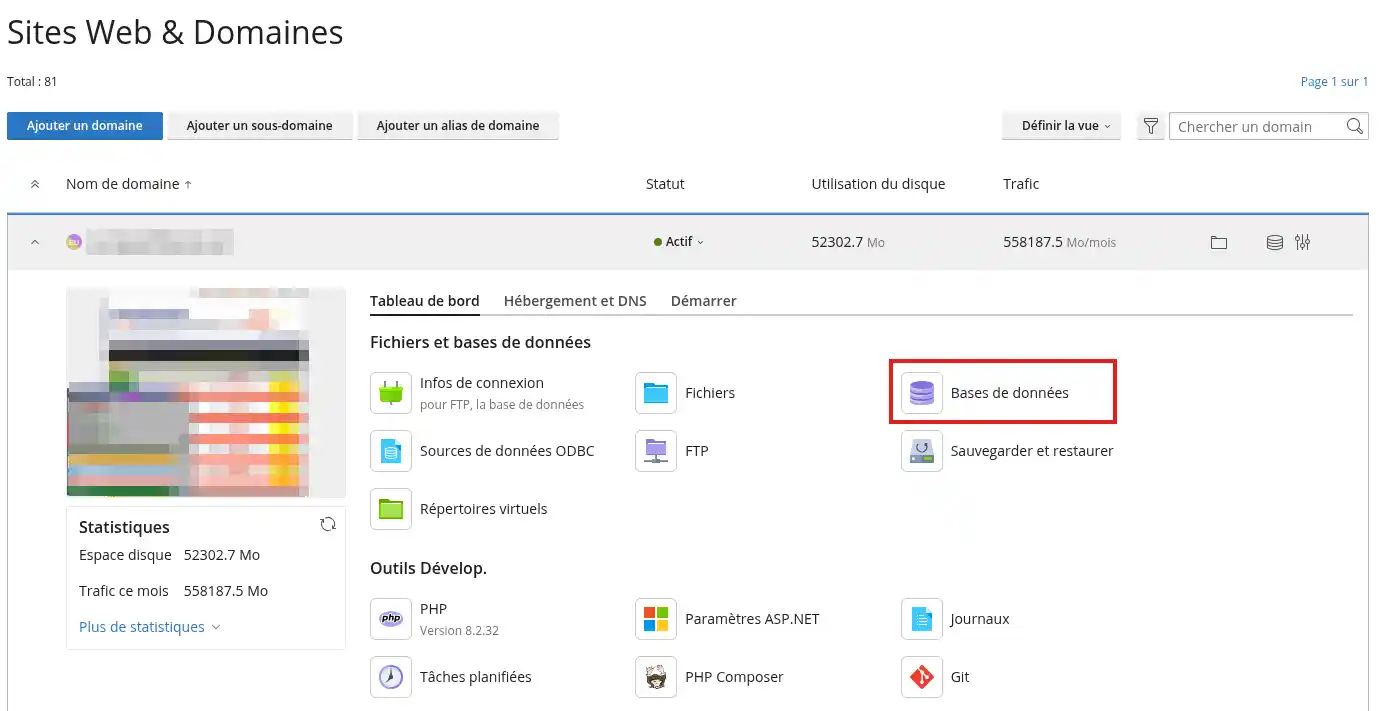
  2. Open the Databases section.
    Transfer a SQL Server database between Plesk and a SQL Server server with SSMS
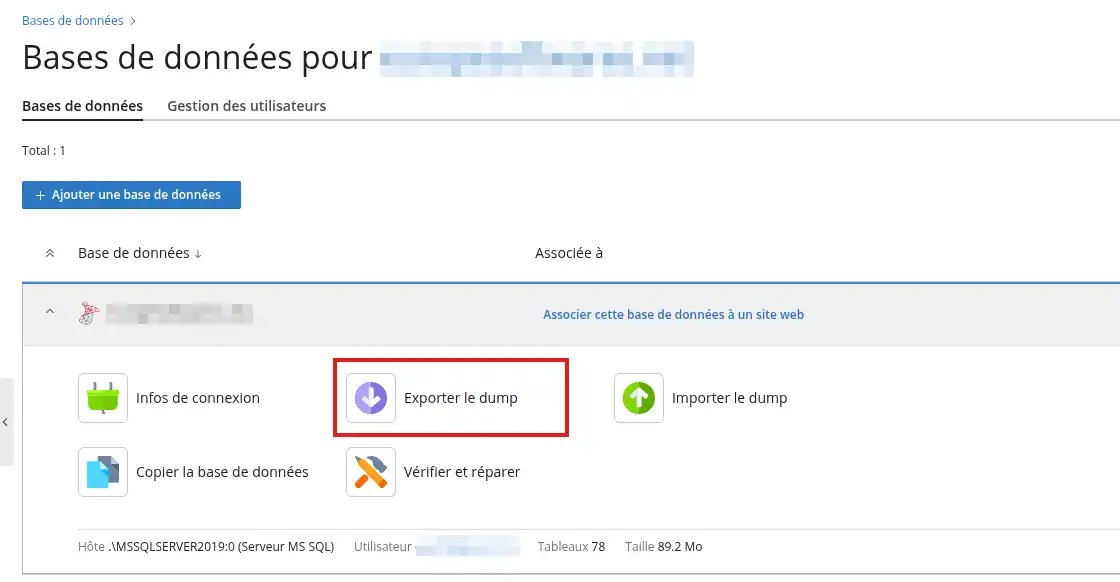
  3. Locate the Microsoft SQL Server database you want to transfer, then click Export dump.
    Transfer a SQL Server database between Plesk and a SQL Server server with SSMS
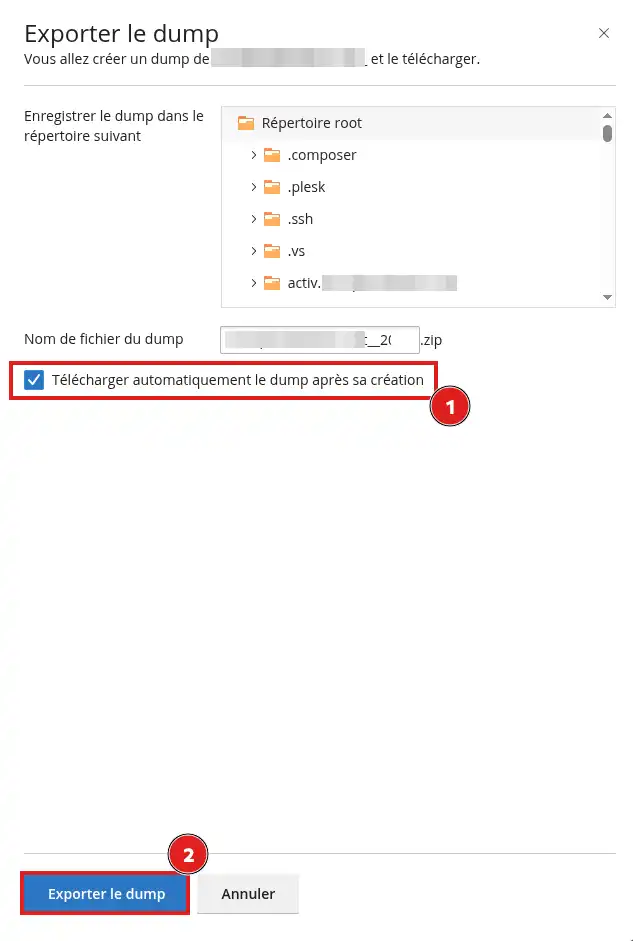
  4. Check the option Automatically download dump after creation.
    Transfer a SQL Server database between Plesk and a SQL Server server with SSMS
  5. Start the export.

Plesk creates a ZIP archive containing the database backup, then downloads it to your computer.

  1. Unzip the archive.
  2. Check the name of the resulting file. If this file has no extension, add .bak to the end of its name.

For example:

my-database-backup becomes my-database-backup.bak

Do not rename the ZIP archive directly to .bak. You must first unzip the archive, then rename only the file it contains if it has no extension.

Restore the database in SSMS 22

  1. Open SQL Server Management Studio 22.
  2. Connect to the SQL Server instance on which you want to restore the database.
  3. In Object Explorer, right-click Databases.
  4. Click Restore Database.
  5. In the Source section, select Device.
  6. Click the … button.
  7. Make sure the selected media type is File, then click Add.
  8. Select the .bak file extracted from the Plesk archive.
  9. Click OK to return to the restore window.
  10. Check that the backup set appears and is selected.
  11. In the Destination section, verify the name of the database that will be created.

If a database with that name already exists, use another name so that its contents are not replaced.

  1. Click OK to start the restore.
  2. Wait until SSMS displays a message confirming that the database has been restored successfully.

These menus correspond to the restore procedure documented for the current SSMS interface.

When SSMS is connected to a SQL Server instance installed on another computer, the selection window shows the files accessible by that SQL Server. The .bak file must therefore be placed in a folder accessible by the remote instance.

Transfer a database from a SQL Server to Plesk

Create a backup with SSMS 22

  1. Open SQL Server Management Studio 22.
  2. Connect to the instance containing the database to transfer.
  3. In Object Explorer, expand the Databases section.
  4. Right-click the relevant database.
  5. Click Tasks, then Back Up.
  6. In the Backup type field, select Full.
  7. In the Destination section, make sure the Disk type is selected.
  8. Click Add.
  9. Specify the name and location of the backup file.

Use a name ending in .bak, for example:

my-database.bak

  1. Confirm the location, then click OK to start the backup.
  2. Wait for SSMS to confirm that the operation was successful.

The file is created on the computer hosting the SQL Server instance. If you are connected to a remote SQL server, the file will not necessarily be saved on the computer from which you are using SSMS.

Import the backup into Plesk

Before importing, make sure the backup was created with SQL Server 2019 or an earlier compatible version.

  1. Retrieve the .bak file created with SSMS.
  2. Place only this file in a new ZIP archive.

For example:

my-database.bak must be inside my-database.zip

  1. Log in to your Plesk panel.
  2. Open the Databases section.
  3. Locate the SQL Server database into which you want to import the backup.

The destination database must already exist. If necessary, create a new SQL Server database before continuing.

  1. Click Import dump.
  2. Select the Upload or Upload option, depending on the language of your interface.
  3. Click Browse, then select the ZIP archive containing the .bak file.
  4. Leave the Recreate the database option disabled if you do not want to delete the existing database.
  5. Start the import.
  6. Wait for Plesk to confirm that the operation is complete.

Plesk accepts uploading a ZIP archive containing the backup file. The source database and destination database must use the same database engine.

Check that the transfer was successful

After a restore in SSMS

In Object Explorer:

  1. Right-click Databases, then click Refresh.
  2. Check that the new database appears.
  3. Expand it, then open the Tables section.
  4. Verify that the expected tables are present.
  5. Review some data to confirm that the restore is complete.

After an import in Plesk

  1. Make sure Plesk displays no errors.
  2. Open the database with the SQL Server management tool provided in Plesk.
  3. Verify that the expected tables and data are present.
  4. Check the connection settings used by your site.
  5. Test a page or function that uses the database.

The transfer is complete when the database appears in the destination environment, its tables are accessible, and your site or application can connect to it.

Common issues

The backup file does not appear in SSMS

Make sure you have:

  • unzipped the archive downloaded from Plesk;
  • added the .bak extension to the extracted file if it had none;
  • placed the file in a folder accessible by the SQL Server instance.

If your SQL Server instance is remote, the file must be placed on the remote server or in a network location accessible from it.

SSMS indicates that the backup version is incompatible

The backup was probably created with a newer version of SQL Server than the destination server.

A SQL Server 2022 or 2025 backup cannot be restored directly on SQL Server 2019. You must then transfer the structure and data using compatible scripts instead of directly using the .bak file.

The import is refused by Plesk

Check:

  • that you are indeed uploading a ZIP archive;
  • that the archive contains the .bak backup file;
  • that the destination database is a Microsoft SQL Server database;
  • that the database size respects your plan limit;
  • that the maximum allowed number of databases has not been reached.

The current limits vary depending on the Plesk plan: the maximum database size ranges from 50 MB to 750 MB.

The database is imported, but the site cannot connect to it

After the transfer, check the connection settings saved in your site:

  • the SQL server name;
  • the database name;
  • the user name;
  • the password;
  • the port, if entered manually.

The credentials used on the source server are not automatically replaced by those of the database created in Plesk.

help.lws.net/a/1351
Was this article helpful?

Yes

No

Read 20 583 times

Thank you! Feel free to ask questions about our documentation if you would like more information, and help us improve it.

Similar articles

A question about this article?

Ask the LWS team and the community. Answers are published after moderation.

Ask the LWS team and its community a question

GDPR: Controller: LWS-Ligne Web Services. Purpose: moderation and public publication of your question, possible notification of an answer. Legal basis: consent (Art. 6(1)(a) GDPR). Email retention: 90 days after notification, 12 months maximum without an answer. To exercise your rights, see the GDPR section of our Terms and Conditions.