
Online help
The web host accessible to all
Procédure
A hypertext link connects content on your site to another page and/or another website. When an Internet user clicks on the link, they will be redirected to the page you have set up for the hypertext link.
You can set up a hypertext link on an image, a text or a button.
1. Log in to your SiteBuilder Pro interface.
2. Using your mouse, double-click on the Text Zone for which you want to add a hypertext link. Then click on the"hypertext link" icon in the text editor.
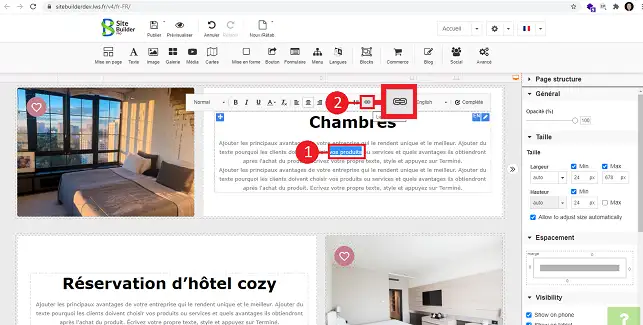
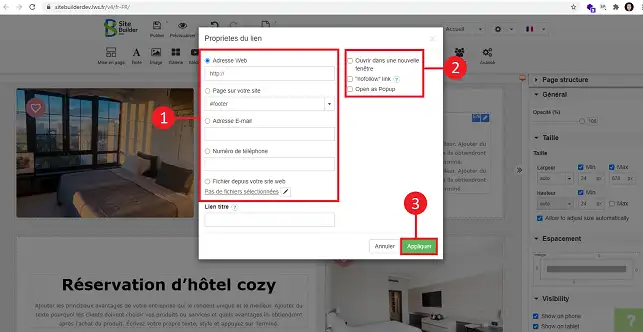
3. A new window will open allowing you to define either:
You will also be able to define whether the page should open in a new tab or in a popup window. Finally, click"Apply" to save your request.
1. You can alsoadd a hypertext link to an image. Click on the image to select it, then go to the"Link" section in the right-hand column.
Under this heading you can choose between enlarging the image when you click on it or defining a link to another location. Click on the stylus behind the desired language to enter the link to which the web user will be redirected as soon as they click on the image.
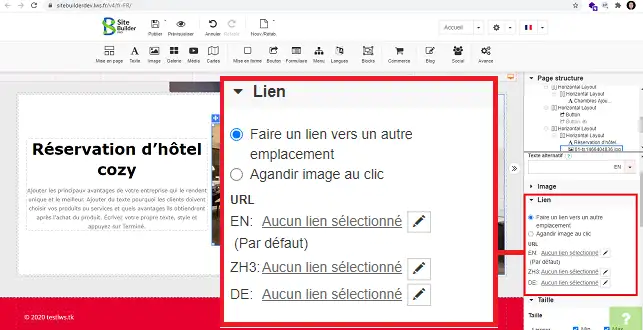
2. You can define either:
As withadding a hypertext link to a sentence, you can define a'title' for the link and decide whether it should open in a new window or in a popup.
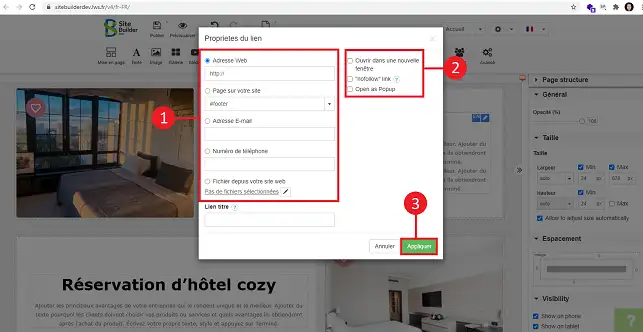
You can now add hypertext links to your website. You can also define whether the link should open in a new window or in a popup with SiteBuilder Pro.
Don't hesitate to share your comments and questions!
Ask the LWS team and the community. Answers are published after moderation.
 About LWS :
LWS is a 100% French web hosting company that focuses on quality and innovation and offers a responsive and competent technical service at affordable prices.
About LWS :
LWS is a 100% French web hosting company that focuses on quality and innovation and offers a responsive and competent technical service at affordable prices.



 Yes
Yes No
No