SiteBuilder Pro
4 September 2020
By Aurélien T.
5 min read
How do I add a Table to SiteBuilder Pro?
Procédure
How do I add a Table to SiteBuilder Pro?
11. Connect to your SiteBuilder interface
22. Click on the"Advanced" tool at the top of the page to access all the advanced options available.

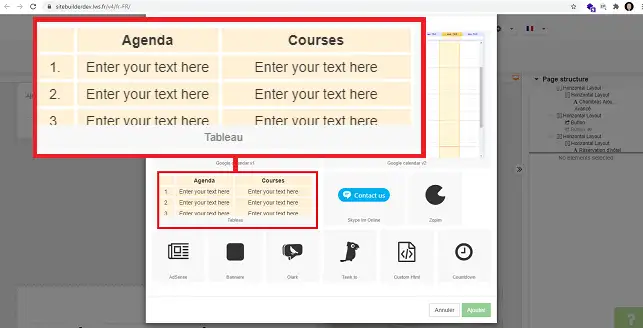
33. Click on"Table" to select this option
How do I add or remove a row or column from the table?
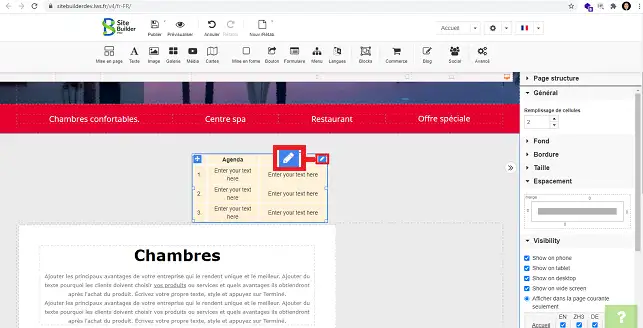
11. Select the table by clicking on it. Then click on the stylus at the top right of the table.
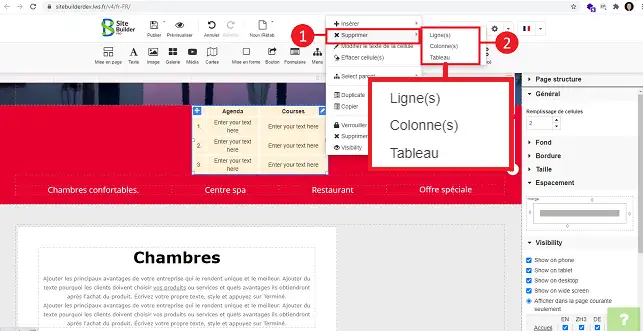
22. To insert a row or column, click on"insert" and choose thelocation you want for your row or column.

33. To delete the row or column, select"Delete" and choose the desired option.
How do you configure your Table in SiteBuilder Pro?
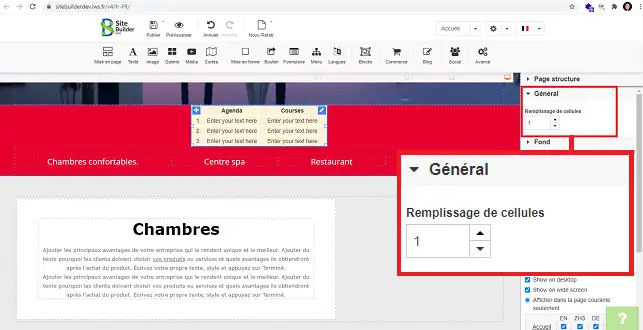
In the right-hand column of SiteBuilder Pro, you can configure the table as follows:
- General: You can define the height of each cell in your table.
- Background: Allows you to change the background colour of your table.

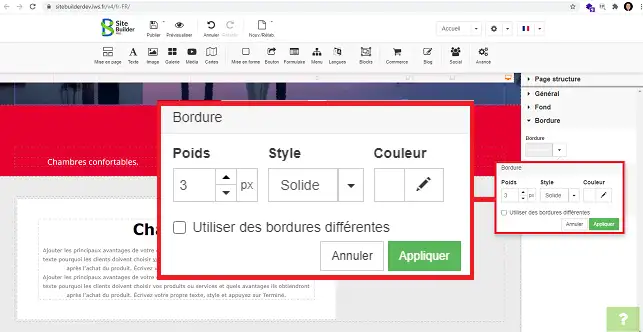
- Border: This option lets you change the style and colour of the border.
Conclusion
You are now ready to create and configure your Table in your SiteBuilder Pro formula.
Don't hesitate to share your comments and questions!
Thank you! Feel free to ask questions about our documentation if you would like more information, and help us improve it.



 Yes
Yes No
No About
About 