
Online help
The web host accessible to all
Procédure
The WP manager allows you to manage a variety of important parameters for your website. This makes managing WordPress much more convenient as everything can be managed from this tool. The WP Manager on LWS Panel excels at making large-scale changes, but doesn't give you the same level of control as connecting directly to the WordPress Dashboard itself.
On this help, we're going to look at "How to manage updates" on your WP Manager. This will allow you to automatically update plugins, but also a WordPress theme.
First of all, you need to connect to your LWS account and access the shared hosting for which you want to check the update status of the WordPress site.
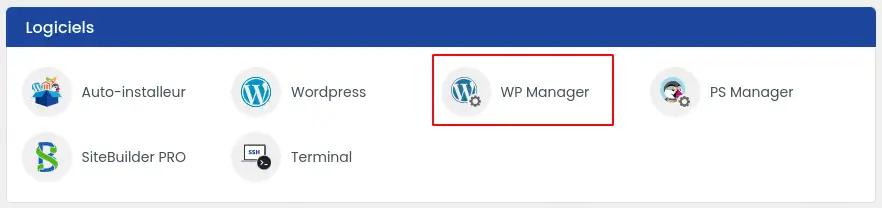
Then click on"WP Manager" in the"Software" section of your web hosting.
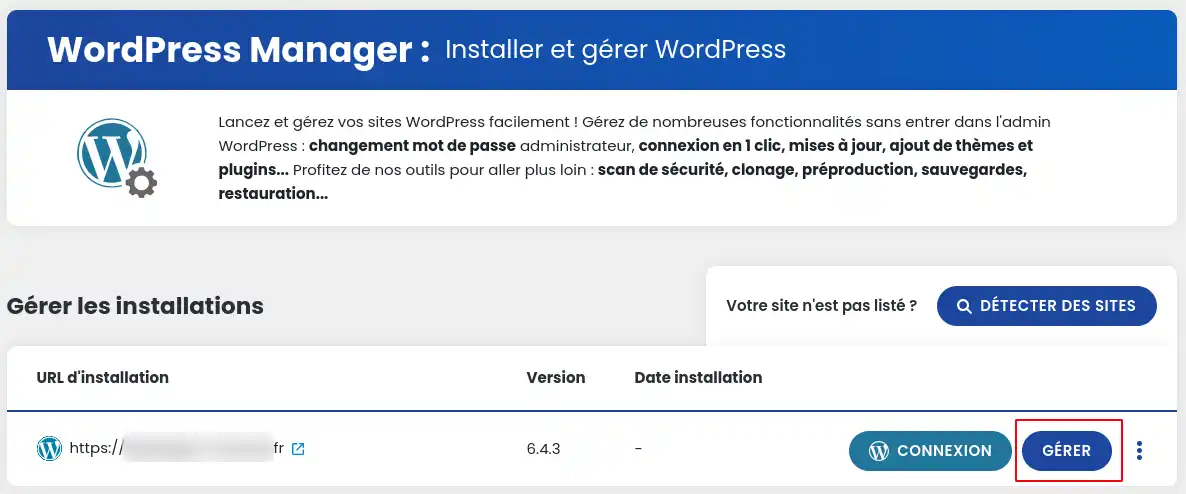
Then click on the"Manage" button for the site you want to update.
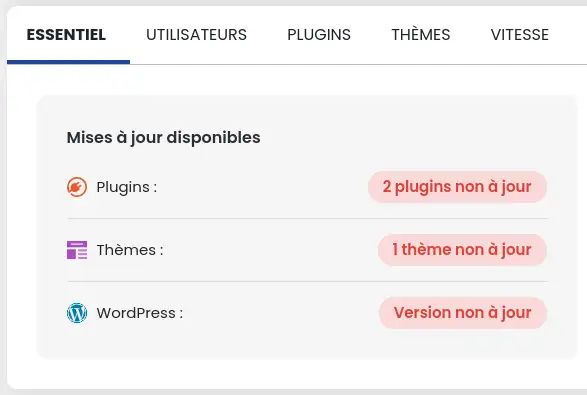
The "essentials" tab will show you the update status of the WordPress core, installed extensions and installed themes.
Once you are managing your site on WP Manager, the top banner will show you the status of the WordPress core update.

If your site is not up to date, you can launch the update manually by clicking on the "Update" link (1).
You can also activate automatic WordPress updates (2).
You have a choice of 3 options:
The major version allows you to add new features. The minor version allows you to correct existing bugs and make minor improvements.
In the "plugins" tab, you can update your extensions individually and manually by clicking on the"Update available" buttons (1) or massively by clicking on the"Update all" button (2).
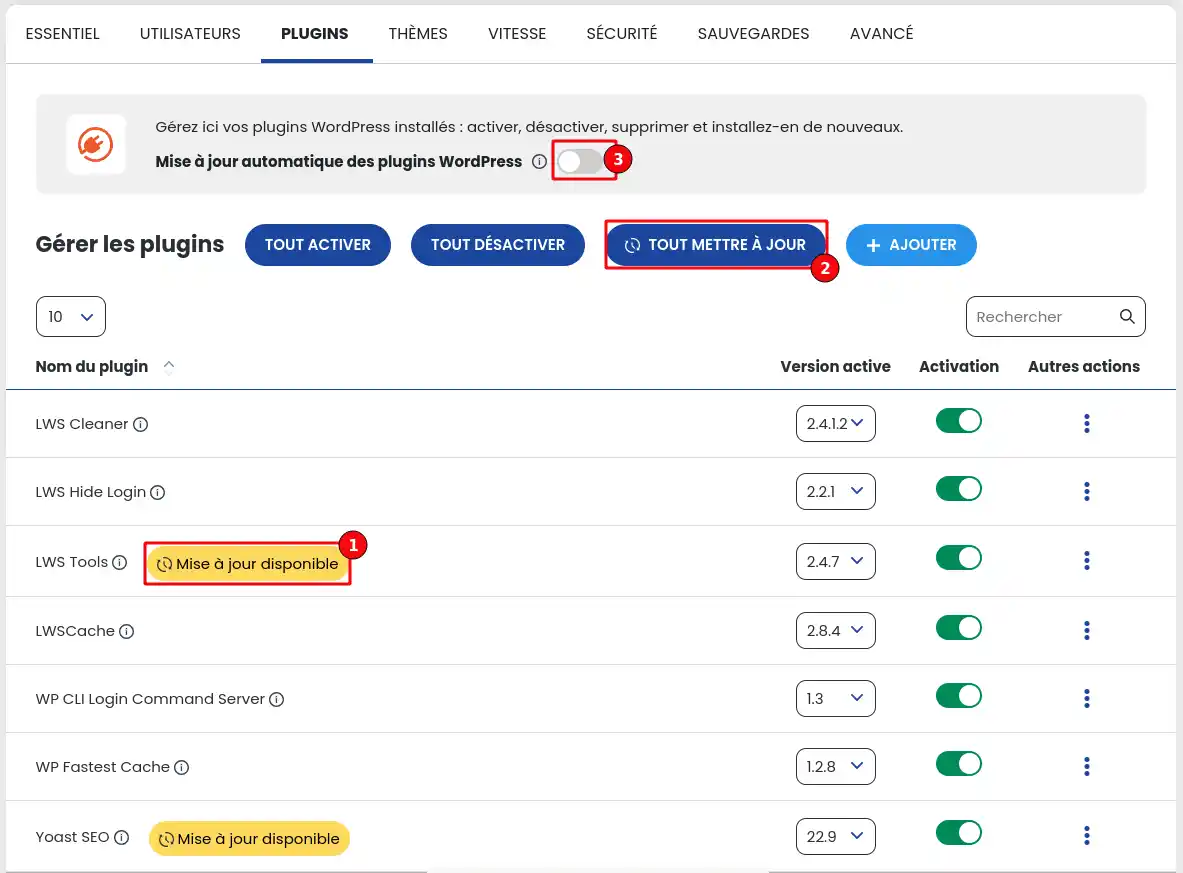
As with the WordPress core, you also have the option of telling WP Manager to automatically update your extensions as soon as an update is available by activating the feature (3).
In the "Themes" tab you can update your extensions individually and manually by clicking on the"Update available" buttons (1) or massively by clicking on the"Update all" button (2).
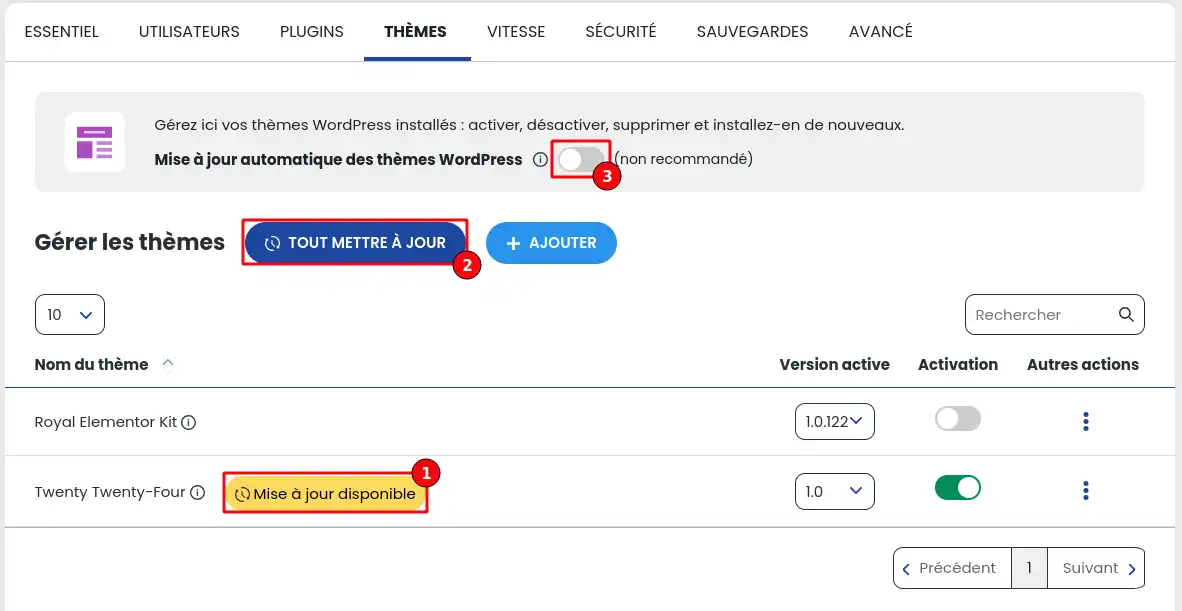
As with the WordPress core and extensions, you also have the option of telling WP Manager to automatically update themes as soon as an update is available by activating the feature (3).
You now know how to :
🔧 With these clear steps, maintaining and updating your WordPress site becomes a simple and controlled task. Now you can make sure your site stays secure, high-performing and up to date with the latest features. 🚀
We hope this information helps you get the most out of your online presence. 🌐 If you have any questions or would like to share your experience with WP Manager, please feel free to leave us a comment below. Thank you for reading and for trusting our services! 💬🙌
Ask the LWS team and the community. Answers are published after moderation.
 About LWS :
LWS is a 100% French web hosting company that focuses on quality and innovation and offers a responsive and competent technical service at affordable prices.
About LWS :
LWS is a 100% French web hosting company that focuses on quality and innovation and offers a responsive and competent technical service at affordable prices.



 Yes
Yes No
No