
Online help
The web host accessible to all
Procédure
This interface allows you to configure the Anti-spam filter settings (powered by Apache SpamAssassin) for your account. Anti-spam filters help identify and sort or delete unsolicited emails. This interface also allows you to configure your whitelist and blacklist settings.
You can access "Spam Filter" by going to your cPanel interface, then clicking "Spam Filter" in the "Email" section.
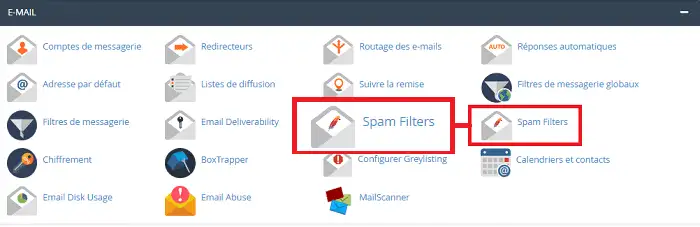
You can enable "Process New Emails and Mark them as Spam" to examine each new message for Spam characteristics and assign it a Spam score.
The score determines the likelihood that a message contains Spam. The "Move New Spam to a Separate Folder (Spam Box)" and "Automatically Delete New Spam (Auto-Delete)" features require "Process New Emails and Mark them as Spam" to be enabled.
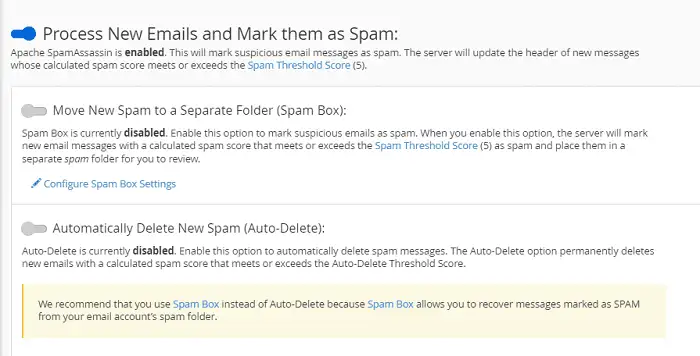
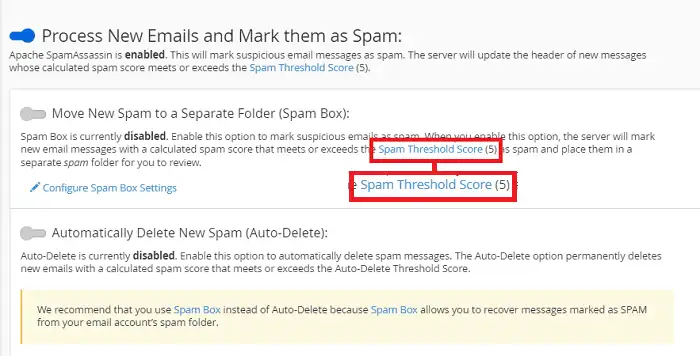
You can set the anti-spam score by going to "Spam Threshold Score". Note that the lower the anti-spam score, the more aggressive it is. However, a higher value, such as 10, is passive and will only mark as spam messages whose calculated score is greater than 10.
You can set an anti-spam threshold by following the procedure below:
Click on "Spam Threshold Score". You will be redirected to the interface allowing you to modify the score.
Select the desired value from the menu and click "Update Scoring options" to update the threshold.
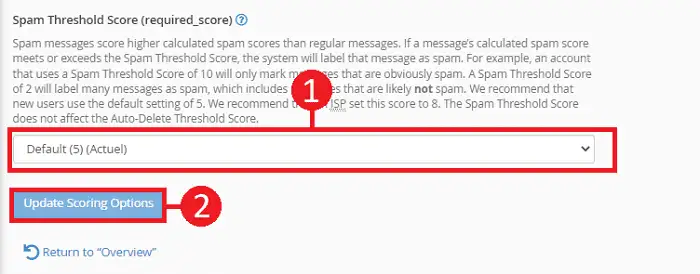
Select "Custom" from the menu to define your own value
To do this, enable "Automatically Delete New Spam (Auto-Delete)". This will send all emails considered as Spam to a specific folder. This feature preserves emails that SpamAssassin may incorrectly classify as Spam.
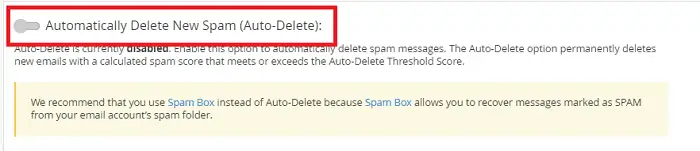
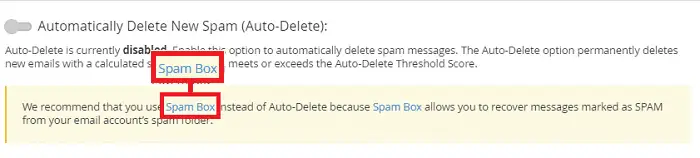
You can empty the Spam Box folder (junk mail) or delete selected messages. To do this, click "Spam Box" to be redirected to the relevant interface.
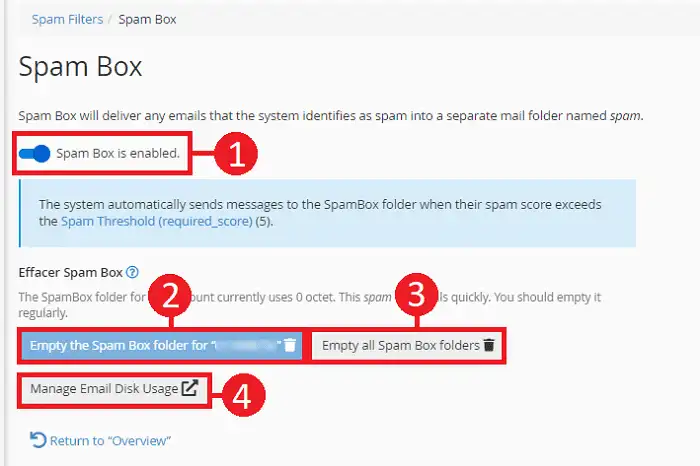
On this interface, you will be able to configure the following settings:
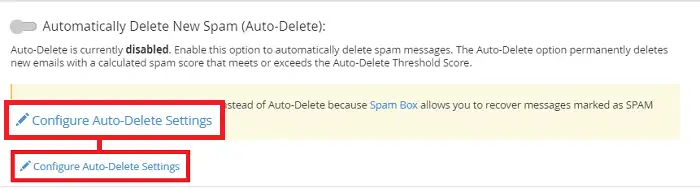
You can request automatic deletion of emails considered as Spam. To do this, click "Configure autodelete setting".
Enable automatic deletion of junk emails and specify the threshold value for automatic deletion.
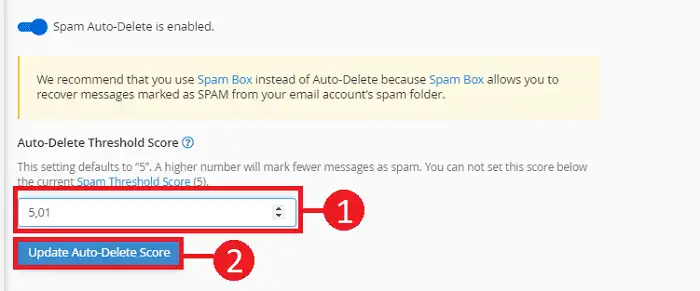
You are now able to manage and use the Spam Filter tool available in your cPanel interface. You can change this configuration at any time according to your needs.
Ask the LWS team and the community. Answers are published after moderation.
 About LWS :
LWS is a 100% French web hosting company that focuses on quality and innovation and offers a responsive and competent technical service at affordable prices.
About LWS :
LWS is a 100% French web hosting company that focuses on quality and innovation and offers a responsive and competent technical service at affordable prices.



 Yes
Yes No
No