Procédure
Introduction
Welcome to this detailed documentation on creating a professional email address with LWS. This guide will help you establish a professional online presence with a professional email address.
I. Before you start
Before explaining the process of creating a professional email address, you need to make sure that you have a Pro email service previously ordered from your customer area and that you have a limit on the number of Pro email addresses you can create new addresses for.
To carry out these checks, follow these steps:
Step 1 : First, you need to log in to your LWS account and access the shared hosting or mail service for which you want to create professional email addresses.
If you don't have any products listed in the"other services" tab, you will first need to purchase a Mail Pro service with a sufficient number of email addresses to suit your needs.
If you have already placed an order for a Mail Pro service associated with the domain name you want, then you need to access the domain name to check that you have enough email addresses to create new ones.
Step 2: Access your mail service management by clicking on the"Mail Administration" icon in the"Administering your Mail Pro service" section.
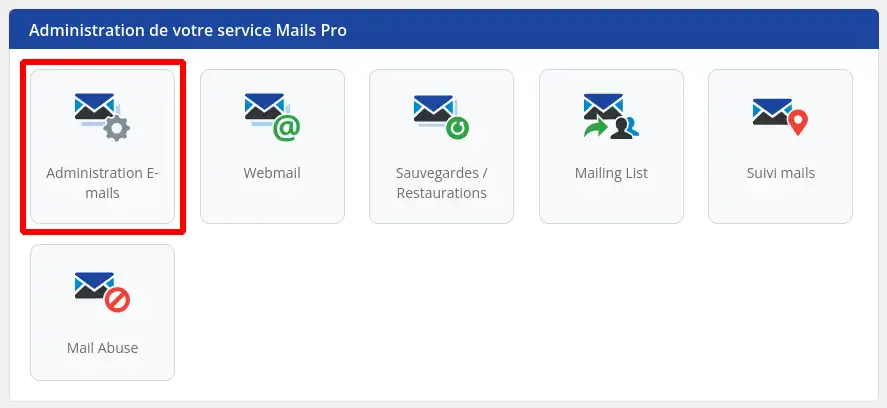
Step 3: You can check the number of email addresses used and the number of email addresses still available for your Pro mail service by looking at the quotas displayed at the top right of your email management.
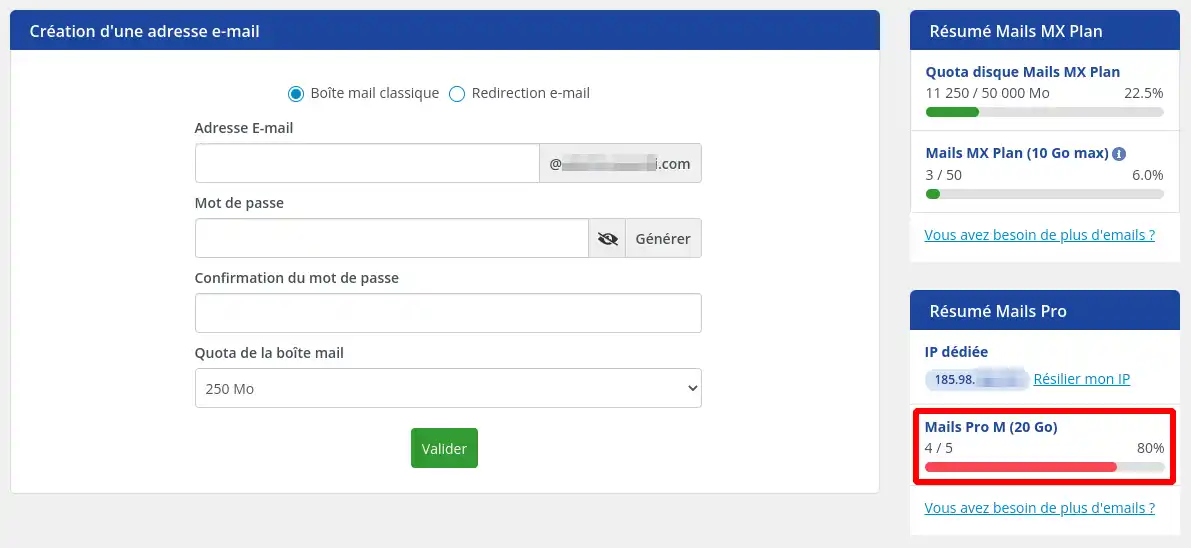
If you still have email addresses available, then you can move on to the next step, which will allow you to create your own email address.
If, on the other hand, you no longer have any quotas available, we invite you to follow the "How to order a Pro email address for a domain managed by LWS" section of this documentation in order to purchase new addresses.
II. How do I create a Pro Email address?
If you had to recommend email addresses, return to the administration of your Pro email addresses by following the steps in part "I. Before you start" section of this documentation.
Then follow these steps to create a new email address:
Step 1: in the"Create email address" block, fill in the following information:
- Enter the suffix of the email address, i.e. enter the text that will make up your email address before the "@domaine.ext" part. For example: contact, management, sales, surname.firstname, etc...
- Enter a password of your choice that meets security requirements or generate a password by clicking on the"Generate" button.
- Confirm the password if you have not chosen to use the generator.
- Enter the quota allocated to your email address from the list of available quotas. For an email address to be considered by our system as a Pro email address, you must choose one of the following options: Mail S, Mail M or Mail L.
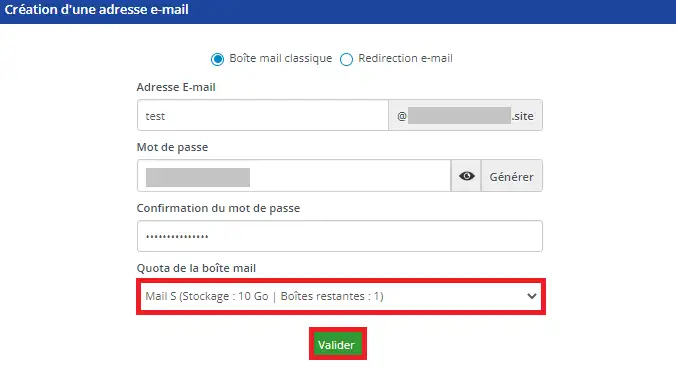
Step 2: click on "Confirm".
If you choose to enter your own password, you must ensure that it complies with the following rules in order to be accepted:
- it must be between 10 and 15 characters long
- it must contain at least one special character from the following list only - ! * $ @ % _
- at least 1 number between 0 and 9
- at least one lower-case letter
- at least one uppercase letter
Step 3: A dialog box is displayed to confirm that the email address has been created. If an error appears, check that you have entered the information indicated in Step 2.
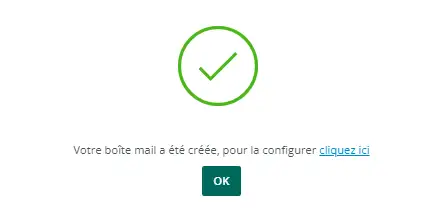
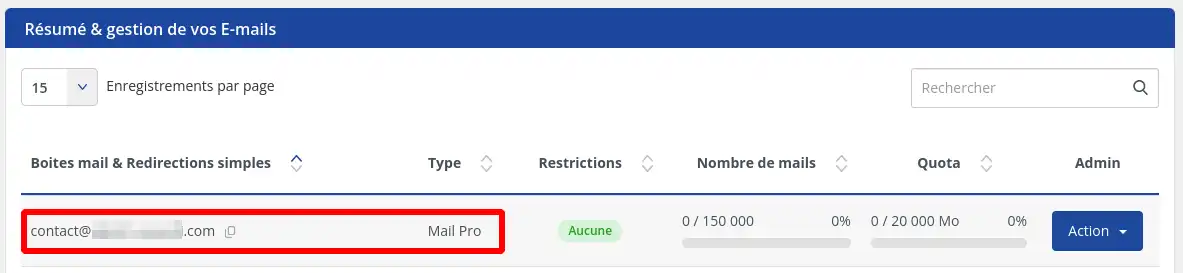
Then click on "OK". Your email address should now appear in the list of emails created with the Type: Mail Pro.
Conclusion
Congratulations, you've gone through all the necessary steps to create a professional email address with LWS. Thanks to this guide, you've been able to establish a reliable and professional online presence. Using these instructions, creating an email address is no longer a challenge, but an opportunity to expand your digital presence. Make the most of your new business email address and explore all the opportunities it has to offer.
[tips_related_readings]Manage and configure your email address from the LWS Panel
Advanced configuration of your email address with Roundcube[/tips]

 Contact us
 Customer Area


 Visit LWS


 Yes
Yes No
No Article read
18914 once
Article read
18914 once Merci ! N'hésitez pas à
poser des questions sur nos documentations si vous souhaitez plus d'informations et nous aider à les
améliorer.
Merci ! N'hésitez pas à
poser des questions sur nos documentations si vous souhaitez plus d'informations et nous aider à les
améliorer.
 About
About 