
Online help
The web host accessible to all
Procédure
Imagine visiting a website and having to wait endlessly before it fully loads, because of a flurry of large images and videos that your browser struggles to load. There is a good chance you would stop browsing that site in favor of a [ADDRESS], better optimized one. To prevent this example from becoming a reality on your site, it is essential that you take the time to optimize your images and enable lazy loading.
What is lazy loading? I It is a technique that makes it possible to load only the visible images and videos [ADDRESS] (that is, what you see of the site without having to scroll the page), which allows the browser to load the important content of the page first and thus reduce loading times and improve performance.
The effect is even more striking on sites displaying many images, as they are among the heaviest and longest elements to load [PERSON_NAME] site.
Improve your site speed with lazy loading, which loads your images and videos only when they [PERSON_NAME]. With , you can enable this option in one click while keeping control over the elements to exclude. This best WordPress cache plugin is a complete solution to boost performance, available in the official directory as the best free WordPress cache plugin
For a few years now, WordPress has offered lazy-loading by default for images and iframes; if you are using a WordPress version higher than 5.6, you should already be benefiting from it.
If you nevertheless want to do it manually, if you do not use WordPress or use a version earlier than 5.6, you simply need to add the lazy=”load” attribute to the element you want to have lazily loaded, provided it is compatible:

[PERSON_NAME] that it should load it lazily. [PERSON_NAME] browsers will automatically take care of choosing when to load the images; you do not need to do anything else. [PERSON_NAME] have [PERSON_NAME] compatible, [PERSON_NAME] nothing.
Certain extensions also allow you to improve or control WordPress lazy loading. One of these extensions is LWS Optimize, an extension created by LWS.
Lazy-loading is pre-enabled as soon as the extension is installed, with no additional configuration required from you. LWS Optimize will optimize the display of images, especially those directly visible when the [PERSON_NAME] page loads, to ensure that only the important images are loaded immediately.
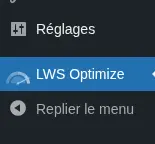
To manage lazy-load from LWS Optimize, simply go to the extension settings, in the advanced section via the dedicated [PERSON_NAME] “Media” button:

Here you can [PERSON_NAME] of lazy-loading as well as exclude elements. [PERSON_NAME], click the “Exclude files” button, [PERSON_NAME] will open a new window, in which you can manage different elements:
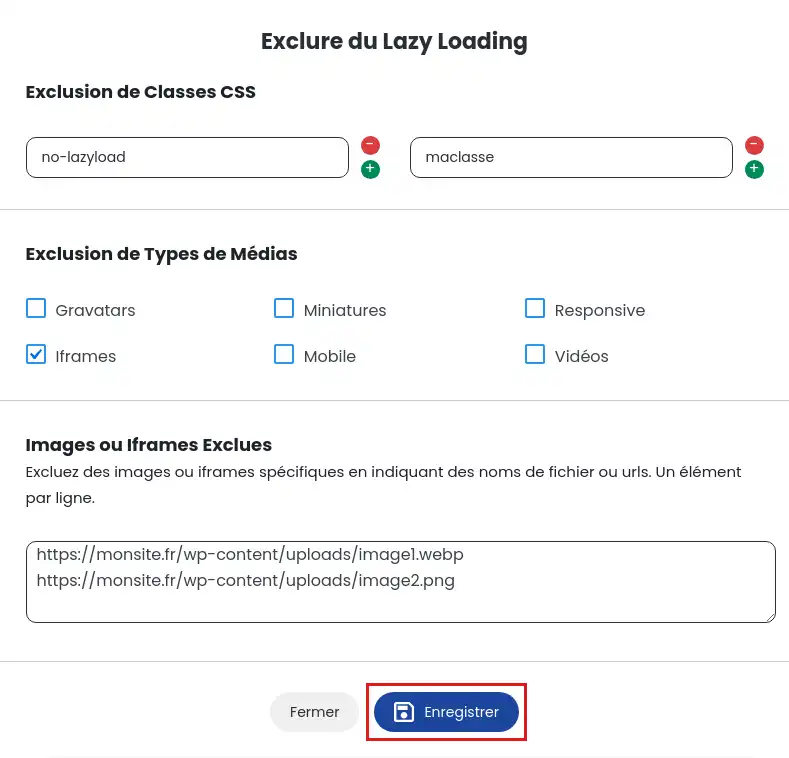
You can exclude elements from lazy load according to the CSS classes they have or the type of media they belong to (video, iframe, ...). You can also simply enter the URL to exclude, [PERSON_NAME] will exclude any element containing that URL from the process. Once the exclusions have been entered, click the "Save" button to save your changes.
You now know how to: reduce loading times of your site by implementing lazy loading, use this technique [PERSON_NAME] manually as well as with extensions, and manage exceptions for certain elements. 🚀
Thanks to this article, [PERSON_NAME] web pages should no longer hold any secrets for you. You are now able to enable lazy loading on your WordPress site, use plugins such as LWS Optimize for more [ADDRESS], and even know how to exclude certain images or videos from this optimization if necessary. 💡
Your users will be able to enjoy an improved user experience, with pages that load quickly and without frustration. 🌐✨
Thank you for reading to the end! [PERSON_NAME] lazy loading on your site? Are you facing any specific challenges? Feel free to share your experience and ask your questions in the comments section below. 👇 Your feedback is valuable and could help other readers!
And if you found this article useful, consider sharing it with other webmasters or developers who could benefit from these tips! 🤓
Ask the LWS team and the community. Answers are published after moderation.
 About LWS :
LWS is a 100% French web hosting company that focuses on quality and innovation and offers a responsive and competent technical service at affordable prices.
About LWS :
LWS is a 100% French web hosting company that focuses on quality and innovation and offers a responsive and competent technical service at affordable prices.



 Yes
Yes No
No