
Online help
The web host accessible to all
Procédure
Memcached is a caching system mainly used on sites that use databases (especially those using CMSs like WordPress): an object cache.
This cache will store in RAM, [PERSON_NAME], the results of database queries performed on the page. [PERSON_NAME], [PERSON_NAME] can use the data it has stored rather than rerunning all the queries.
[PERSON_NAME] significantly improves site performance by reducing the time needed to retrieve data.
WordPress already provides tools for doing object caching with its “WP_Object_Cache” class; however, the cache is not retained for later use or on other pages: there are then plugins that make this object cache persistent, notably using [PERSON_NAME]>
[PERSON_NAME], Memcached object cache is very lightweight and is not limited in terms of the data it can handle. It can be used to cache a whole array of different data on all the sites you can think of. It is also very easy to set up and requires no special knowledge to use: install a Memcached-compatible plugin on your WordPress site, activate it, and you're done!
[PERSON_NAME] WordPress site by activating Memcached from , for an ultra-responsive object cache that lightens your database queries. This best WordPress cache plugin integrates in-memory caching with no code required, ensuring a smooth and high-performance browsing experience. Even better, you can download it for free from the official directory via the link best free WordPress cache plugin.
To activate Memcached on your WordPress site, go to the LWSOptimize dashboard and find the "Memcached (object cache)" block on the page.

Simply click the "Enable Memcached" button to activate the service and refresh the page. Once done, you will instead find Memcached cache usage statistics:

If an error occurs during activation or an error message replaces the activation button, check that Memcached is enabled on the hosting.
You also have the option of going to advanced mode to enable or disable the option.

Here, simply check the “Memcached” option to activate the cache on your site.

If you receive an error message, make sure that Memcached is enabled on your hosting and that it is working, then try again. Don't forget to click the "[ADDRESS] configuration" button to save the changes.
In the case of an LWS hosting plan, follow this documentation to enable the option on your LWS Panel.
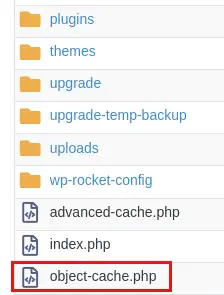
To check that the option is [PERSON_NAME], you can go to your site's files, in the “wp-content” folder, and verify that the “object-cache.php” file is indeed there.
You now know how to: optimize your website's performance by using Memcached, an efficient and easy-to-set-up object caching system. 🚀 You have discovered the advantages of this solution, including its lightweight nature and its ability to handle various data to improve your site's speed. 🌐 Moreover, you [PERSON_NAME] enable Memcached in just a few simple steps with the LWS Optimize plugin, making your WordPress experience even smoother and more enjoyable. ✨
Many thanks for reading! [PERSON_NAME] you have any questions or would like to share your experience with Memcached, feel free to leave a comment. [PERSON_NAME] feedback is valuable to us as we continue to provide you with quality content. 📝
Ask the LWS team and the community. Answers are published after moderation.
 About LWS :
LWS is a 100% French web hosting company that focuses on quality and innovation and offers a responsive and competent technical service at affordable prices.


 Yes
 No