


How do you install n8n on your CapRover VPS KVM template?

Procédure

1. What is n8n, and why CapRover? 🤔

n8n CapRover
No-code automation: create workflows between +600 services (Slack, Google Sheets, etc.). Self-hosted app orchestrator. (PaaS). Ultra-simple web interface: one-click catalogue, updates, SSL certificates, backups.
Open Source: you keep control of your data. Ideal if you want to manage several applications on the same VPS without becoming a system administrator.

2. Prerequisites 🗒

  1. A KVMVPS

  2. CapRover template installed

  3. Access to the CapRover dashboard: http: //XXX.XXX.XXX.XXX:3000 (The ip of your VPS, found in the delivery email)

3. Preparing CapRover ⚙

  • The default password can be found in your delivery email.
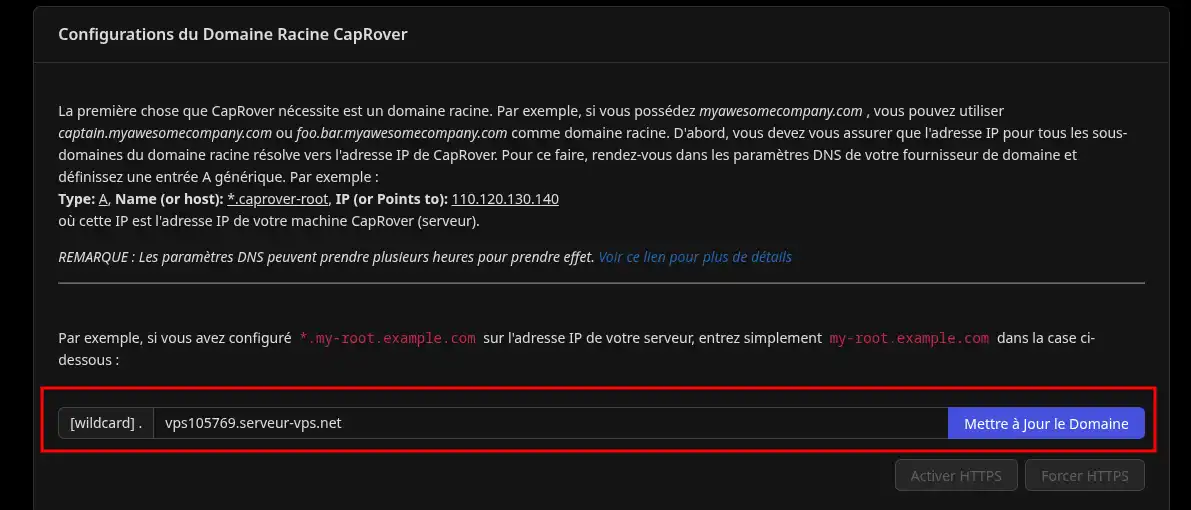
  • Go to"Dashboard" and define a Root domain. If you don't have a domain, you can put "vpsXXXX.serveur-vps.net" and click on"Update domain". (replace "vpsXXXX" with your vps number from the delivery email). If you have a personalised domain, you will need to create an A record called a"wildcard" on your domain name or sub-domain. You can read this documentation to help you. In this tutorial, we'll use the domain vps105769.serveur-vps.net as an example .

    How do you install n8n on your CapRover VPS KVM template?
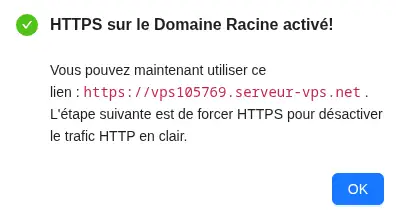
  • You should be redirected to captain.vps105769.serveur-vps.net. Reconnect, go back to the Dashboard, and click on "Enable HTTPS". You will be asked to enter your email address, which will only be used for certificate validation. If your domain is correctly configured, you should get this message:

    How do you install n8n on your CapRover VPS KVM template?
  • Try to reconnect via https://captain.vpsXXXX.serveur-vps.net (or on"https://captain.votrenomdedomaine.com")
  • Go back to the control panel and click on "Force HTTPS" to redirect HTTP traffic to HTTPS.

4. Installing n8n (one-click) 🚀

  1. Connection

    • Go to https://captain.vps123.serveur-vps.net.

    • Log in with the admin password.

  2. Open the catalogue

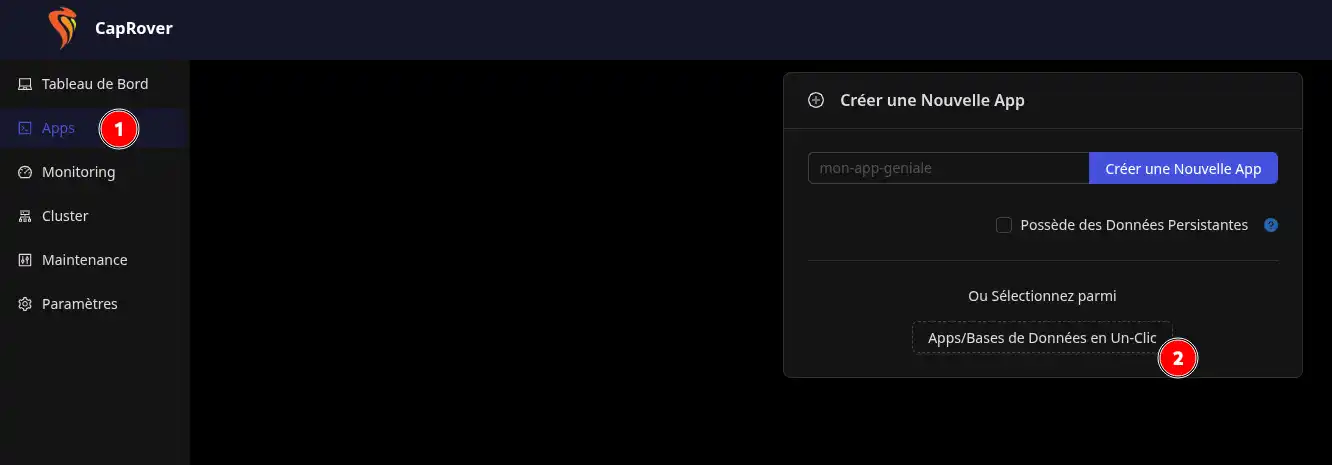
    • Side menu --> Apps --> Apps/One-click databases.

      How do you install n8n on your CapRover VPS KVM template?

  3. Search for "n8n

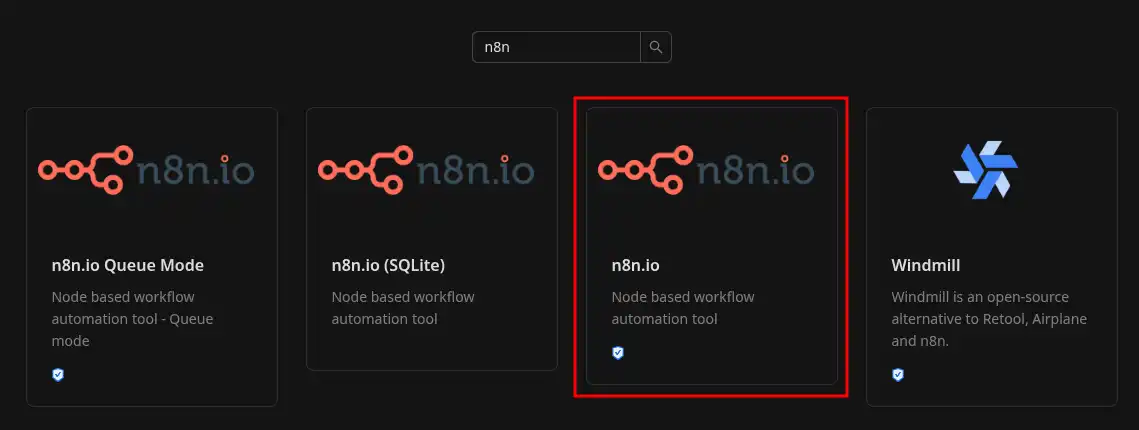
    • Enter n8n in the search bar, click on the map that appears (we do not recommend the SQLite version for beginners, as it does not include an official image provided by n8n.io).

      How do you install n8n on your CapRover VPS KVM template?

  4. Fill in the install form

    Field What to put
    App Name

    Whatever you want, this will be used as a sub-domain to join the application. (Warning: See the message below)

    Application | n8n.io

    You can leave the proposed version or choose one on the link displayed.

    Timezone

    Europe/Paris if you are in France.


We advise against calling your application "n8n" as this will be used as a sub-domain (n8n.vpsXXXX.serveur-vps.net), Google tends to put a danger message on the n8n login page if the domain includes "n8n". You can choose any other domain name, here, for the example, it will be "automate".

For a first start-up, the rest of the parameters are optional. You can then click on "Deploy".

5. Starting n8n 🛠️

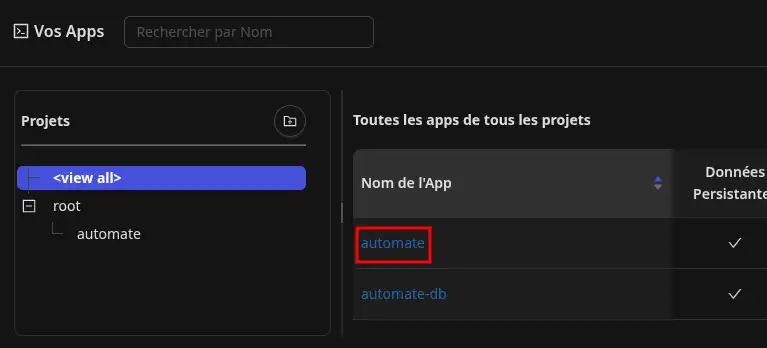
  • On your applications menu, click on the name you have chosen to install n8n.

    How do you install n8n on your CapRover VPS KVM template?
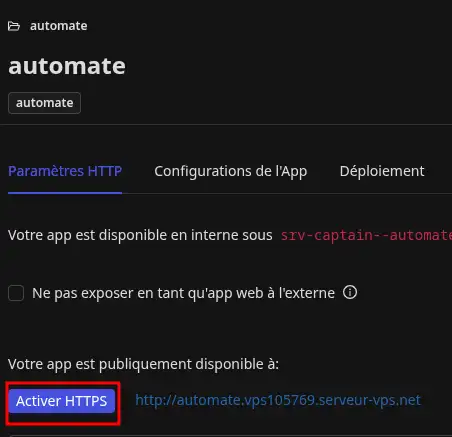
  • Click on "Enable HTTPS".

    How do you install n8n on your CapRover VPS KVM template?
  • Then go to the link next to the Enable HTTPS button. Create your admin account: enter your e-mail address, first and last names and password.
  • Go to the visual interface and start your first workflow.

6. Current management 🔍

Need Where to click
Update n8n Apps → n8n app name → Deployment → method 6 → n8nio/n8n:1.106.3 (for example)
Restore Apps → n8n app name → Deployment → Version history, Status column
View logs Apps → n8n app name → Logs → App log sections
Restart Apps → n8n app name → Save and Restart button.

7. Best practices ⚡

  • Explicit app name: if you manage several instances, use several names, automaton-marketing, automaton-dev, etc.

  • Environment variables: for API keys & co, go via Apps > app name n8n > App configurations > Environment variables (avoids storing them in plain text in your workflows).

  • HTTPS everywhere: already managed by CapRover via Let's Encrypt, automatic renewal. ✅

8. Conclusion 🎉

Now you're ready to automate your processes!
In less than ten minutes, n8n is running on your secure, backed-up VPS. Explore the integrated workflow examples to connect your favourite tools and save time every day.

Need more help?

Happy automation! 🚀

help.lws.net/a/1944
Was this article helpful?

Yes

No

Read 9 390 times

Thank you! Feel free to ask questions about our documentation if you would like more information, and help us improve it.

Similar articles

Questions about the article 1

Ask a question
KONE
18 Jun 2025
Avec N8N, Comment accéder à ma base de données MySQL sur phpMyAdmin à partir du credentials MySQL account avec une base MySQl hébergée sur LWsPanel. J'utilise des paramètres valides.
Maxence-LWS Official answer
19 Jun 2025

Bonjour,

Je vous remercie pour votre message.

Je vous informe que pour cet usage une formule cPanel LWS est généralement requise, néanmoins, l'accès distant MySQL sur cPanel n'a pas vocation à être utilisée d'une façon permanente et encore moins pour stocker des données d'un site web/application qui n'est pas hébergé chez LWS.

Je vous recommande donc d'opter pour un serveur VPS.

N'hésitez pas à revenir vers nous afin qu'un spécialiste VPS et/ou commercial vous aide dans cette modification de formule.

Je vous remercie de votre attention et reste à votre disposition pour toute autre question ou complément d'information.

Vous pouvez nous contacter depuis votre espace client ou sur cette page : https://www.lws.fr/contact

Cordialement, L'équipe LWS.

Was this answer helpful?

A question about this article?

Ask the LWS team and the community. Answers are published after moderation.

Ask the LWS team and its community a question

GDPR: Controller: LWS-Ligne Web Services. Purpose: moderation and public publication of your question, possible notification of an answer. Legal basis: consent (Art. 6(1)(a) GDPR). Email retention: 90 days after notification, 12 months maximum without an answer. To exercise your rights, see the GDPR section of our Terms and Conditions.