cPanel shared hosting12 January 2026By romain 9 min read
How do I change the password for my cPanel account?
Procédure
How do I change my password via your LWS customer area?
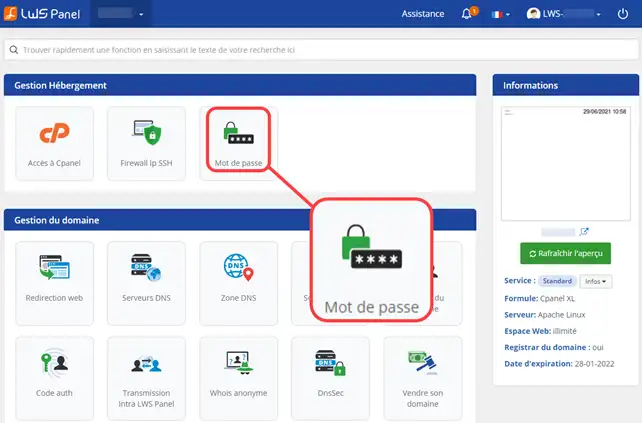
11. Log in to the administration of your Web formula.
22. Click on the " Password " button in the " Hosting Management " section.
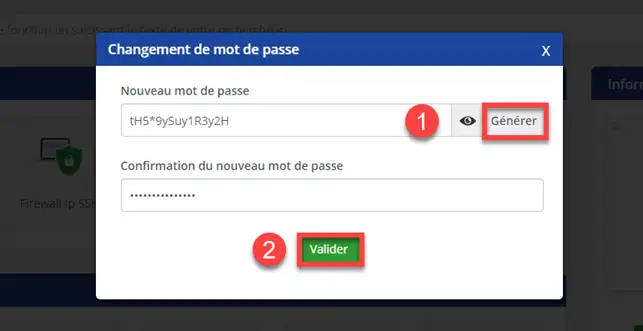
33. Change the password for your cPanel interface by clicking on " Generate " (1) and click on " Validate " (2).
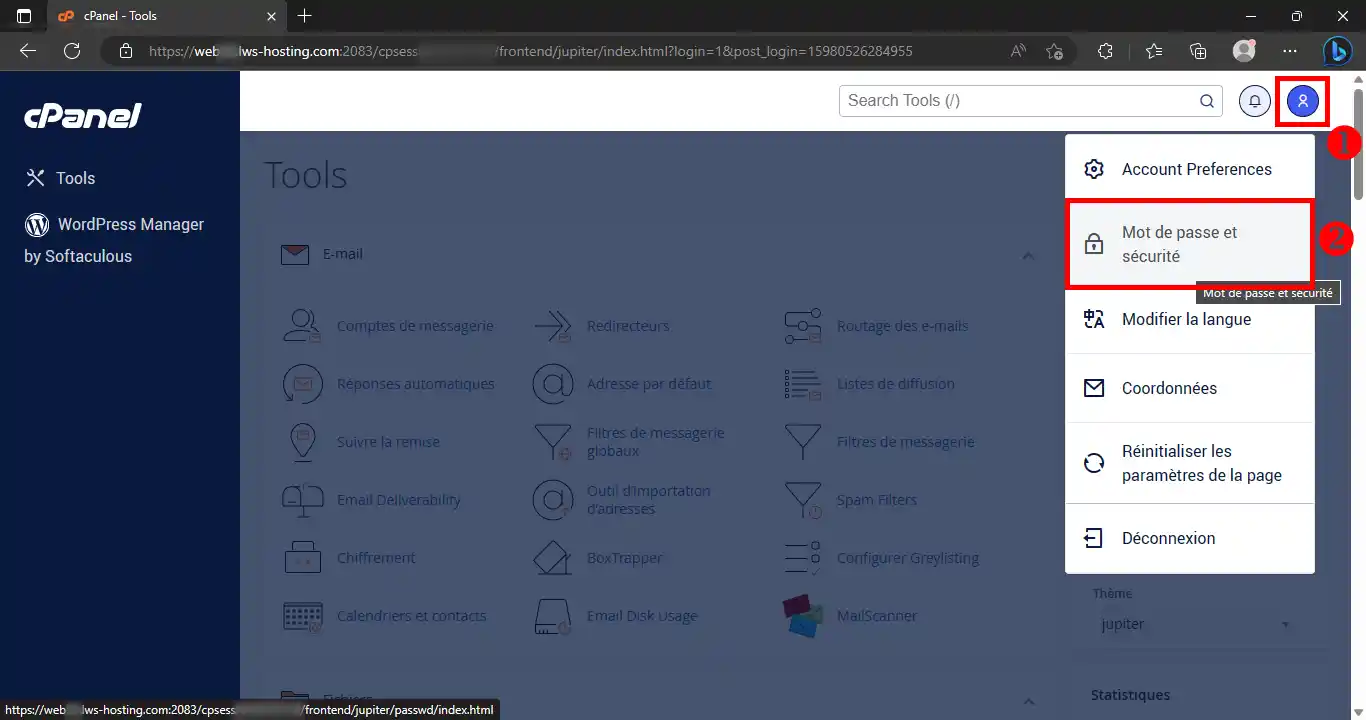
How do I change my password in cPanel?
It is often advisable to change your password regularly. It is advisable to use a different password for each system that you manage through different suppliers. It is not advisable to give out your login and password unless you are certain of the person's identity.
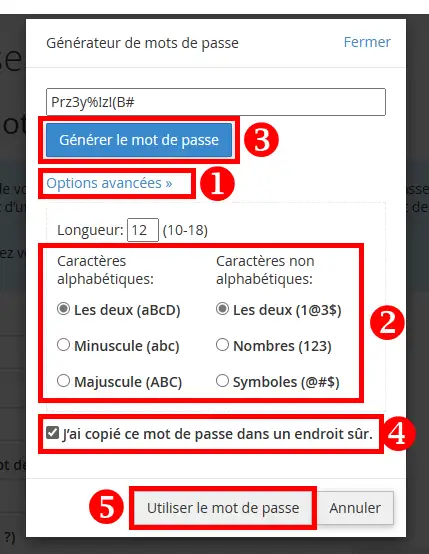
To generate a complex password, you can use the password generator on your cPanel interface. You can use the generator to choose the complexity of your password.
cPanel has certain constraints regarding passwords:
The password must be sufficiently secure to be accepted by the system. It must contain at least 8 to 10 characters and be made up of upper case, lower case and numbers.
Your password must not contain your cPanel ID.
To prevent your cPanel web hosting account from being hacked, we advise you not to use your date of birth, telephone number or any other information that can easily be found.
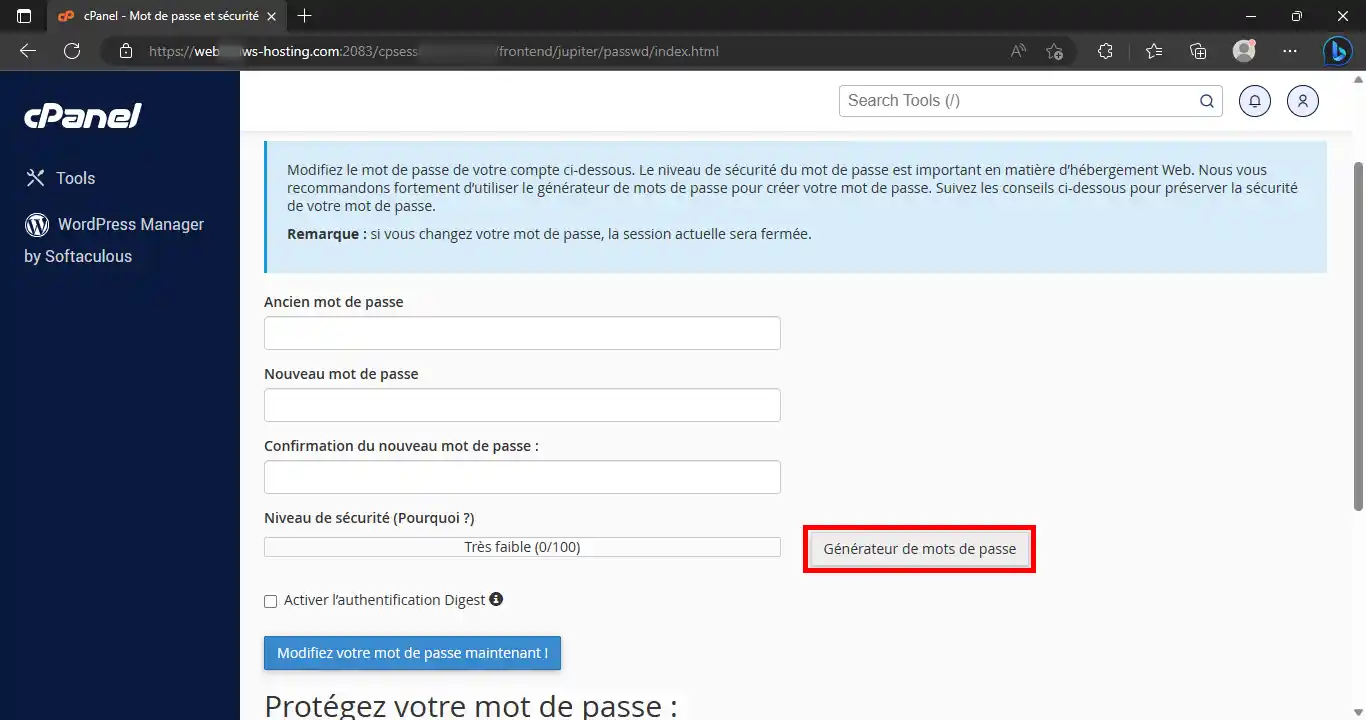
Please note that if you change your password directly on your cPanel space, the automatic connection to this interface via your LWS customer space will no longer work.
The password generator allows you to have a complex password
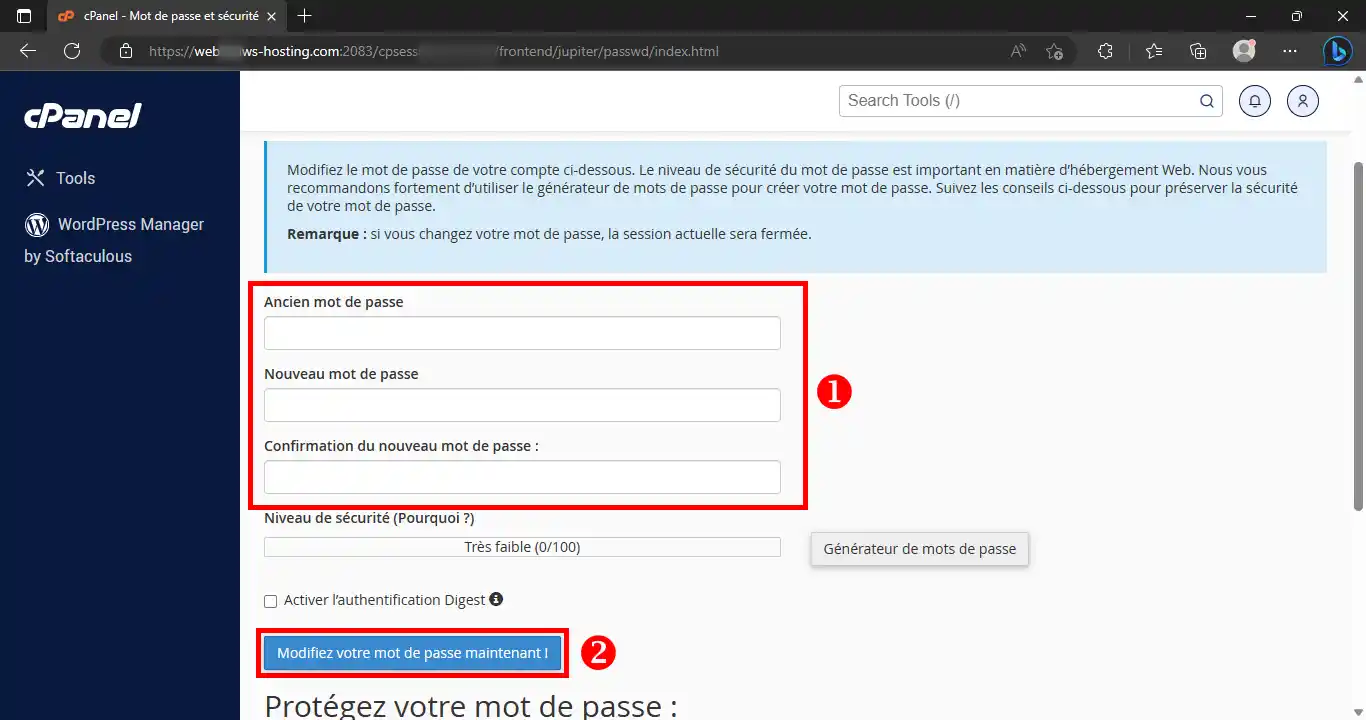
11. As soon as you are on the page allowing you to change your password, click on the " Password Generator " button.
22. First, you can choose the complexity of the password by clicking on the " Advanced options " link. Copy the password into a safe place and then tick the " I have copied this password into a safe place " box before clicking on the " Use password " button.
Active sessions
Resetting your cPanel access password means deleting active sessions: all active connections will be disconnected immediately after the password is changed.
Comment puis-je retrouver mon nom d'utilisateur et le mot de passe pour aller sur le cpanel sans passer par lws.fr
B✓
Benjamin-LWS Official answer
1 Mar 2023
Bonjour,
Merci de votre retour.
Les identifiants de connexion à votre espace Cpanel vous ont été envoyer à l'adresse-mail de votre compte LWS à la commande de votre hébergement.
Je vous remercie de votre attention, et nous restons à votre disposition depuis le support disponible depuis votre espace client. (https://aide.lws.fr/a/264)
Cordialement, L'équipe LWS
Was this answer helpful?
A question about this article?
Ask the LWS team and the community. Answers are published after moderation.
Ask the LWS team and its community a question
!
To enable this form, please tick the two consent boxes below.



 Yes
Yes No
No About
About 