
Online help
The web host accessible to all
Procédure
SSH access lets you connect directly from the command line to your LWS web hosting to manage your files and run tools like WP-CLI, Composer or Git. This feature is available starting with the LWS Starter plan. Thanks to public key authentication, you benefit from a fast, reliable and highly secure connection. In this guide, we will generate an SSH key pair on your computer, register the key in your LWS Panel and open your first session in the terminal.
Open your computer's terminal (PowerShell on Windows, or the Terminal application on macOS and Linux). Run the following command to create a secure cryptographic key pair in Ed25519 format. When the system asks you to enter a passphrase (« passphrase »), simply press the Enter key twice to continue without a password.
ssh-keygen -t ed25519 -C "mon-ordinateur" -f ~/.ssh/lws_hebergementGenerating public/private ed25519 key pair.
Enter passphrase for "/home/tuto/.ssh/lws_hebergement" (empty for no passphrase):
Enter same passphrase again:
Your identification has been saved in /home/tuto/.ssh/lws_hebergement
Your public key has been saved in /home/tuto/.ssh/lws_hebergement.pubTo allow access from your machine, you must provide only your public key to the LWS server. Display its text content using the cat command in your terminal, then select and copy the entire line starting with « ssh-ed25519 ».
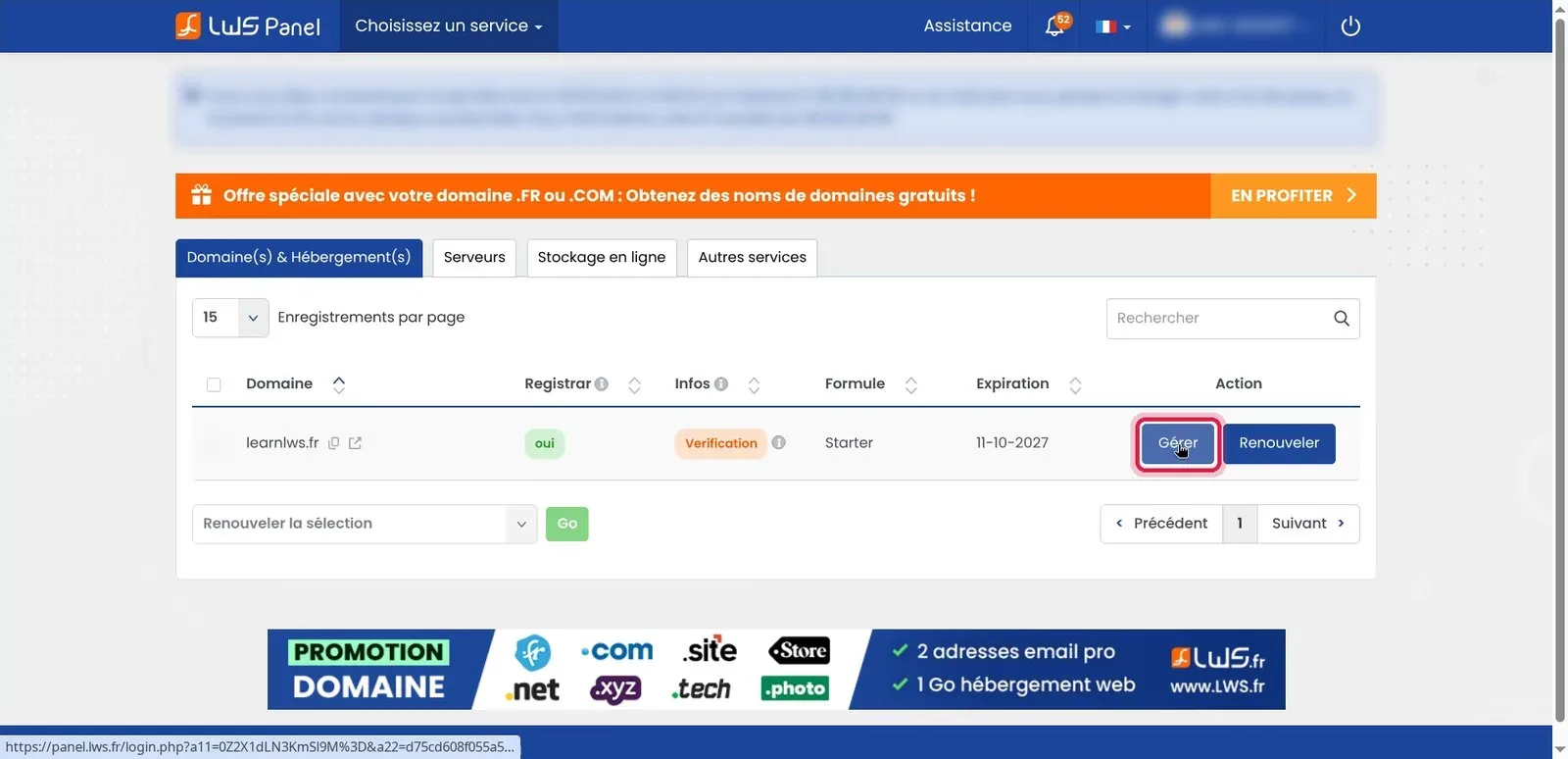
cat ~/.ssh/lws_hebergement.pubssh-ed25519 AAAAC3NzaC1lZDI1NTE5AAAAIOdhh1/3YU/lRVg4Sw/UcXaGnnOzxzS1jmoNMC2Pvk1f mon-ordinateurLog in to your LWS customer area. In the Domain(s) & Hosting(s) tab, locate your domain name in the list and then click the corresponding Manage button.
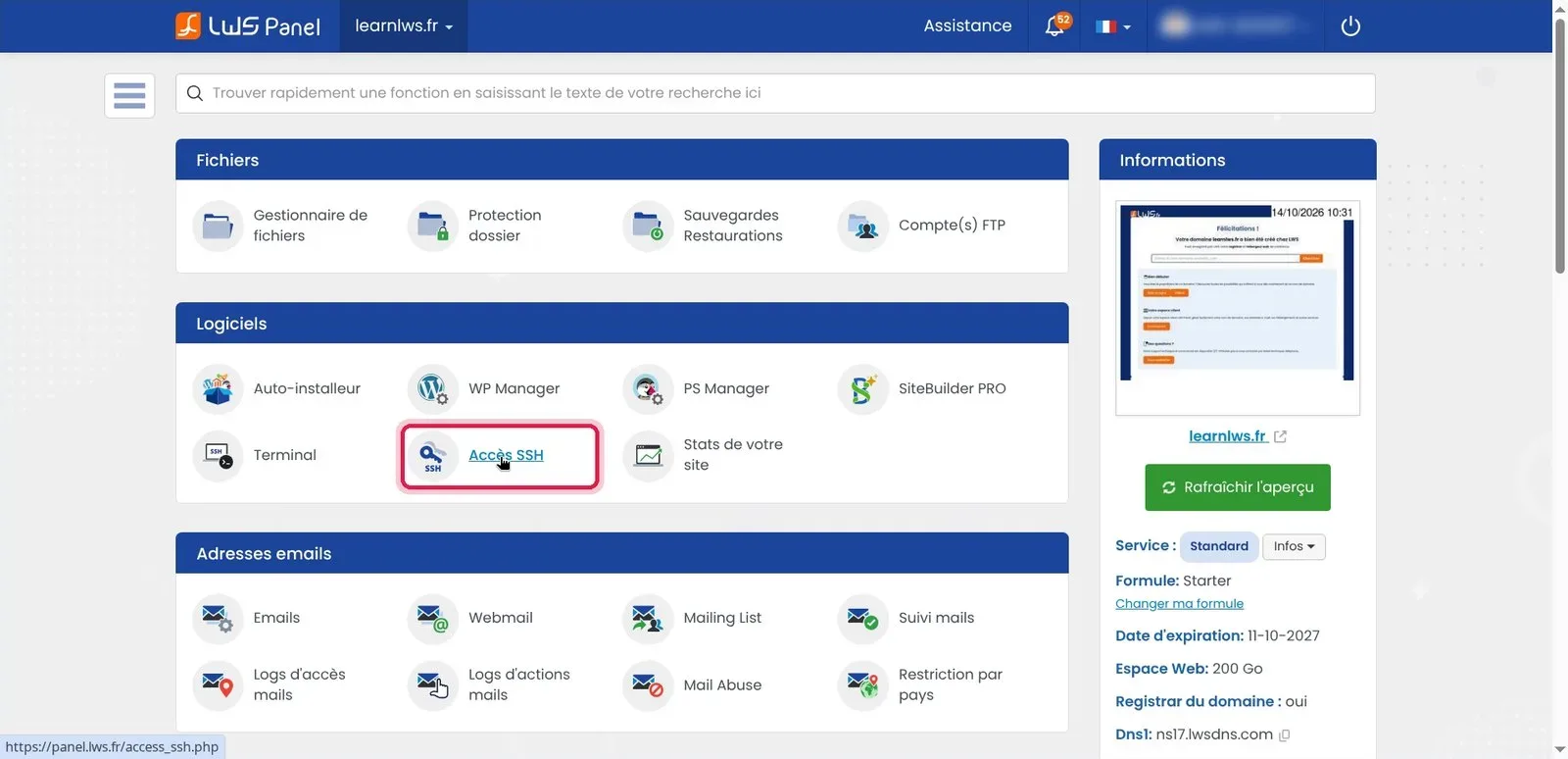
In your domain dashboard, scroll down to the Software block. Click the SSH Access section to configure your connection rights.
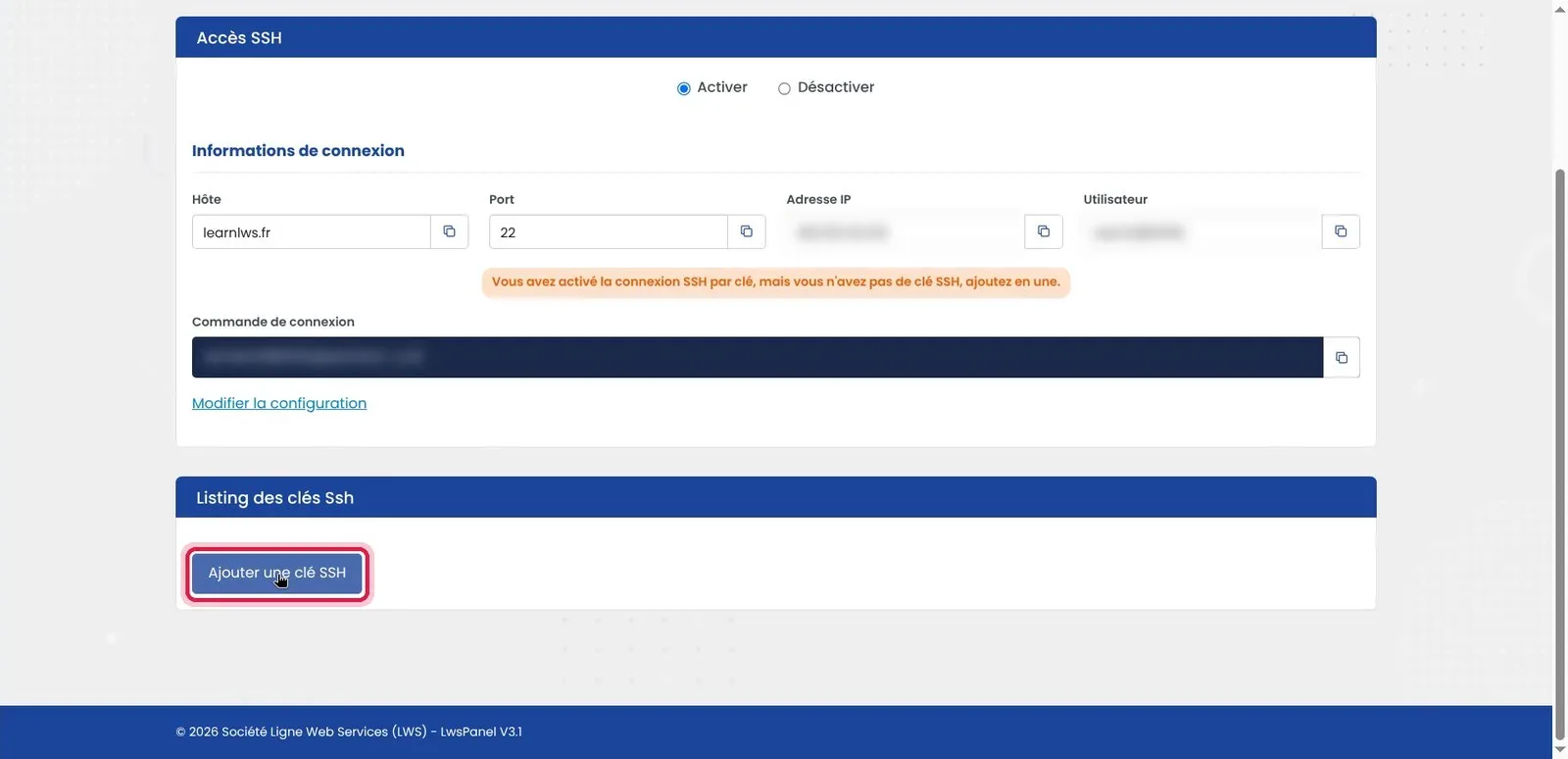
The page summarizes your connection information (host, port 22 and username). Scroll down to the SSH key listing box and click the Add SSH key button.
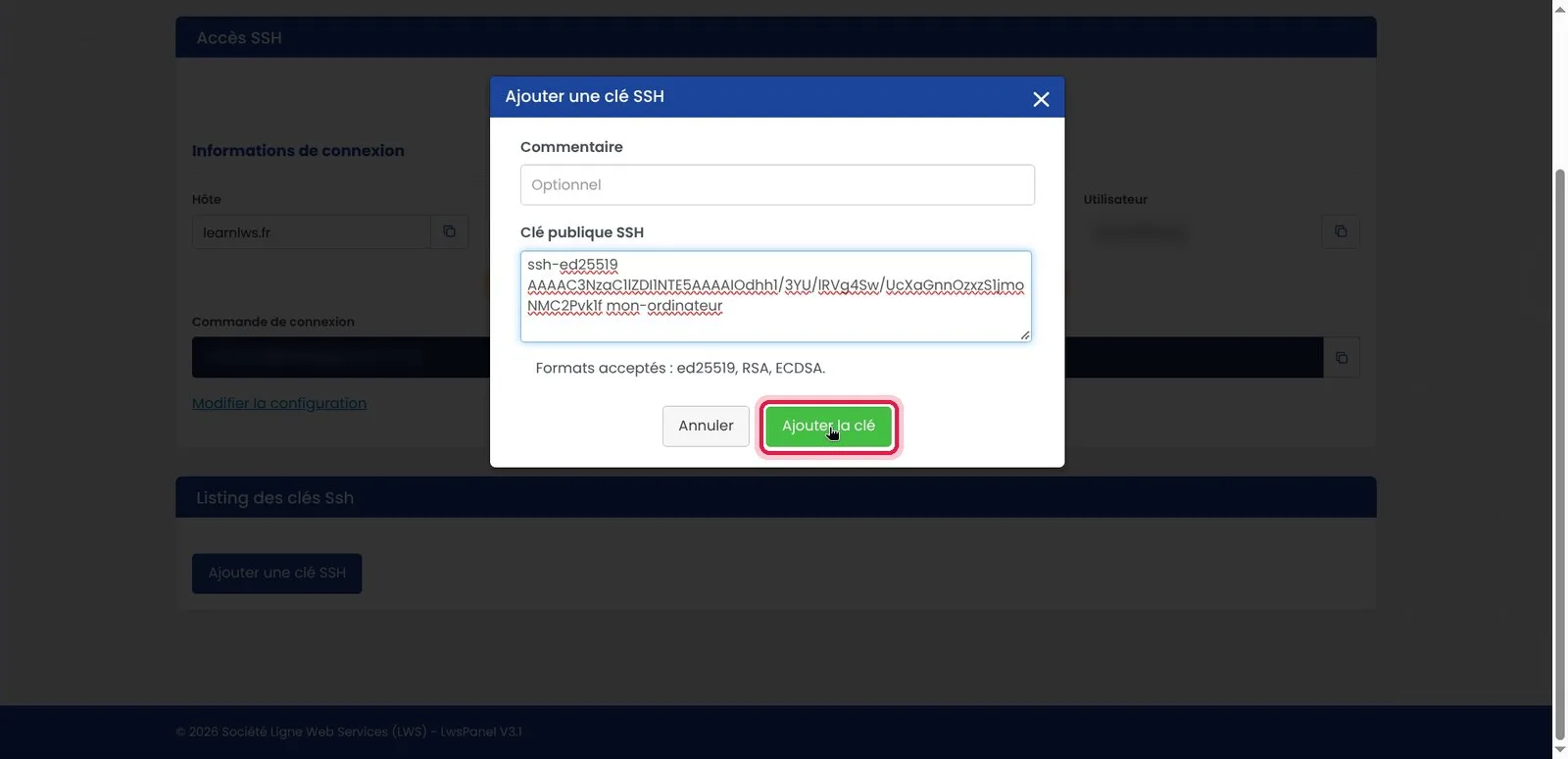
A pop-up window appears on the screen. Click in the SSH public key field and paste the entire text copied from your terminal in step 2.
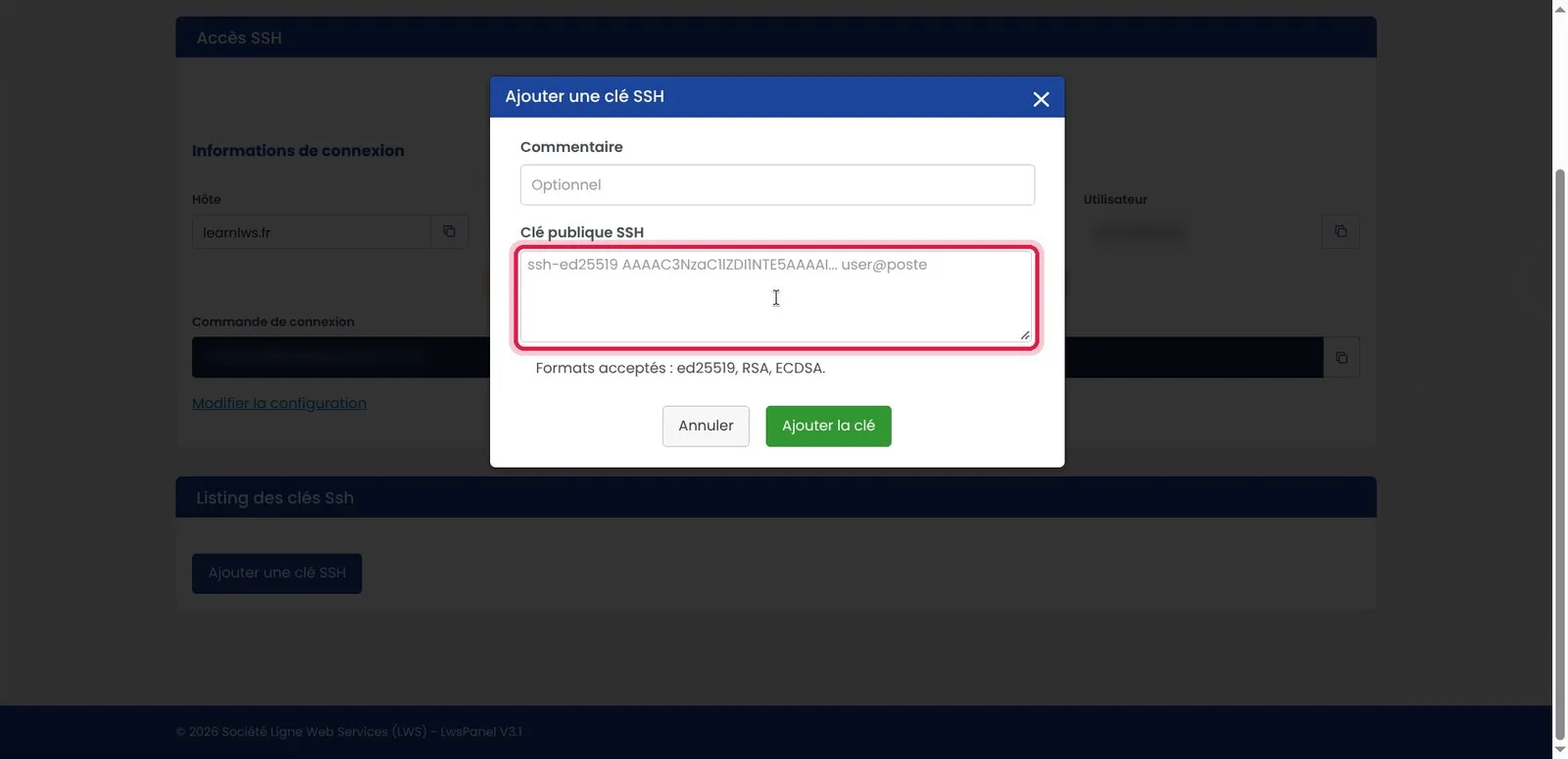
Check that the string begins with the key format (for example ssh-ed25519) and contains no extra spaces at the beginning. Then click the green Add key button.
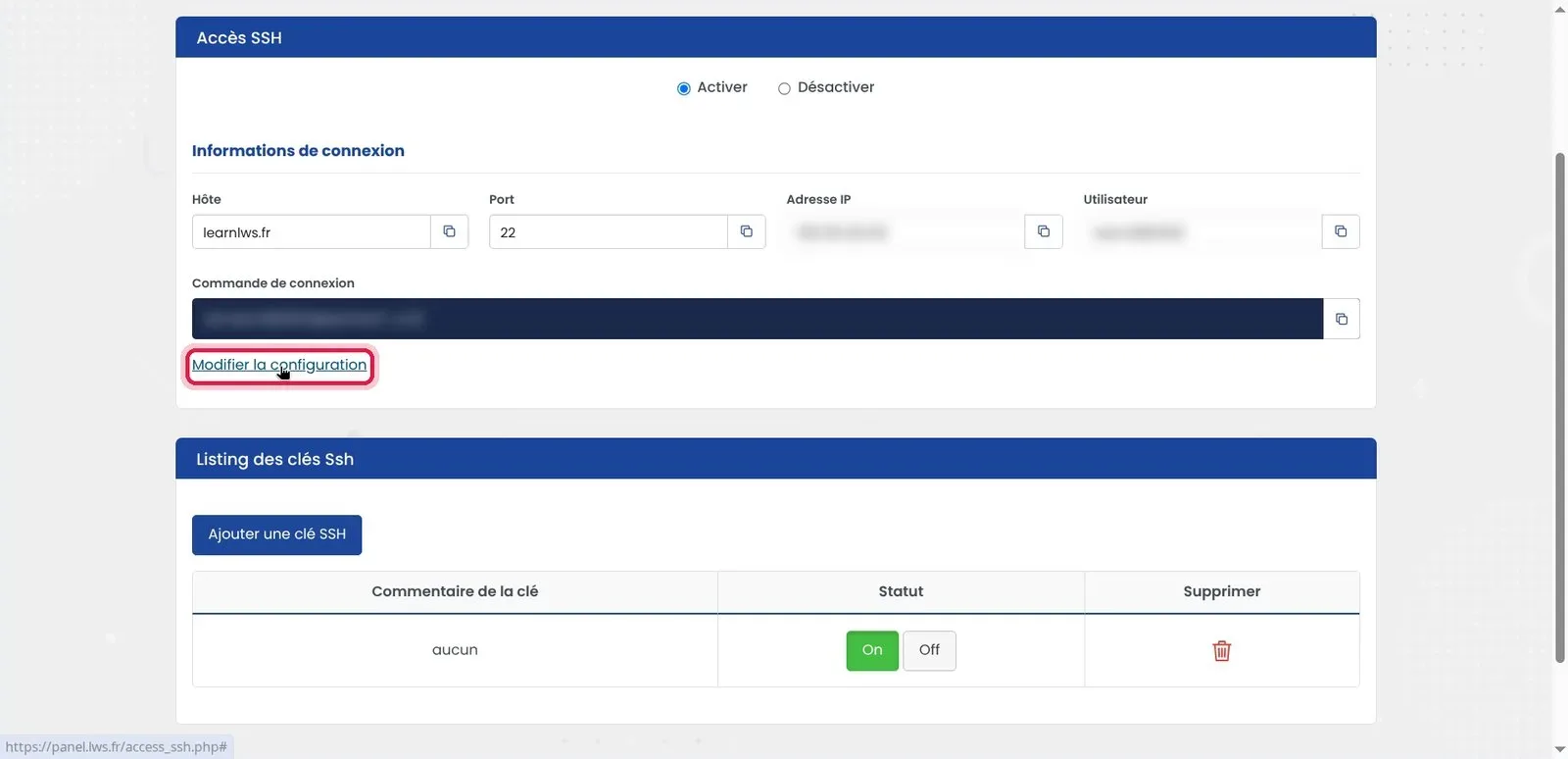
Once the key is saved in the list, go back to the top of the page in the Connection information section and click the Change configuration link.
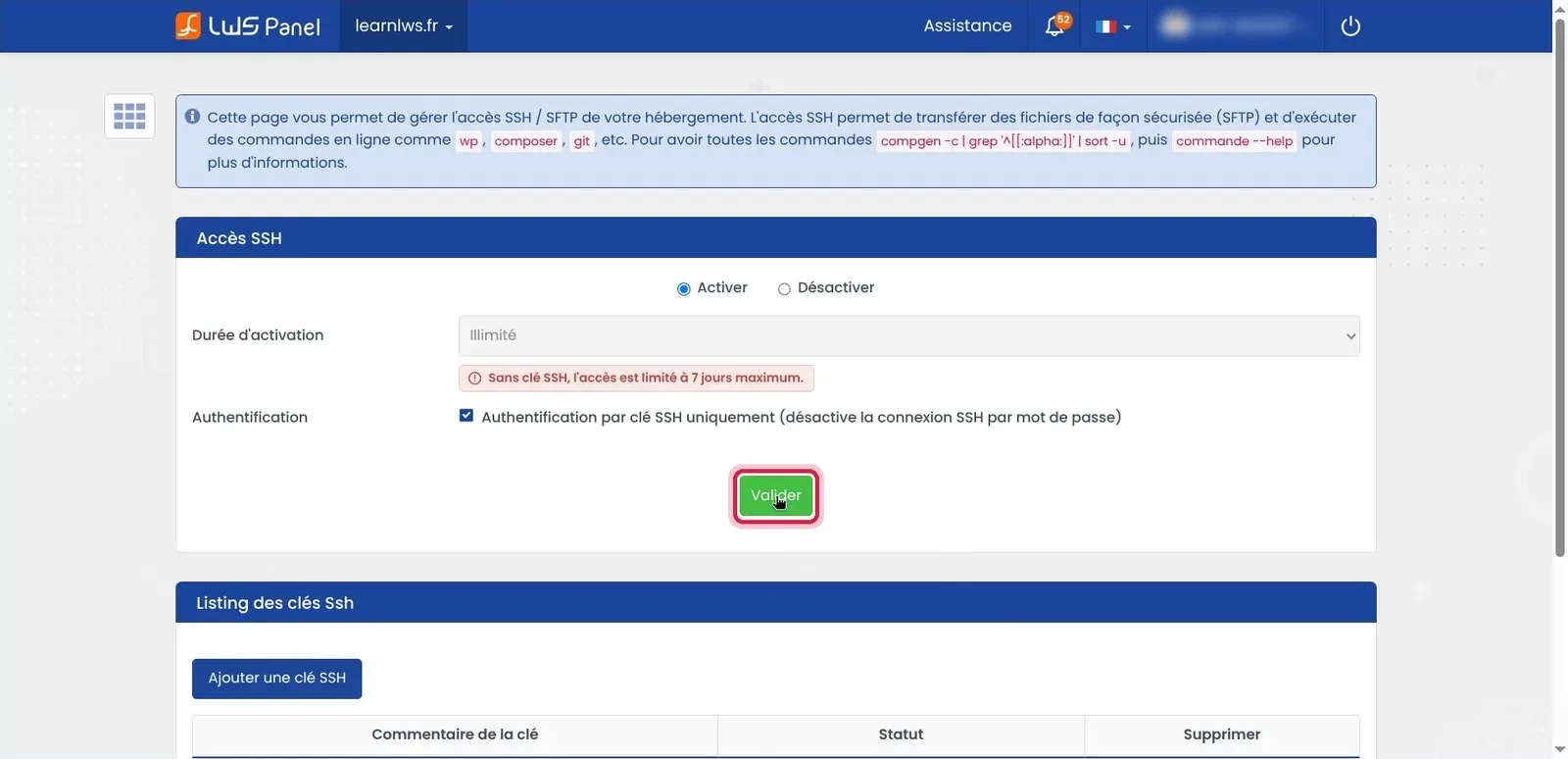
Make sure the general option is checked on Activate. Set the Activation duration to Unlimited, then check the box SSH key authentication only (disables SSH password login) to protect your account. Finally click the green Validate button.
Go back to your command terminal. Run the ssh command, specifying the location of your private key with the -i parameter, followed by your SSH user ID and the host name of your hosting account (indicated in your LWS Panel). On the first attempt, the terminal displays a security warning about the remote machine's fingerprint: type yes then confirm.
ssh -i ~/.ssh/lws_hebergement learn2883932@learnlws.frThe authenticity of host 'learnlws.fr (2a00:7ee0:1:0:3:2234:0:414)' can't be established.
ED25519 key fingerprint is SHA256:pW7qVdjWOl1Ebc6mnLmjOB6Z9dno2hostWO8ew4y4Fs.
This key is not known by any other names.
Are you sure you want to continue connecting (yes/no/[fingerprint])? yes
Warning: Permanently added 'learnlws.fr' (ED25519) to the list of known hosts.You are now connected to the Debian server of your LWS web hosting. You can check your current location with pwd and display the contents of your web directory with ls. To close the SSH session and return to your computer prompt, simply type exit.
pwd
ls
exit/var/www/learnlws.fr/htdocs
default_index.html
disconnect
Connection to learnlws.fr closed.This message indicates that the private key used on your computer does not match the public key registered in the LWS Panel, or that the -i parameter is not pointing to the correct file. Also check that you have properly checked and validated SSH service activation in your customer area.
This notification appears when full SSH shell access has not yet been validated or when the status has remained restricted to SFTP file transfer only. Go back to your LWS Panel, SSH Access section, then make sure you have checked Activate and validated the configuration.
This security alert appears when the remote server fingerprint has been modified (for example after an infrastructure migration). To resolve the issue, remove the old fingerprint saved on your computer with the command ssh-keygen -R your-domain.fr before reconnecting.
Yes, some corporate networks or shared connections block outbound connections on TCP port 22. Test your connection from another network (such as a 4G/5G mobile hotspot) to check whether the block comes from your router or local firewall.
Ask the LWS team and the community. Answers are published after moderation.
 About LWS :
LWS is a 100% French web hosting company that focuses on quality and innovation and offers a responsive and competent technical service at affordable prices.
About LWS :
LWS is a 100% French web hosting company that focuses on quality and innovation and offers a responsive and competent technical service at affordable prices.



 Yes
Yes No
No