
Online help
The web host accessible to all
Procédure
Service concerned : Emails with LWS Panel formula / Pro email
Panel concerned : LWS Panel
Level : intermediate
DKIM makes it possible to sign emails sent from your domain name. This signature helps mail services verify that your messages are authorized and that they have not been modified during sending.
In LWS Panel, the DKIM record is normally added automatically when your domain name is registered with LWS, uses LWS DNS, and uses the mail service included in your plan. A manual fix may however be necessary if the record has been deleted, if it is missing, or if the domain's DNS zone is managed by another provider.
This help concerns email managed from LWS Panel.
Are you using another environment?
Before adding or correcting DKIM, check where your domain name's DNS are managed.
If your domain uses LWS DNS, you can add the DKIM record from the LWS DNS Zone.
If your domain uses external DNS, you must copy the DKIM values displayed in LWS Panel and send them to the service or provider that manages your domain's DNS zone.
Modifying the LWS DNS Zone will have no effect if your domain uses external DNS servers. In this case, the DKIM record must be added in the actually active DNS zone.
In the email administration of your domain, LWS Panel displays a block called Email status. This block allows you to check the important elements for sending emails, including:
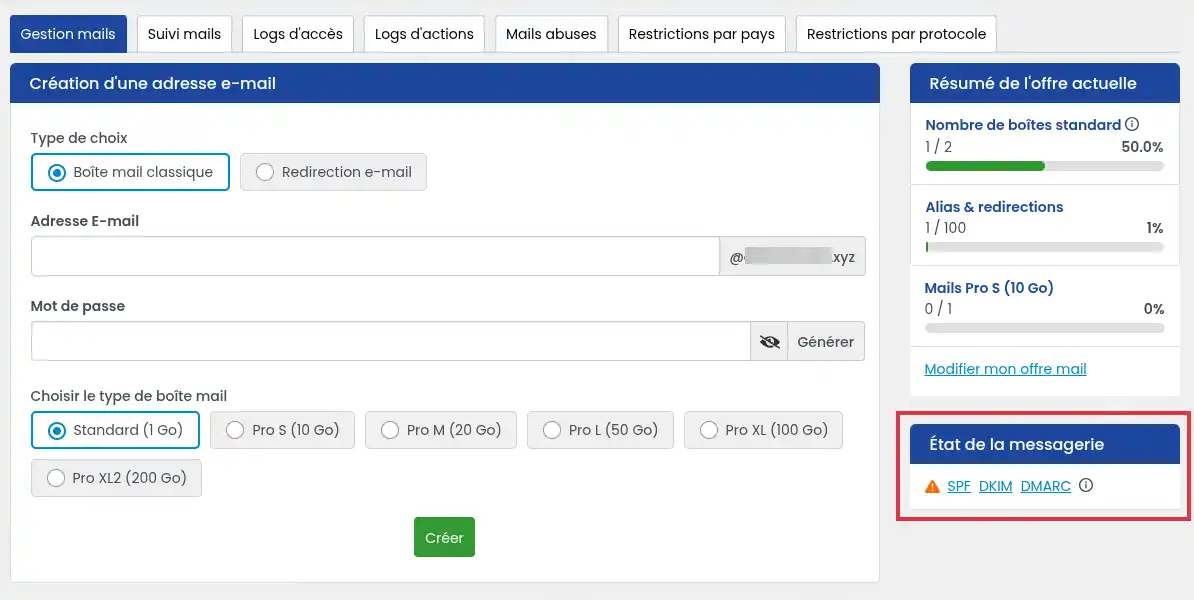
If a problem is detected, an orange icon appears. For DKIM, this means that the expected record was not found or has not yet been properly taken into account.
Click the DKIM link to display an information window. It contains the values to add in the domain's DNS zone.
From LWS Panel, open the email address administration for your domain.
In the Email status block, click DKIM.
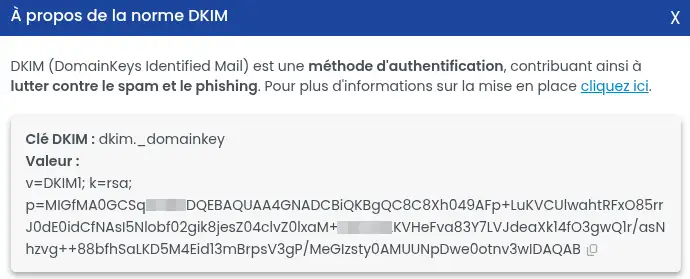
A window opens with the DKIM information to use. You will find:
dkim._domainkey ;v=DKIM1; k=rsa; p=....Copy both pieces of information without modifying them.
The DKIM record to create is a DNS record of type TXT. The DKIM key corresponds to the DNS entry name, and the value corresponds to the content of the TXT record.
If your domain name uses LWS DNS, add the record in the domain's DNS Zone.
To do this, follow the dedicated documentation
When adding the DNS entry, choose the TXT type, then fill in:
dkim._domainkey ;Then validate the record addition.
The DKIM value may be long. Copy it in full, without adding or removing any characters. An incomplete or modified key will not be recognized.
If your domain uses external DNS servers, do not modify the LWS DNS Zone.
You must send the information displayed in the DKIM window to the provider managing your DNS:
The provider or external DNS service will need to add this record in your domain's active DNS zone.
After adding the TXT record, wait a few hours for DNS propagation. It may not be taken into account immediately.
Then return to your domain's email administration, then check the Email status block.
When DKIM is correctly configured, the DKIM alert should no longer appear in the email status. Your emails can then be signed with the domain's DKIM key.
I don't see a DKIM alert
If no DKIM alert appears in the Email status block, no action is needed. The DKIM record is already detected correctly.
I added the DKIM record, but the alert is still displayed
Wait for DNS propagation, then check again. If the alert remains displayed, check that:
My domain uses external DNS
In this case, the addition must be made with the provider managing the domain's DNS. The LWS DNS Zone will not be taken into account as long as the domain's DNS servers are not LWS's.
I deleted the DKIM record by mistake
If DNS are managed at LWS, retrieve the key and value again from the DKIM link in the Email status block, then recreate the TXT record in the LWS DNS Zone.
If DNS are external, send this information to the DNS provider so that they can recreate the entry.
Ask the LWS team and the community. Answers are published after moderation.
 About LWS :
LWS is a 100% French web hosting company that focuses on quality and innovation and offers a responsive and competent technical service at affordable prices.
About LWS :
LWS is a 100% French web hosting company that focuses on quality and innovation and offers a responsive and competent technical service at affordable prices.



 Yes
Yes No
No