
Online help
The web host accessible to all
Procédure
The quotas (RAM memory, disk space, etc.) change regularly on our servers. Please go directly to the sales website to check the latest values.
Classic VPS servers
| VPS S | VPS M | VPS L | VPS XL | |
| RAM memory | 4 GB | 8 GB | 12 GB | 16 GB |
| SSD VSWAP memory | 4 GB | 8 GB | 12 GB | 16 GB |
| Included disk space (SSD) | 100 GB | 150 GB | 200 GB | 250 GB |
| Number of inodes | 5 000 000 | 7 500 000 | 10 000 000 | 12 000 000 |
| Max number of processes | 3500 | 5250 | 7 000 | 8750 |
| Physical firewall rules (number of additional TCP/UDP ports) | 5 | 10 | 20 | 30 |
VPS Pro servers
| VPS PRO-S | VPS PRO-M | VPS PRO-L | VPS PRO-XL | |
| RAM memory | 18 GB | 20 GB | 22 GB | 24 GB |
| SSD VSWAP memory | 18 GB | 20 GB | 22 GB | 24 GB |
| Included disk space (SSD) | 300 GB | 350 GB | 400 GB | 450 GB |
| Number of inodes | 13 000 000 | 14 000 000 | 16 000 000 | 19 000 000 |
| Max number of processes | 1 500 | 1 750 | 2 000 | 2 250 |
| Physical firewall rules (number of additional TCP/UDP ports) | unlimited | unlimited | unlimited | unlimited |
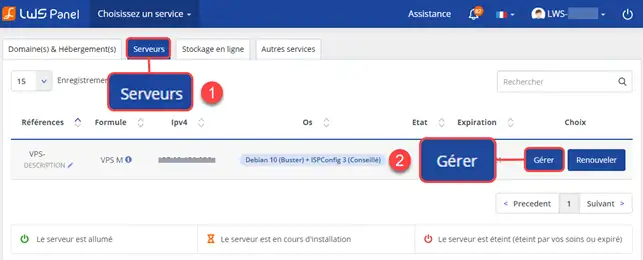
1. Go to your LWS panel client area then to your VPS administration as follows:
2. Once in your dedicated server administration, you can see the quota used. (See the image below for an example)
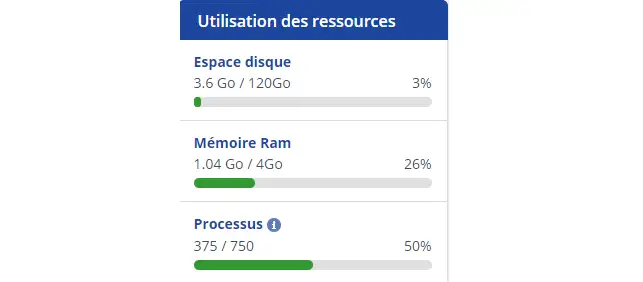
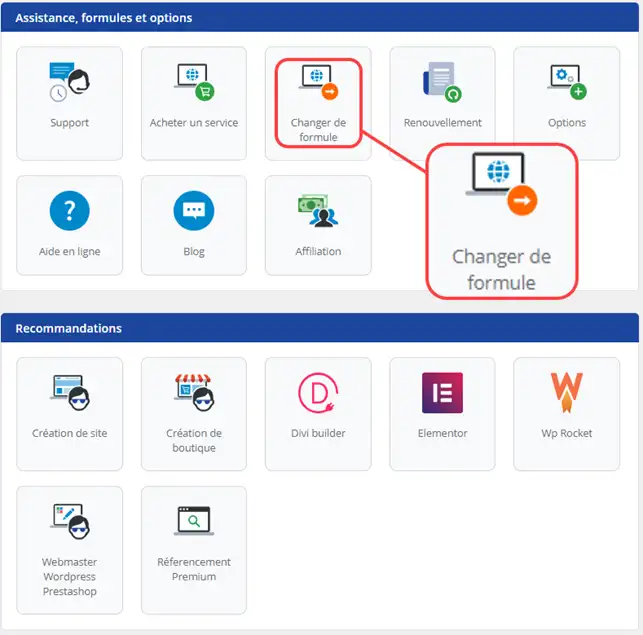
To increase your quota or change plan, you need to change your offer. For example, when you have a VPS S offer, you need to move to VPS M to increase the allocated space or memory.
1. First, you need to log in to your client area and then go to your VPS administration like this
2. Once inside, you must click on plan change on the administration page of your dedicated server.
# Used memory (physpages)
This is the RAM memory usable inside the VPS. In the display of the "beancounters", if the value of the maxheld field exceeds or approaches the value of limit, it means the maximum value has been reached. Under these conditions the server may experience occasional service interruptions (sites inaccessible, mail service unavailable).
If the held value reaches the limit value, then the VPS is clearly undersized for your usage. The VPS becomes completely unstable and services "crash" one by one.
Symptoms - Exceeding this quota causes services to stop and messages such as:
fork: Cannot allocate memory
# Stored inode files (diskinodes)
Inodes are data structures containing information about files stored in certain file systems (notably Linux/Unix types). Commonly, the number of inodes corresponds to the number of stored files.
Symptoms: Exceeding this quota causes error messages such as
Disk quota exceeded
Resolution: If you use a CMS such as Prestashop or Wordpress, remember to delete cache files, which can be very numerous. For Wordpress, you can use the WP Super Cache plugin; for Prestashop, empty the Smarty folder.
How do I reset my quotas to zero?
Generally, a simple restart of the server is enough to reset the quotas. If, after restarting your server, the quotas have not been reset, completely stop the server and wait one or two minutes before starting it again. See: how to restart and shut down my server
How do I increase my quotas?
Quotas increase depending on the VPS plan; for example, for the VPS S the maximum number of processes is 500 while for the VPS XL the maximum number of processes is 1250.
To change your plan, simply go to your client area and use the "plan change" option.
There is no loss of data or IP address; the change takes place within a few minutes, but it is necessary to restart your server.
If the change does not appear immediately in your client area, that is normal, because the commercial side also needs to be updated, so it may take a little longer.
Once the request has been made, the change will be carried out during the day.
Ask the LWS team and the community. Answers are published after moderation.
 About LWS :
LWS is a 100% French web hosting company that focuses on quality and innovation and offers a responsive and competent technical service at affordable prices.
About LWS :
LWS is a 100% French web hosting company that focuses on quality and innovation and offers a responsive and competent technical service at affordable prices.



 Yes
Yes No
No