
Online help
The web host accessible to all
Procédure
PrestaShop includes several settings that you can use to debug your store
Generally, these settings are intended for use by developers and should not be used on production sites. However, you can also use them in certain scenarios to help you resolve issues you may encounter, such as modules or themes.
If you have a shared hosting plan of the Perso/Starter/Standard/Performance type:
If you have a shared hosting plan of the cPanel type:
If you have a shared hosting plan of the Plesk type:
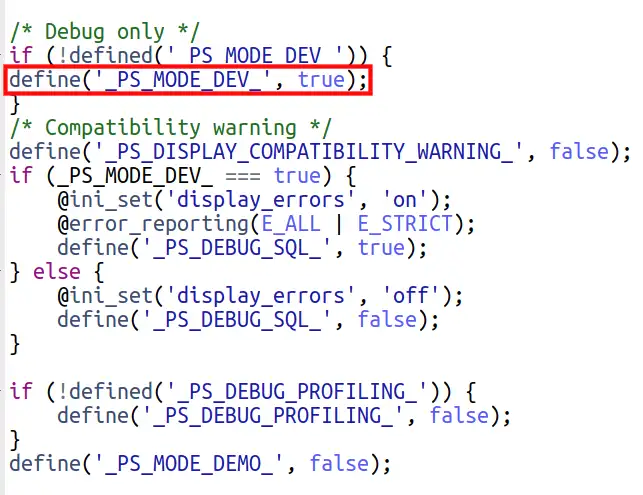
After opening the defines.inc.php file to edit it, change the line define('_PS_MODE_DEV_', false); to define('_PS_MODE_DEV_', true); and save the file.
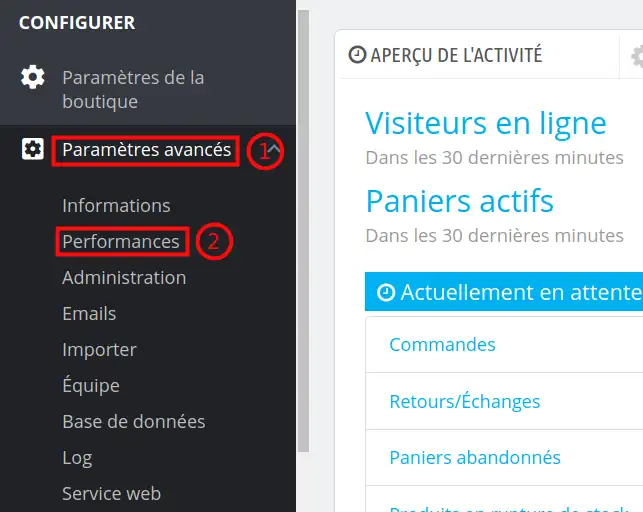
To do this, log in to your PrestaShop administration panel, then from the "Advanced Parameters" menu (1) click on "Performance" (2)
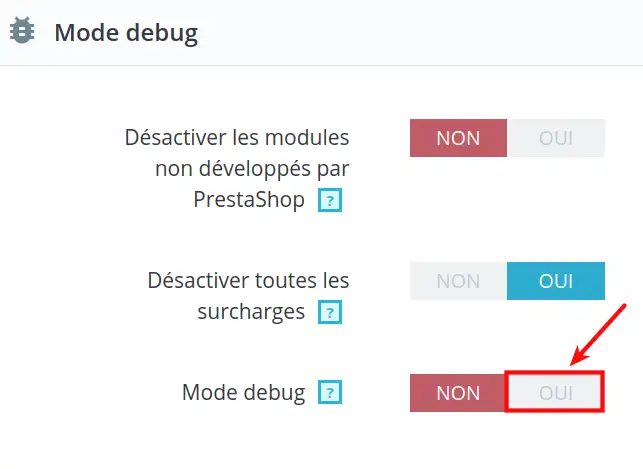
You have learned how to activate Debug mode in your PrestaShop, Debug mode allows you to view important information such as errors that will help you fix your site's operation
Ask the LWS team and the community. Answers are published after moderation.
 About LWS :
LWS is a 100% French web hosting company that focuses on quality and innovation and offers a responsive and competent technical service at affordable prices.
About LWS :
LWS is a 100% French web hosting company that focuses on quality and innovation and offers a responsive and competent technical service at affordable prices.



 Yes
Yes No
No