
Online help
The web host accessible to all
Procédure
This tool available on cPanel allows you to view the quota of all your email accounts and delete certain emails. In fact, you can delete the oldest emails, as well as the largest ones.
- Have a cPanel or Cloud cPanel plan
1. Log in to your LWS customer area.
2. Access your cPanel interface.
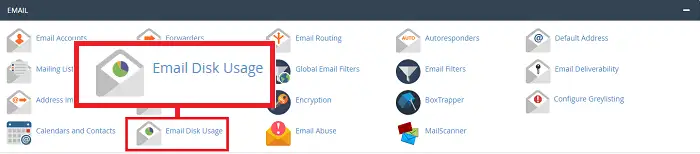
3. Click the "Email Disk Usage" button found in the "Email" section of your cPanel interface.
4. In the "Account" dropdown window, search for the email account for which you want to check the email quota of each folder.
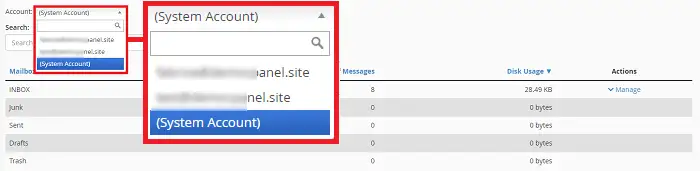
You will find a summary for each email address containing:
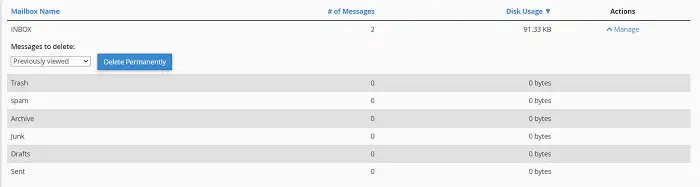
5. If you want to delete emails from one of the folders concerned, click on the "Manage" tab located behind the folder concerned.
6. Select one of the following deletion options from the menu:
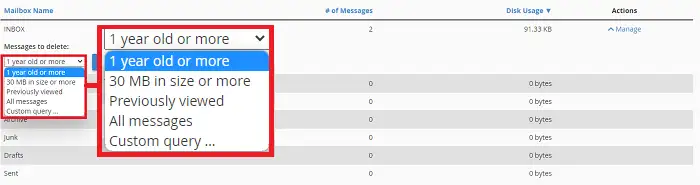
7. Click the "Delete Permanently" button to proceed with deleting the emails concerned.

Please note that deleting emails is final and irreversible. Therefore, it is necessary to be careful about what you are going to delete.
As indicated, it is possible to customize your email deletion option by specifying a desired search query format. Among the formats, you can find the following:
savedbefore 2weeks if you want to delete all emails older than 2 weeks. You can also delete emails older than 7 days by specifying savedbefore 7days .savedon 15-Aug-2022 .savedsince 15-Aug-2022.Regarding date specification, it works as follows:
You also have the option to delete emails by size. The sizes that can be used are as follows:
If you want to delete an email larger than 1 GB, the query will be larger 1M or larger 1024k .
You are now able to check the quota of your email accounts and delete the oldest emails from each of your mailboxes.
Ask the LWS team and the community. Answers are published after moderation.
 About LWS :
LWS is a 100% French web hosting company that focuses on quality and innovation and offers a responsive and competent technical service at affordable prices.
About LWS :
LWS is a 100% French web hosting company that focuses on quality and innovation and offers a responsive and competent technical service at affordable prices.



 Yes
Yes No
No