Wordpress CMS1 January 2020By Aurélien T. 1 min read
How do I add a Captcha to a Wordpress form?
Procédure
What is reCAPTCHA?
reCAPTCHA was designed in 2009 to check that you are a real person and not a robot. It makes it possible to send your form securely, thereby preventing SPAM from being sent. One of the most popular extensions for contact forms is Contact Form 7, which has an add-on module that lets you add a CAPTCHA system to your form in just a few clicks.
How do I add a Captcha to a Wordpress contact form?
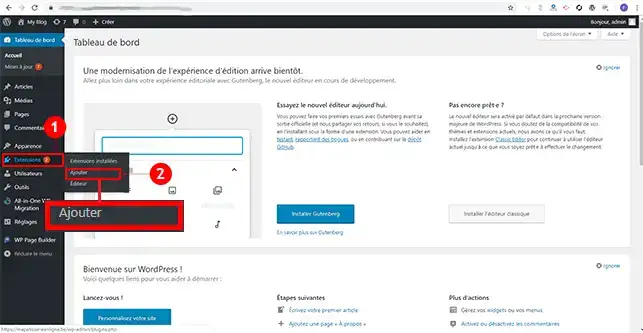
11. Log into your Wordpress dashboard, click on"Extensions" and then on"Add".
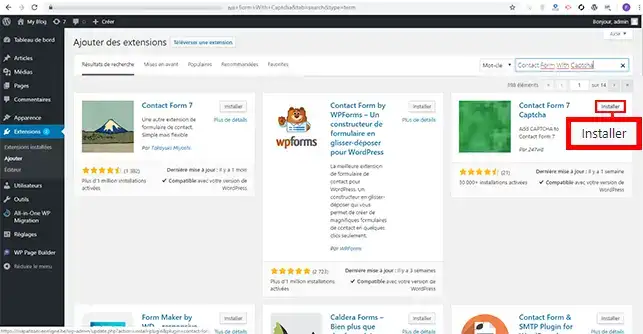
22. Search for the"Contact Form 7 Captcha" module and click on the"Install" button.
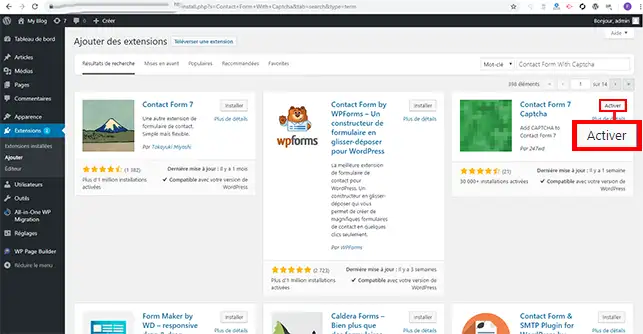
33. Activate the extension by clicking on the"Activate" button that has replaced the"Install" button.
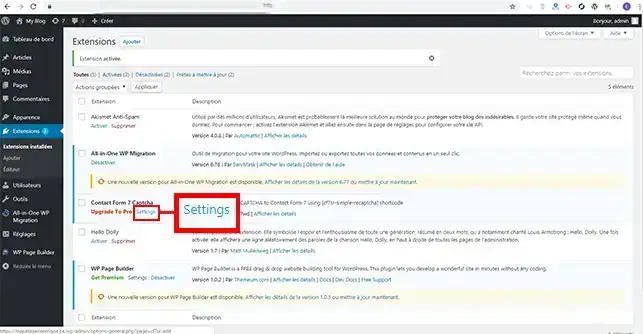
44. You will be redirected to the list of extensions installed on your Wordpress site. Find the"Contact Form 7 Captcha" module that you have just installed and click on the"Setting" tab just below this module.
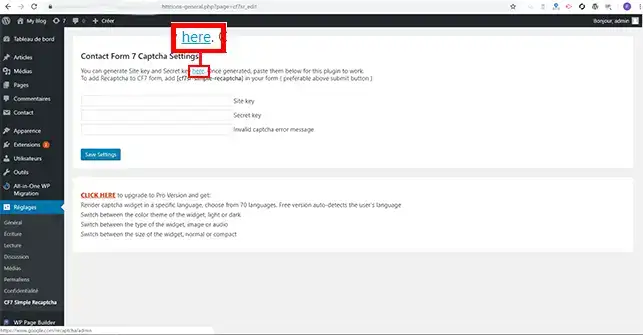
55. Click on the"here" tab to go to Google's reCaptcha page. This page will allow you to configure your extension.
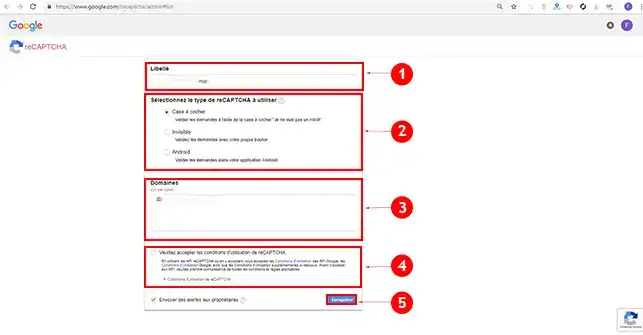
66. On the Google page, there is a form to fill in. You need to fill it in as follows:
Label: enter the name of your website
Select the type of reCAPTCHA to be used: you have three options: The most commonly used reCAPTCHA is the checkbox. However, you can choose invisible reCAPTCHA and Android reCAPTCHA (specially designed for Android devices).
Domains: enter the domain(s) to which the reCAPTCHA should be applied.
Please accept the terms of use: you will need to tick this box before you can validate the application form.
Then click on the"Save" button.
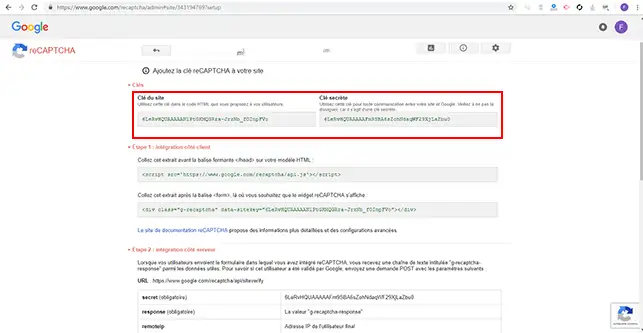
77. Two keys will be generated: the website key and the secret key. These two keys are needed to finalise the configuration of your reCAPTCHA extension.
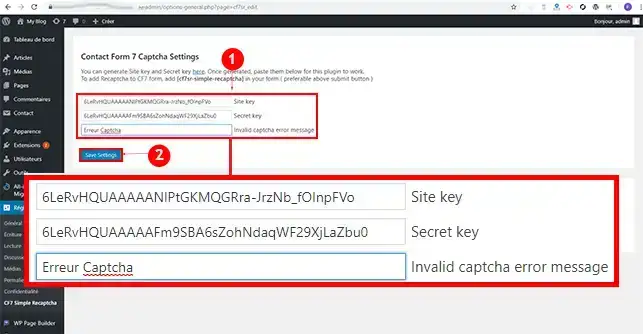
88. Return to your Wordpress Dashboard and fill in the three fields as follows:
Site Key: Enter the site key Google reCAPTCHA generated for your website
Secret Key: Enter the secret key generated by Google
Invalid captcha error message: Enter an error message if the captcha is incorrect.
Finally, click on the"Save Setting" button
Conclusion
You are now able to insert a captcha on your Wordpress form. reCAPTCHA will identify whether it is a robot or a real person and will preventspam being sent via your Wordpress hosting.
Don't hesitate to share your complaints and questions!



 Yes
Yes No
No About
About 