
Online help
The web host accessible to all
Procédure
WordPress is one of the most widely used content management systems in the world. As a result, it is also one of the most hacked CMSs. To avoid any risk of hacking, it is necessary to secure WordPress. Several extensions are available to allow you to secure your website in just a few minutes.
The first thing to secure your site is to keep it up to date. By logging into your dashboard, you can update WordPress in just a few clicks.
Wordfence is a WordPress extension that allows you to secure your WordPress website.
This extension has the following features:
1. Wordfence, a plugin offering comprehensive security for your site.
To secure your site, we recommend the Wordfence plugin. It offers a firewall, malware scanning, real-time traffic monitoring, secures connections to your site, ...
This plugin is updated regularly to remain compatible with the latest versions of WordPress.
2. Installing Wordfence
To install Wordfence:
- Go to the dashboard of your website under WordPress
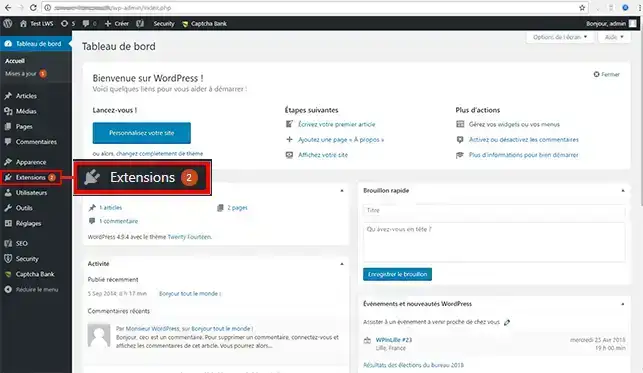
- In the dashboard menu, click on "Plugins":
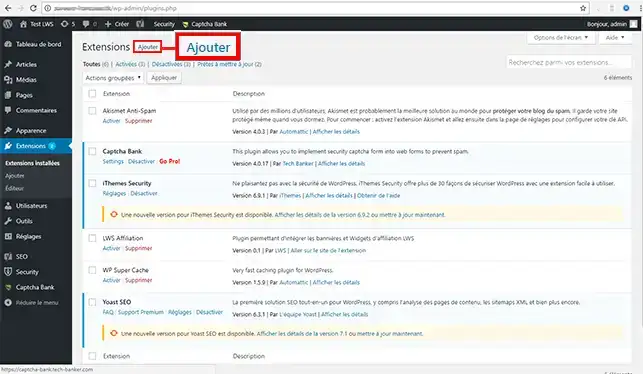
- On the page that appears, click on the "Add" link:
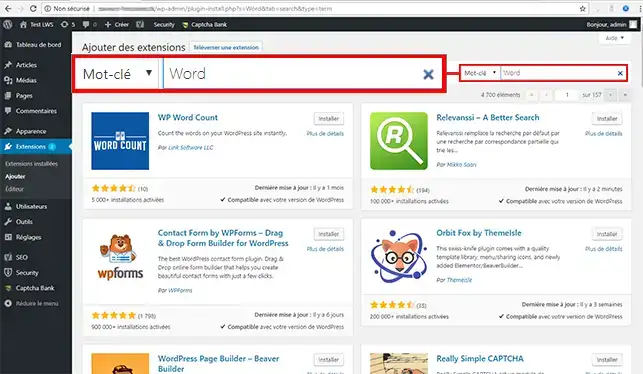
- In the search bar, type Wordfence and validate:
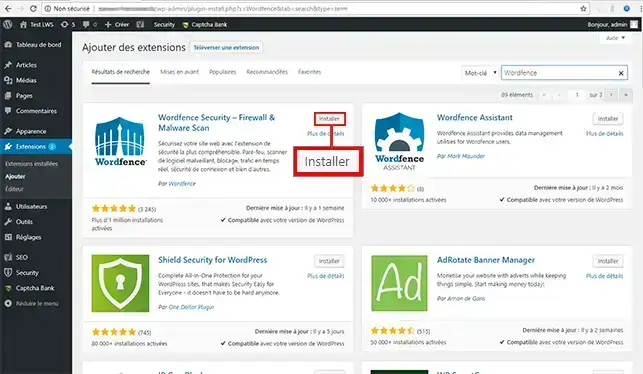
- Click the "install" button for the Wordfence Security plugin:
-As soon as the plugin is installed, click on the "Activate" button. A message will tell you that activation was successful.
1. Go to the scan menu of the Wordfence tool.
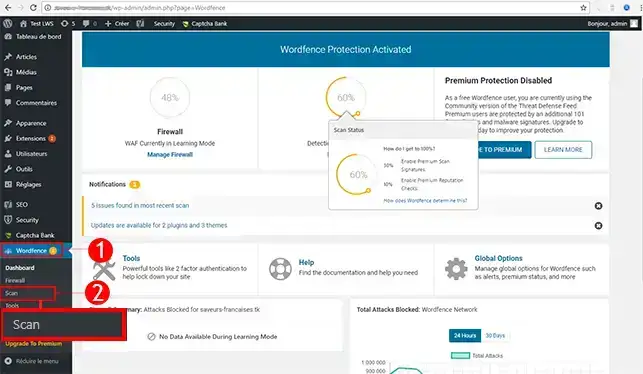
2. Start a scan of your site by clicking the button: "Start New Scan"
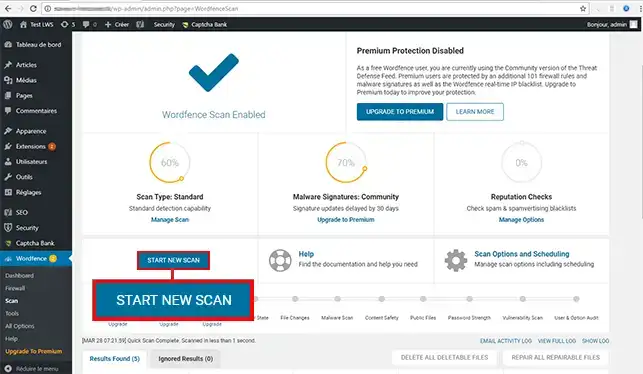
3. Carry out the recommended changes
Once the scan is complete, you will have a report with the different actions to take. These actions are suggested in order to improve your site. Simply validate each change.
Be sure to update WordPress and this extension regularly in order to maintain good security for your site.
You are now able to secure your WordPress website with Wordfence. Wordfence scans your website in real time, looking for the slightest virus, the slightest security flaw, and the slightest hacking attempt. Reports are sent to you by email regularly to inform you of issues concerning your website.
Feel free to share your feedback and questions!
Ask the LWS team and the community. Answers are published after moderation.
 About LWS :
LWS is a 100% French web hosting company that focuses on quality and innovation and offers a responsive and competent technical service at affordable prices.
About LWS :
LWS is a 100% French web hosting company that focuses on quality and innovation and offers a responsive and competent technical service at affordable prices.



 Yes
Yes No
No