
Online help
The web host accessible to all
Procédure
Google Workspace is a set of collaborative services and tools enabling email exchange, video conferencing, and real-time collaboration on documents. The services included are as follows:
Google requires verification that you are indeed the manager of the domain you wish to link to Google Workspace; therefore, prior validation is mandatory.
1. Open the Google Workspace setup tool
2. Follow the instructions in the setup tool. Google will then suggest adding a TXT-type DNS record to your domain's DNS Zone.
3. Log in to your customer area, click on "Domains and hosting" then on "Manage" located behind the relevant domain name. Then click on "DNS Zone"
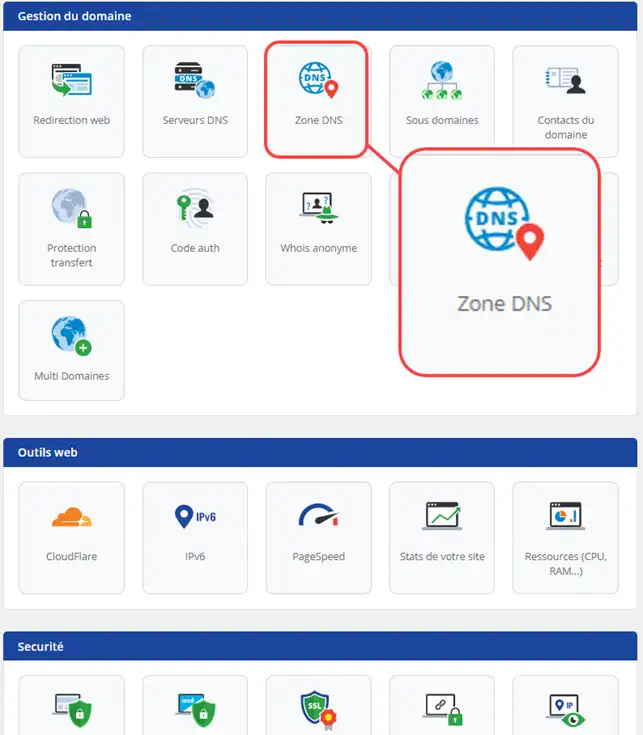
4. Choose a Zone of type "TXT" and enter the sign "@" as the name.
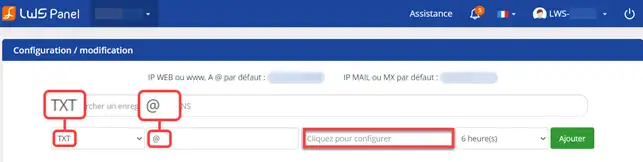
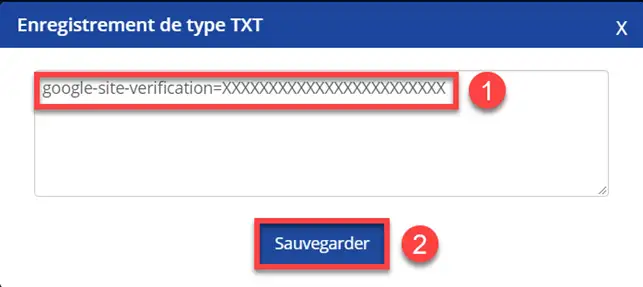
6. Click on the box "Click here to configure", enter the TXT Zone provided by Google. Save your TXT record.
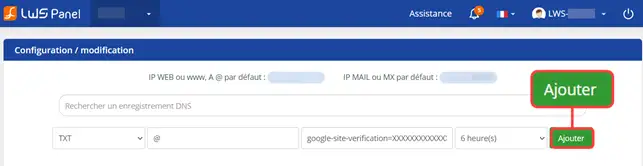
7. Click the "Add" button to add your record in the DNS Zone
8. Go back to Google Workspace and click the "Validate" button to verify ownership of your domain name.
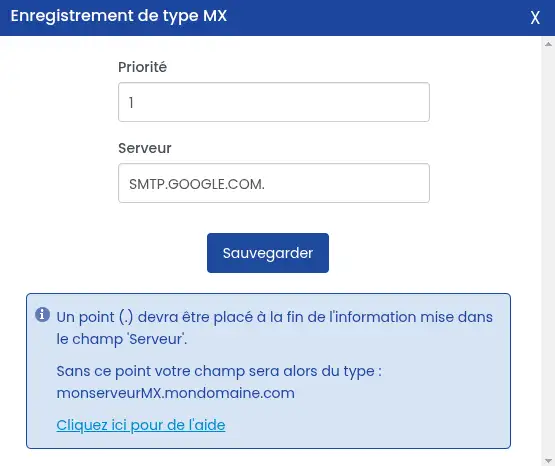
1. Edit the MX record present in the LWS DNS Zone by clicking the pencil icon on the right

2. Enter priority 1 as well as the server concerned SMTP.GOOGLE.COM. (don't forget the "." at the end) and click the "Save" button to validate your request.
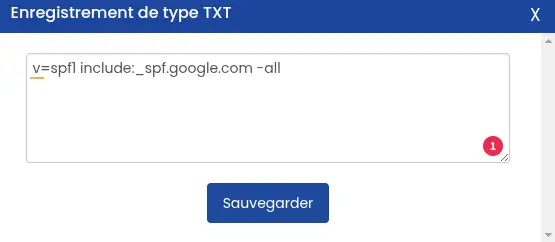
1. Edit the TXT record present in the LWS DNS Zone whose value begins with "vspf=1" by clicking the pencil icon on the right

2. Enter the value v=spf1 include:_spf.google.com -all in place of the indicated value and click the "Save" button to validate your request.
Important: in Google Workspace, after enabling Gmail for your organization, you must wait 24 to 72 hours before you can obtain your DKIM key in the admin console. If you try to generate a key before this delay, you may receive an error indicating that the DKIM record has not been created.
1. Sign in with an administrator account to the Google Admin console. If you are not using an administrator account, you cannot access the admin console.
2. Go to the menu: Apps > Google Workspace > Gmail. Requires the Gmail Settings administrator privilege.
3. Click Authenticate email.
4. In the Selected domain menu, select the domain in which you want to configure DKIM.
5. Click the Generate new record button.
6. In the Generate new record area, select your DKIM key settings:
7. Click Generate. On the Authenticate email page, the TXT record value is updated and this message appears: DKIM authentication settings updated.
8. Add the TXT record in the LWS DNS Zone by entering the DNS host name as the name and the record value provided by Google Workspace
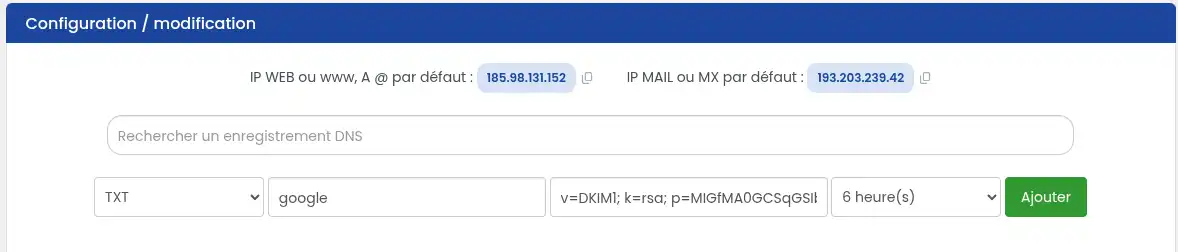
9. Then click "Add"
Once the above Zones have been added, you will need to wait up to 24 hours for them to propagate and become functional.
You now know how to:
Thank you for reading this article! Your feedback is valuable to us, so feel free to leave a comment below to share your experience with Google Workspace or ask questions 🗨️. We are here to help you!
Ask the LWS team and the community. Answers are published after moderation.
 About LWS :
LWS is a 100% French web hosting company that focuses on quality and innovation and offers a responsive and competent technical service at affordable prices.
About LWS :
LWS is a 100% French web hosting company that focuses on quality and innovation and offers a responsive and competent technical service at affordable prices.



 Yes
Yes No
No