Procédure
Objective
This documentation explains how to configure an email address created at LWS in the Outlook software installed on your computer.
Once the configuration is complete, you will be able to send and receive emails directly from Outlook, without using Webmail.
Please note
This documentation concerns the classic versions of Outlook software:
- Outlook 2019
- Outlook 2021
- Outlook 2024
- Outlook Microsoft 365
These versions use a very similar configuration procedure.
[bcolor_orange]
This documentation does not cover the "New Outlook" software (new Outlook for Windows), which has a different interface and configuration method.
[bcolor]
Services concerned
This documentation is intended for users with an email address created at LWS, particularly in the following cases:
- email address included with a domain name
- email address included with shared hosting
- email address created from your LWS customer area
Prerequisites
Before starting the configuration, please make sure you have the following items:
- your full email address
- example:
contact@votredomaine.fr
- the password for this email address
- Outlook software installed on your computer
- an active Internet connection
- your email address settings
In most cases at LWS, the settings are :
| Parameter |
Value |
| Identifier |
your full e-mail address |
| Password |
address password |
| Incoming server (IMAP) |
mail.yourdomain.ext |
| Outgoing server (SMTP) |
mail.yourdomain.ext |
| IMAP port |
993 |
| POP port |
995 |
| SMTP port |
465 |
| Security |
SSL/TLS |
[bcolor_orange]
Replace yourdomain.ext with your real domain name.
Example:
if your e-mail is contact@monsite.fr
The server will be mail.monsite.fr
[bcolor]
When configuring your account, Android may ask you to choose between IMAP and POP. See our tips for making this choice.
Manual configuration of the email address in Outlook
Step 1: Open Outlook
Open Outlook on your computer.
If no account has yet been set up, the configuration wizard will appear automatically.
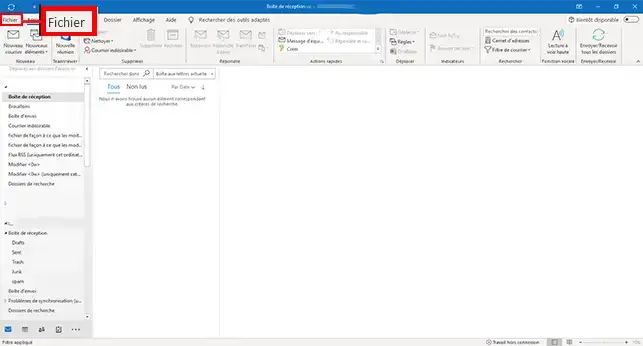
If Outlook is already configured with another account :
-
Click on File
-
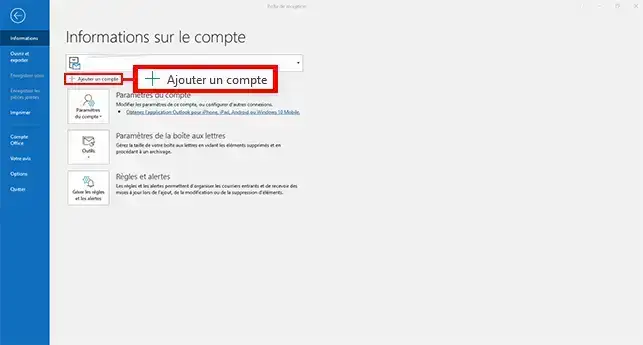
Click on Add an account
Step 2: Enter your email address
A configuration window will appear.
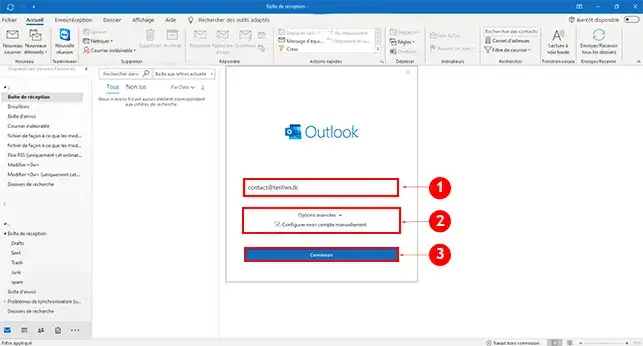
- Enter your full email address
- Click on Advanced options
- Tick Configure my account manually
- Click on Connection
Step 3: Choose the type of account
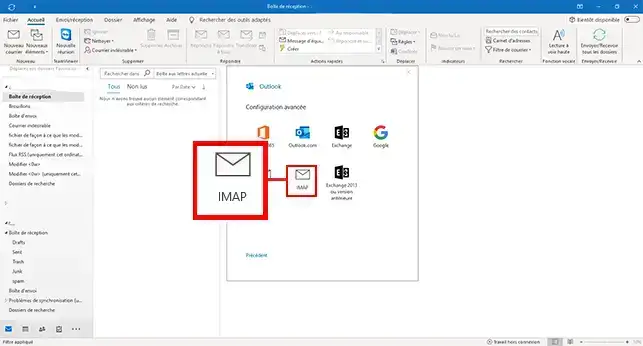
Outlook will ask you what type of account to use.
Select: IMAP (this method is recommended for most users)
Step 4: enter the server settings
You now need to enter your mail server details.
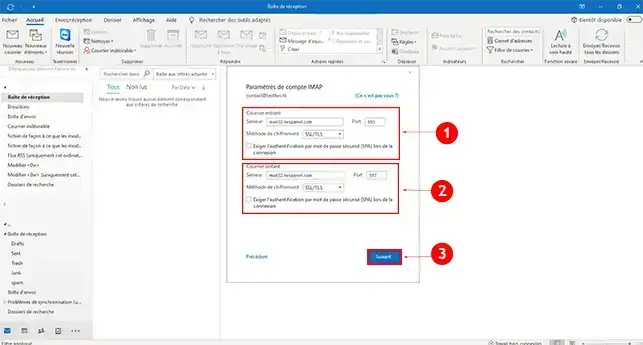
Incoming server (IMAP)
- Server:
mail.votredomaine.fr
- Port:
993
- Encryption method:
SSL / TLS
Outgoing server (SMTP)
- Server:
mail.votredomaine.fr
- Port:
465
- Encryption method:
SSL / TLS
Step 5: Enter the password
Outlook will now ask you for the password for your email address.
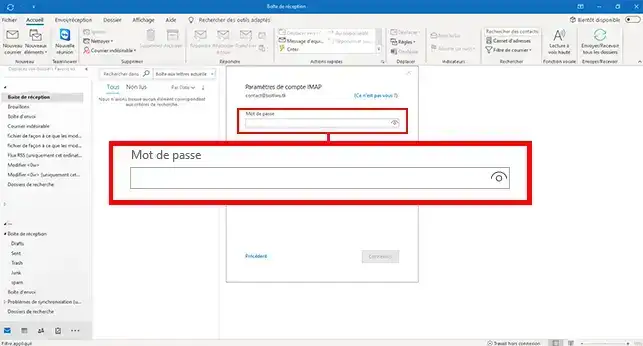
Enter the password and click Connect.
Step 6: Finalise the configuration
If the settings are correct, Outlook will confirm that the account has been added.
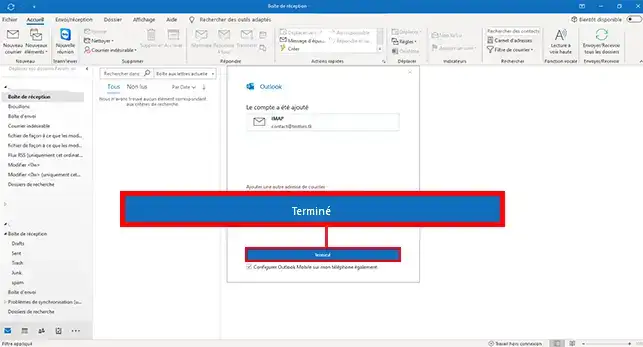
Click on Finish.
Your email address now appears in the list of your Outlook accounts.
Check that the configuration is working
Once your account has been configured, it's a good idea to carry out a test.
- Send a test email to another email address.
- Reply to this email to check that the messages have been received.
- Check that no error messages are displayed in Outlook.
If these checks are correct, your email address is correctly configured.
Common problems
Automatic configuration does not work
Outlook can sometimes propose incorrect settings.
In this case :
- choose Configure my account manually
- enter the settings indicated in this documentation
The Outlook interface does not exactly match the screenshots
Depending on the version of Outlook used (2019, 2021, 2024 or Microsoft 365), some windows may be slightly different.
In this case :
- use the names of the options as a guide
- follow the order of the steps described in this documentation
Password refused
Check that you are using :
- the password for your email address
- and not the password for your LWS customer area
If in doubt, reset the password for your email address.
Unable to send emails
Check :
- the SMTP server
- SMTP port
- SSL / TLS encryption
Start Outlook in Safe Mode
If you are still having problems configuring your email address, you can try starting Outlook in Safe Mode.
This mode allows you to launch Outlook without extensions or add-ons, which may solve some configuration problems.
- Close Outlook
- Press Windows + R
- Type the following command: outlook.exe /safe
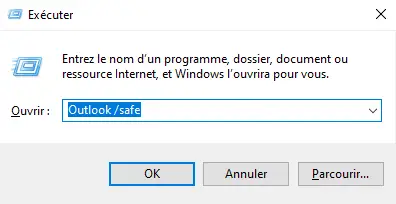
- Press Enter
Outlook will then start up in Safe mode.
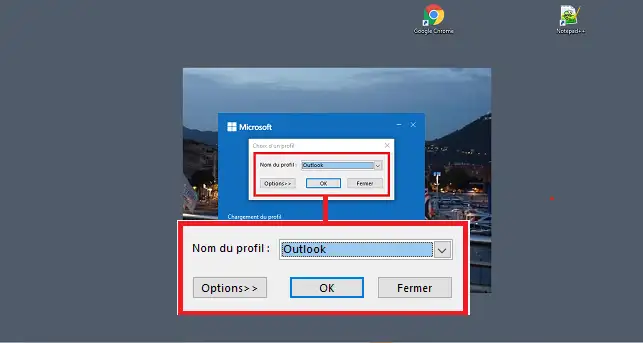
You can then retry configuring your email address.
To exit Safe Mode, you will need to close the software and reopen it.
Conclusion
You now know how to configure an LWS email address in Outlook (2019, 2021, 2024 and Microsoft 365).
This configuration allows you to send and receive your emails directly from Outlook while maintaining synchronisation with your mail server.
[tips_related_readings]
[/tips]



 Yes
Yes No
No About
About 